Employee Directory
 When your colleagues work in different cities and time zones, the first question before you call or invite someone is simple: is now a good time? The details pane of the Vitextra Employee Directory web part answers it at a glance. It shows the person's local time and how far ahead or behind you they are, their working hours with an "outside working hours" warning, and a free/busy timeline for today that you can compare with your own. This article explains what each element means, where the data comes from, and what administrators need to configure.
Where to find it
Select a person in the directory to open the details pane. Below the contact details, the pane shows:
- Local time — the person's current time and the difference from your time zone;
- Working hours — the person's working hours and, when relevant, an Outside working hours indicator;
- Availability — two free/busy timelines for today: the person's and your own (You).
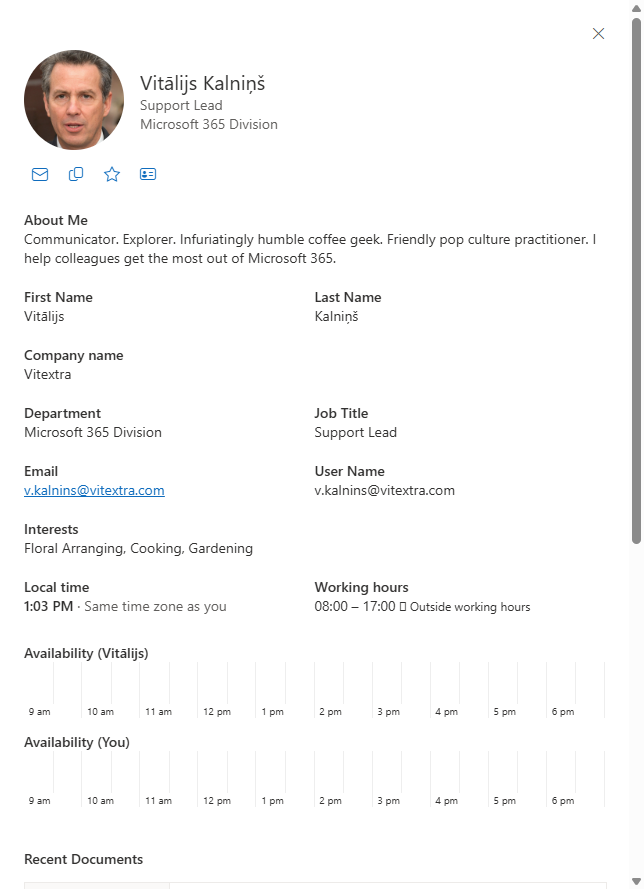
The information is loaded for the person you open and for you, the signed-in user, in a single request. While it loads, the section shows a Loading... spinner.
Local time and time difference
The Local time row shows the current time in the person's time zone, formatted according to your browser's language settings (for example, 17:42 or 5:42 PM). Next to it you see how the person's time relates to yours:
- Same time zone as you — you and the person are in the same time zone;
- 3 h ahead of you — the person's clock is ahead of yours;
- 2 h behind you — the person's clock is behind yours.
The difference is calculated against the time zone of your own device (browser), so it stays correct when you travel. Daylight saving time is taken into account for both sides, and time zones with half-hour offsets (for example, India) are shown as 5.5 h. While the pane stays open, the clock updates automatically every 30 seconds.
Working hours and the "Outside working hours" indicator
The Working hours row shows the start and end of the person's working day in their own time zone, for example 09:00 – 18:00.
When the person is currently outside their working hours, an Outside working hours indicator with a clock icon appears next to the hours. The check considers both the time of day and the person's working days: on a day that is not one of their working days (typically the weekend), the indicator is shown all day. Night shifts that end after midnight are supported too. When the person is within their working hours, no indicator is shown.
💡 Tip
The indicator is a polite hint, not a block: you can still chat, call or email the person. If they are outside their working hours, consider sending a message they can read in the morning instead of calling.
Availability: today's free/busy
The Availability section shows two timelines one under the other: Availability (
- Time range. Each timeline covers today from 9 AM to 7 PM in your local time. It is divided into ten hourly columns labeled from 9 AM to 6 PM, and each hour is split into two 30-minute slots.
- Slot status. A slot takes the status of the calendar event that covers the start of that half hour. Hover over a slot to see its status as a tooltip.
| Slot appearance | Status | Meaning |
|---|---|---|
| Empty (white) | Free | No events in the calendar for this half hour. |
| Solid blue | Busy | The person has a meeting or appointment marked as busy. |
| Blue and white stripes | Tentative | The person has a tentatively accepted or tentative event. |
| Purple with a pattern | Out of office | The person is marked as away from the office. |
Events with other statuses, such as Working elsewhere, are displayed as empty slots.
📝 Note
Only the free/busy status of each slot is displayed. Meeting subjects, locations, attendees and other event details are never shown in the directory, so the section reveals no more than the free/busy view in Outlook's Scheduling Assistant.
Presence status
Presence is a separate, real-time signal that complements the calendar. While the timeline shows what is planned in the calendar, presence shows what the person is doing right now in Microsoft Teams:
- in the Contact (cards) view, a colored presence indicator appears on the person's photo;
- in the Details (table) view, the Status column shows the presence as text: Available, Away, Busy, Do not disturb, Offline or Out of Office.
When the person has an automatic out-of-office reply turned on, the status shows Out of Office, and the reply text appears as a tooltip when you hover over the status.
📝 Note
Presence is shown on the directory cards and in the Status column, not in the details pane itself. For the full list of panel sections, see KB10199. Employee Directory: Customizing the Details Pane.
Where the data comes from
All information comes from Microsoft 365 through Microsoft Graph; the Employee Directory does not store any of it:
- Time zone and working hours come from the person's Outlook settings (Settings › Calendar › Work hours and location in Outlook on the web, or File › Options › Calendar in classic Outlook). Exchange returns them together with the free/busy schedule.
- Free/busy comes from the person's and your own Exchange Online calendars, through the Microsoft Graph
getSchedulerequest — the same source Outlook uses when you schedule a meeting. - Presence comes from Microsoft Teams, through the Microsoft Graph presence API.
Required Microsoft Graph permissions
These permissions are requested by the Employee Directory solution package and must be approved by an administrator on the API access page of the SharePoint admin center:
| Feature | Permission |
|---|---|
| Local time, working hours, availability | Calendars.Read |
| Presence status | Presence.Read.All |
No separate mailbox settings permission (such as MailboxSettings.Read) is needed: the time zone and working hours arrive with the free/busy schedule.
💡 Tip
For how to approve API access requests after installation, see KB10035. How to Install a Vitextra Product in SharePoint Online.
When data is missing
The section is designed to degrade gracefully: if some information is unavailable, the corresponding part is simply hidden, and the rest of the details pane keeps working.
| Situation | What you see |
|---|---|
| The person has no work email (no mailbox) | The whole section (local time, working hours and availability) is hidden. |
| Working hours or time zone are not set or cannot be recognized | The Local time and Working hours rows are hidden; the availability timelines can still be shown. |
| Working hours have no start or end time | Local time is shown, the Working hours row is hidden. |
| The free/busy of the person or your own calendar cannot be read | The Availability timelines are hidden; local time and working hours can still be shown. |
| The Calendars.Read permission is not approved, or the request fails | Nothing from this section is shown. |
| The Presence.Read.All permission is not approved, or presence cannot be read | The Status column shows Offline, and cards show no presence indicator. |
❗ Important
Free/busy information is available only for people with an Exchange Online mailbox in your organization. Guests, shared accounts without a calendar and users whose calendar sharing is restricted may show no availability.
Settings for administrators
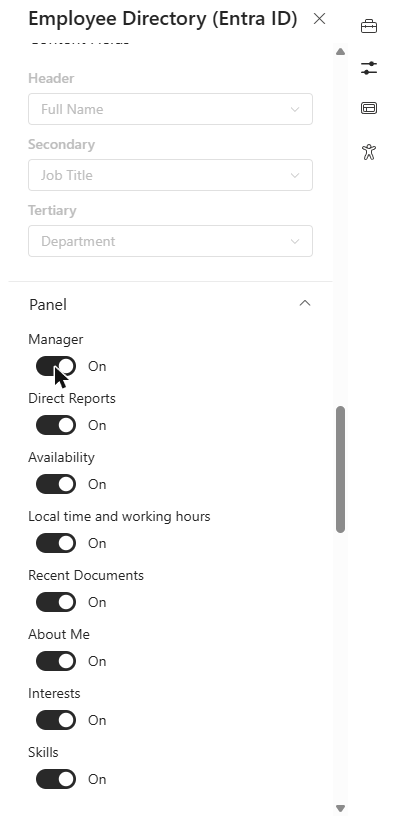
Administrators control this section in the web part properties, in the Panel group, using two toggles:
- Availability — turns the whole section on or off: the free/busy timelines and, together with them, local time and working hours. It is on by default.
- Local time and working hours — shows or hides the Local time and Working hours rows. It is on by default. It takes effect only while Availability is on.
Both toggles are available in the Employee Directory and Employee Directory (Entra ID) web parts.
📝 Note
Turning off Availability also hides local time and working hours, even if Local time and working hours stays on. To show only local time without the free/busy timelines, there is currently no separate option.