
My Tasks
The single point of interaction to work with all your tasks across Microsoft 365
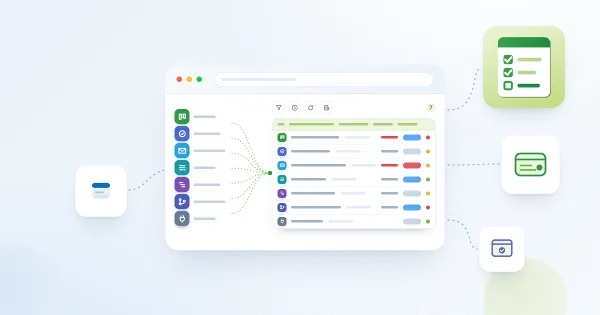
The My Tasks web part brings all your tasks from Microsoft 365 into a single list — right on a SharePoint page or in Microsoft Teams. Planner tasks, Microsoft To Do lists, flagged Outlook emails, SharePoint and Project Online tasks, Azure DevOps work items, and even tasks from external systems appear in one place, with unified sorting, filtering, due dates, and export to Excel. Every user keeps a personal view — the web part remembers filters and sorting for the next visit.
- Tasks from Planner, To Do, Outlook, SharePoint, Project Online, and Azure DevOps in one list
- Due date tracking with overdue highlighting and quick filters
- Customizable columns and personal view settings for every user
- Task details panel and one-click export to Excel
- Azure DevOps Query Viewer web part included
- External task sources through a simple REST endpoint
- Microsoft Teams integration and an interface in more than 47 languages

Overview
The My Tasks web part gathers all your tasks from Microsoft 365 into a single list — right on a SharePoint page or in Microsoft Teams. Planner tasks, Microsoft To Do lists, flagged Outlook emails, SharePoint and Project Online tasks, Azure DevOps work items, and even tasks from external systems — everything in one place, with unified sorting, filters, and due dates.
The web part is built on the SharePoint Framework and reads data directly through the Microsoft Graph API, the SharePoint Search Service, and the Azure DevOps REST API — always in the context of the current user's account. Everyone sees only their own tasks, no data ever leaves your Microsoft 365 tenant, and there is no separate task-tracking system to maintain.
All Your Tasks in One List
How many places does an employee have to check every morning to make sure nothing slips? Planner, To Do, email, DevOps boards, project sites… My Tasks answers that question with a single list. Every data source — Azure DevOps, Planner, Project Online, SharePoint, To Do, Outlook (flagged emails), and external systems — can be switched on and off independently in the web part settings.
Each task carries a recognizable source icon and a link to the original item, and opens in its native application with a single click — Planner tasks, for example, open straight in the new Planner experience.

Keep Due Dates Under Control
The Due Date column shows the due date for tasks from any source, and overdue tasks are highlighted in red — you spot them at a glance. Quick filters in the command bar — All, Overdue, Today, This week — instantly narrow the list to what needs attention right now.
The list can be sorted by due date, creation date, priority, status, or title — both in the web part settings and by clicking a column header.

Tailor Columns to Your Team
The set and order of columns are fully configurable: drag columns into place in the editor, and switch them on and off with checkboxes. The task and project names can be shown as links to the original item, and additional columns are available for attachments, comments, author, tags, status, and priority.
New columns introduced in future product versions are added to already configured web part instances automatically — no reconfiguration required.

Filters That Are Remembered
The filter panel lets you narrow tasks down by project, source, status, priority, and author — the values are collected automatically from the current list. Best of all, the web part remembers each user's personal settings: selected filters, sorting, and the due date filter. Come back to the page tomorrow and the list looks exactly the way you left it.
An administrator, meanwhile, can globally exclude unneeded statuses (such as Completed or Deferred) in the web part settings — for all users at once.

Opens Instantly
Nobody likes staring at a loading indicator. My Tasks caches the last loaded task list for the browser session and shows it immediately when the page opens, while fresh data loads silently in the background. Turn on auto-refresh and the list stays current every minute — with no flicker and no re-rendering.

Task Details Without Leaving the Page
Select a task and the details panel shows everything that matters: source, project, status, priority, creation and due dates, the author with an avatar, and the full description. Any value can be copied to the clipboard with a single click, and the link takes you to the original task in its native application.

One-Click Export to Excel
Need a report or a task list for a meeting? The Export To Excel button downloads the current filtered and sorted list as a file that opens directly in Excel: source, task, project, status, priority, dates, author, tags, and a link to the original item. Cyrillic and any other scripts are rendered correctly.

Bonus: the Azure DevOps Query Viewer Web Part
The solution includes a second web part — Azure DevOps Query Viewer. Pick an organization, a project, and any saved query, and its results appear on a SharePoint page: with work item type icons, colored state indicators, tags, assignee avatars, and pagination. The columns come straight from the query — configured in DevOps, shown on the page.
It is a convenient way to show a team backlog, a list of open bugs, or sprint status to people who don't work in Azure DevOps every day.

Works Right Inside Microsoft Teams
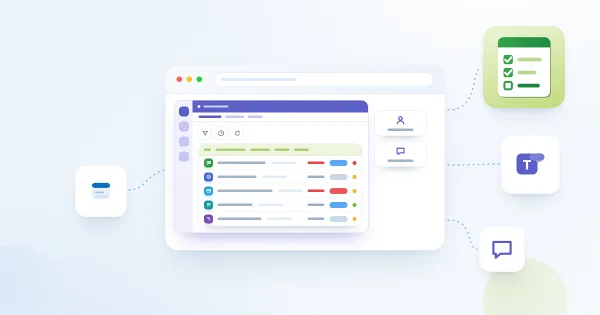
Add My Tasks as a channel tab or a personal app in Microsoft Teams, and all your tasks are at hand right where the work happens. The web part is fully responsive: the same list is equally comfortable on a wide monitor, in a narrow page column, and on a smartphone screen.

Connect Your Own Task Sources
Does your organization keep tasks outside Microsoft 365 — in on-premises SharePoint, an ERP, or a custom system? The External Data source lets you connect any REST endpoint that returns tasks in a simple JSON format: they appear in the shared list alongside Planner and To Do tasks — with filters, sorting, and export.
For advanced scenarios, a SharePoint configuration list is supported that describes several pluggable sources at once: site, list, excluded statuses, and the lookback depth in days.

Your Brand and 47 Languages
The web part automatically picks up your SharePoint site theme — light, dark, or fully custom — and respects the font configured for the site, down to your corporate typeface. The interface is translated into more than 47 languages, including Russian, Latvian, and German: every employee works with the task list in their own language.

Secure by Design
My Tasks is built on the SharePoint Framework and runs entirely within your Microsoft 365 tenant — in the context of each user's own account. The web part requests data through the Microsoft Graph API and the standard SharePoint and Azure DevOps APIs with a strictly limited set of permissions, never shows anyone else's tasks, and stores no data on external servers.
There are no synchronizations and no third-party storage: your tasks stay where they belong — in your Microsoft 365 tenant.


Knowledge Base
Read articles related to My Tasks
My Tasks: Filtering, Sorting and Personal View Settings
How to filter and sort the task list in Vitextra My Tasks: the filter panel groups and their AND/OR logic, sorting from the column header menu, the default sorting set by the administrator, and which personal view settings are remembered in your browser and how to reset them.
Azure DevOps Query Viewer: Multiple Query Tabs, Grouping, Search and Column Reset
Reference for the Azure DevOps Query web part: query tabs (additional queries 1 to 3), the command bar with Refresh, Columns and Group by, the field search box and Reset to query columns, tree query behavior, sorting, the 1000-item limit, personal per-query preferences and the Updated time.
Why Are My Tasks Missing or Not Loading?
Troubleshooting guide for Vitextra My Tasks: what to do when the task list is empty, one source is missing, Planner, To Do, Outlook, SharePoint or Azure DevOps tasks do not appear, data is outdated, filters hide tasks, the trial has expired or the export fails, and how to collect information for support.
My Tasks: Frequently Asked Questions
Short answers to common questions about the Vitextra My Tasks web part for SharePoint Online and Microsoft Teams: which sources it reads, whether it changes tasks, who sees which tasks, data privacy, task limits, export, languages, Teams, on-premises tasks, trial and licensing.
My Tasks. Solution Overview
Overview of Vitextra My Tasks for SharePoint Online and Microsoft Teams: one task list from Planner, To Do, Outlook, SharePoint, Project Online, Azure DevOps and external systems, key capabilities, the two web parts, security and free trial.
How to Add My Tasks to Microsoft Teams
Step-by-step guide to bringing Vitextra My Tasks into Microsoft Teams: syncing the package from the SharePoint App Catalog, adding My Tasks as a personal app, adding it as a tab in a team channel, and what to check if the tasks do not load.
Customer Questions
Some common questions about My Tasks
Which task sources does My Tasks aggregate?
My Tasks is a single point of interaction for all your tasks across Microsoft 365. It collects tasks from Microsoft To Do (including flagged Outlook emails), Planner, SharePoint Tasks lists, Project Online and Azure DevOps work items into one list on a SharePoint Online page or in Microsoft Teams. You choose which sources to include and can filter and customize the view. See the product page.
Can I display Azure DevOps query results on a SharePoint page?
Yes. Since version 6 the solution includes a separate Azure DevOps Query web part that displays the results of a saved Azure DevOps query on a SharePoint Online page. Only flat queries are supported (tree and direct-links queries are not). Setup is described in Display Azure DevOps Query Results on SharePoint Site and How to Display Azure DevOps Query Results in SharePoint Online.
What permissions are required for Azure DevOps integration?
A SharePoint administrator must approve the API access request that grants the solution permission to call the Azure DevOps REST API on behalf of the signed-in user. Each user also needs an active Azure DevOps account, membership in the organization that holds the queries, and at least read access to the relevant projects. Calls are always made under the user's own identity. See KB-10209 and Installing a Cloud-based Product.
Does My Tasks work in Microsoft Teams?
Yes. My Tasks supports both SharePoint Online and Microsoft Teams, so the aggregated task list can be pinned as a Teams tab. The interface is localized into about 60 languages and follows the language of the SharePoint site or the Teams client.
Is My Tasks available for SharePoint Server?
No. My Tasks relies on Microsoft 365 services (To Do, Planner, Project Online, Microsoft Graph) and is available only for SharePoint Online and Microsoft Teams. Packages can be downloaded from the Download Center; every product includes a free 14-day trial.
Documents
Reviews
No reviews yet
Supported Languages
Platforms
Recent Changes
- v26.10.13 #
🚀 New features
My Tasks
- Due Date column — tasks now show their due date, and overdue tasks are highlighted. The column is enabled by default and appears automatically in existing web part instances. Azure DevOps work items also bring their due date along.
- Due date filter — a new command bar menu narrows the list to Overdue, Today, or This week tasks, across all sources at once.
- Export to Excel — download the currently visible tasks (with filters and sorting applied) as a CSV file that opens directly in Excel.
- Remembered view settings — sorting, the due date filter, and the filter panel selections are saved per user and restored the next time the page opens.
- Instant load — the last loaded task list is cached in the browser session and shown immediately while fresh data loads in the background. All sources are now loaded in parallel.
- Sort by Due Date — Due Date is available as a default sort order in the web part properties.
Azure DevOps Query Viewer
- Multiple queries — add up to three additional queries; they appear as tabs next to the main one so users can switch between them without leaving the page.
- Quick actions — an actions menu on each work item lets users change state, assign to themselves, unassign, assign to another user, set a due date, add a comment, or open the item in Azure DevOps. Enabled with a toggle in the web part properties.
- Column picker — choose any work item field as a column, with field search and a one-click reset to the query's own columns. The selection is saved per user and per query.
- Group by — group work items by any visible column, with collapsible groups and item counts.
- Column sorting — click a column header to sort ascending, descending, or return to query order.
- Tree queries — tree and one-hop queries are displayed as a hierarchy with expandable and collapsible nodes.
- Auto refresh — refresh the query automatically every 1 to 60 minutes. Refresh pauses while the browser tab is hidden or a dialog is open, and the toolbar shows when the data was last updated.
- Full result set — up to 1,000 work items are loaded per query instead of a single page, so sorting and grouping work across the whole result.
- v6.3.6 #
🌐 Added Support for Multiple Languages:
- Arabic (Bahrain)
- Arabic (Egypt)
- Arabic (Kuwait)
- Arabic (Oman)
- Arabic (Qatar)
- v6.2.1 #
🚀 New Azure DevOps Query Web Part
Introducing the Azure DevOps Query web part, a powerful addition that allows users to display Azure DevOps query results directly on their SharePoint Online sites. This feature supports flat queries, providing real-time data and improving project management workflows by consolidating tools and reducing the need to switch between platforms.
🌐 Added Support for Multiple Languages:
- Arabic (United Arab Emirates)
- Basque (Basque)
- Bulgarian (Bulgaria)
- Croatian (Croatia)
- Dutch (Netherlands)
- Estonian (Estonia)
- Finnish (Finland)
- Galician (Galician)
- Greek (Greece)
- Hebrew (Israel)
- Hindi (India)
- Hungarian (Hungary)
- Indonesian (Indonesia)
- Irish (Ireland)
- Kazakh (Kazakhstan)
- Korean (Korea)
- Lithuanian (Lithuania)
- Macedonian (North Macedonia)
- Malay (Malaysia)
- Norwegian Bokmål (Norway)
- Polish (Poland)
- Portuguese (Brazil)
- Portuguese (Portugal)
- Romanian (Romania)
- Serbian (Latin, Serbia)
- Slovak (Slovakia)
- Slovenian (Slovenia)
- Swedish (Sweden)
- Thai (Thailand)
- Vietnamese (Vietnam)
- Welsh (United Kingdom)
- v5.4.1 #
Minor bug fixes and performance improvements
- v5.3.10 #
🚀 New Features:
Added new Azure DevOps Query Viewer web part🐞 Fixed Bugs:
#22090 Sync to Teams not working for the My Task solution
Available in bundles
Get this product together with others and save.
Productivity Pack
Vitextra 365 All Access
Discover more apps
Suggested apps
Share
Send feedback
We would love to hear from you! Please take a moment to let us know about your experience.