
Organizational Chart
Interactive Organizational Chart web part for SharePoint Online and Microsoft Teams with real-time data from Microsoft Entra ID, zoom, search, presence and export.
- Oct 2026
- v26.10.7
- Supported Languages
- 33
The Organizational Chart web part provides an interactive, dynamic visualization of your company's structure in SharePoint Online and Microsoft Teams. Built on the Microsoft Graph API, it draws live data from Microsoft Entra ID to give everyone a clear, always up-to-date view of reporting relationships and team hierarchies — with zoom, search, "Find me", export and live presence built in.
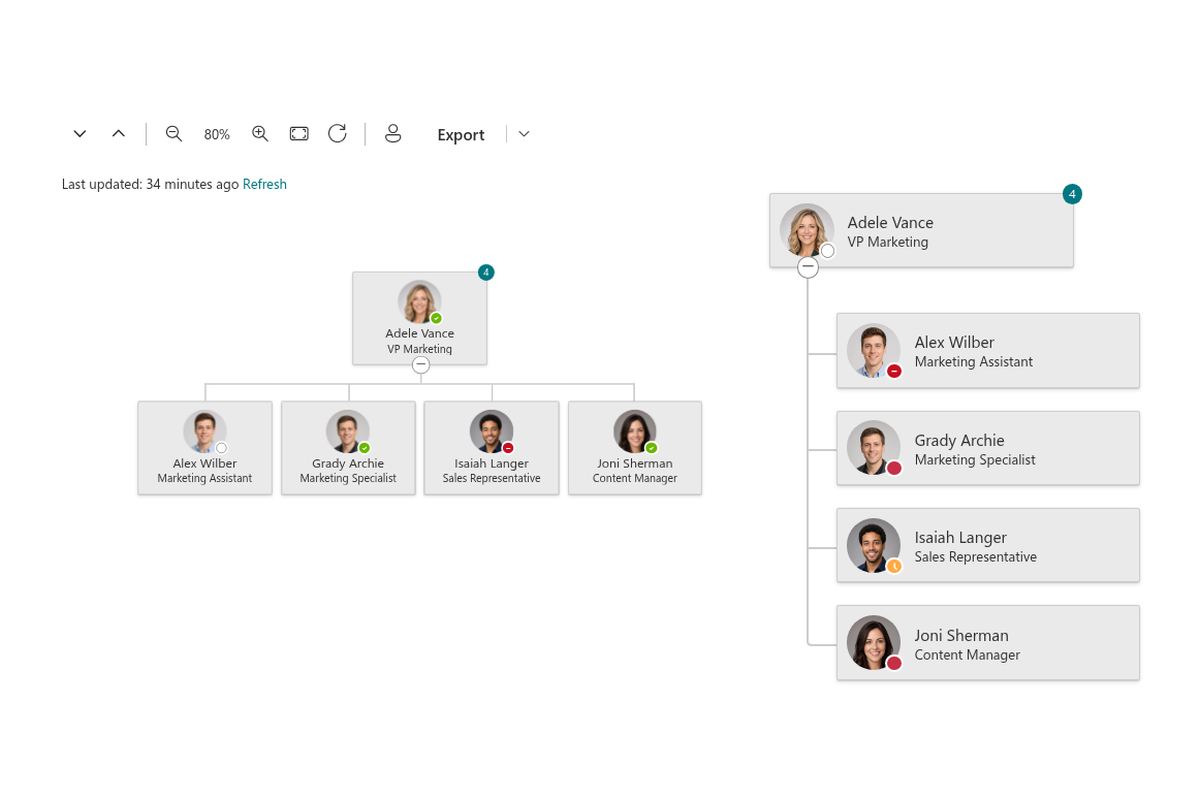
- Horizontal and Vertical Layouts
- Entire Company or a Specific Manager's Team
- Easy Attribute Selection to Display
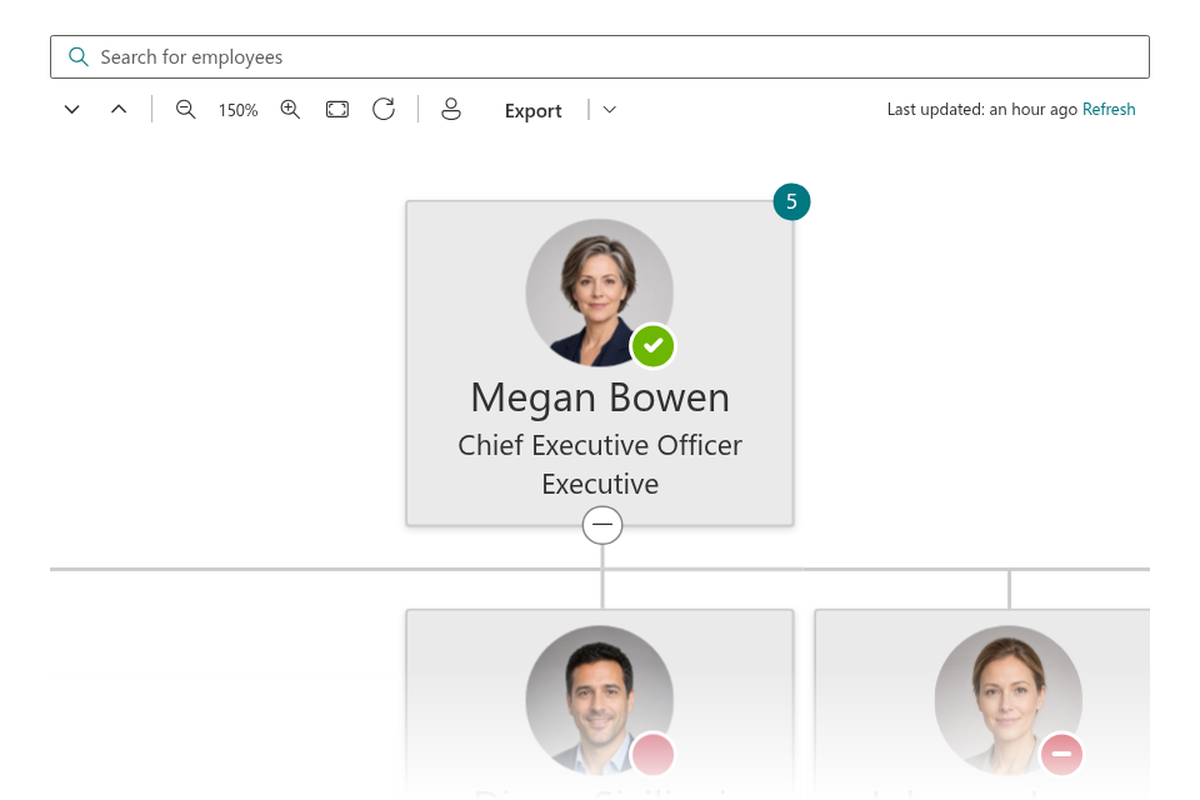
- Direct Reports Counter
- Data Filtering Criteria and Exclusions
- Zoom, Fit to Screen, Expand/Collapse All
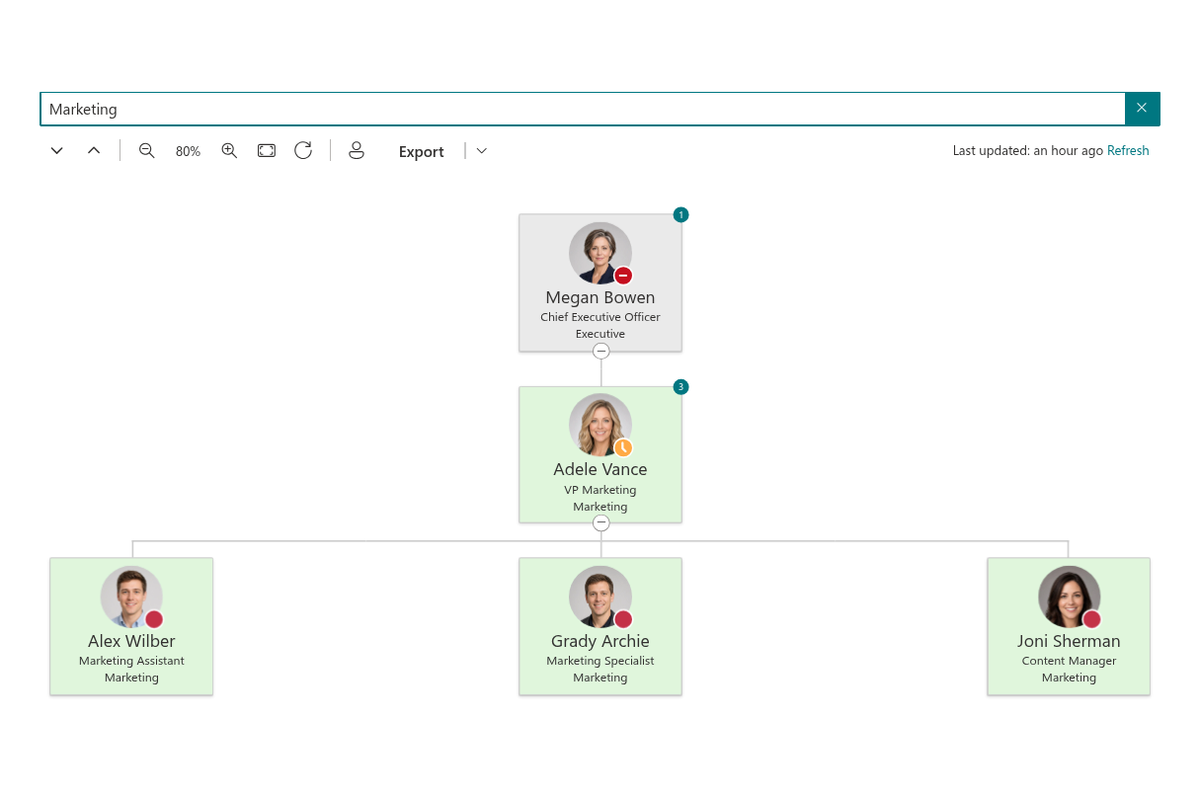
- "Find Me" and Employee Search
- Employee Profile Card and Presence Status
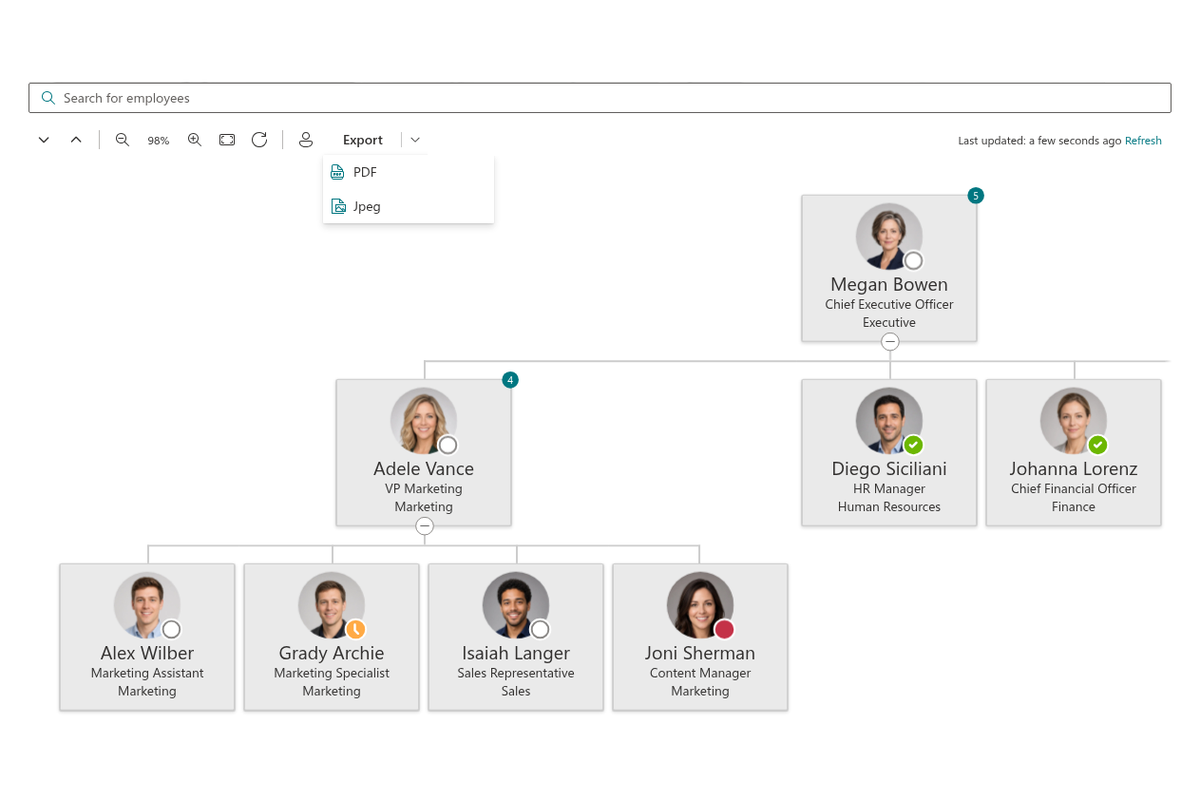
- Export to PDF and JPEG
- Lazy Loading for Large Organizations
- Microsoft Teams App with Tenant Defaults
- Theme Variants Support
Overview
The Organizational Chart web part turns your SharePoint Online intranet into a living map of your company. Employees can explore reporting lines and team hierarchies interactively, drill into any branch of the organization, and see at a glance who works where and for whom.
Built on the SharePoint Framework, the web part retrieves data through the Microsoft Graph API directly from Microsoft Entra ID. The chart always reflects your directory in real time — there is no separate data source to maintain, and robust Microsoft Graph authentication and authorization keep data retrieval smooth and secure. The responsive design ensures the chart looks great and is easy to navigate on any device, and the solution scales efficiently to organizations of any size.
Horizontal or Vertical — Your Hierarchy, Your Way
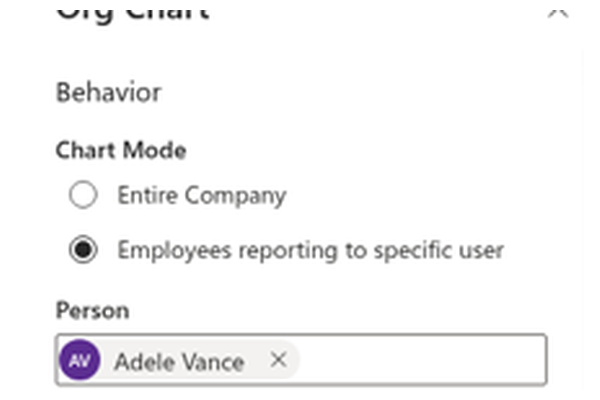
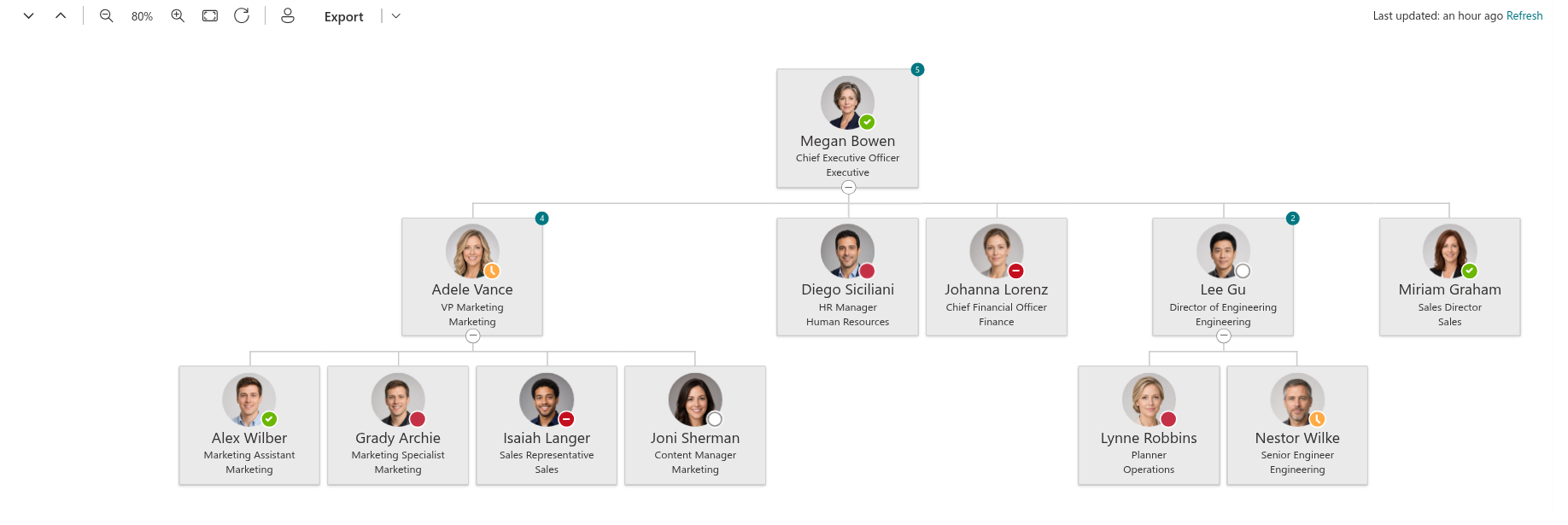
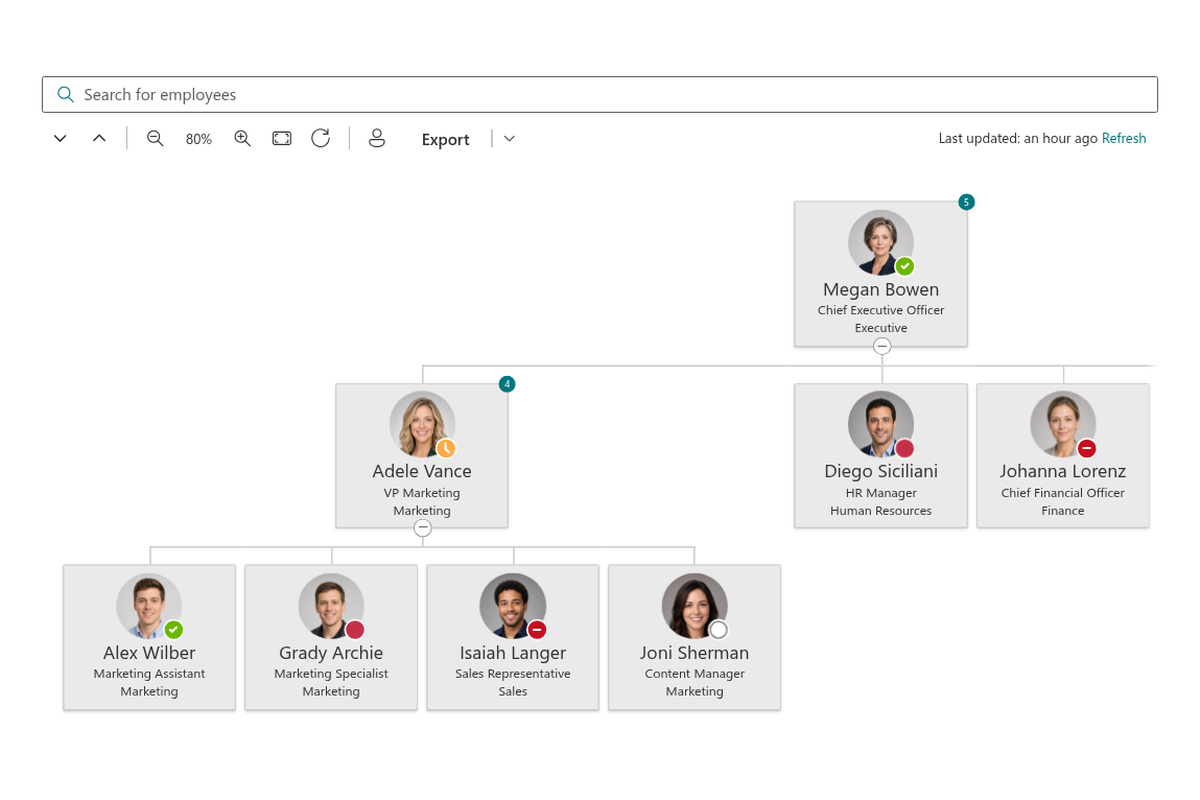
Choose the layout that best fits the page. The Horizontal layout renders the classic organization chart: a tree of cards connected by lines, with expandable branches — ideal for exploring the structure visually on a wide page or a full-page app. The Vertical layout stacks the same hierarchy into a compact, drill-down list — a great fit for narrow page columns and mobile screens.
Use the Levels to Display setting to decide how many levels are open when the page loads (1 to 10); people expand the rest with a single click on the +/− control under any card. Controls are also reachable from the keyboard (Enter/Space) and are exposed to screen readers.
Show Exactly the Attributes You Need
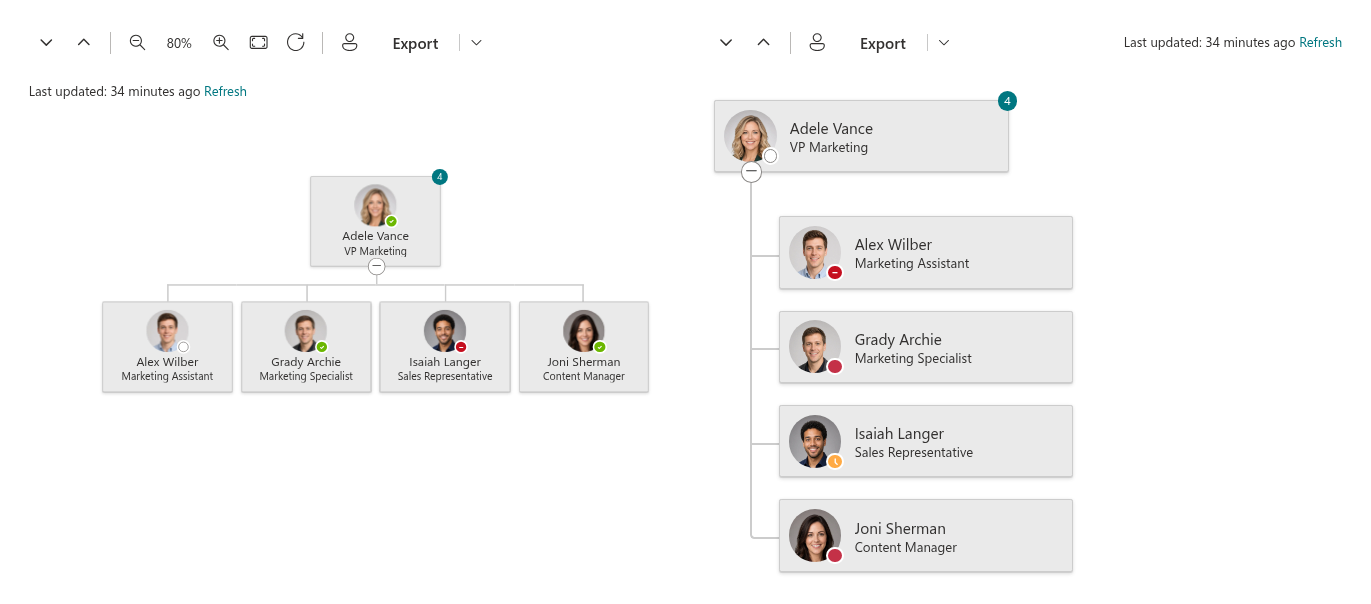
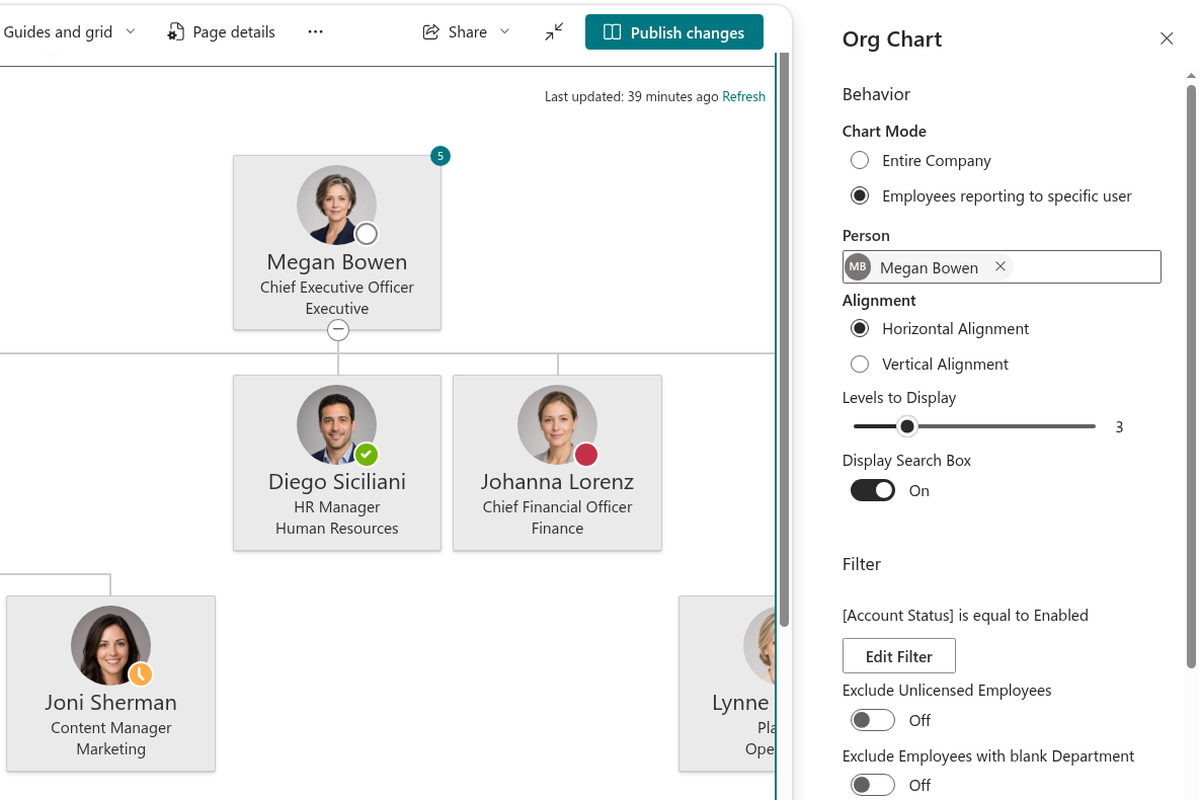
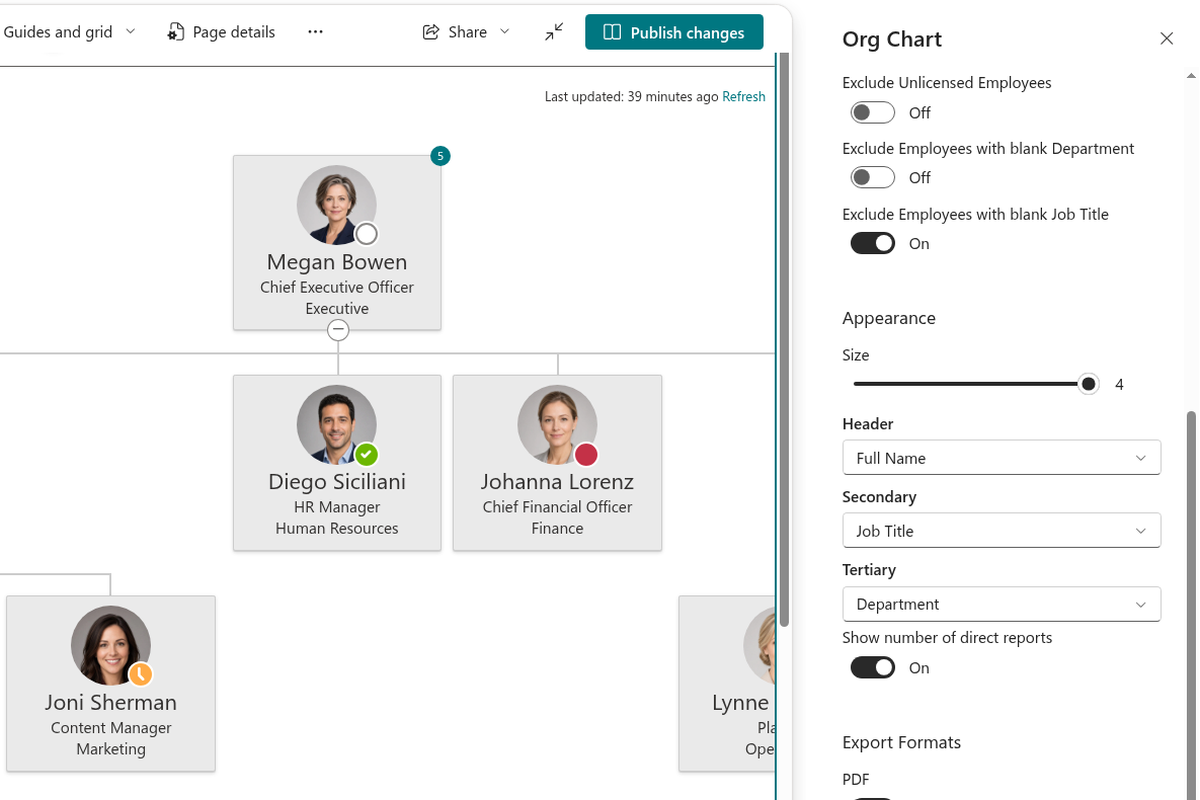
Decide which employee attributes appear on each card — name, job title, department, office location, e-mail, phone, city, country or any other property available in Microsoft Entra ID. Pick up to three lines (header, secondary and tertiary) and one of four card sizes, from a compact avatar-and-name card to a large card with a big photo. Simple settings let you tailor each chart to its audience without writing a single line of code.
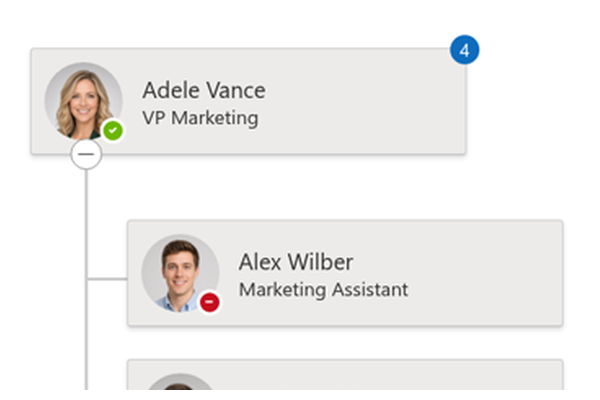
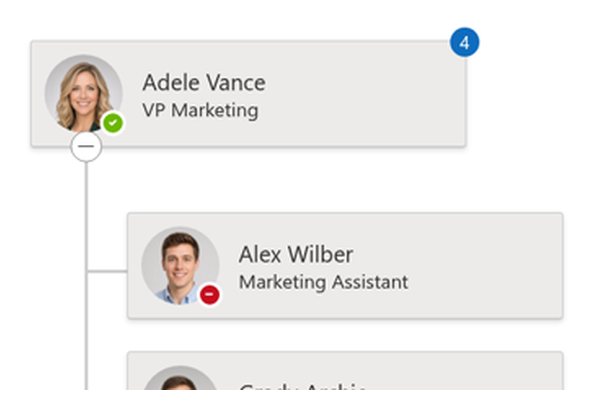
Turn on the direct reports counter to show a small badge with the number of direct reports on every manager's card — a quick way to see span of control at a glance.
The Whole Company or One Manager's Team
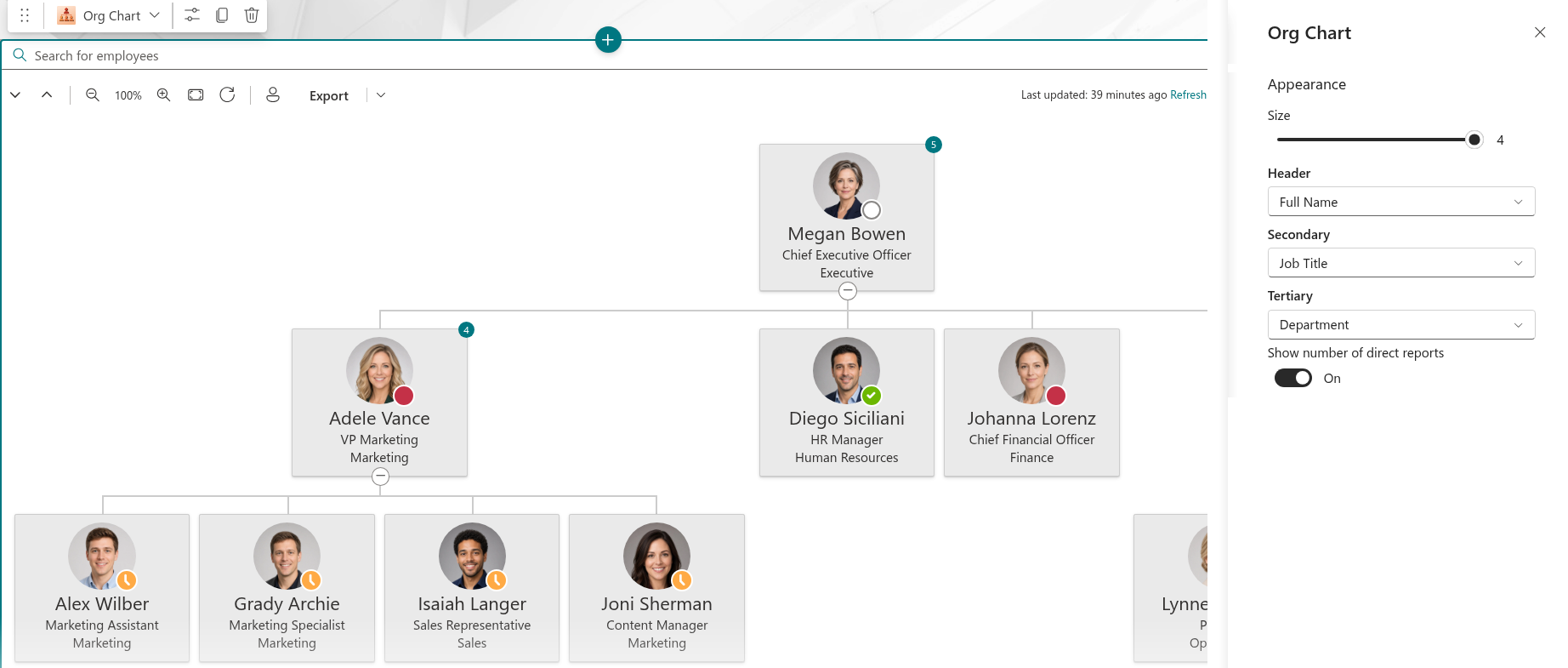
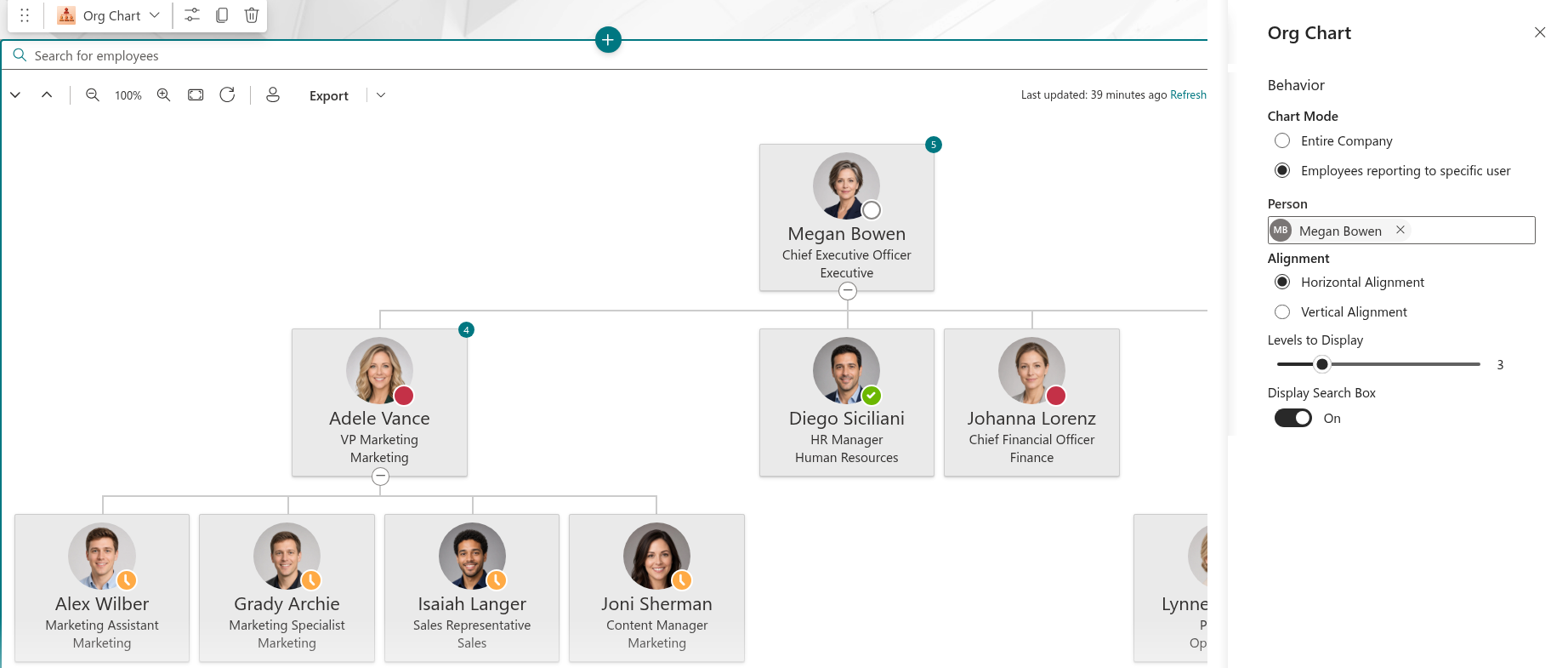
In Entire Company mode the chart starts from the top of the hierarchy. In Employees reporting to a specific user mode you pick a person, and the chart shows only that person and everyone beneath them — so a department site shows that department's own structure, a project site shows the project lead's team.
Place several web parts with different starting persons on different pages from the same solution, and every chart stays in sync with Microsoft Entra ID.
Focus the Chart with Data Filtering
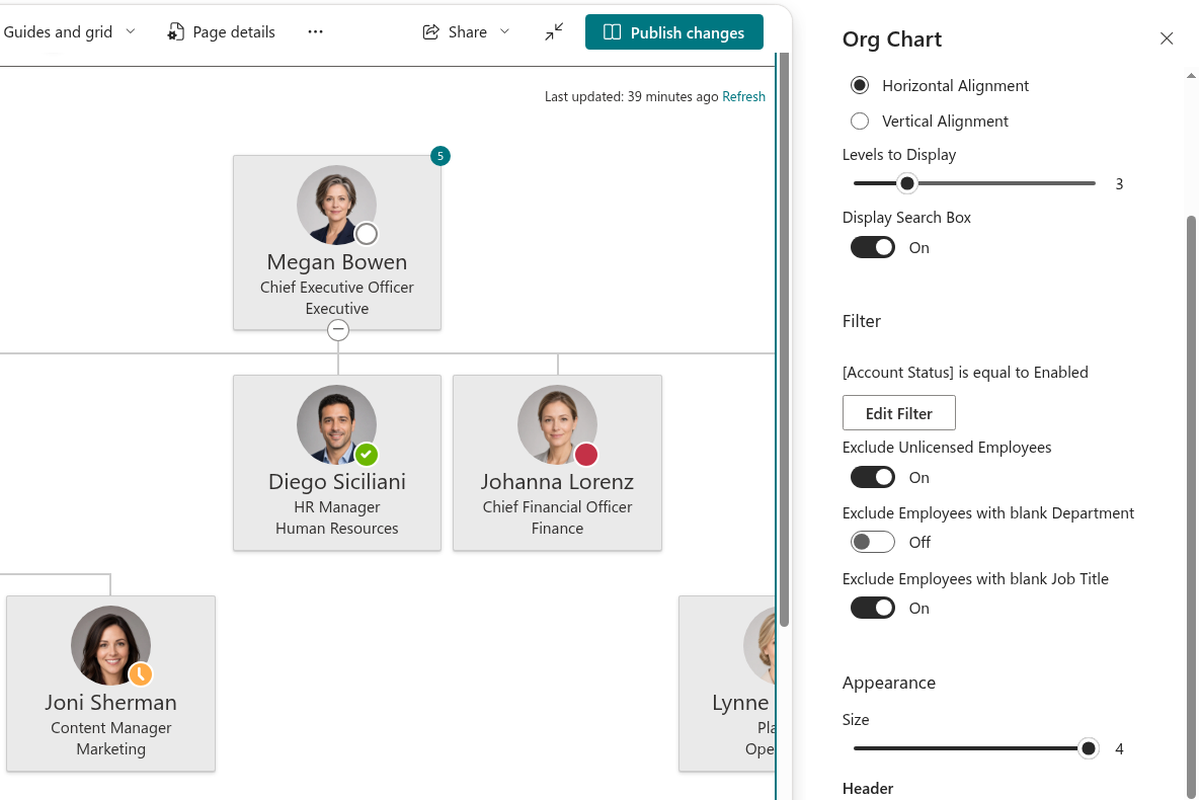
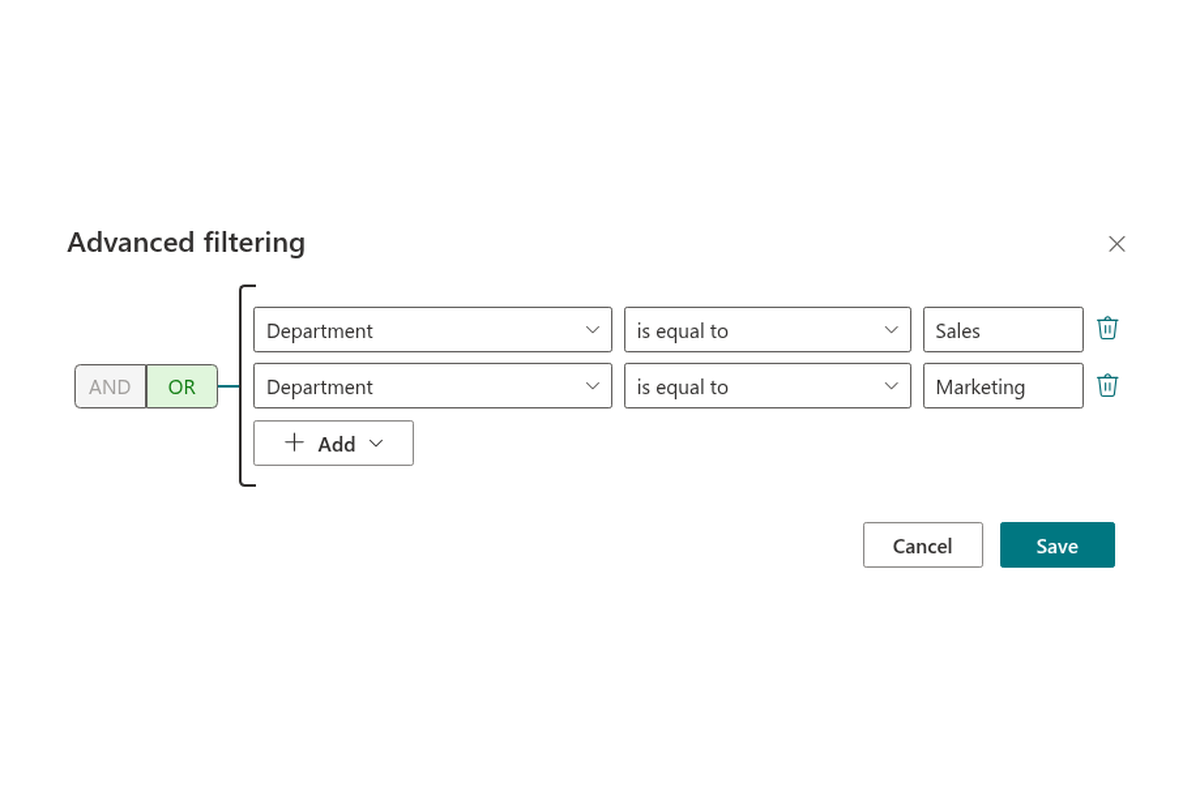
Filtering criteria let you display precisely the part of the organization a page is about. Build conditions on any available attribute — with operators such as equals, contains, begins with or contains data — and combine them with AND/OR groups using the visual filter editor.
Keep the chart clean with one-click exclusions: unlicensed employees, employees with a blank department and employees with a blank job title (typically service accounts and shared mailboxes) are left out. Disabled accounts are never shown.
Filtering is applied at the data level through Microsoft Graph queries, which keeps the chart fast and responsive even in large organizations.

Navigate Large Structures with Ease
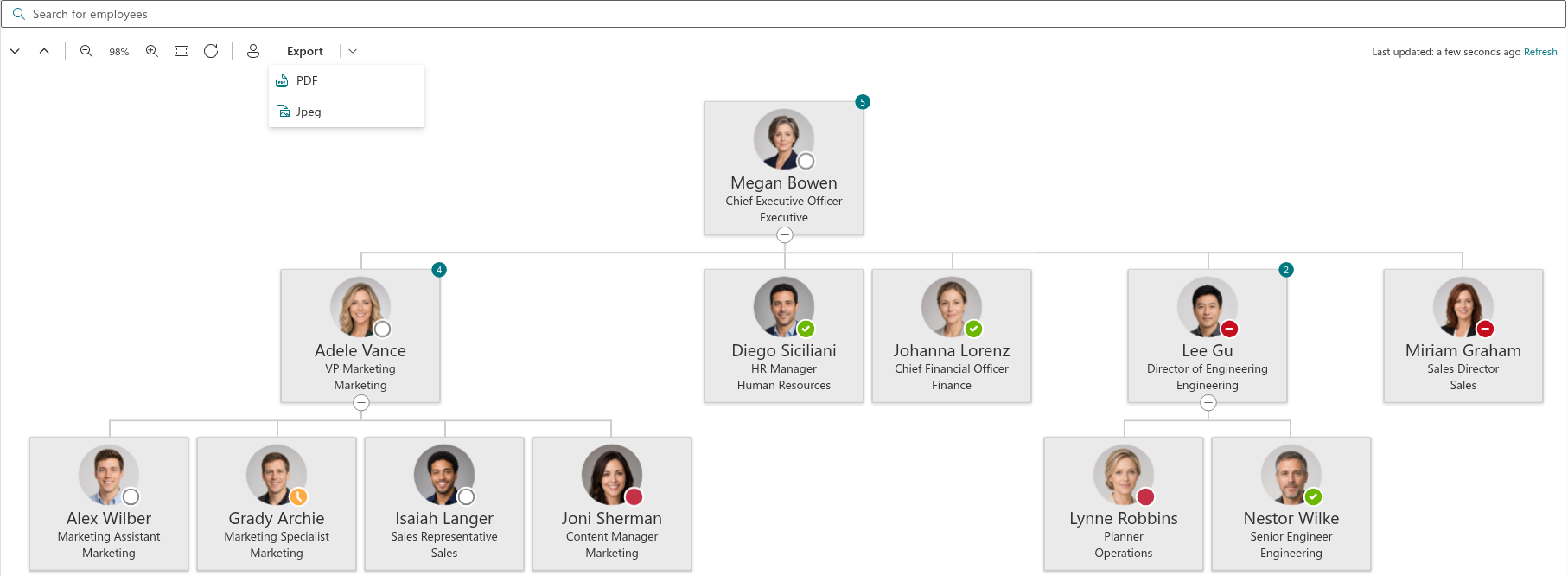
A built-in toolbar makes even a very large organization manageable: Expand all and Collapse all open or fold the entire tree at once; Zoom in / Zoom out with a live percentage indicator, Fit to screen that scales the whole tree to the container width, and Reset view that returns to 100% (zoom controls are available in the horizontal layout).
Zooming with the mouse wheel works while you hold Ctrl (⌘ on Mac) — so ordinary page scrolling is never hijacked, and the chart can safely sit in the middle of a long intranet page. Drag the chart to pan.
Find Me — Where Do I Sit in the Company?
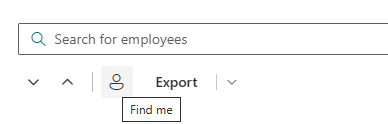
One click on Find me locates the signed-in user in the chart: the web part expands every manager along the chain up to that person, highlights their card and scrolls it into view. New employees instantly see where they fit, and managers see their team in context.
Search the Chart
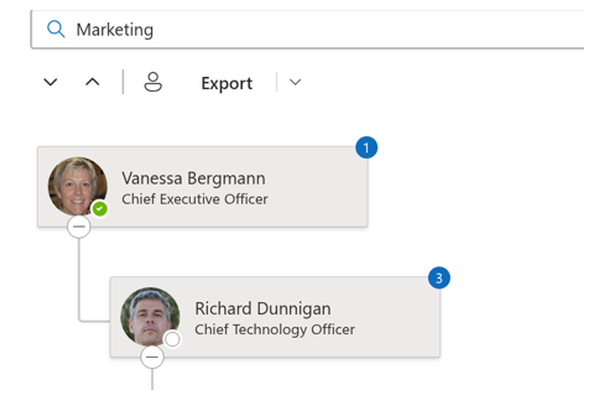
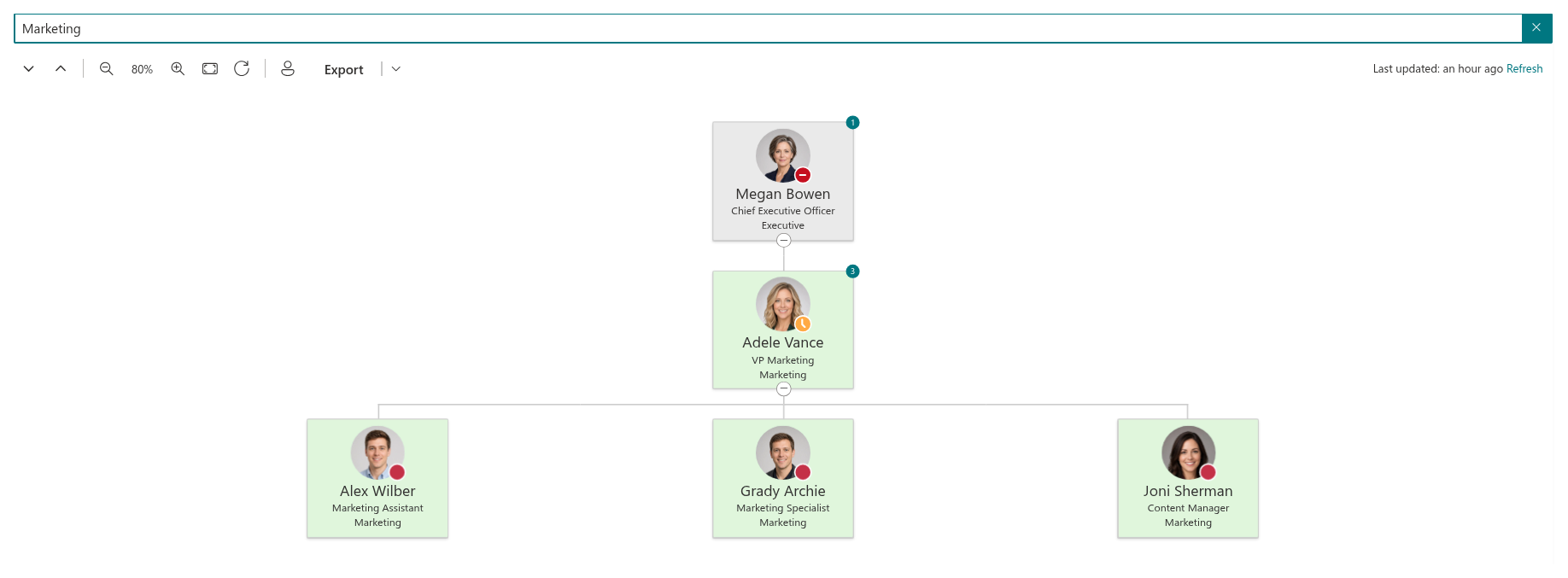
Enable the search box to let people find colleagues by name, job title, department, e-mail, phone, location and other loaded fields. The chart narrows to the matching employees together with their management chain and highlights the hits; clear the query to return to the full structure.
Employee Profile Card at a Glance
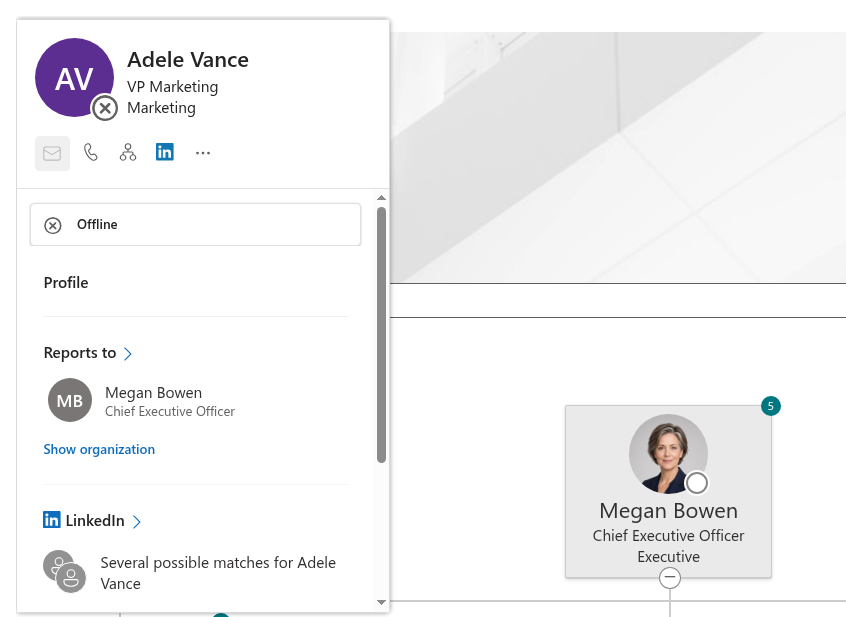
Hover over or select a person on the chart to open the familiar Microsoft 365 profile card with their photo, contact information, job role and place in the organization — plus quick actions to e-mail, call or start a chat. Colleagues get the context they need to reach out without leaving the page or searching a separate directory.
Real-Time Presence Status
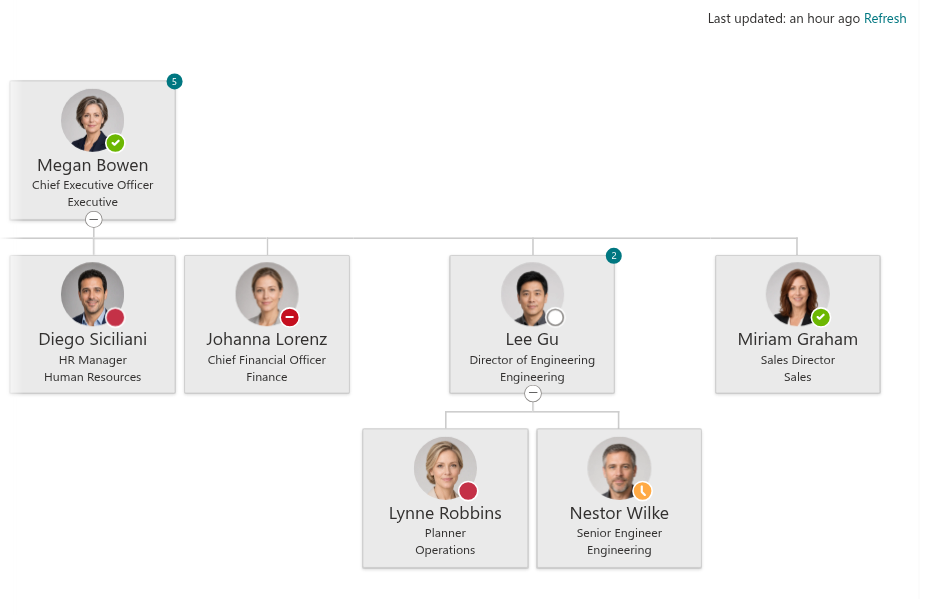
See who is available before you reach out. The chart shows each person's live Microsoft Teams presence — available, busy, do not disturb, in a meeting, in a call, away, out of office or offline — drawn in real time from Microsoft 365.
It is a small detail that makes a real difference for distributed and hybrid teams: people contact each other at the right moment, and unnecessary interruptions drop.

Export the Whole Chart to PDF or JPEG
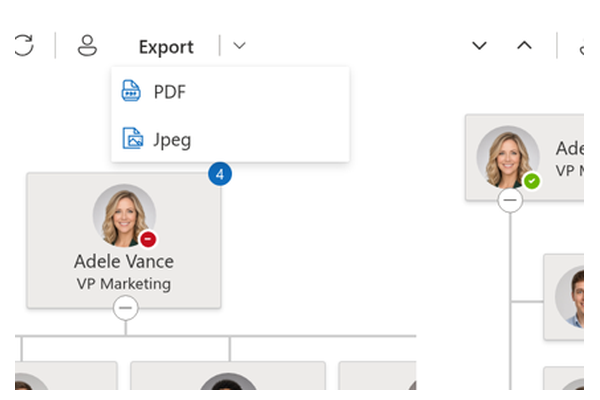
Need the structure for a presentation, an audit or a printout? Let users export the entire chart — not just the visible part — to PDF or JPEG with one click. Administrators choose which formats are offered, or switch export off completely.
Fast Even in Very Large Organizations
Photos and presence are requested from Microsoft Graph only when a card scrolls into view, and collapsed branches make no calls at all. The result is far fewer Graph requests, much less throttling and a page that opens quickly even with tens of thousands of employees.
Directory data is cached in the browser. The chart shows when it was last updated ("Last updated: 5 minutes ago", localized to the page language) and a Refresh link to reload the data on demand. If Microsoft Graph is unavailable, users see a clear error message instead of an endless spinner.
At Home in Microsoft Teams — and On Theme
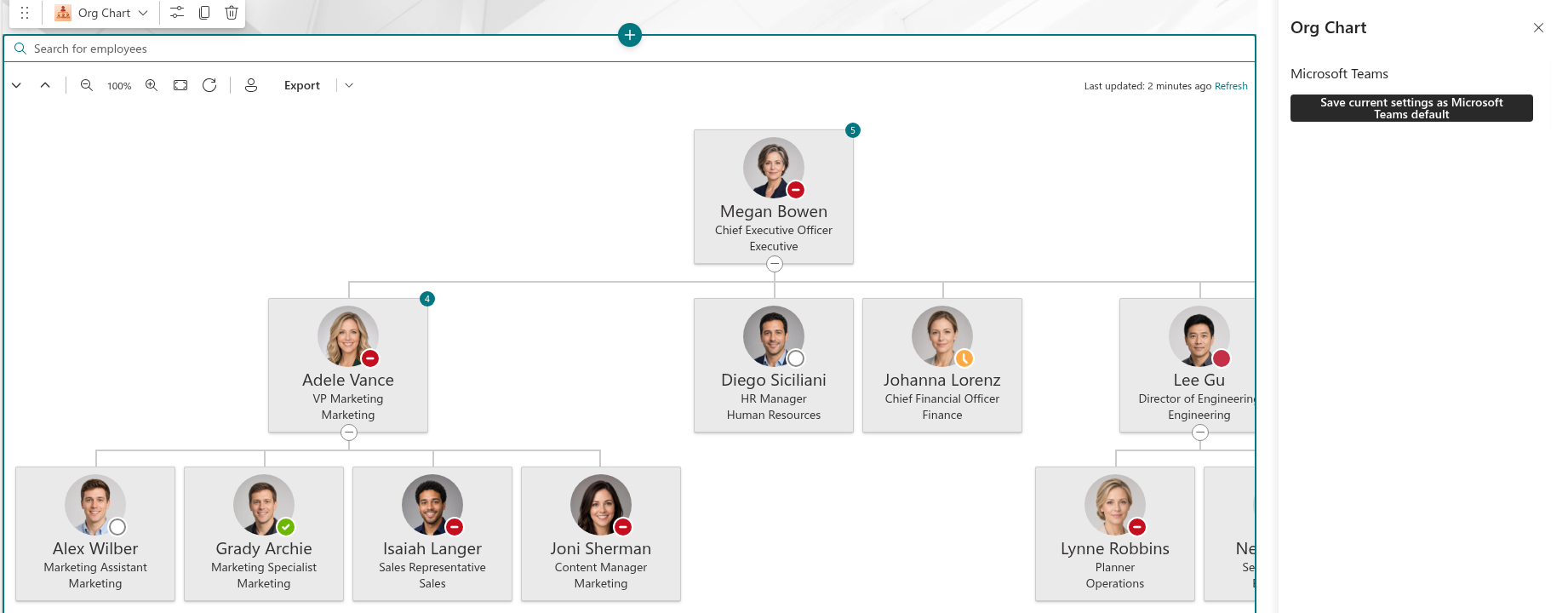
Add the Organizational Chart to Microsoft Teams as a personal app or a tab and let people explore the company structure without leaving their conversations. The same real-time data, the same interactive navigation — right inside Teams.
Because the property pane is not available inside Teams, an administrator configures the chart once in SharePoint and clicks Save current settings as Microsoft Teams default — the settings are then applied to the Teams app across the whole tenant.
The web part also supports theme variants: it automatically adapts to your SharePoint site theme, including the color variant of the page section it is placed in, and matches the selected mode in Teams. The chart always looks like a native part of your workspace, in light and dark modes alike.
Knowledge Base
Read articles related to Organizational Chart
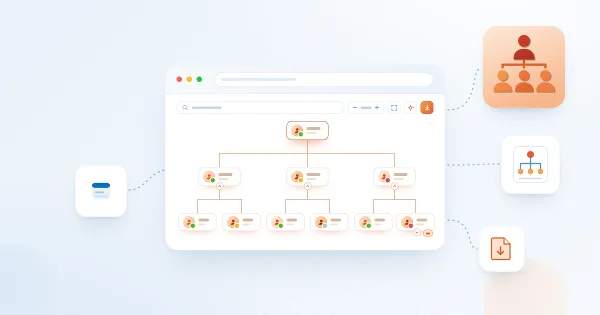
Organizational Chart. Solution Overview
Vitextra Organizational Chart is a web part for SharePoint Online and Microsoft Teams that builds an interactive company hierarchy from Microsoft Entra ID. Learn how it works: automatic structure from the manager attribute, two chart modes, horizontal and vertical layouts, employee cards with photos and presence, search, filtering, export to PDF and JPEG, and Teams integration.
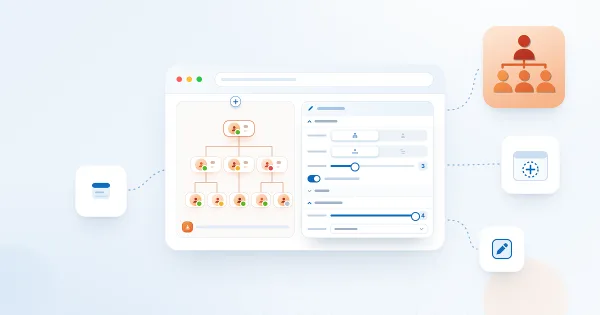
How to Add and Configure the Organizational Chart Web Part
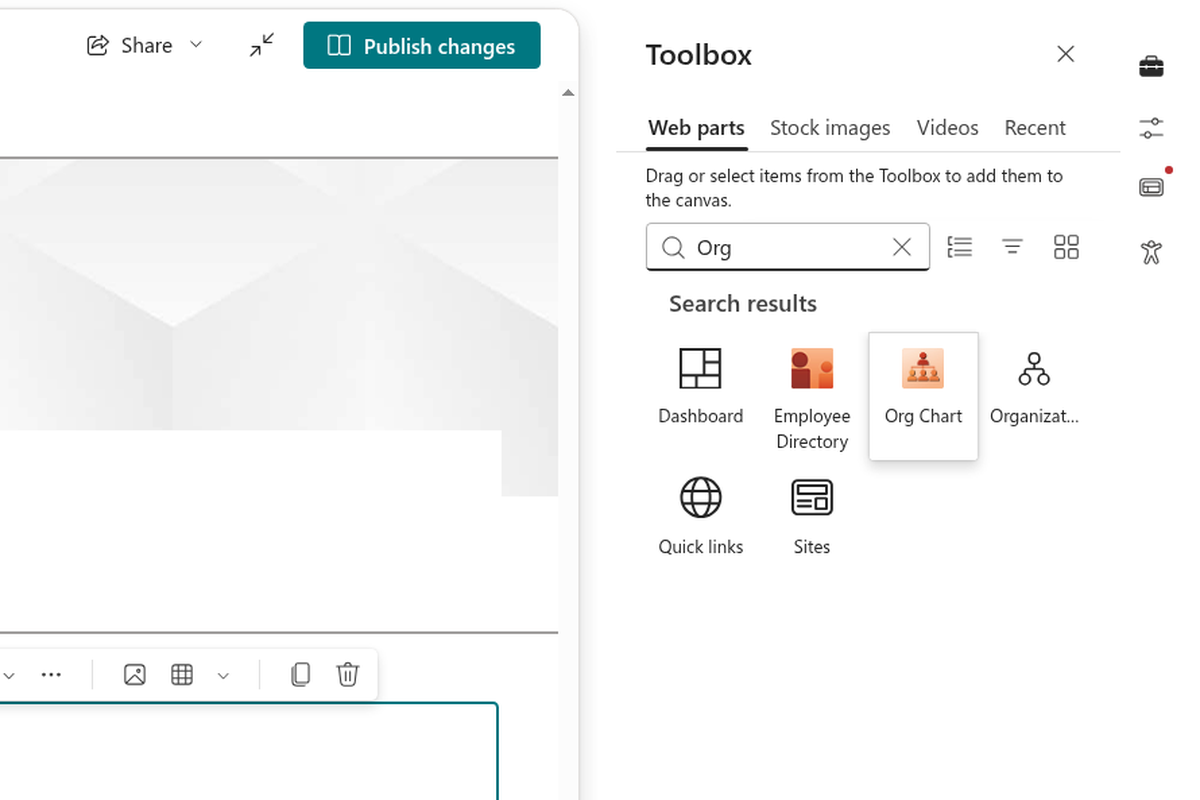
Step-by-step guide to adding the Vitextra Organizational Chart web part to a SharePoint Online page and configuring it: approving Microsoft Graph permissions, choosing the chart mode and layout, selecting the attributes shown on employee cards, filtering and excluding employees, enabling export, and saving default settings for Microsoft Teams.

Why Is Someone Missing from the Organizational Chart?
A troubleshooting checklist for employees who do not appear in the Vitextra Organizational Chart: default exclusions for unlicensed accounts and blank job titles, disabled accounts, guest users, a missing manager in Microsoft Entra ID, filtered-out managers, collapsed levels and the 12-hour data cache.
Customer Questions
Some common questions about Organizational Chart
Where does Organizational Chart take the reporting structure from?
Organizational Chart builds an interactive org chart in real time from Microsoft Entra ID via the Microsoft Graph API, using the manager and direct-report relationships maintained in your directory. There is no separate data store — keep the Manager attribute up to date in Entra ID and the chart updates automatically. See the product page.
What views and navigation options are available?
The chart can be shown as a Tree or a List. Users can zoom in and out, fit the chart to the screen, expand or collapse all branches, search for employees (including by samAccountName or userPrincipalName), and use Find me to locate themselves and highlight their management chain. An optional badge shows the number of direct reports on each card, and the whole chart can be exported to JPEG or PDF.
Can I choose which employee attributes are shown on the cards?
Yes. In the web part property pane you select the user attributes to display on cards, apply filtering criteria to limit which accounts appear, pick a theme variant and enable the employee details card and Teams presence status. In Microsoft Teams the current settings can be saved as the tenant-wide default.
Does it work in Microsoft Teams and on mobile devices?
Yes. Organizational Chart supports SharePoint Online and Microsoft Teams (as a tab or app), shows real-time presence from Microsoft Graph and is responsive across desktop, tablet and smartphone screens. Keyboard navigation (Enter/Space to expand or collapse) is supported for accessibility.
How does it perform in large organizations?
Photos and presence information are loaded lazily from Microsoft Graph, which reduces the number of API calls and avoids throttling in large tenants. The web part is localized into more than 40 interface languages. It is a cloud product for SharePoint Online and Microsoft Teams only; SharePoint Server is not supported. Installation steps are in Installing a Cloud-based Product.
Reviews
No reviews yet
Supported Languages
Platforms
Recent Changes
- v26.10.7 #
🚀 New features
- Zoom controls — Zoom in / Zoom out buttons with a live percentage, plus Fit to screen and Reset view. Wheel zoom now requires Ctrl/⌘, so normal page scrolling is no longer hijacked.
- Expand all / Collapse all — expand or collapse the whole chart with a single button.
- Find me — locates the signed-in user, expands the management chain up to them, highlights the card and scrolls it into view.
- Direct reports count — an optional badge on each card showing the number of direct reports.
- Lazy loading of photos and presence — cards request the photo and presence from Microsoft Graph only when they scroll into view; collapsed branches make no calls at all — far fewer Graph calls and less throttling in large organizations.
- Keyboard accessibility — the expand/collapse control is now operable from the keyboard (Enter/Space,
aria-expanded). - Save as Microsoft Teams default — in the Teams personal app / channel, the property pane can save the current settings as the tenant-wide default (as in Employee Directory).
- v2.3.6 #
🚀 New Features:
- Search employees by samAccountName and userPrincipalName on-premise attributes
- Migrate solution to SPFx v.1.15
- Performance improvements
- v2.3.4 #
🚀 New Features:
- Search Employees within the Org Chart
- Export the Org Chart to JPEG or PDF
- Performance improvements
- Migrate solution to SPFx v.1.15
🌐 Added Language Support:
- Bulgarian (Bulgaria)
- Estonian (Estonia)
- Basque (Basque)
- Greek (Greece)
- Lithuanian (Lithuania)
- Portuguese (Portugal)
- Romanian (Romania)
- Slovak (Slovakia)
- Slovenian (Slovenia)
- v1.0.9 #
🏁 First Release
Discover more apps
Suggested apps
Share
Send feedback
We would love to hear from you! Please take a moment to let us know about your experience.