
Smart Search
Discover Smart Search, a powerful SharePoint Online web part that enhances your document and information search experience.
- Rating
- 5.0
- Oct 2026
- v26.10.9
- Supported Languages
- 15
Smart Search is a powerful, configurable search web part for SharePoint Online designed to help you quickly and efficiently find the information and documents you need. Search operators, sorting, saved searches, shareable links, a details panel and content quality indicators, together with customizable display options and advanced filtering, bring the right results to the top.
- Configurable Web Part with 30+ Parameters
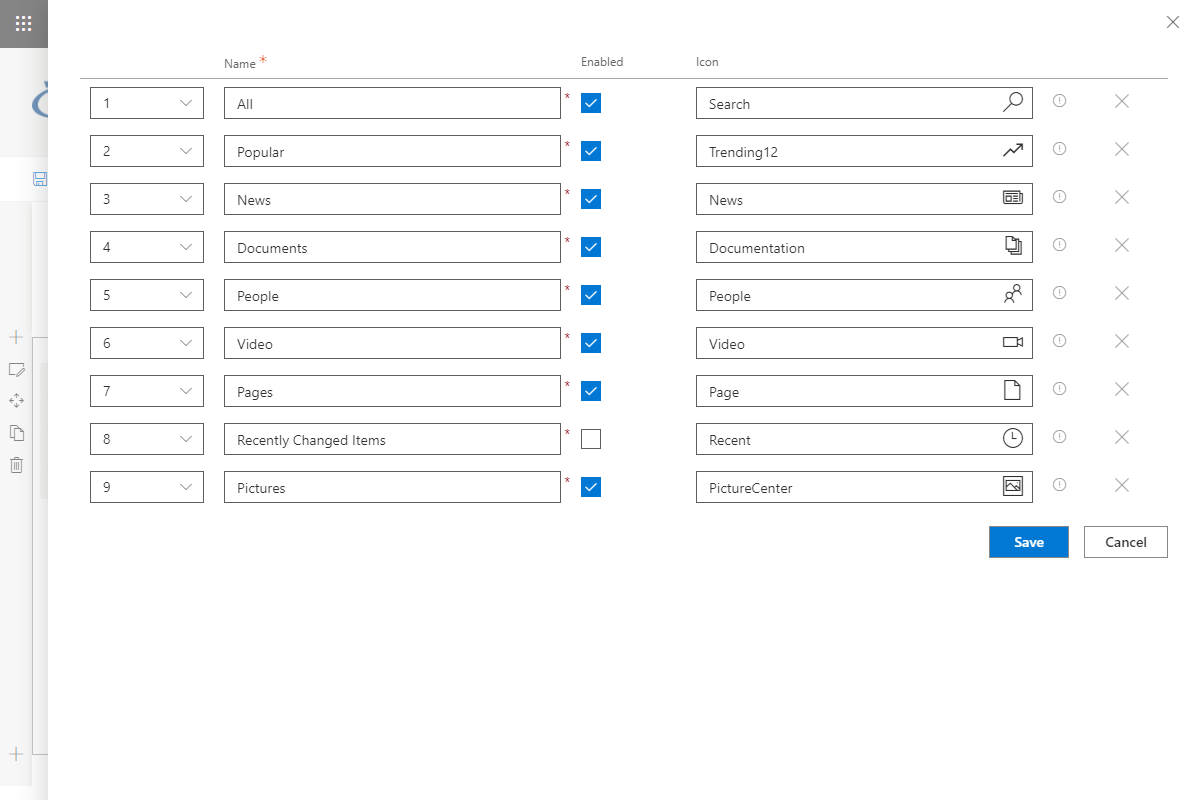
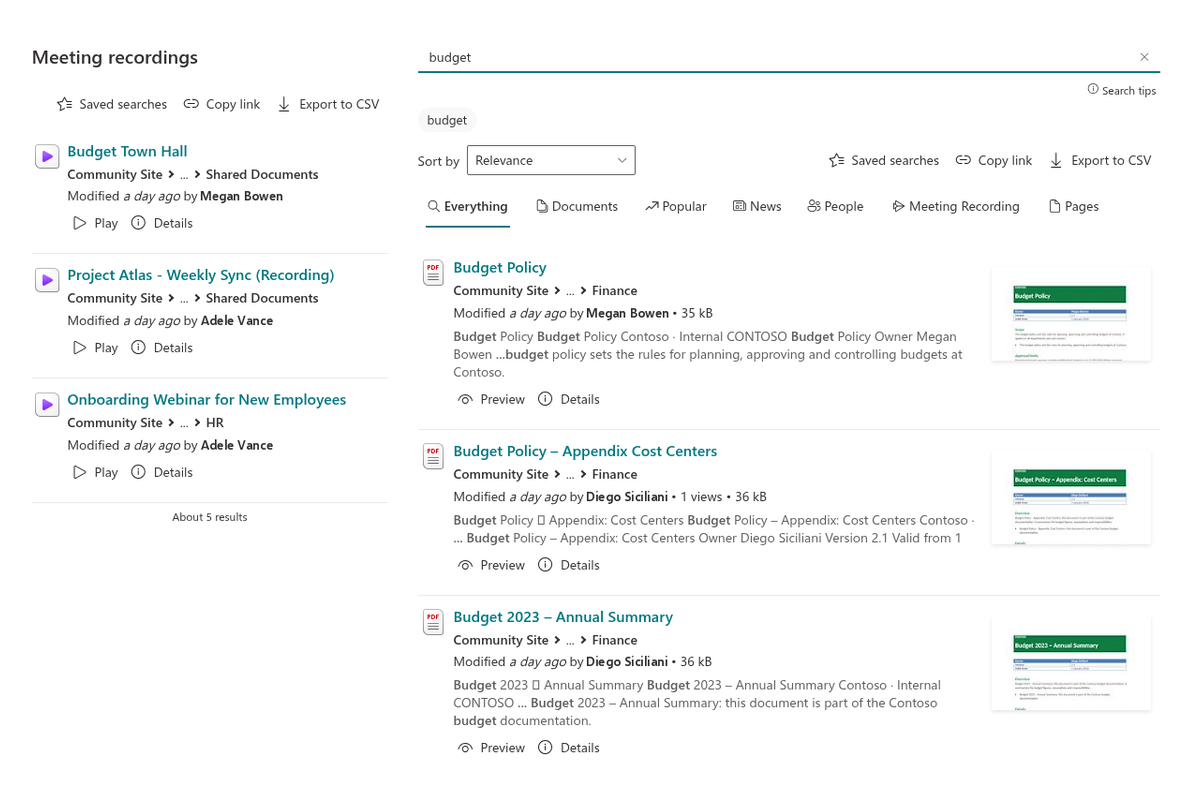
- Tabs to Switch Between Search Results Sources
- Customizable Item Layout
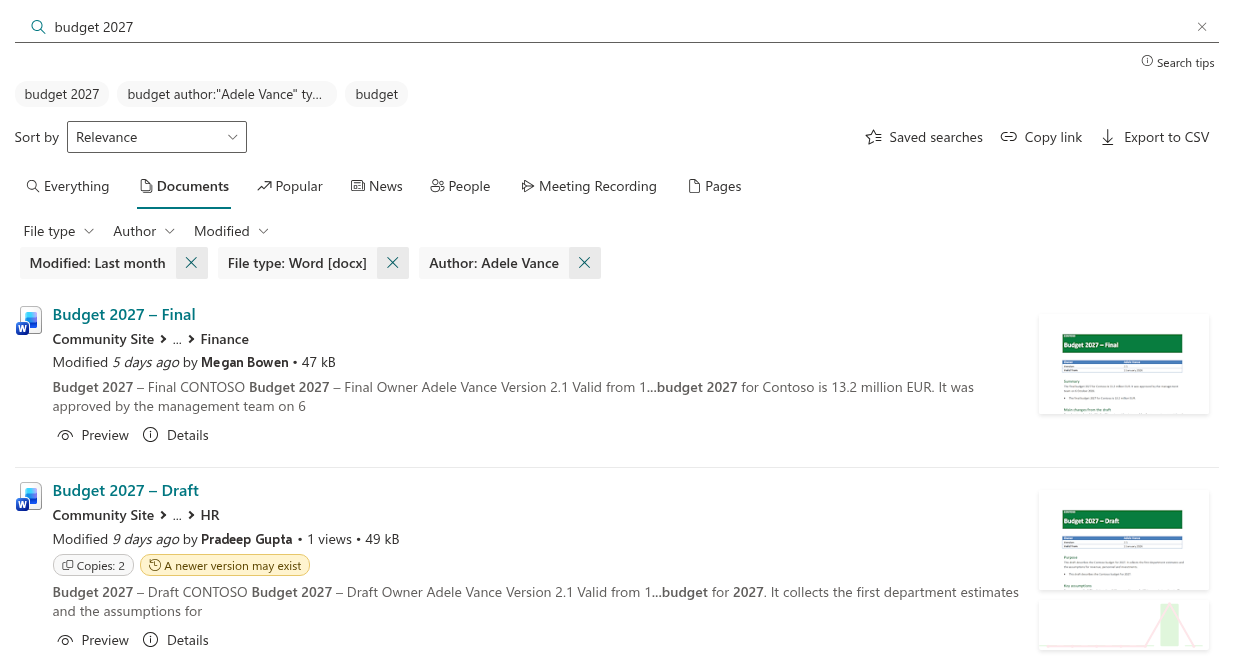
- Search Operators Right in the Search Box
- Sorting, Shareable Links and Saved Searches
- Export Results to CSV
- Details Panel with Preview, Properties and Version History
- Copy Detection and Content Quality Indicators
- Action Buttons
- Refinement Panel
- SharePoint Brand Center Support
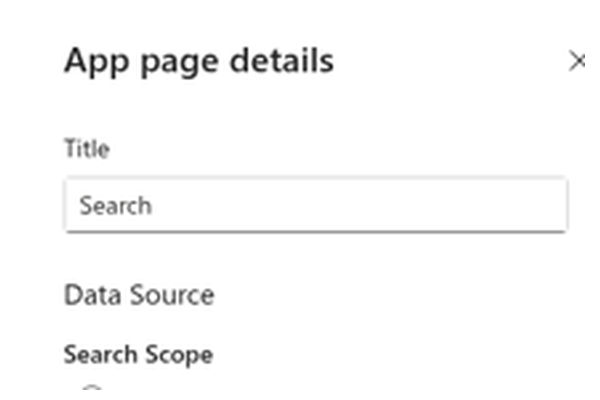
Overview
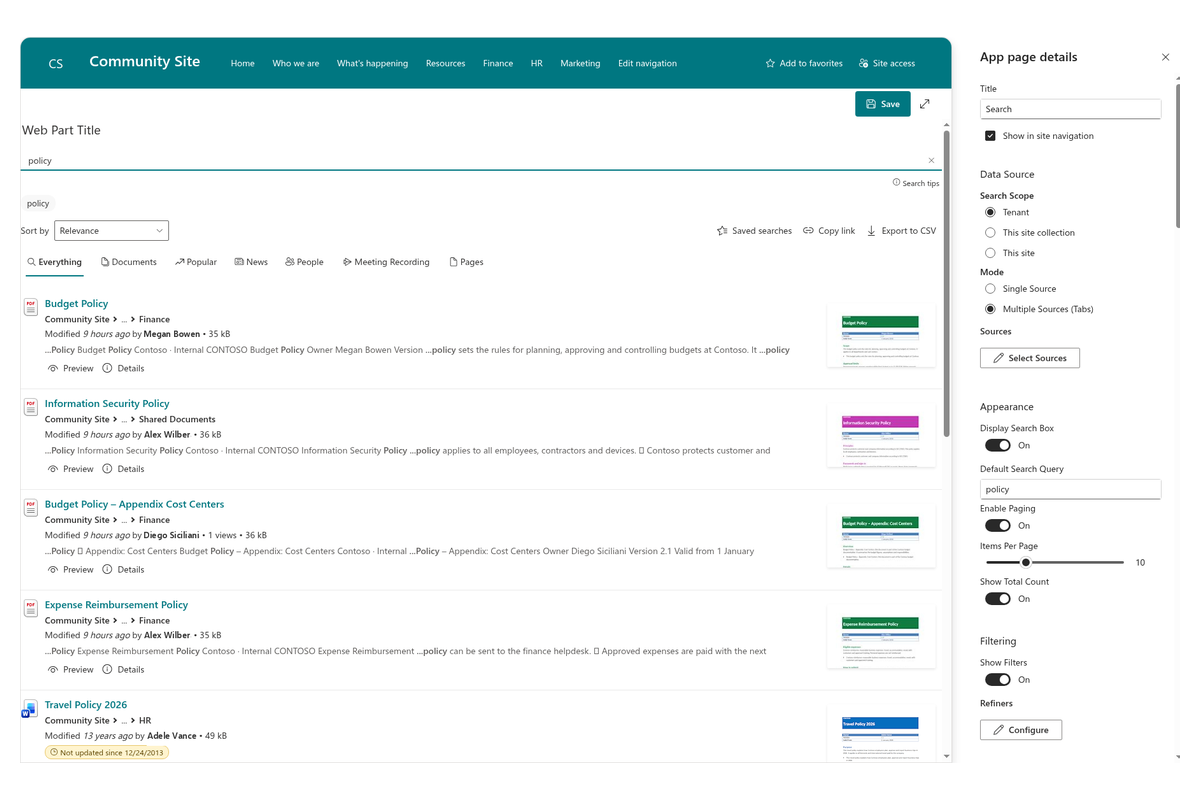
Smart Search is an advanced web part for SharePoint Online designed to enhance your search experience. It provides an intuitive interface that allows users to quickly enter queries and receive precise results, while search operators, refiners and sorting make it easy to narrow the results down to exactly what is needed.
Seamlessly integrating into your existing SharePoint environment — including support for the SharePoint Brand Center — Smart Search offers a smooth, efficient, and on-brand way to locate documents and information across your intranet.
Configurable
Vitextra Smart Search has more than 30 customizable parameters to meet the needs of any modern search center.
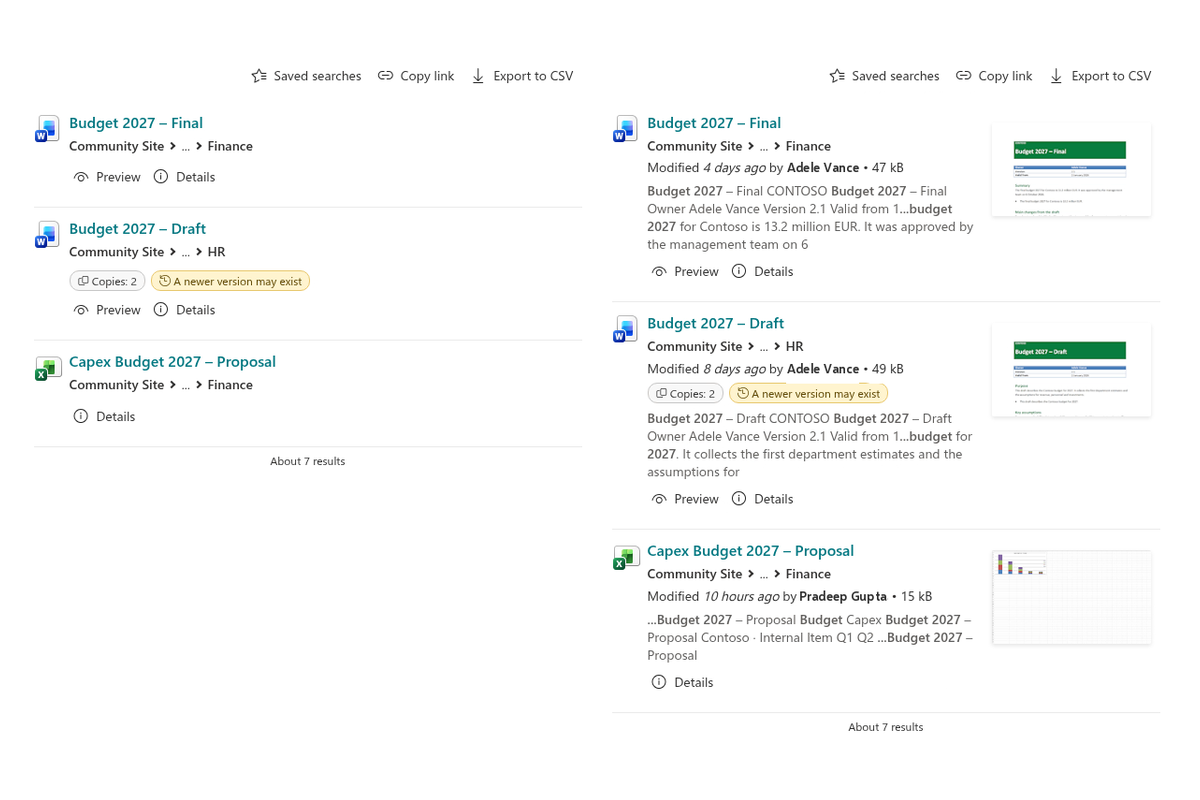
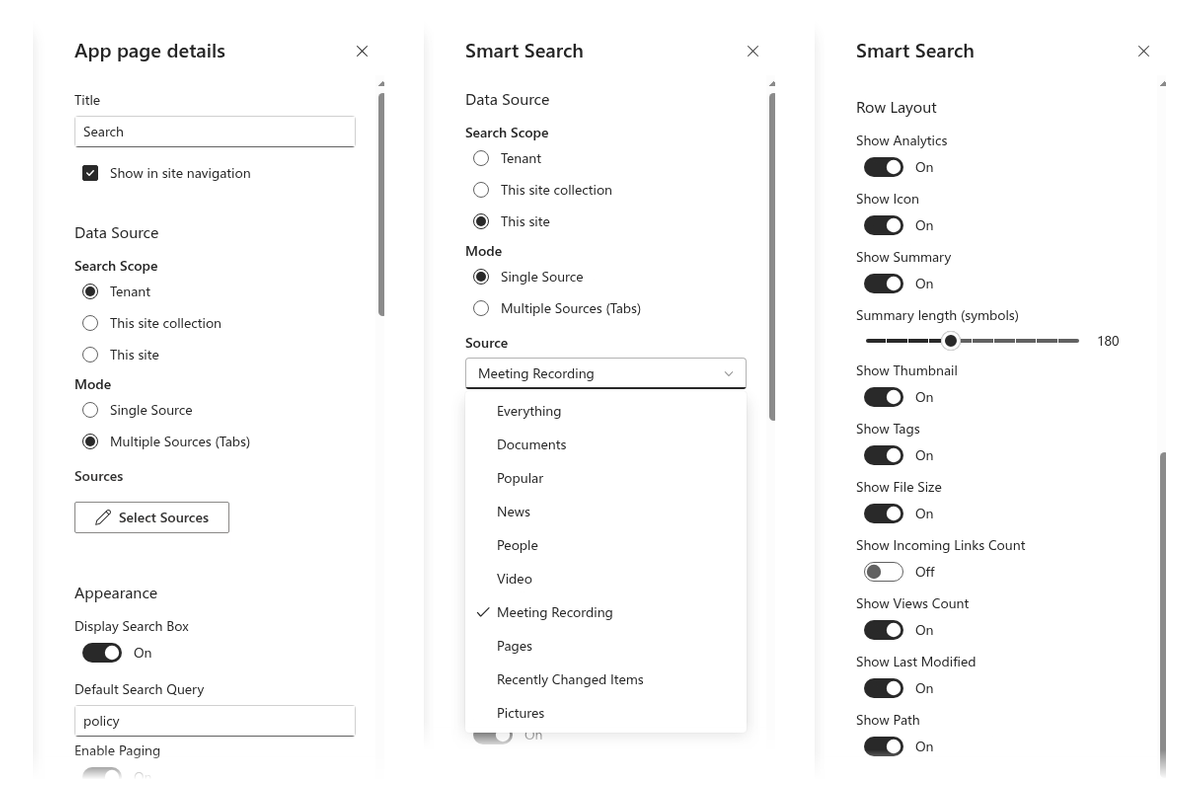
The customizable item layout allows you to change the way search results are displayed — from a simple title-only view to a rich view that includes a breadcrumb to the item location, a document thumbnail, analytics of recent views and viewers, a summary, taxonomy tags, file size, and more.
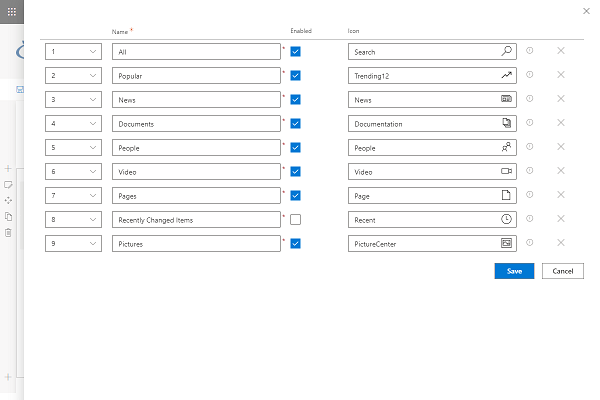
Search Results Sources
Smart Search supports two operational modes:
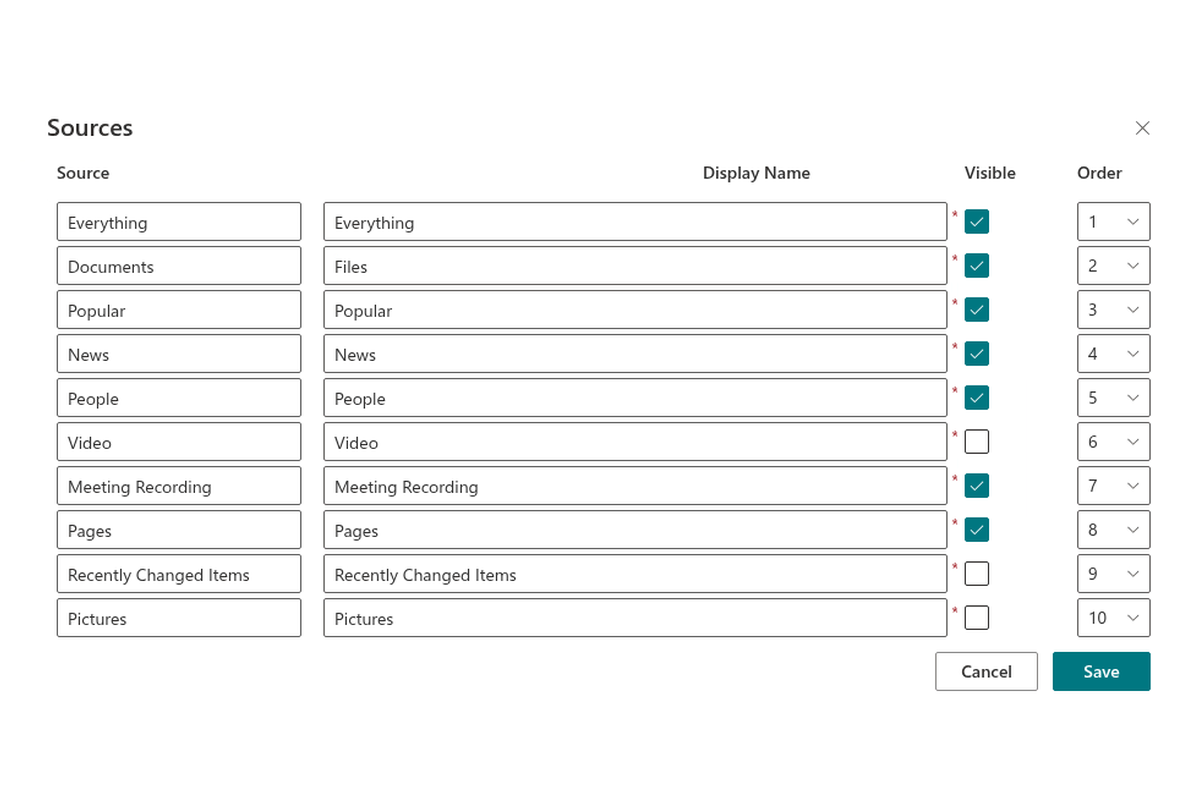
- Single Source. Choose one of the ten built-in search sources (Everything, Documents, Popular, News, People, Meeting Recording, Pages and others) to narrow the search scope.
- Multiple Sources (Tabs). Choose the available search sources and their order to allow users to switch between them.
The search scope can be limited to the whole tenant, the current site collection or the current site.
Search Operators
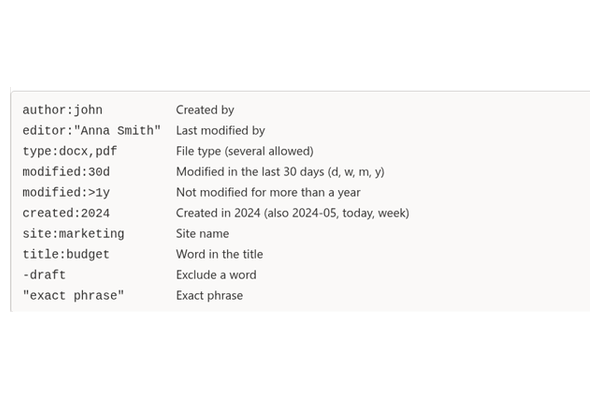
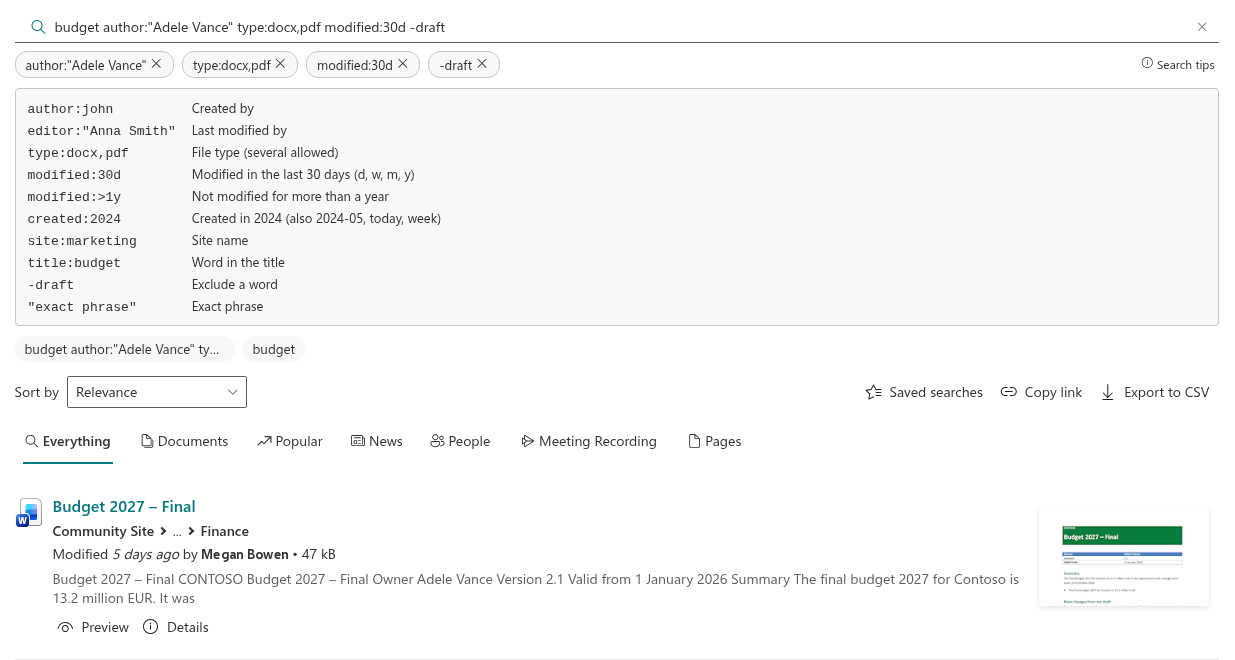
Type operators straight into the search box — no need to learn KQL:
author:john,editor:"Anna Smith"— by author or last editortype:docx,pdf— by file type (several at once)modified:30d,modified:>1y,created:2024— by datesite:marketing,title:budget— by site name or a word in the title-draft— exclude a word;"exact phrase"— search for a phrase
Recognized operators appear as chips under the search box and can be removed with one click. The "Search tips" link lists all of them. Native KQL (for example FileType:docx) keeps working unchanged.
Refinement Panel
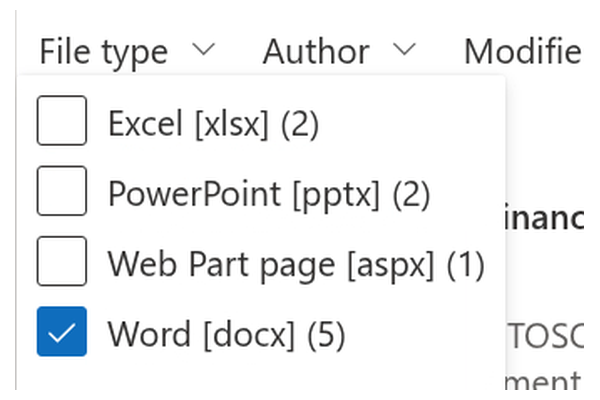
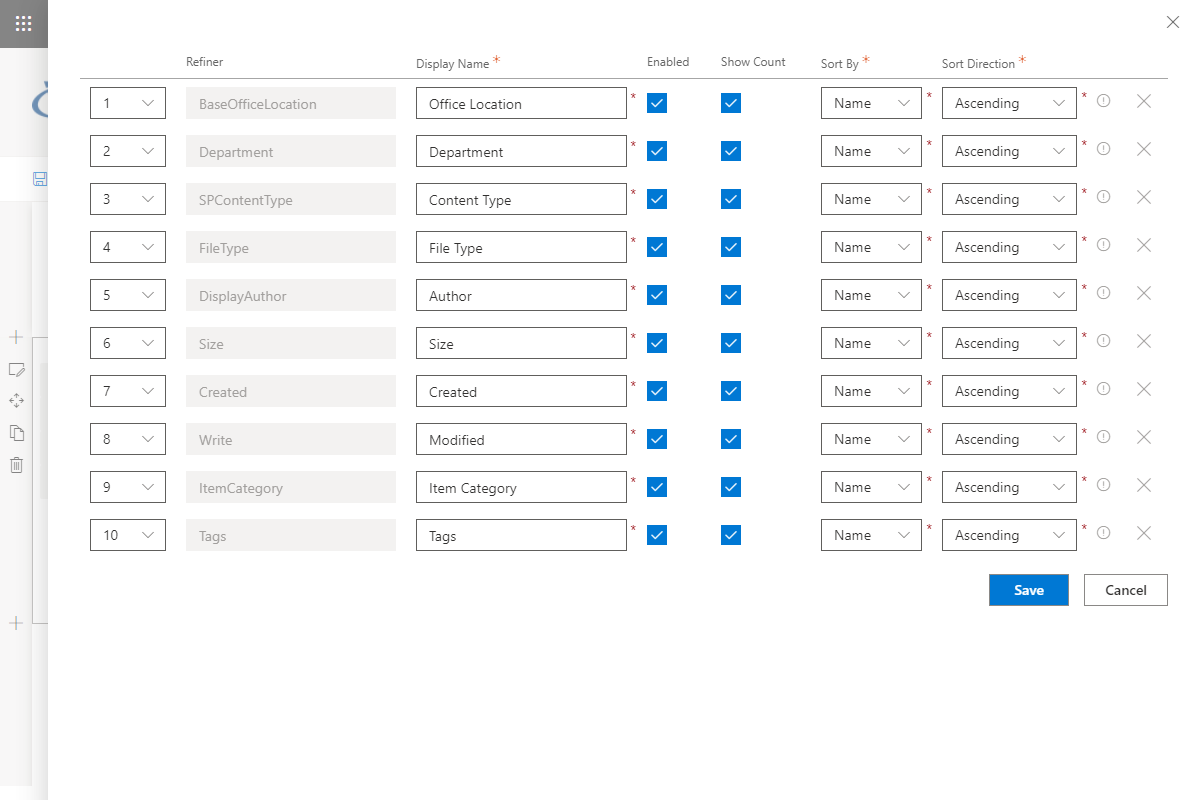
The refinement panel helps users narrow long result lists to a focused shortlist in a couple of clicks. Refine search results by the attributes that matter — file type, modified and created date, author, editor, content type, tags and other managed properties — without re-entering the query. The panel works alongside the result list, so the search context is always preserved.
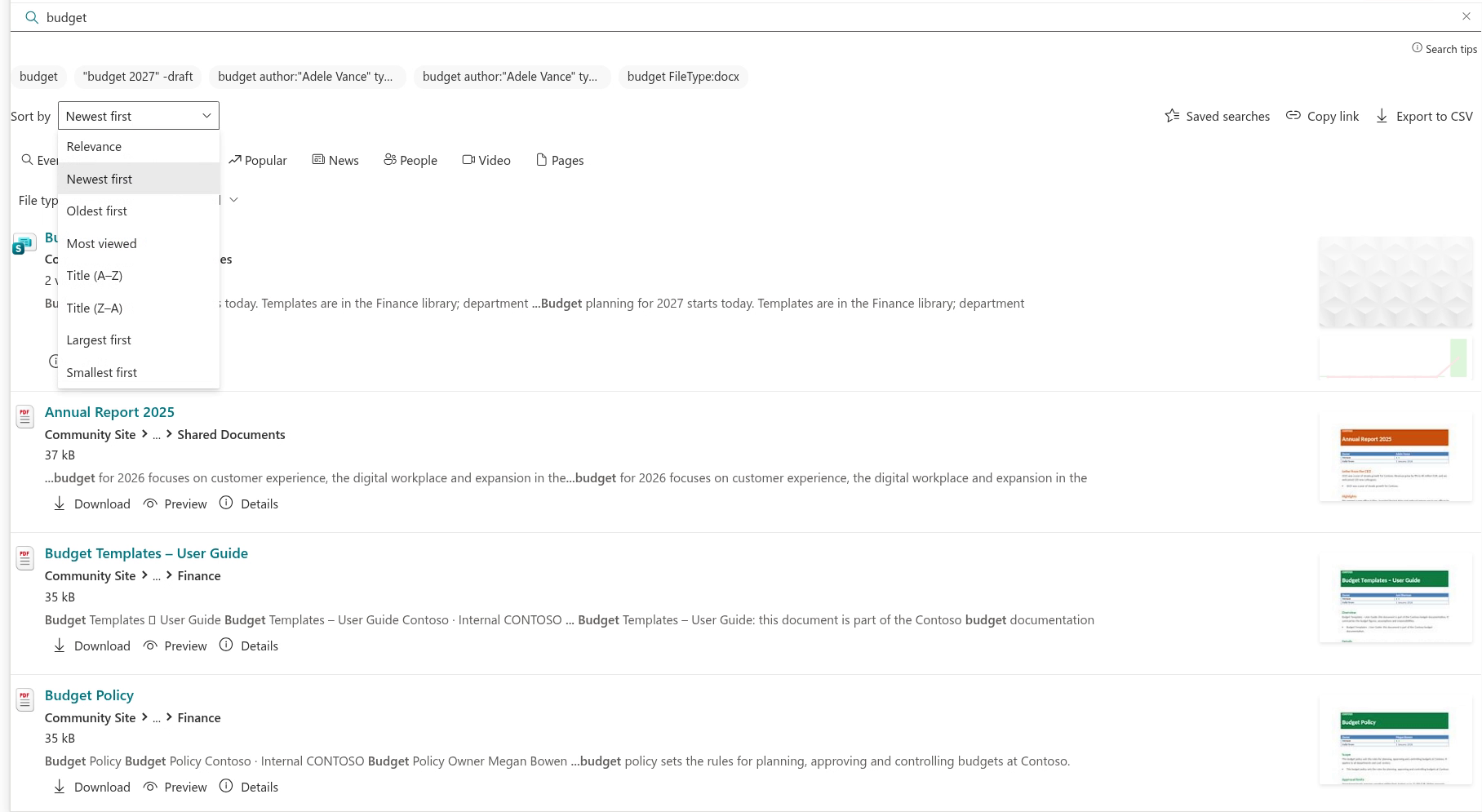
Sorting
Choose Relevance, Newest first, Oldest first, Most viewed, Title (A–Z / Z–A), Largest or Smallest first right above the results. The choice is part of the page link, so it is preserved when a link is shared. Tabs that do not support sorting hide the selector.
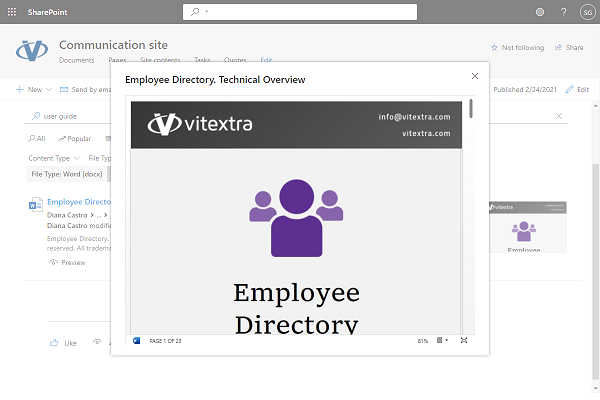
Action Buttons
Action Buttons are available depending on the type of search result:
- Download. Direct link to the document to download it immediately
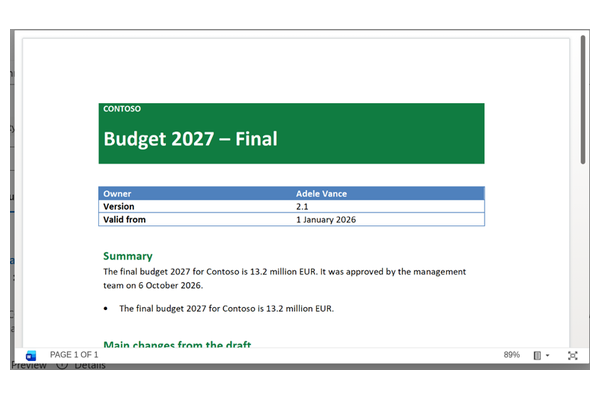
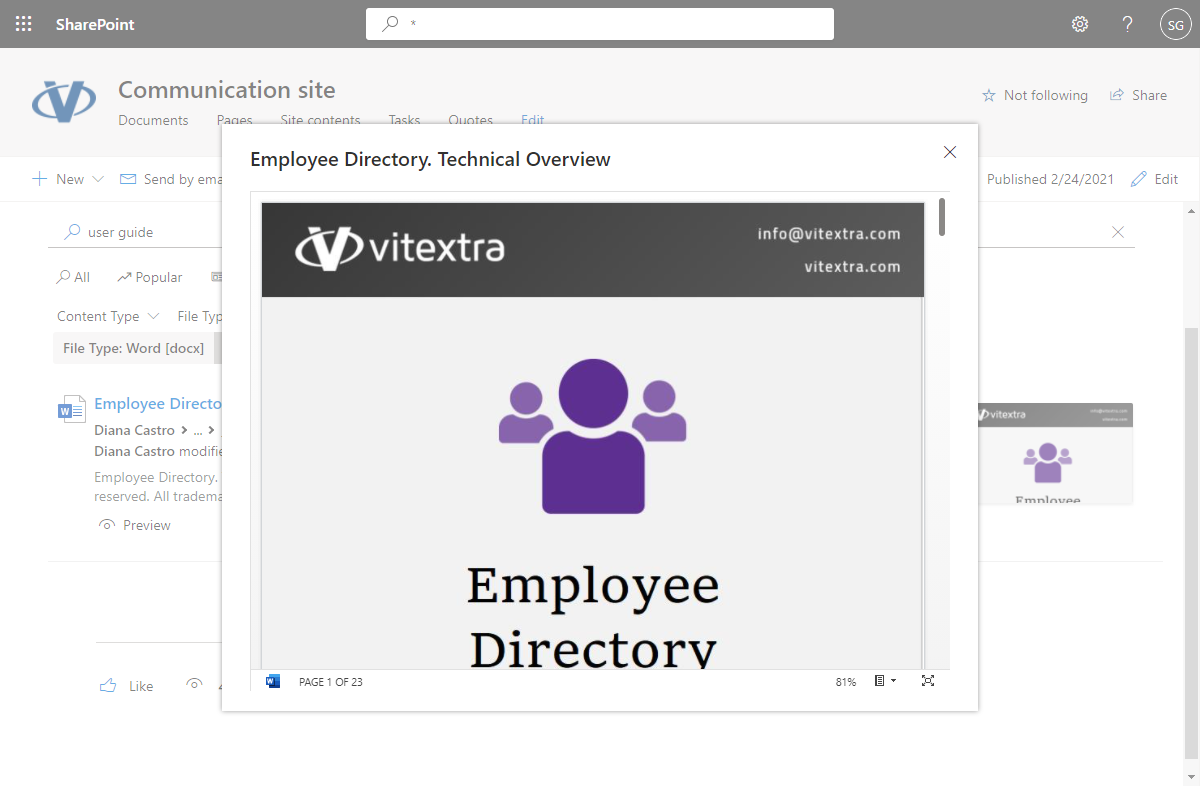
- Preview. Open a Microsoft Office document in a dialog to view its content
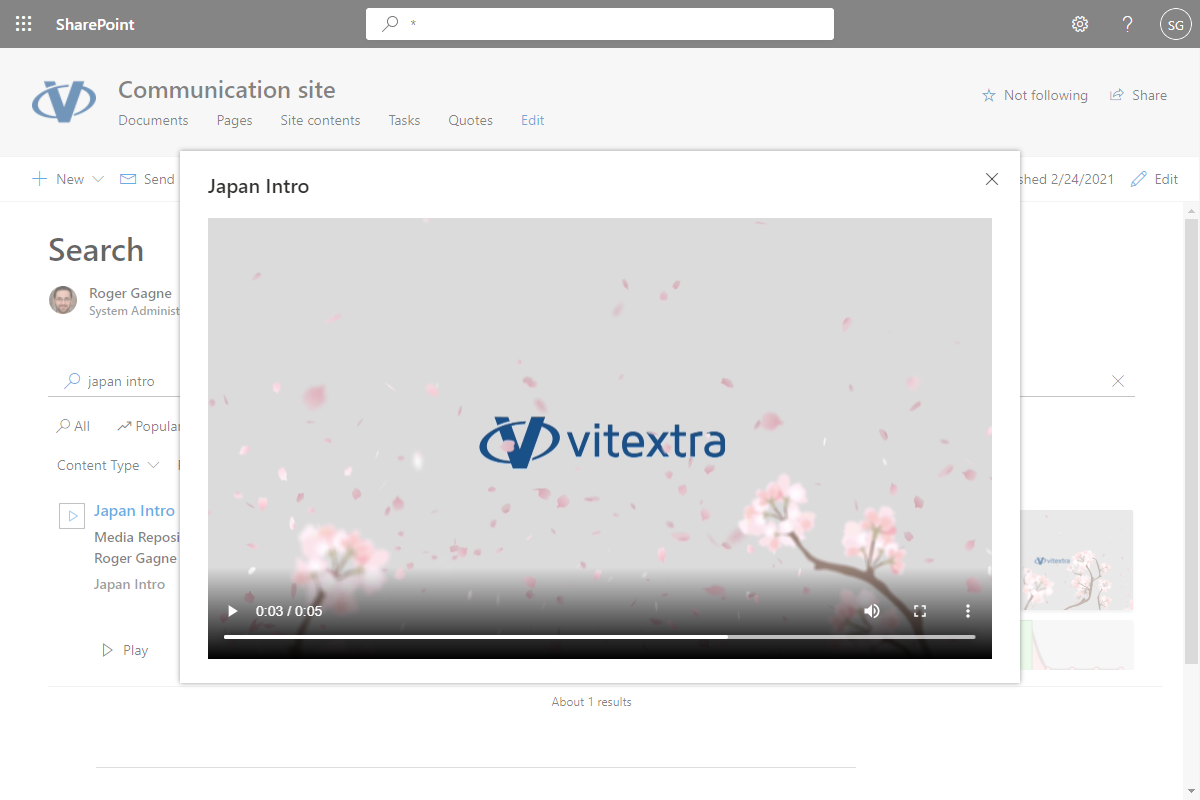
- Play. Play a video file in a dialog
- Details. Open the details panel of the result
The Action Buttons let users act on a result while keeping the search context — no need to open new browser tabs.
Details Panel
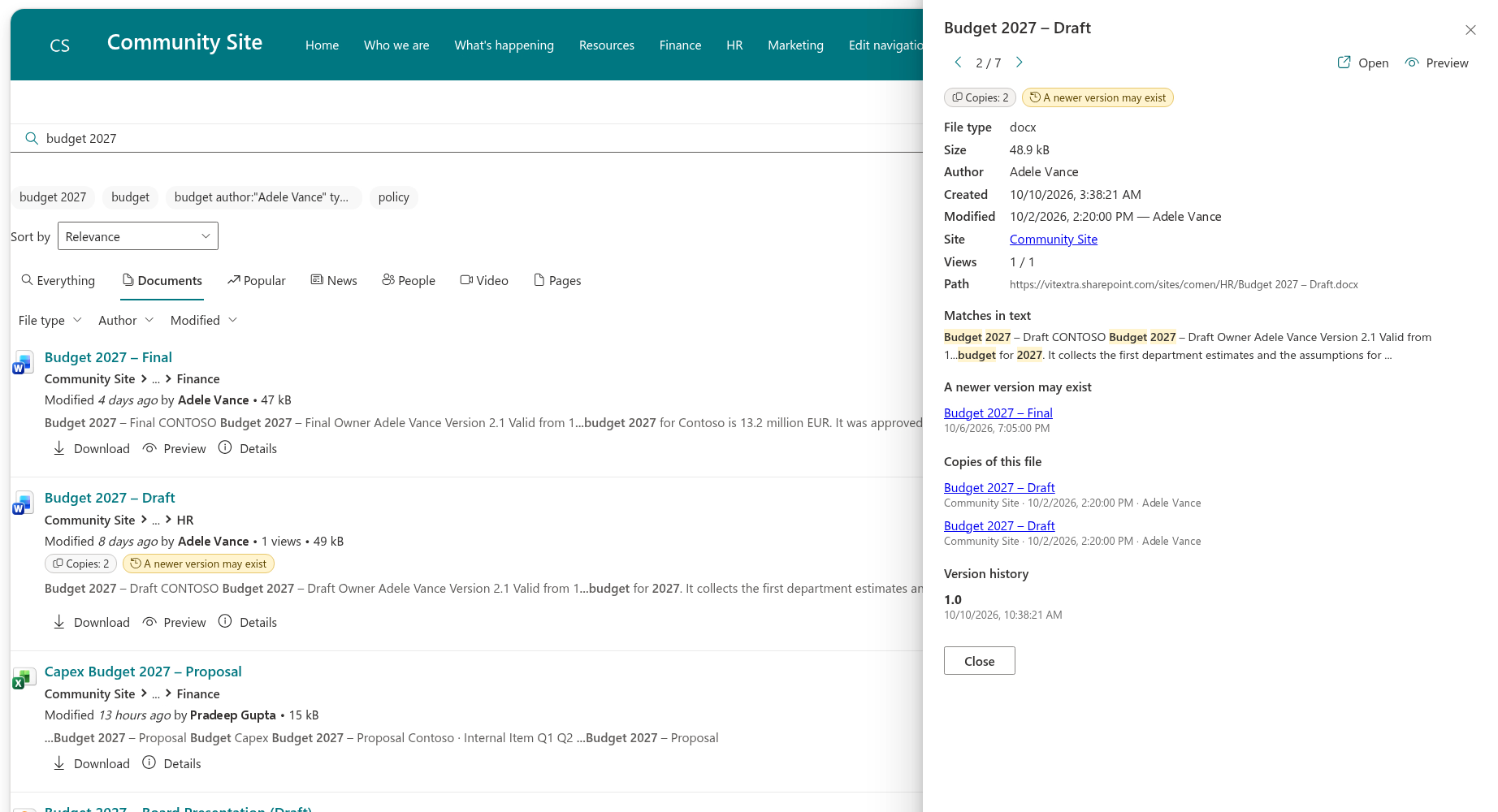
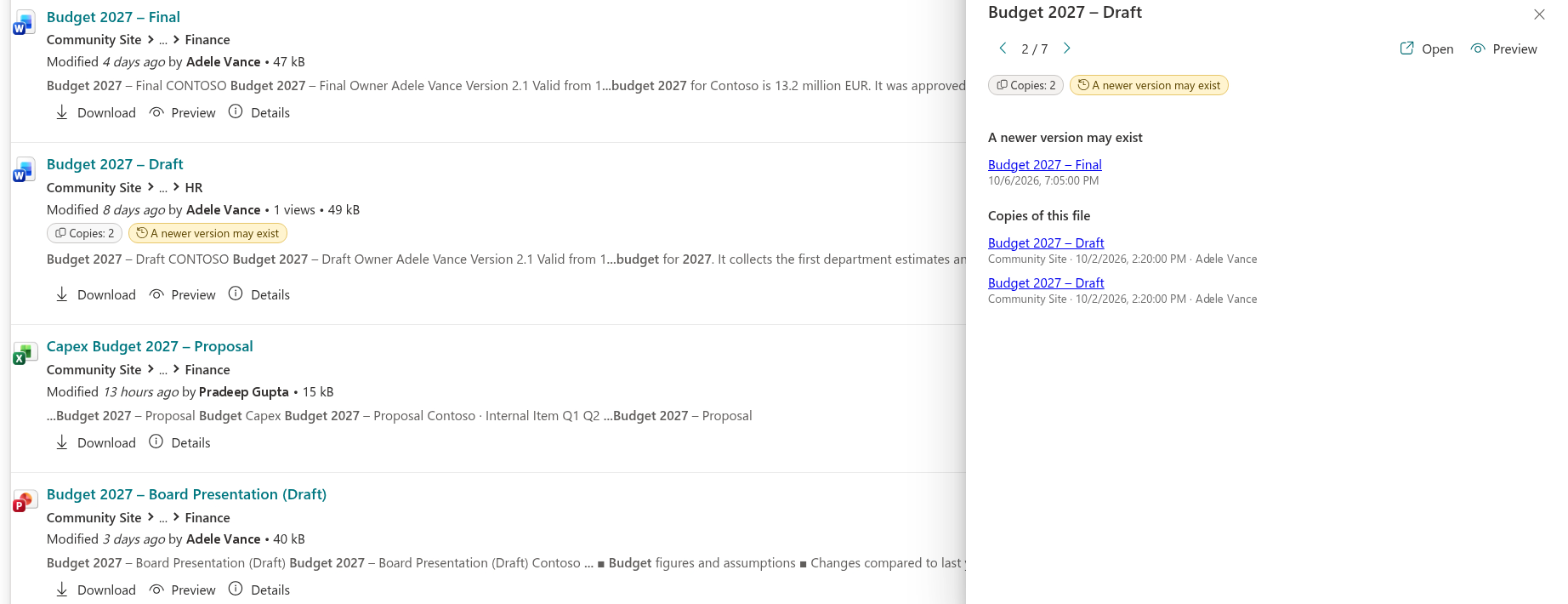
Understand a result without opening it. The "Details" action opens a side panel with the document preview, its properties, the matches found in the text, copies of the file and the version history. Use the arrow buttons or the ← / → keys to move between results without closing the panel.
Copies and Content Quality
Keep your content clean:
- Copies of the same file. Results show "Copies: N" when other copies of the same content exist; the details panel lists where they are.
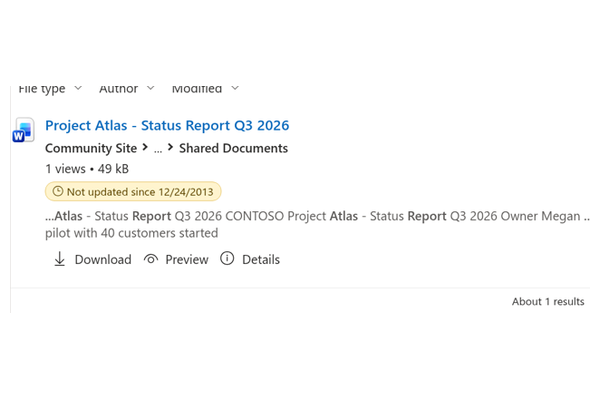
- Quality indicators. Badges mark content that has not been updated for a long time (24 months by default, configurable), has no owner, or carries a sensitivity label. A separate badge warns when a newer version with a similar file name ("Plan_v1" / "Plan_v2") appears on the same page.
Saved Searches and Shareable Links
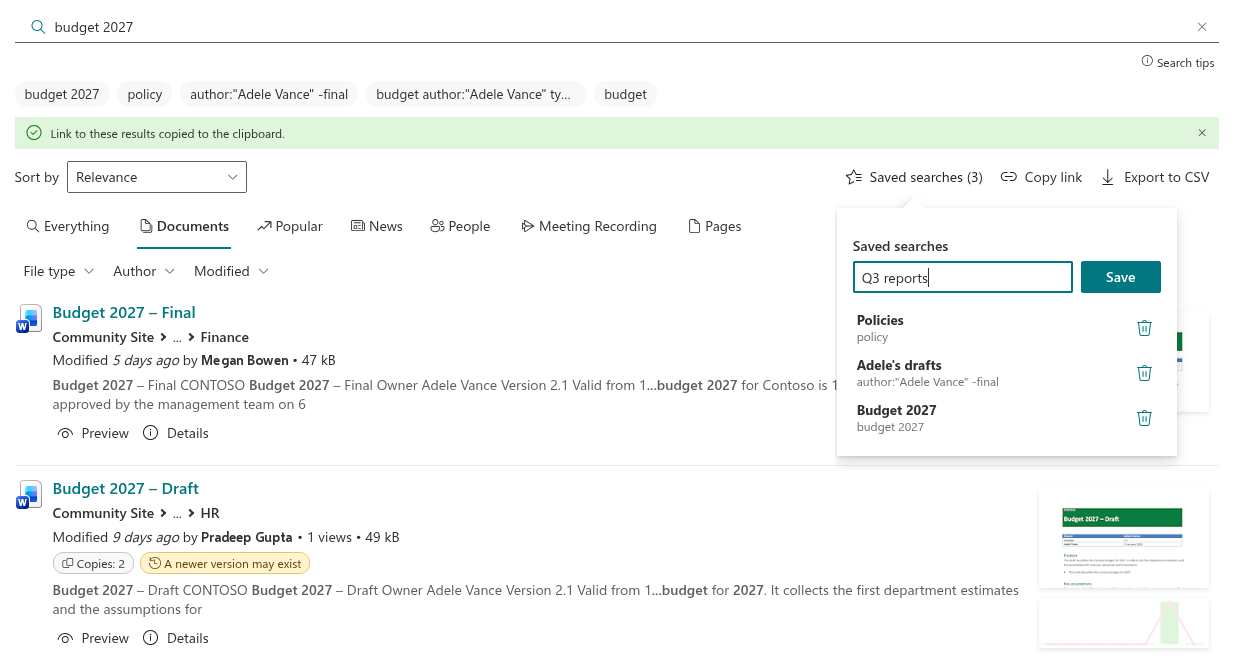
- Shareable links. The query, tab, filters, sort order and page are stored in the page address. "Copy link" puts it on the clipboard, and opening such a link restores exactly the same result list.
- Saved searches. Save the current query with its tab, filters and sort order under a name and re-apply it in one click (up to 30 per user). Saved searches are stored in the browser of the current user and are not shared between devices.
Export to CSV
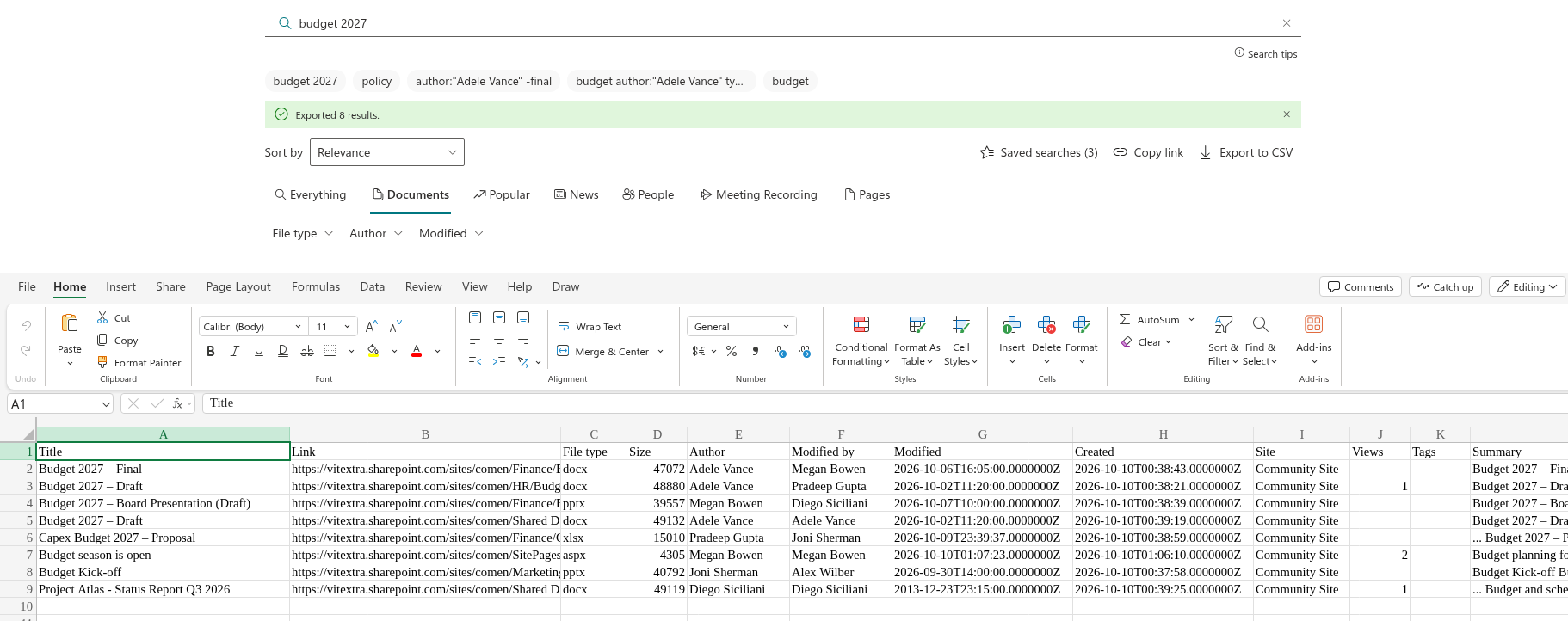
Download all results of the current query with the active filters (up to 1,000 rows): title, link, type, size, author, editor, dates, site, views, tags and summary. The file opens correctly in Excel, including non-English versions.
Easy to Administer
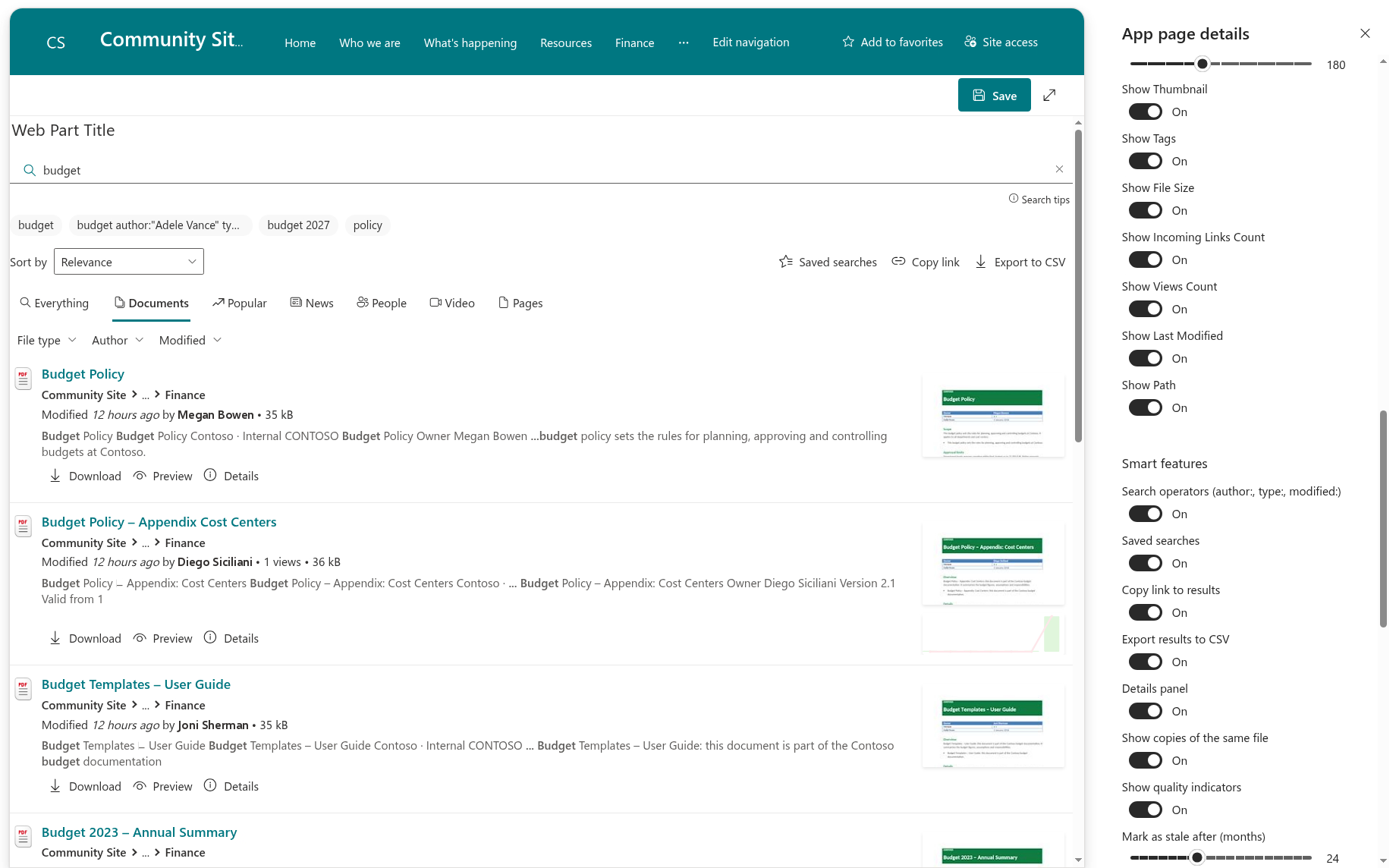
All new features are grouped in the Smart features section of the property pane: each can be switched on or off, and the period after which content is considered stale can be set. All features are on by default.
Smart Search follows the colors and fonts of the site theme, supports theme variants and the SharePoint Brand Center, works on SharePoint pages and in Microsoft Teams (personal app and tab), and the interface is localized into more than 40 languages.
Knowledge Base
Read articles related to Smart Search

Search Recorded Teams Meetings with Smart Search
How to configure the Vitextra Smart Search web part to find recorded Teams meetings stored in OneDrive or SharePoint, with filtering by author and date.

How to Create a Search App Page with Smart Search
Step-by-step guide to creating a single app page with the Vitextra Smart Search web part in SharePoint Online, making it the site's search results page, and linking to it with ready-made queries and tabs.

Smart Search. Solution Overview
Vitextra Smart Search is a configurable search web part for SharePoint Online and Microsoft Teams. Learn how it works: search source tabs, a refinement panel with date filters, a customizable result layout with view analytics, document preview and video playback, and shareable search links.
Customer Questions
Some common questions about Smart Search
What is Smart Search and how does it differ from built-in SharePoint search?
Smart Search is a SharePoint Online and Microsoft Teams web part that enhances document and information search with more than 30 configurable parameters: multiple search sources shown as tabs, a refinement panel, sorting, rich result layouts with thumbnails and analytics, and Download/Preview/Play actions. It uses the built-in SharePoint Search service, so results are always trimmed by each user's permissions. See the product page and the Administrator Guide.
Can I replace the default SharePoint search results page?
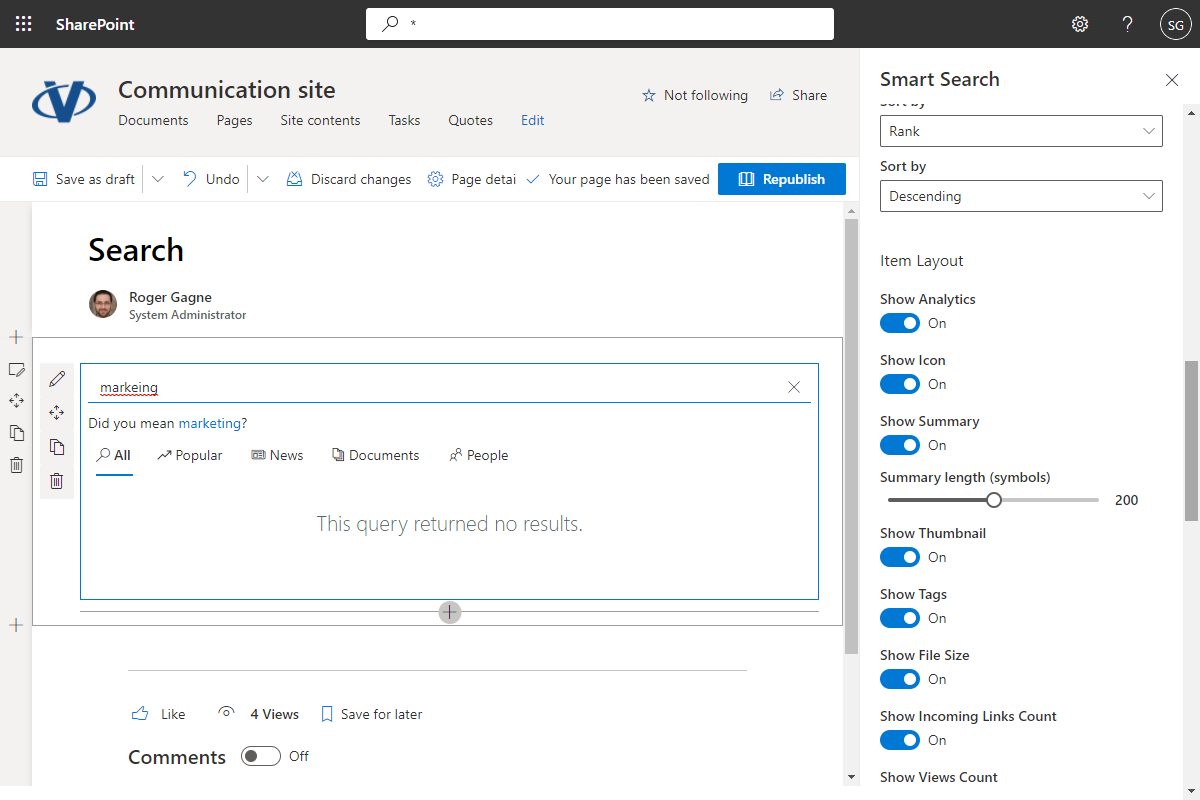
Yes. Create a page with the Smart Search web part, set * as the default search query, and point the site's search results page to it in Site Settings → Search Settings. Smart Search then picks up the query from the SharePoint header search box. Note that the change can take up to five minutes to apply and that Smart Search supports a single app page. The full walkthrough is in Build a Custom Search Results Page with Smart Search.
Which search sources are available?
Smart Search ships with nine built-in sources — for example Meeting Recordings, Popular items and Recently Changed Items — and can run in Single Source mode or Multiple Sources mode, where the sources appear as tabs in the order you define. Custom search sources are not supported, and sorting does not apply to the Popular and Recently Changed Items sources.
Can I search recorded Teams meetings?
Yes. Set the web part to Single Source mode with Meeting Recording as the source and * as the default query; users can then find recordings stored in OneDrive or SharePoint and filter them by author and recording date. See Search Recorded Teams Meetings with Smart Search.
How can I customize the appearance of results?
Each result can show up to 12 fields — title, breadcrumb, thumbnail, view analytics, viewer summary (100–300 characters), taxonomy tags, file size and more — and all of them except the title can be hidden for a compact title-only view. The web part supports the SharePoint Brand Center and inherits the site theme.
Reviews
It was easy
We put Smart Search in our SharePoint. It was easy. We can change how the search shows things to make it better for us. It helps us be more productive.
Smart Search has changed the way we look for documents
Smart Search has changed the way we look for documents in SharePoint. It's easy to find what you need with the simple interface and good filters.
search meeting recording
this app allowed me to resolve issue with searching teams meetings
Supported Languages
Platforms
Recent Changes
- v26.10.9 #
🚀 New features
- Search operators — type
author:john,editor:"Anna Smith",type:docx,pdf,modified:30d,modified:>1y,created:2024,site:marketing,title:budget,-draftor"exact phrase"straight into the search box; recognized operators appear as removable chips, and a Search tips link lists them all. Native KQL keeps working. - Sort selector — sort by Relevance, Newest first, Oldest first, Most viewed, Title (A–Z / Z–A), Largest or Smallest first; the choice is part of the page link, and tabs without sorting support hide the selector.
- Shareable links — the query, tab, filters, sort order and page are stored in the page address; Copy link restores exactly the same result list for anyone who opens it.
- Saved searches — save the current query with its tab, filters and sort order under a name and re-apply it in one click (up to 30 per user; stored in the browser, so not synchronized between devices).
- Export to CSV — download all results of the current query with the active filters (up to 1,000 rows): title, link, type, size, author, editor, dates, site, views, tags and summary; opens correctly in Excel, including localized versions.
- Details panel — the new Details action opens a side panel with the preview, properties, matches in the text, copies of the file and version history; move between results with the arrow buttons or the ← / → keys.
- Copies of the same file — results show Copies: N when the same content exists elsewhere, and the details panel lists where (relies on the
DocumentSignaturemanaged property; if it is not queryable in your tenant, copies are simply not shown). - Quality indicators — badges mark content that has not been updated for a long time (24 months by default), has no owner, carries a sensitivity label (
InformationProtectionLabelId), or may have a newer version with a similar file name on the same page. - Smart features — a new group in the property pane turns each feature on or off and sets the staleness threshold; everything is on by default, and sorting is now enabled by default for new web parts.
- Search operators — type
- v3.1.1 #
This version includes several new features and improvements to enhance your experience:
🎨 Support for SharePoint Branding Center
Customize your search interface to align with your organization's branding.🚀Performance Enhancements
Enjoy faster and more efficient search operations.🌍Localization Improvements
Translations have been updated for better clarity across languages - v3.0.3 #
Minor bug fixes and improvements
- v2.0.2 #
🚀 New Features:
- Display secondary search results
🐞 Fixed Bugs:
- Current page number is not highlighted
- Thumbnails not displayed for some search results
- v2.0.0 #
🐞 Fixed Bugs:
- Filter panel is missing
- Wrong link to a meeting record
🚀 New Features:
- Define the scope of the search results (Tenant, Site Collection, Site)
🌐 Added Language Support:
- Arabic (Saudi Arabia)
- Bulgarian (Bulgaria)
- Czech (Czechia)
- German (Germany)
- Italian (Italy)
- Japanese (Japan)
- Turkish (Turkey)
- Chinese (Simplified, China)
Discover more apps
Suggested apps
Share
Send feedback
We would love to hear from you! Please take a moment to let us know about your experience.