- Tools
- SharePoint Online, Vitextra Short URL Online
The Create shortened URL form of the Short URL Online web part with the Name, Origin URL, Domain and Short URL fields filled in and the Create button highlighted.
Open a SharePoint Page in Edit Mode
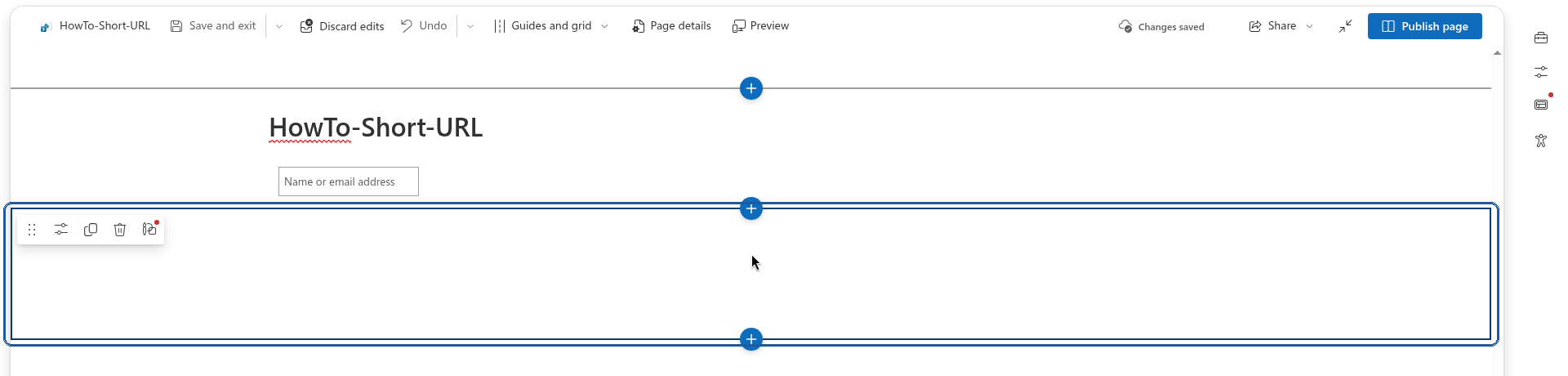
Open the SharePoint page where you want to place the Short URL web part in edit mode, or create a new page.
Add the Short URL Web Part
Select a line with a circled +, like this:

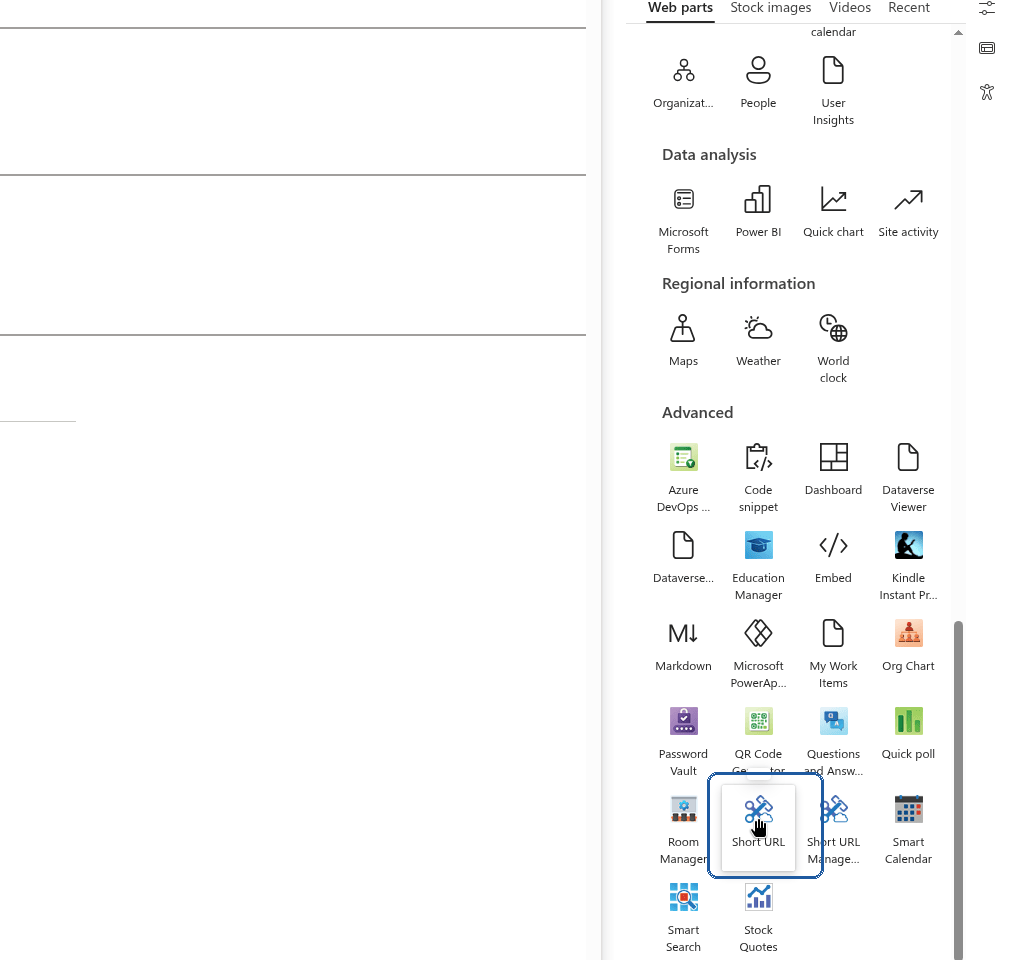
Click the circled plus to add a web part A list of available web parts appears. Scroll down to find the Short URL Online web part and select it.
Save the Changes

Change the title of the web part if you need to, then select Publish to save the changes.
Create a New Shortened URL

Type in the information about the new shortened link:
- Name (optional) — an internal label to help you recognize the link later; it is not part of the URL.
- Origin URL (required) — the target URL where the user will be redirected.
- Domain (required) — one of the domains available to your tenant.
- Short URL (required) — the custom suffix that appears after the domain.
💡 Tip
Short URL supports special characters such as ?, #, %, &, and others, so you are not limited to plain letters and numbers when choosing a custom suffix.Click the Create button to create the new shortened link. Once the link is created, you can use it or share it right away.
📝 Note
You can change both the domain and the URL of a link after it has been created, without losing its click history.
How to
Step-by-step guides