- Tools
- SharePoint Online, Vitextra List Filter Online
The downloaded workbook open in Excel: a formatted table whose columns match the columns of the web part, with the totals row at the bottom.
Open the List Filter Online
Navigate to the SharePoint page where the List Filter Online web part is located.
Filter Your Data
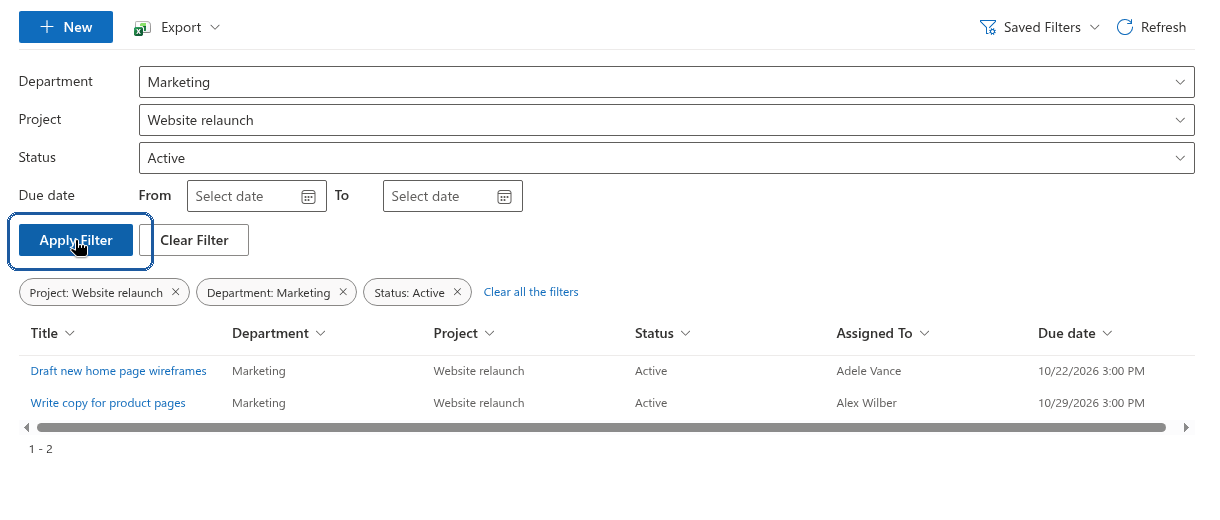
Use the filtering options provided by the List Filter Online web part to narrow down the data shown in the list. Apply the filters you need so that only the relevant entries remain visible.
💡 Tip
You can combine the filter panel with the column context menu — for example, use the filter panel for broad criteria and a column's context menu for a quick one-off sort. See KB10031. Filtering Controls Overview for the full set of available filter controls.Export the Filtered List
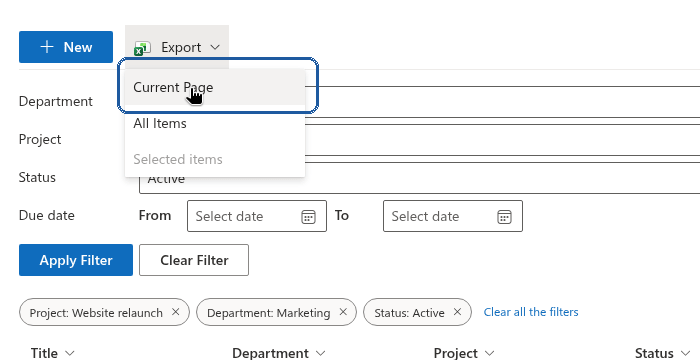
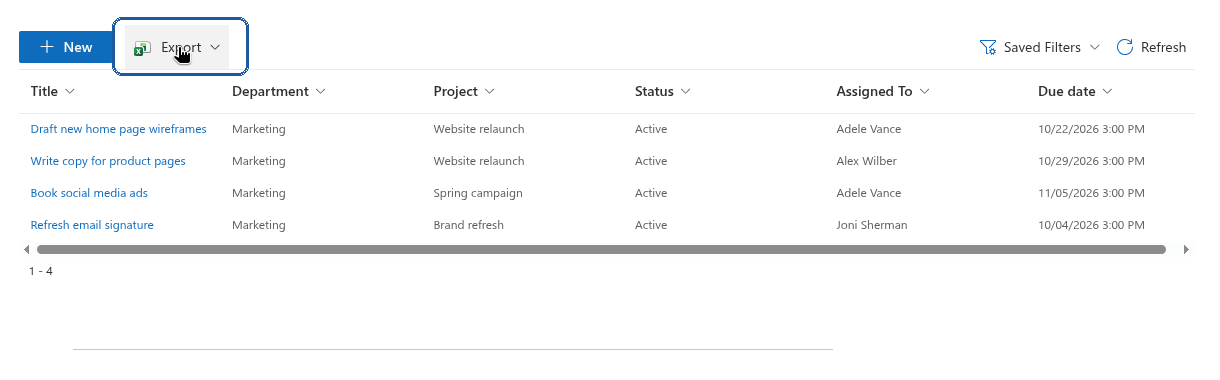
After applying the filters, open the Export menu in the command toolbar of the List Filter Online web part and choose what to export. This generates a static Excel file that contains only the filtered data — not the entire list.
The List Filter Online web part supports three export scopes:
- Current Page. Exports the rows currently shown in the results table — one page when pagination is enabled, or the rows within the item limit otherwise. This is the quickest option.
- All Items. Exports every item that matches the current filters, across all pages. The web part fetches the items page by page from SharePoint before building the workbook, so for large lists this option may take a while; a progress indicator is shown until the download starts.
- Selected items. Exports only the rows you have selected in the results table. The option is available only when the web part's Selection Mode is set to single or multiple selection and at least one row is selected; otherwise it is disabled.
📝 Note
The totals configured in the web part are included only when you choose All Items: the exported sheet then ends with a bold totals row that shows the configured functions (Count, Sum, Average, and so on) under their columns. Grouping is not reproduced in the workbook — rows that are grouped in the web part are exported as a flat table in the same order as in the view, without group header rows. Exporting Current Page or Selected items produces a plain data table without a totals row.Open the Excel File
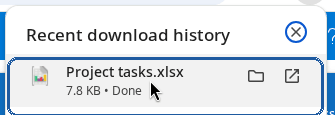
Your browser prompts you to download the file. Save it to the location you prefer. The workbook is named after the list and contains a single sheet with a formatted table whose columns match the columns and captions configured in the web part.
Review Your Data
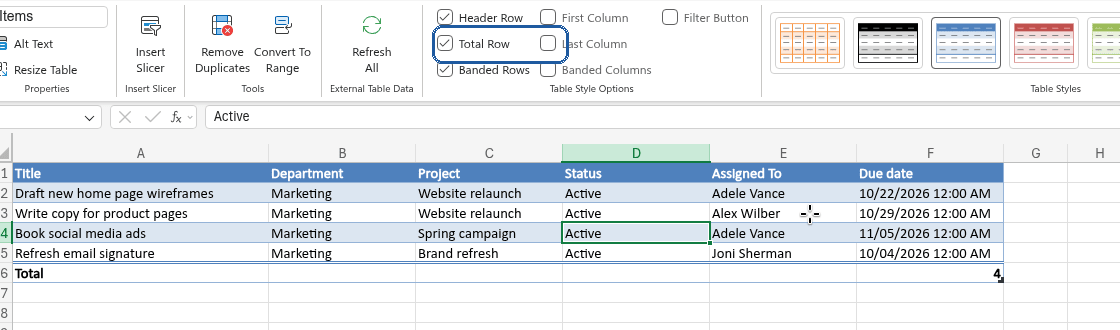
Open the downloaded Excel file to confirm all data was exported correctly. Since the export is a static snapshot, you can now edit or analyze this data as needed, with no live connection back to SharePoint — changes you make in Excel do not affect the source list, and later changes to the list are not reflected in the file you already downloaded.
💡 Tip
If you export the same report regularly, save the filter once with Saved Filters → Save Current Filter and re-apply it before each export, or share a Copy Link to Filter link with colleagues so they land on the same filtered view — see KB10253. Saving Filters and Sharing a Link to a Filtered View in List Filter Online. How grouping and totals are configured is described in KB10260. Grouping, Sorting and Totals in List Filter Online.
How to
Step-by-step guides