---
title: "Change the Color Theme of the Vitextra List Filter Web Part"
description: "Learn how to restyle the Vitextra List Filter web part with custom CSS — change button colors, label styles, list controls, and alignment to match your SharePoint theme."
url: https://vitextra.com/en/support/kb/10033
language: en
published: 2020-03-02
modified: 2026-10-10
products:
- "List Filter"
author: "Lidija Reising"
tags: ["SharePoint List Filter styling", "customize List Filter web part", "Vitextra List Filter CSS", "change filter web part color", "SharePoint web part CSS", "spfilter CSS classes", "Script Editor web part", "custom SharePoint theme"]
---
# Change the Color Theme of the Vitextra List Filter Web Part
Learn how to restyle the Vitextra List Filter web part with custom CSS — change button colors, label styles, list controls, and alignment to match your SharePoint theme.
This article explains how to change the color scheme and appearance of the Vitextra List Filter web part.
## Introduction
The [Vitextra List Filter Web Part](https://vitextra.com/en/products/list-filter) lets you build a custom filtering panel to search for data in a SharePoint list or document library. The panel is made up of controls such as buttons, lists, and labels.
This article describes how to restyle the filter panel to match your corporate portal's branding or theme. Every control that List Filter renders has a specific CSS class, so you can target it and apply your own color theme.
## Apply Styles
To style the filter panel, you need to register your custom CSS on the page. The simplest way is to add a **Script Editor** web part to the page where the filter appears.
Open the page in edit mode, place the cursor in the web part zone, go to **INSERT → Web Part**, and choose **Script Editor** under the **Media and Content** category:
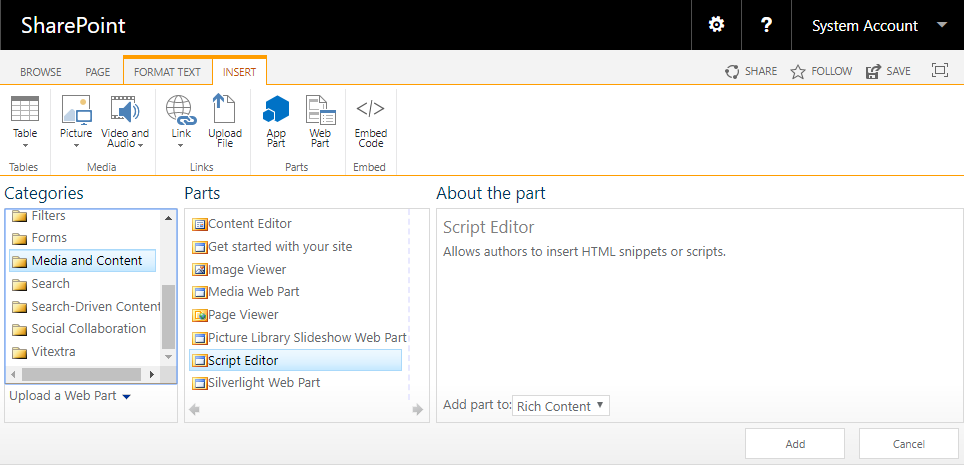
*Adding Script Web Part to SharePoint Page*
Click **Add** to insert the web part into the page.
Then click **EDIT SNIPPET** on the Script Editor web part.
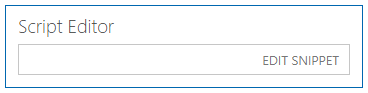
*Edit Snippet on SharePoint Page*
In the snippet dialog, paste your styles and click **Insert**.
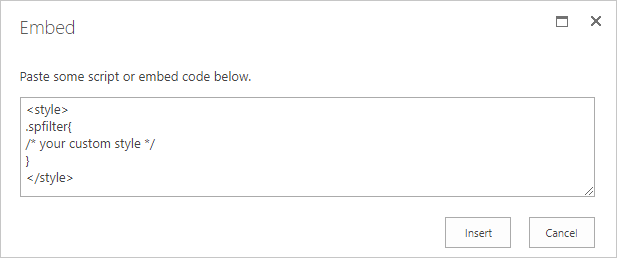
*Edit Snippet on SharePoint Page*
💡 **Tip**
Add the Script Editor web part at the bottom of the page so it doesn't leave a large empty gap in the layout.
## CSS References
Use the following CSS classes to target the controls of the filter panel:
Element | Reference | Parent
--|--|--
Filter Panel | .spfilter |
Toolbar Panel | .spfilter-toolbar | .spfilter
Action Buttons Panel | .spfilter-footer | .spfilter
Filter Button | .spfilter-button-filter | .spfilter-footer
Export Button | .spfilter-button-export | .spfilter-footer
Fields Container | .spfilter-fields | .spfilter
Field | .spfilter-field | .spfilter-fields
Field Label | .spfilter-field-label | .spfilter-field
Filtering Control | .spfilter-field-input | .spfilter-field
List Control | .k-dropdown-wrap | .spfilter-field-input
📝 **Note**
Do not override the list control styles directly via the ```.k-dropdown-wrap``` selector. Use the more specific ```.spfilter .k-dropdown-wrap``` selector instead.
## Examples
The following examples show how to apply custom styles to the List Filter Web Part.
### Change Color Scheme
There are six colors you can override in the Filter Web Part:
- primary (#0072c6)
- primary on hover (#004c84)
- primary on active (#00467a)
- secondary (#f4f4f4)
- secondary on hover (#e2e2e2)
- secondary on active (#0072c6)
The primary color is used for the **Filter** and **Export** buttons; the secondary color is used for the toolbar buttons **Share**, **Fields**, and **Settings**.
Example #1. Change the color scheme to orange
```
```
Result:
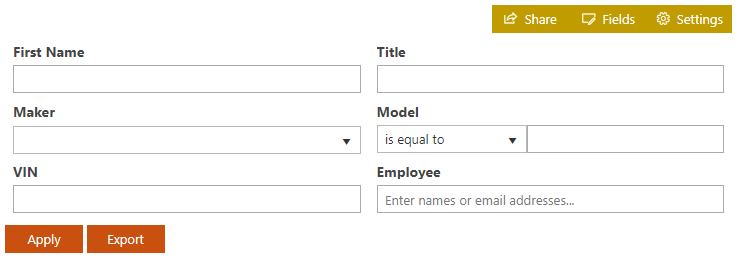
*SharePoint Filter Web Part. Custom color scheme*
### Change Label Style
Example #2. Change the field label style
```
```
Result:
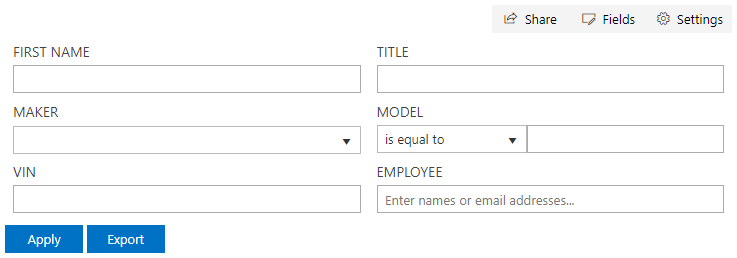
*SharePoint Filter Web Part. Custom Label Style*
### Color of the List
Example #3. Change the color of the list control
```
```
Result:
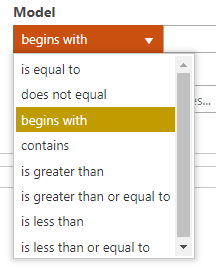
*SharePoint Filter Web Part. Custom Style of the List*
### Alignment of the buttons
Example #4. Move the Filter and Export buttons to the right
```
```
Result:
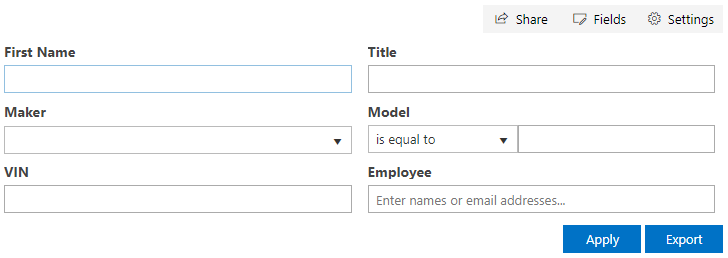
*SharePoint Filter Web Part. Right-Aligned Buttons*