Employee Directory
 Introduction
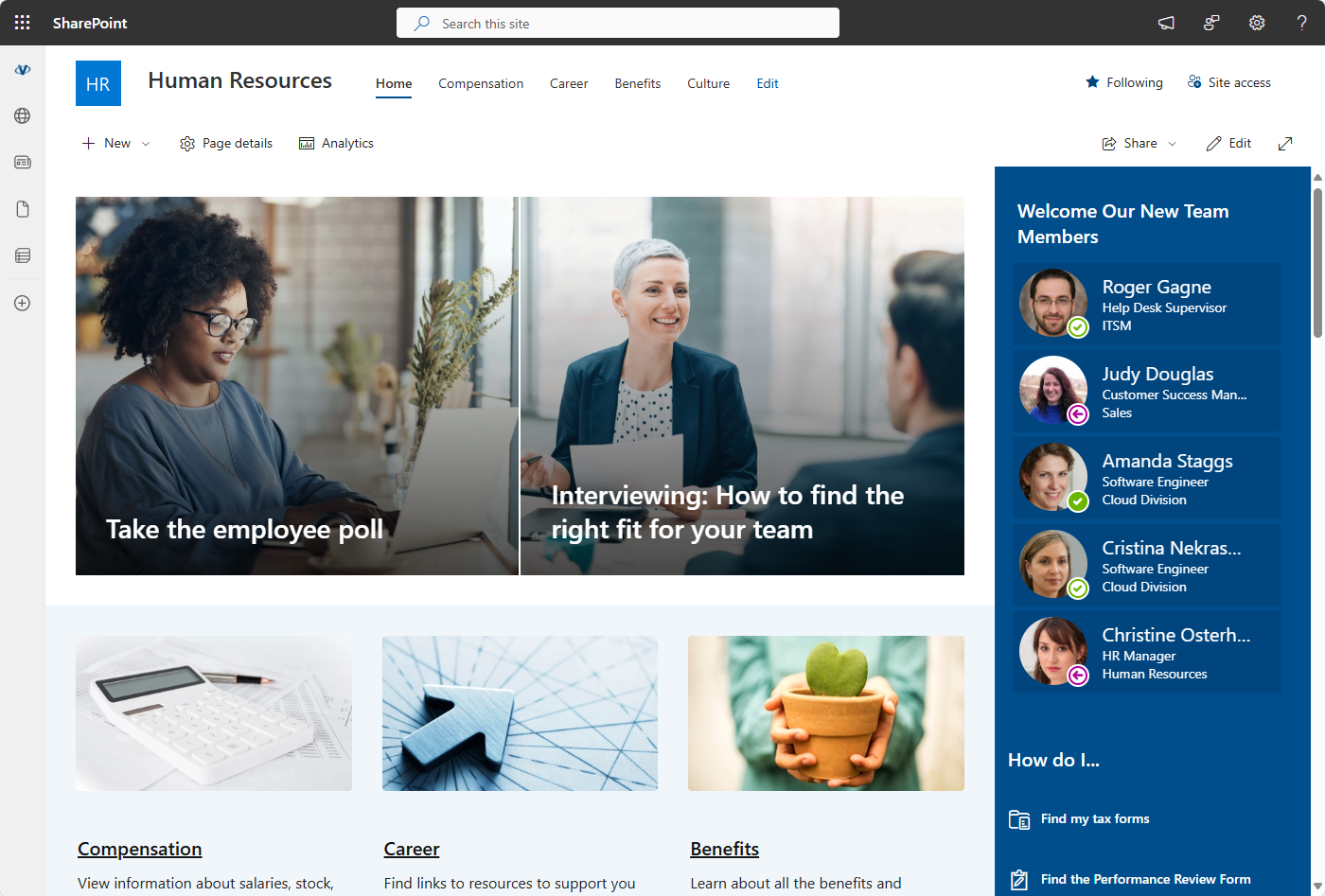
Spotlighting recently hired employees helps create a welcoming, inclusive workplace. Highlighting new team members makes them feel valued from day one and plays an important role in onboarding: when new hires are introduced and celebrated, they integrate into the team more smoothly, engage earlier, and build connections with colleagues faster.
By showcasing new employees, organizations can:
- Enhance visibility: Making new hires visible across the organization helps them feel acknowledged, boosting their confidence and morale.
- Encourage interaction: Introducing new employees prompts existing team members to reach out, fostering early communication and collaboration.
- Accelerate integration: When new hires are spotlighted, they can more easily identify and connect with key contacts, speeding up their adaptation to the company's culture and processes.
- Strengthen team dynamics: Recognizing new employees builds a sense of community and belonging — vital for a cohesive, supportive work environment.
💡 Tip
The New Employees web part is part of the Employee Directory solution and requires no extra purchase or licensing.
The New Employees web part keeps everyone in the organization aware of the latest additions to the team, improving the overall onboarding experience and setting the stage for long-term success.
Adding the Web Part
Go to the SharePoint site where you want the web part and click Edit in the top-right corner of the page. Click the + icon to add a new web part, then select New Employees from the list of available web parts.
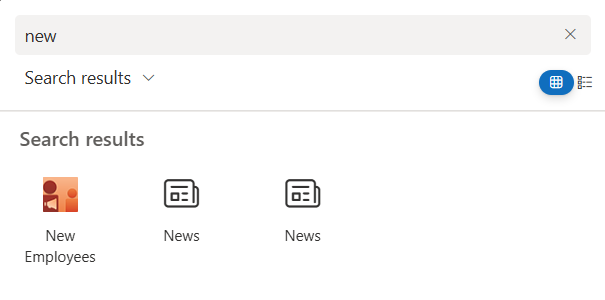
Once the web part is added, it immediately shows the employees whose accounts were created in the last 3 months, newest first. You can then customize its settings to suit your needs.
💡 Tip
New Employees is a compact showcase, not a searchable directory. To give users a full employee list with search, sorting and filters, add the Employee Directory or Employee Directory (Entra ID) web part — see KB10310. Employee Directory vs. Employee Directory (Entra ID): Which Web Part to Choose.
Web Part Configuration
To open the settings, select the web part in edit mode and click the Edit web part (pencil) icon. The property pane contains the Data Source, Appearance, Content Fields, Context Menu, Quick Actions and About groups. The sections below describe each setting.
Web Part Title
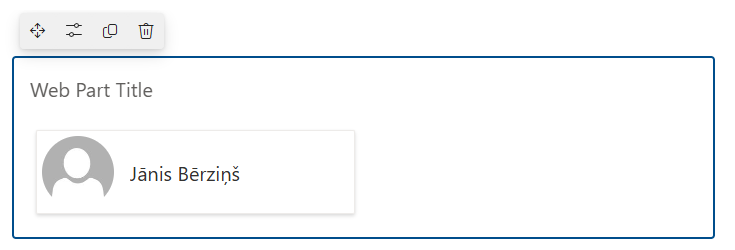
Set a custom title for the web part to match your organization's terminology or branding.
📝 Note
The web part title is set inside the web part in edit mode, not in the web part configuration pane.
Display Options and Filter Data
The Data Source group controls which employees appear and how many:
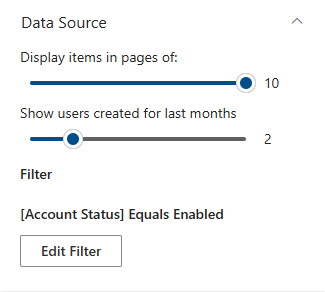
- Display items in pages of — the maximum number of employees shown in the web part, from 1 to 10 (default: 10). The most recently created accounts are shown first.
- Show users created for last months — the look-back period, from 1 to 6 months (default: 3). Only users whose account was created in Microsoft Entra ID within this period are shown. For example, with the value 3 on October 18, the web part shows users created on or after July 18.
- Filter — additional conditions that narrow down the result, for example only employees of a specific department, office location or company, or only enabled accounts.
The filter is built with the same filter editor as in the Employee Directory (Entra ID) web part. Each condition consists of a field (such as Department, Job Title, Office Location or Account Status), an operator and a value. Conditions can be combined with AND / OR and grouped. By default, a new New Employees web part contains one condition — Account Status equals Enabled — so disabled accounts are not shown.
💡 Tip
For the full list of fields, operators and examples of the filter editor, see KB10312. Employee Directory (Entra ID): Filter Editor Reference.
Fields to Display on the Employee Card
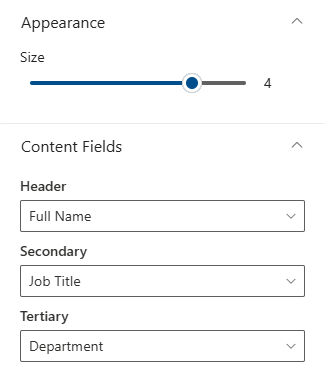
New Employees always displays employees as cards. In the Appearance group, use the Size slider to set the card size from 1 to 5 (default: 4). The size determines the photo size and how many text lines the card shows, and the Content Fields group offers one drop-down list per available line:
| Card size | Lines on the card |
|---|---|
| 1 | Header |
| 2–3 | Header, Secondary |
| 4 | Header, Secondary, Tertiary |
| 5 | Header, Secondary, Tertiary, Optional |
For each line, select one of the fields: Full Name, First Name, Last Name, Job Title, Department, Location, Office Location, Email, Cell phone, Business Phone, Home Phone or User Name. Select (Empty) to leave a line blank. By default, the card shows Full Name, Job Title and Department.
💡 Tip
Card size and card fields work the same way as in the Cards layout of the directory web parts. For examples of each size, see KB10314. Employee Directory Layouts: Details and Cards, Card Size, Card Fields and Group By.
Additional Options
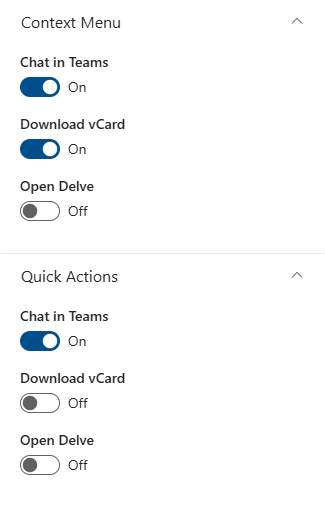
The Context Menu and Quick Actions groups control which actions users can perform on an employee:
- Quick Actions — buttons shown directly on each card. Enabled by default: Chat in Teams and Send E-mail.
- Context Menu — commands in the menu that opens when a user right-clicks a card. All actions are enabled by default.
Each group has the same set of toggles, so you can enable or disable every action independently in each place:
- Chat in Teams — start a chat with the employee in Microsoft Teams.
- Call in Teams — start a Microsoft Teams call.
- Send E-mail — open a new email message to the employee.
- Copy e-mail address — copy the employee's email address to the clipboard.
- Schedule a meeting — open a new meeting invitation with the employee.
- Download vCard — download the employee's contact information as a vCard file.
💡 Tip
For details on each action, see KB10315. Employee Actions in Employee Directory: Chat, Call, Email, Copy Email, Schedule a Meeting and vCard and the step-by-step guide on how to save an employee profile as a vCard (.vcf file).
When the web part is configured to your satisfaction, save your changes and publish the page to make it available to users.
Data Source
The New Employees web part retrieves its data from Microsoft Entra ID through Microsoft Graph, so the information displayed is always up to date and reflects the latest changes in your organization's employee records. It selects member accounts (guest users are excluded) whose account creation date (createdDateTime) falls within the look-back period, applies the filter, sorts the result from newest to oldest and shows the configured number of employees.
❗ Important
"New" means "account created recently in Microsoft Entra ID", not the hire date from HR. Accounts created in advance for future employees appear from the day they are created, and existing accounts that were recently re-created or migrated may also appear. Use the filter (for example, by Account Status or Department) to exclude service and test accounts.
Conclusion
Adding the New Employees web part to your SharePoint Online environment can significantly improve your organization's onboarding process. By making new hires visible and easy to reach, you foster a more inclusive, collaborative workplace — boosting the morale and productivity of new employees while strengthening overall team dynamics.
Put these tools to work to deliver a smooth, effective onboarding experience and set the stage for long-term success and growth across your organization.