My Tasks
 Introduction
Bringing SharePoint Online and Azure DevOps together lets teams work with real-time engineering data without leaving the collaborative space where they already plan, document, and communicate.
This article walks you through installing and configuring the Azure DevOps Query Viewer Web Part in SharePoint Online to display the results of an Azure DevOps query.
Whether you're a developer streamlining your workflow or an administrator improving your team's project management, this step-by-step guide will help you set up and customize the web part for your needs.
Azure DevOps Query Viewer Web Part
The Azure DevOps Query web part is part of the My Tasks solution and has been available since version 6.x.
📝 Note
To use this web part, make sure your My Tasks solution is updated to the latest version. For step-by-step instructions, see the solution update guide.
Prerequisites
Before you install and configure the web part on your SharePoint Online site, make sure the following prerequisites are in place:
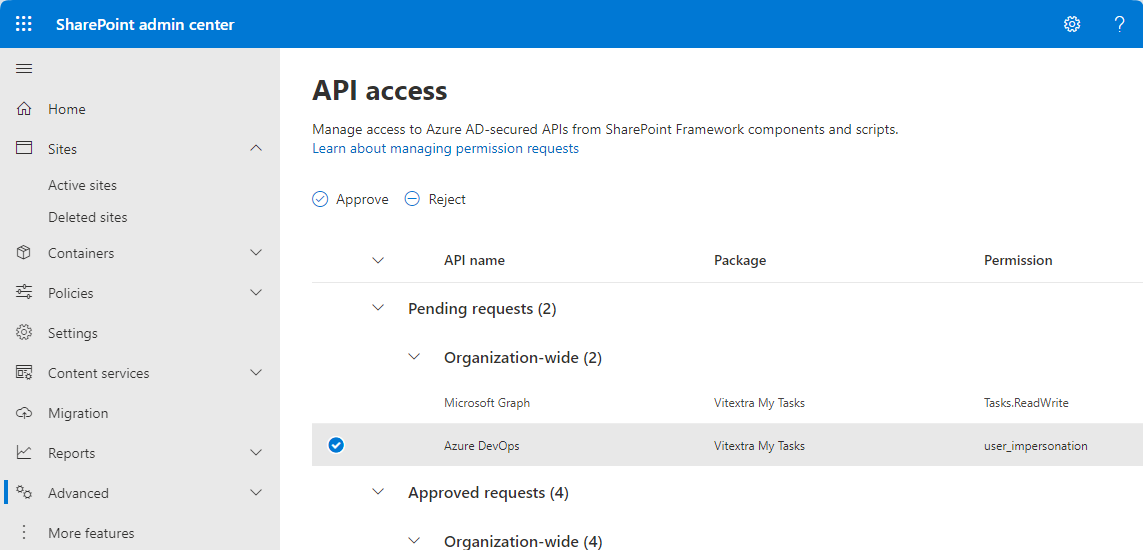
1. Approved API Access for the SharePoint Solution
Your SharePoint Online environment must have the required API access approved. This means registering the SharePoint solution with Entra ID and granting it permission to call the Azure DevOps REST APIs.
Without this access, the web part cannot retrieve or display data from Azure DevOps.
💡 Tip
For detailed installation instructions, see the How to Install a Vitextra Product in SharePoint Online article.
2. Access to Azure DevOps Organization
You need access to the Azure DevOps organization that will serve as the web part's data source. This means having an active Azure DevOps account and being a member of the organization where the queries are stored.
Without this access, the web part cannot fetch the data it needs.
📝 Note
Within SharePoint Online and Azure DevOps, the My Tasks solution calls the API and other services on behalf of the signed-in user.
For more about privacy and data protection, see the Data Protection when using Vitextra Application post.
3. Necessary Permissions to Read Information about Projects and Queries
Everyone who uses the web part needs the appropriate Azure DevOps permissions to read projects and queries — typically at least read access to the projects and queries shown on the SharePoint page.
Make sure users' Azure DevOps roles grant these permissions to avoid access issues during use.
Adding the Web Part
Once all prerequisites are in place, you can add the Azure DevOps Query web part to your SharePoint Online site.
Go to the page where you want the web part and click Edit. Then click the + icon to add a new web part — a list of available web parts appears.
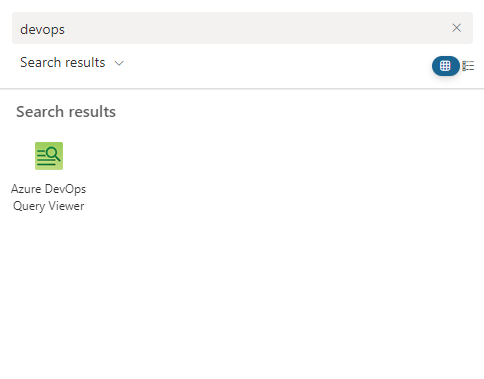
Search for the Azure DevOps Query web part in the list and select it to add it to the page.
Once it's added, the web part shows a notice that it isn't configured yet:
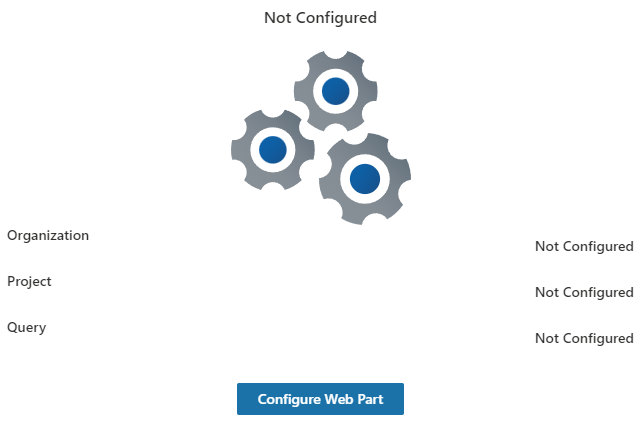
Configure it to display the query results you want.
Web Part Configuration
Click the Edit web part (pencil) icon or the Configure Web Part button to open the configuration pane.
Data Source
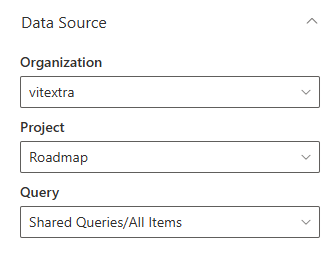
In the configuration pane, enter the details needed to connect to your Azure DevOps organization:
- Azure DevOps Organization.
- Project whose query results you want to display.
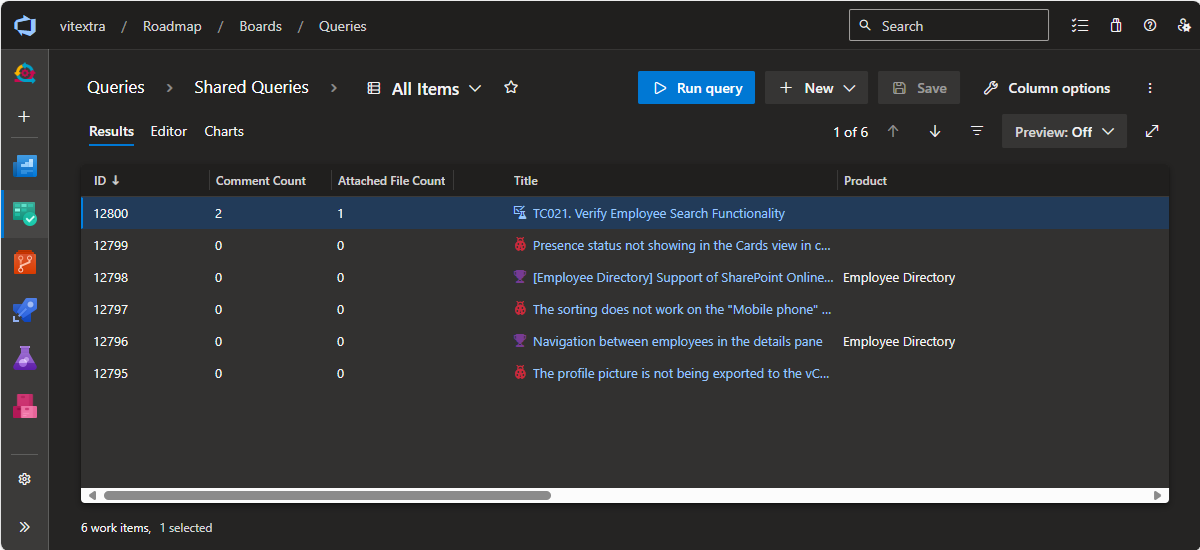
- The specific Query to display.
Supported Query Types
The web part currently supports flat queries only. A flat query lists work items without any hierarchy, so the web part shows a simple list of the work items that match your criteria. Tree and direct-links queries — which involve parent-child or linked work items — are not supported.
❗ Important
The Azure DevOps Query web part currently supports only flat queries.
Display Options
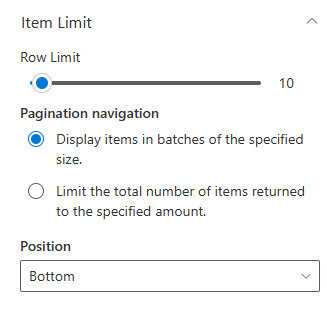
Use the Row Limit slider to set how many work items are displayed at a time.
To enable pagination, select Display items in batches of the specified size and choose where the pagination control appears (top, bottom, or both).
To disable pagination, select Limit the total number of items returned to the specified amount and enter the number you want.
Appearance
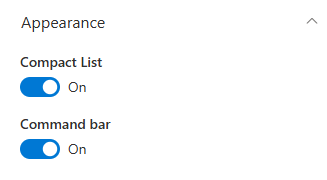
The final section lets you customize how query results appear on your SharePoint Online site. Two key options are:
Compact List. Displays the results list in a more condensed format, so you can fit more information on screen with less scrolling.
Command Bar. Gives users quick access to actions for the displayed results, such as refreshing the data and exporting to Excel.
Result
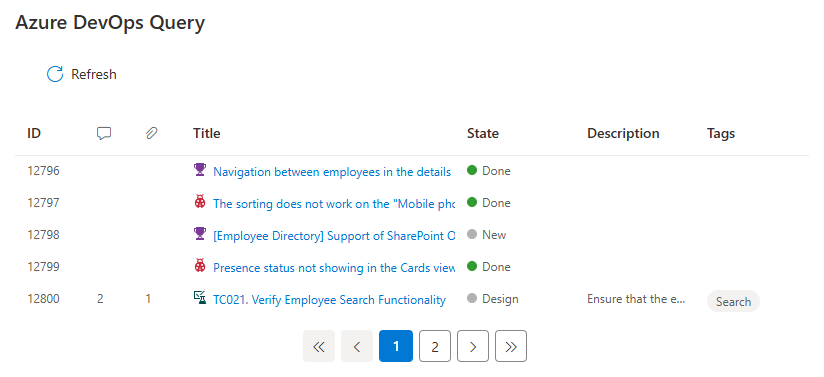
After completing these steps, Azure DevOps query results are integrated into your SharePoint Online site. Your team can now view real-time Azure DevOps data directly in SharePoint, improving collaboration and project management efficiency.
Conclusion
The Azure DevOps Query web part brings up-to-date query results from Azure DevOps into SharePoint, so your team always sees the latest information without switching between platforms. With options like compact mode and the command bar, you can tailor the display to your needs and give everyone a single, shared view of project tasks and progress.