Employee Directory
 The quick-filter bar in the Vitextra Employee Directory web part lets you narrow the directory to a relevant group of people in a single click — no query required. This article explains what each quick filter does, what it relies on, and when to use it.
The quick-filter bar
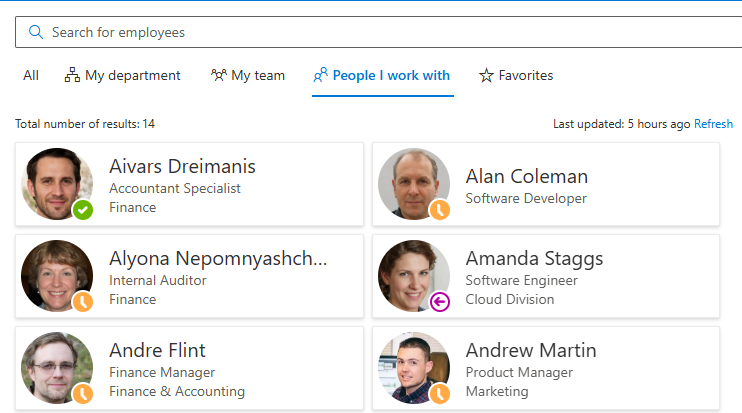
The quick-filter bar sits above the results list. It offers four filters — My department, My team, People I work with, and Favorites. Select a filter to apply it; select it again to turn it off and return to the full directory.

Quick filters work together with the rest of the directory. You can combine a filter with a search query to narrow the group further, and you can still use Group by and sorting on the filtered results — for example, apply My department and group the remaining people by job title.
📝 Note
An administrator can show or hide the quick-filter bar in the web part settings, so you may not see it on every page. If a filter relies on data your organization hasn't made available, selecting it simply returns no one rather than causing an error.
My department
My department shows the colleagues who are in the same department as you. The filter reads the Department value from your own profile and matches it against everyone else in the directory.
Use it to quickly reach the people you work alongside day to day, or to get a roster of your department without typing its name.
📝 Note
My department depends on the Department field in your profile being filled in. If your profile has no department, the filter has nothing to match and returns no results.
My team
My team shows your manager and the people who report to the same manager as you — in other words, your immediate team. The filter is built from the management chain in the directory: it looks up your manager and then the manager's direct reports.
Use it when you want everyone in your own team in one view, including your manager, without searching for each person by name.
People I work with
People I work with shows the colleagues you interact with most often, even when they are in other departments or teams. Instead of your profile's organizational fields, this filter uses the Microsoft Graph People API, which ranks your most frequent contacts from Microsoft 365 signals such as email and meetings.
Use it to jump straight to the people you actually collaborate with across the organization — project partners, cross-team contacts, and frequent correspondents who wouldn't show up under My department or My team.
📝 Note
People I work with requires the People.Read Microsoft Graph permission to be granted for your organization. If it hasn't been granted, or if you don't yet have enough interaction history, the filter returns no results. Frequent-contact data is maintained by Microsoft 365 and can take time to build up for new accounts.
Favorites
Favorites shows the people you have starred. Unlike the other three filters, it isn't derived from your profile or Microsoft 365 signals — you decide who appears here.
To add someone, open their card and select the star (Add to favorites); to remove them, select the star again. Your favorites are stored per user and stay in place between sessions, so the people you contact most are always one click away. When you haven't starred anyone yet, the filter shows a short empty-state message inviting you to add favorites from a colleague's card.
Use Favorites as your personal shortlist — the handful of people you reach out to regularly, regardless of which department or team they belong to.
💡 Tip
For more on adding, removing, and where favorites are stored, see the Managing favorites article.
When a filter returns no one
Two of the filters rely on data outside your control, so it's worth knowing what to check if they come back empty:
- My department relies on the Department field in your own profile. If it's blank, ask your administrator to complete your profile.
- People I work with relies on the People.Read Microsoft Graph permission and on your Microsoft 365 interaction history. If the permission isn't granted, or your account is new, the filter has nothing to show.
My team depends on the manager relationships in the directory being set correctly, and Favorites simply reflects the people you've starred.
📝 Note
Quick filters degrade gracefully: when the underlying data or permission isn't available, the filter returns no results rather than breaking the directory. The rest of the web part — search, views, and the other filters — keeps working.