What is Questions and Answers
Vitextra Questions and Answers is a web part for SharePoint Online and Microsoft Teams that turns a page into a living, searchable question-and-answer knowledge base. Employees find ready answers in seconds, ask their own questions, discuss them with colleagues and highlight the most useful material - while editors manage the content with the familiar SharePoint tools they already know, with no separate system and no manual synchronization.
The web part is built on the SharePoint Framework (SPFx) and stores every question and answer in an ordinary SharePoint list on your own site. There are no external services and no data exports: the content never leaves your Microsoft 365 tenant, and access to it is governed by standard SharePoint permissions.
Questions and Answers is built around three ideas:
- Your data, your tenant - questions, answers, attachments and comments all live in a SharePoint list on your site and are protected by your Microsoft 365 security, retention and compliance policies.
- Familiar tools - editors curate content directly in the SharePoint list, with bulk operations, versioning and permissions, instead of learning a new admin panel.
- A knowledge base that grows itself - employees ask questions right from the page, and experts turn those questions into published answers, so the FAQ keeps reflecting what people actually need.
A question-and-answer knowledge base
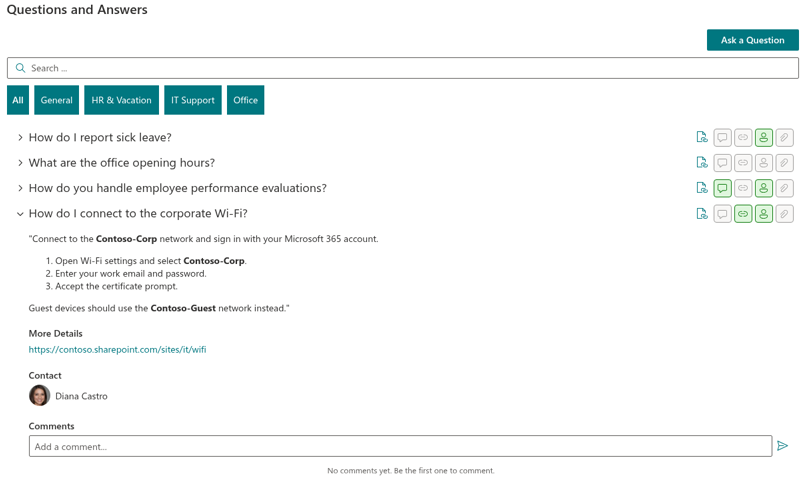
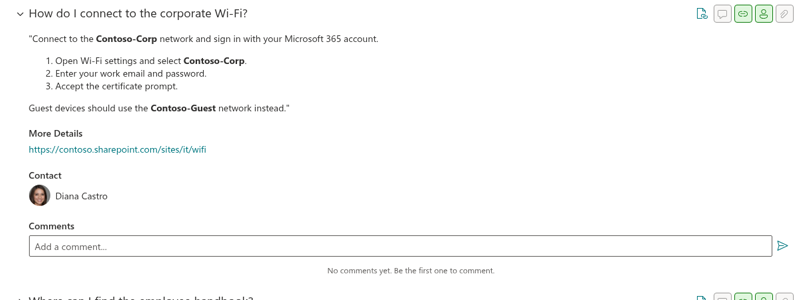
Questions are shown as a compact accordion list: the header alone at first, and the full answer when a visitor clicks it. Answers support Markdown formatting - lists, emphasis, links - so even long instructions stay readable. Indicator badges on each question header show at a glance whether it has attachments, comments, a detail link or a contact person.
You decide how the list looks: whether answers are collapsed by default, and how questions are ordered - by question order, title or creation date, ascending or descending.
📝 Note
Each block of a question - attachments, detail link, contact or comments - can be shown or hidden independently in the web part properties, so you tailor the layout to your scenario.
Finding answers: search and categories
A search box scans the question text, the answer body and the contact person's name at once, so an employee does not need to know exactly how a question is phrased in the base. Search works correctly with any language and with special characters, and when nothing matches, the web part offers to clear the query in one click and bring back the full list. Grouping is temporarily disabled while a nonblank search is active. Search uses literal Contains conditions, not fuzzy or semantic matching; it does not search category names. Profile-card data and comment submission still depend on SharePoint permissions.
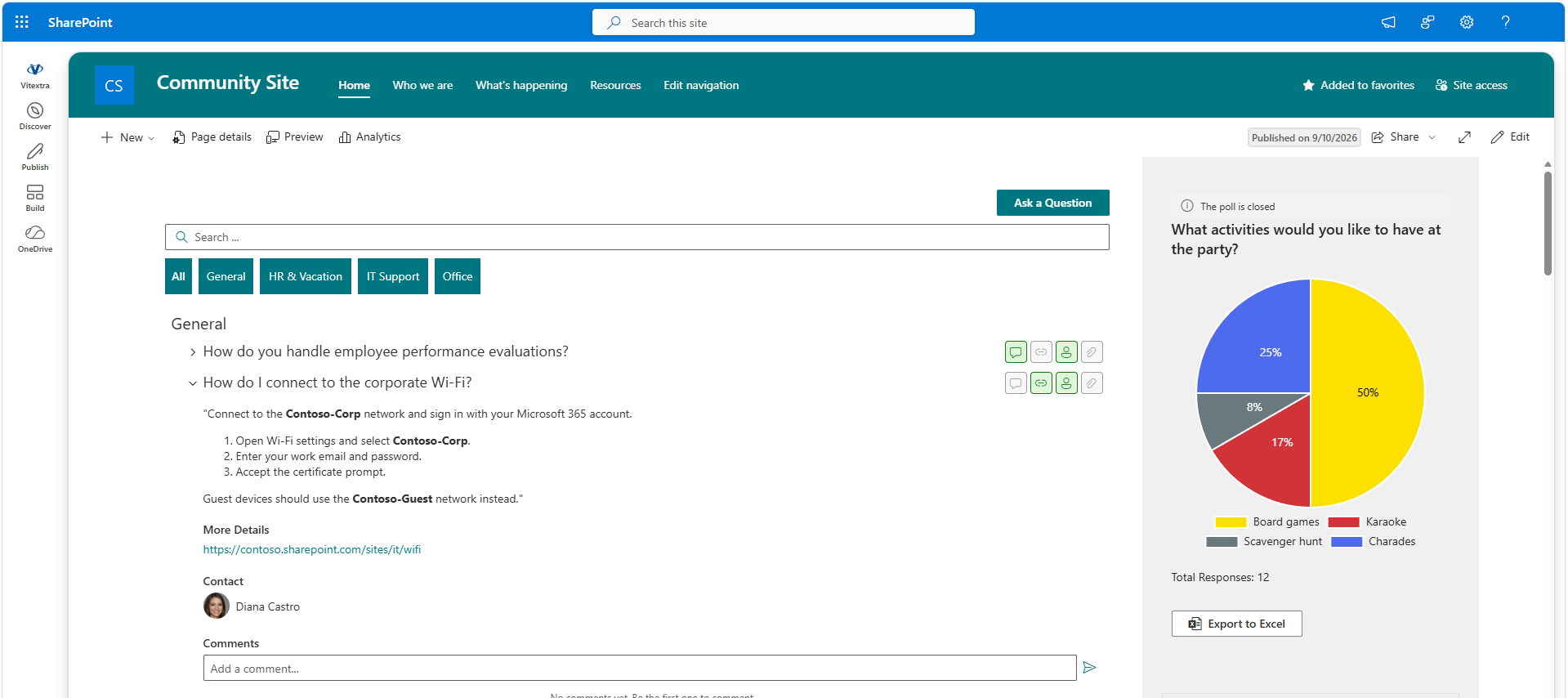
For structure, every question can be assigned a category - General, Vacations & sick leave, IT support, or any others you define. The web part can group the list by category with clear section headers, and for larger bases you can switch on the category filter: a row of tabs (All plus one per category) appears above the list, and a single click narrows the view to one topic. The filter works together with grouping, sorting and search.
For large knowledge bases, paged loading fetches questions in portions of 10, 20, 50 or 100; Show more requests the next portion. Normal list queries apply the configured sort on the server, and loaded questions are also sorted locally. Equal values and concurrent list changes do not have a guaranteed stable order. All mode and searches return at most 5,000 questions per query.
Rich answers: video, attachments, links and experts
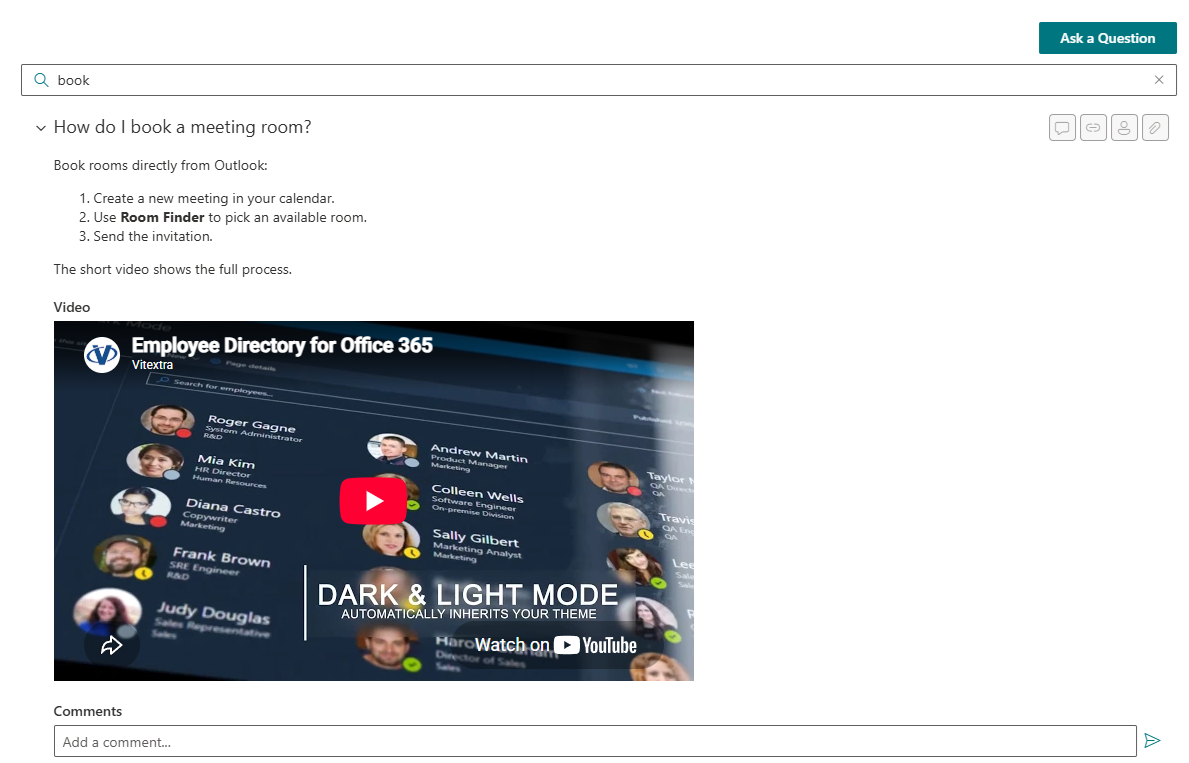
Sometimes a short clip explains better than a wall of text. Add a video link to a question and it appears right inside the answer: YouTube and Vimeo links play in an embedded player, direct video files (MP4, WebM, OGG, OGV, M4V) use the built-in HTML5 player, and any other link is shown as a regular hyperlink.
You can also attach files to a question - instructions, forms, policies - which appear as cards with recognizable file-type icons. A Detail link field points to a fuller resource such as a policy page or an article, and a Contact field shows the subject-matter expert with a live Microsoft 365 profile card, so readers immediately see who to reach if the answer is not enough.
Engagement: comments and questions
Colleagues can discuss questions through standard SharePoint list comments. The web part’s comment box sends plain text; @mentions created in the list can be displayed, with profile cards when the shared SharePoint component is available. Employees can also submit question text through the page. The connected list’s defaults determine the initial publication state; editors need to monitor the list or configure their own notification process. Submission does not enforce editorial approval.

Deep links to a single question
Every question has its own address. A button in the question header copies a link (?questionId=N) to the clipboard - send it to a colleague in chat, and the page opens with that question already expanded, highlighted and scrolled into view. It is a handy shortcut for support: instead of rewriting an answer, send a link to the ready one from the knowledge base. The copy-link setting controls the button only: an incoming questionId URL is processed even when that button is disabled. A separately fetched deep-linked question is loaded only when the first response has a next-page token. Grouping is suppressed during a nonblank search; category tabs are built only from currently loaded results.
Localization and platform support
Questions and Answers: 50 supported interface locales, including regional variants. It runs on SharePoint Online modern pages with full theme support (including dark and section themes) and full-width layout, and in Microsoft Teams, where the knowledge base can be pinned as a channel tab. The web part is fully responsive and works equally well on desktop, tablet and phone.
System requirements
| Platform | SharePoint Online (Microsoft 365) |
| Clients | SharePoint modern pages, Microsoft Teams (desktop and mobile) |
| Data storage | A standard SharePoint list on your own site |
| Installation | SPFx package (.sppkg) via the tenant App Catalog |
| Permissions | No additional API permissions required |
💡 Tip
To deploy the web part in your environment, see the KB10035. How to Install a Vitextra Product in SharePoint Online article. To add it to a page and configure it, see KB10218. How to Add and Configure the Questions and Answers Web Part.
Learn more about the product: https://vitextra.com/en/products/questions-and-answers