Overview
This article explains how to place the Vitextra Questions and Answers web part on a SharePoint Online page, connect it to a data source, and tune it through its property pane. It assumes the Questions and Answers package has already been deployed to your tenant App Catalog.
💡 Tip
If the web part is not yet available on your site, deploy it first - see KB10035. How to Install a Vitextra Product in SharePoint Online.
Adding the web part to a page
- Open the page where you want the knowledge base and switch it to edit mode with Edit in the top-right corner.
- Hover over the area where the web part should go and click the round + (Add a new web part) button.
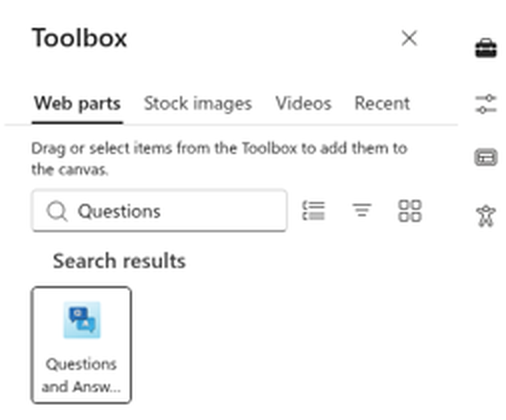
- In the toolbox, start typing Questions and Answers and select the web part from the list.
The web part is added to the page and, because it is not yet connected to a data source, shows its configuration screen.
Setting up the data source
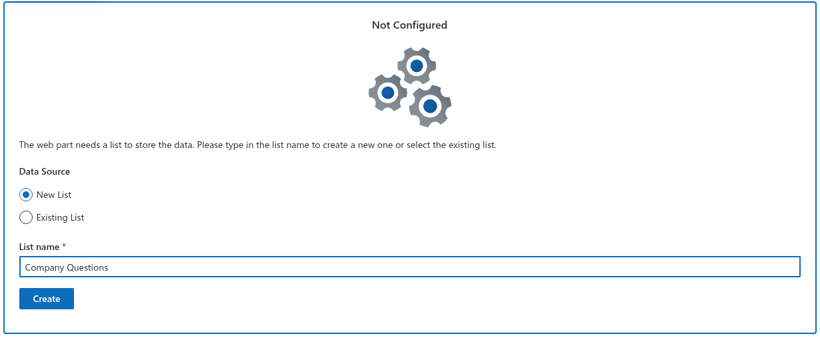
Questions and Answers keeps all of its content in a SharePoint list on the current site. Until a list is selected, the web part shows the Not Configured screen with two options:
- New List - type a name and click Create. The web part creates a new list with the correct structure (Title, Answer, Category, Link, VideoUrl, Contact, Order, Published) and connects to it automatically.
- Existing List - pick a list that already has the required structure from the List drop-down and click Save. Only lists passing the initial column-name check are offered.
The list uses the built-in title field (internal name Title) for the question. The web part provisions the custom column names Answer, Category, Order, Link, VideoUrl, Contact and Published in English; interface translations do not rename these list columns. The existing-list selector checks only for internal names Category, Answer, Link, VideoUrl, Contact and Order. It does not validate their types or the Published column; appearing in the selector is not a full compatibility guarantee. Published must also exist as a Yes/No column for question queries. List creation does not check the HTTP status of each column-creation request. After creating the list, verify the columns and their types before relying on the knowledge base.
📝 Note
Creating a list requires permission to add lists on the site. If you don't have it, ask a site owner to create the list once; afterwards you can connect the web part with the Existing List option.
Once a list is connected, the web part switches to the knowledge-base view. On a page that is only being viewed (not edited) and has no list yet, visitors see a short message asking an editor to open the page in edit mode and finish the setup.
Configuring the web part
Select the web part and click the pencil (Edit web part) icon to open the property pane. The settings are organized into groups. The copy-link setting controls the button only: an incoming questionId URL is processed even when that button is disabled. A separately fetched deep-linked question is loaded only when the first response has a next-page token. Grouping is suppressed during a nonblank search; category tabs are built only from currently loaded results.
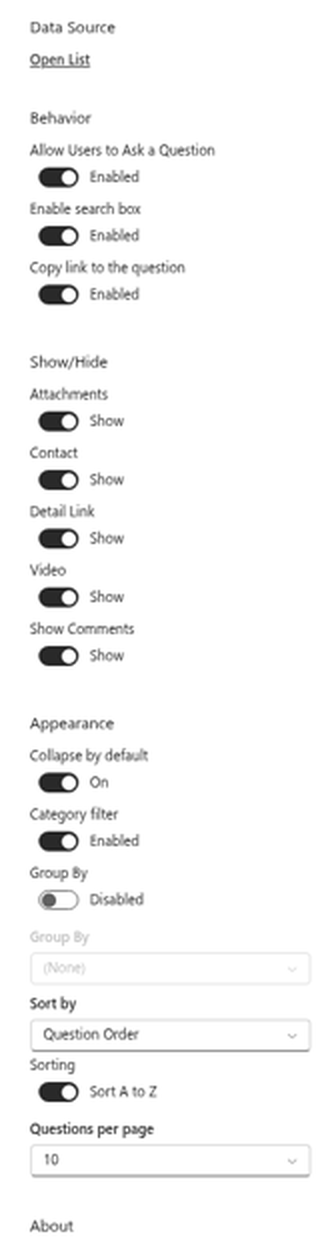
Data Source
Shows a link that opens the connected SharePoint list in a new tab, so editors can jump straight to the content to add or edit questions.
Behavior
- Allow Users to Ask a Question - shows the Ask a Question button for visitors who are allowed to add items to the list.
- Enable search box - shows the search box above the list.
- Copy Link - The copy-link switch controls the button; it does not disable incoming questionId links.
Show/Hide
Turn each answer block on or off independently: Attachments, Contact, Detail link, Video and Show Comments.
Appearance
- Collapse by default - questions start collapsed, showing only their headers.
- Category filter - shows the All + categories filter tabs above the list (appears when there are at least two categories).
- Group By and the group column - group the list by Category with section headers.
- Sort by (Name, Question Order or Created) and Sorting (A→Z or Z→A) - set the order of questions.
- Page Size (All, 10, 20, 50, 100) - enable paged loading with a Show more button for large knowledge bases.
About
Shows the license status, product version and tenant information, and offers the trial/activation actions.
Editing the web part title
As with standard SharePoint web parts, Questions and Answers has an editable title above the list. Click the title area while the page is in edit mode and type your heading - for example, Frequently Asked Questions or IT Help Center.
When you are done, Publish (or Republish) the page to make the knowledge base available to your visitors.
💡 Tip
Next, fill the knowledge base with content - see KB10219. Creating, Editing and Publishing Questions in Questions and Answers - and let employees submit their own questions with KB10220. Letting Employees Ask Questions in Questions and Answers.
Learn more about the product: https://vitextra.com/en/products/questions-and-answers