Overview
Questions can be submitted from the page for editors to answer in the list. Configure the list defaults, access permissions and editorial process explicitly; the web part does not enforce approval.
Enabling the Ask a Question button
The button is controlled by a single setting:
- Edit the page and select the Questions and Answers web part.
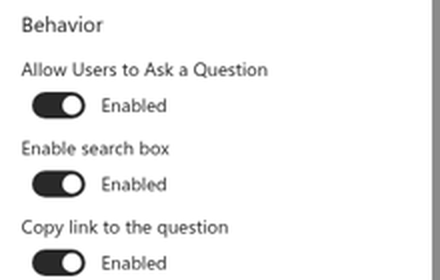
- Open the property pane and go to the Behavior group.
- Turn on Allow Users to Ask a Question.
- Republish the page.
❗ Important
The button is only shown to visitors who actually have permission to add items to the underlying list. The web part checks the real SharePoint permission (Add Items), not just the toggle - so a reader with view-only access will not see the button even when the setting is on. See Permissions below.
How employees submit a question
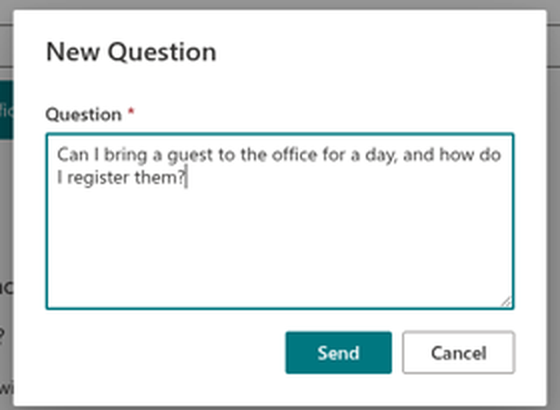
When the button is available, an employee sees Ask a Question above the list. Clicking it opens a simple dialog with a single multi-line box (Type your question here...). The employee types the question and clicks Send; Cancel closes the dialog without saving. A success message is not proof that the item was saved in the current version: the submission code does not check the HTTP response status. A SharePoint rejection, such as HTTP 400 or 403, can therefore still lead to the success screen. Verify that the question exists in the list, especially after changing required fields or permissions.
The question text is required - sending an empty question shows a validation message. After a successful submission the dialog shows a confirmation ("Your request has been accepted."), and the employee closes it with Close.
What happens to a submitted question
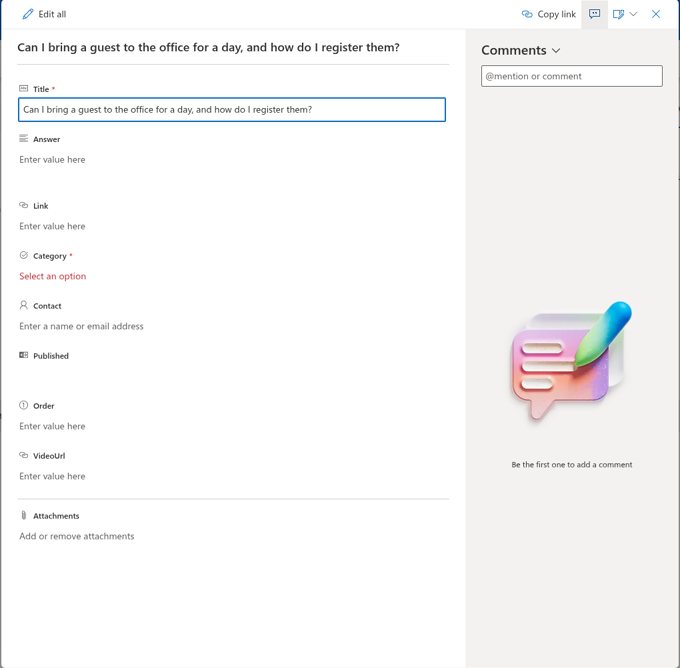
The web part’s question dialog sends only the question text as Title. Whether the item is unpublished initially depends on the connected list: lists created by the web part default Published to No, but an existing list can have another default. Check the list item and Published value after submission. The web part does not notify or route submissions to editors automatically; editors must monitor the list or use a separately configured process.
📝 Note
Employees submit only the question text. The answer, category, order and other details are added later by an editor - initial visibility depends on the list’s default Published value.
Reviewing and publishing submitted questions
Editors process submissions in the SharePoint list: The list uses the built-in title field (internal name Title) for the question. The web part provisions the custom column names Answer, Category, Order, Link, VideoUrl, Contact and Published in English; interface translations do not rename these list columns.
- Open the list from the property pane's Data Source → Open List link.
- Find the new, unpublished items - a view filtered on Published = No makes this easy.
- Open a submission, write the Answer (Markdown is supported), and set the Category, Order and any extras such as a link, video or contact.
- Set Published = Yes to make the question appear in the knowledge base.
For the full description of the columns and the draft-and-publish workflow, see KB10219. Creating, Editing and Publishing Questions in Questions and Answers.
Permissions
Whether an employee sees the Ask a Question button depends on their SharePoint permission on the list:
- To submit questions, a user needs the Add Items permission - the standard Contribute (or Edit) permission level grants it.
- Users with Read (view-only) access can browse and search the knowledge base but will not see the button.
Contribute includes adding and editing list items; users who can edit an item can also set Published = Yes. Restricting editing to a user’s own items still allows that user to publish their own submission. The web part does not enforce editor approval or separate permission to change the publication flag. If publication must be reserved for editors, design and test a separate SharePoint permission arrangement or submission-and-approval workflow before opening submissions to employees.
💡 Tip
Test the complete process with an ordinary employee account and an editor account, including direct list access, reading drafts, editing items and changing Published. Do not treat a hidden button, a filtered view or Published = No as access control. Use Contact to identify the expert responsible for the answer.
Learn more about the product: https://vitextra.com/en/products/questions-and-answers