Smart Search
 What is Smart Search
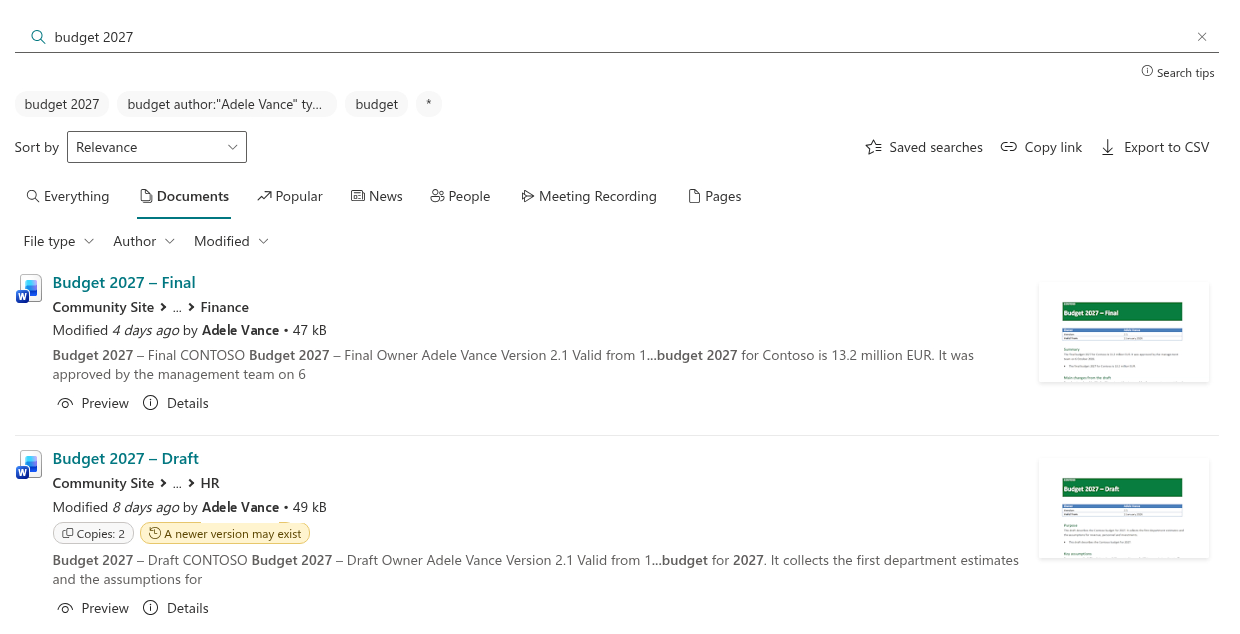
Vitextra Smart Search is a configurable search web part for SharePoint Online and Microsoft Teams. It puts a complete search experience on any page: a search box, tabs to switch between kinds of content, a refinement panel to narrow the results, and rich result cards that let people preview a document or play a video without leaving the page.
The web part is built on the SharePoint Framework (SPFx) and works on top of the standard SharePoint search index. It sends queries on behalf of the current user, so every person sees only the content they already have access to — Smart Search doesn't copy, index or store your data anywhere else.
Smart Search is built around three ideas:
- The right content in one place — documents, pages, news, people and meeting recordings are available from a single search box, split into clear tabs.
- Flexible without code — more than 30 settings in the web part property pane control where to search, what to show and how results look.
- Act without losing context — preview, play or download a result right on the search page, then go back to the same result list.
Search sources and tabs
Smart Search supports two modes:
- Single Source — the web part searches one kind of content only. It's handy for a focused block, such as Latest documents on a department site or Meeting recordings on a project page.
- Multiple Sources (Tabs) — users switch between sources with tabs above the results. It's the natural choice for an intranet search center.
Ten built-in sources are available: Everything, Documents, Popular, News, People, Video, Meeting Recording, Pages, Recently Changed Items and Pictures. In Tabs mode, the administrator decides which tabs are shown, how they are named and in which order they appear.
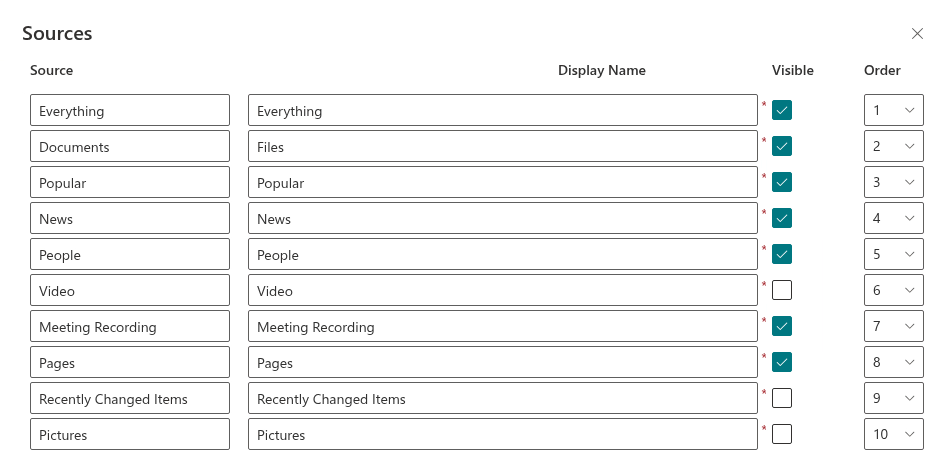
The News tab shows news posts in the user's language when multilingual pages are used, and the Meeting Recording tab finds Teams meeting recordings stored in OneDrive and SharePoint.
You also choose the search scope: the whole tenant, the current site collection or the current site only. A scope limited to one site turns Smart Search into a site search that never mixes in content from elsewhere.
Refinement panel
Long result lists are narrowed with the refinement panel above the results. Each refiner is a drop-down list of values found in the current results, with the number of matching items next to each value, so users see at once how many results a filter will leave.
Out of the box, the panel offers File type, Author, Modified and Tags. Created, Content Type, Department and Office Location are ready to switch on. You can also add any other refinable managed property from your search schema. For each refiner, the administrator sets the display name, sorting of values (by name or by count), the maximum number of values, whether counts are shown, and the position in the panel.
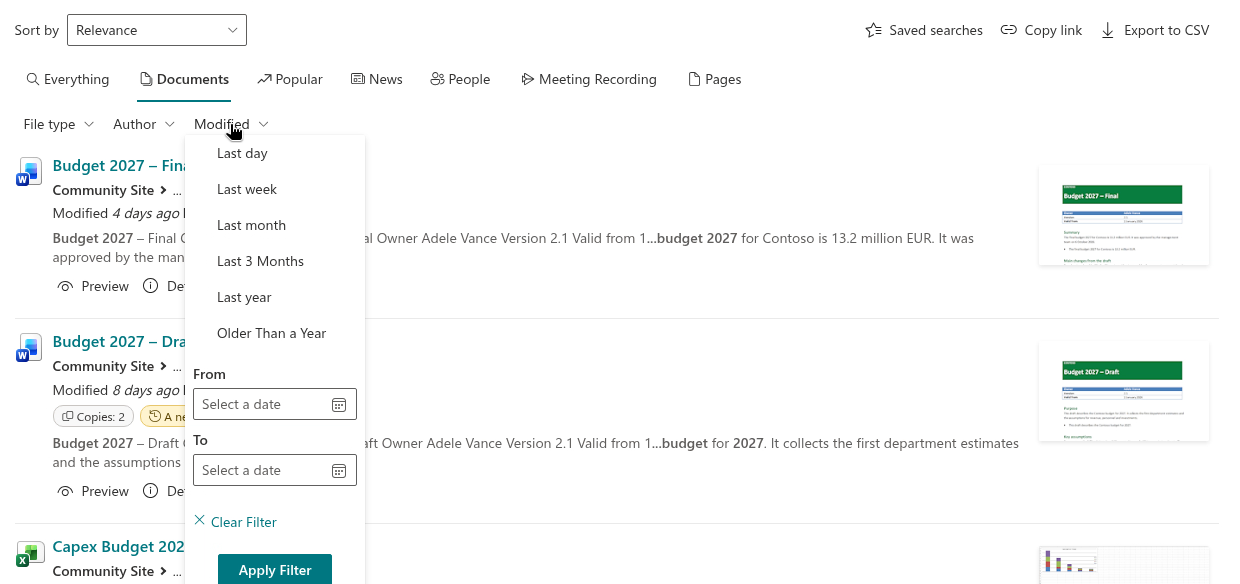
Date refiners offer quick periods — Last day, Last week, Last month, Last 3 Months, Last year and Older Than a Year — as well as a custom range with From and To dates.
📝 Note
The refinement panel isn't shown on the Everything tab. That tab mixes very different kinds of content, so filters become available after the user switches to a more specific tab such as Documents or Pages.
Results can also be sorted by relevance (Rank), Last Modified or Size, in ascending or descending order.
A result layout that fits your page
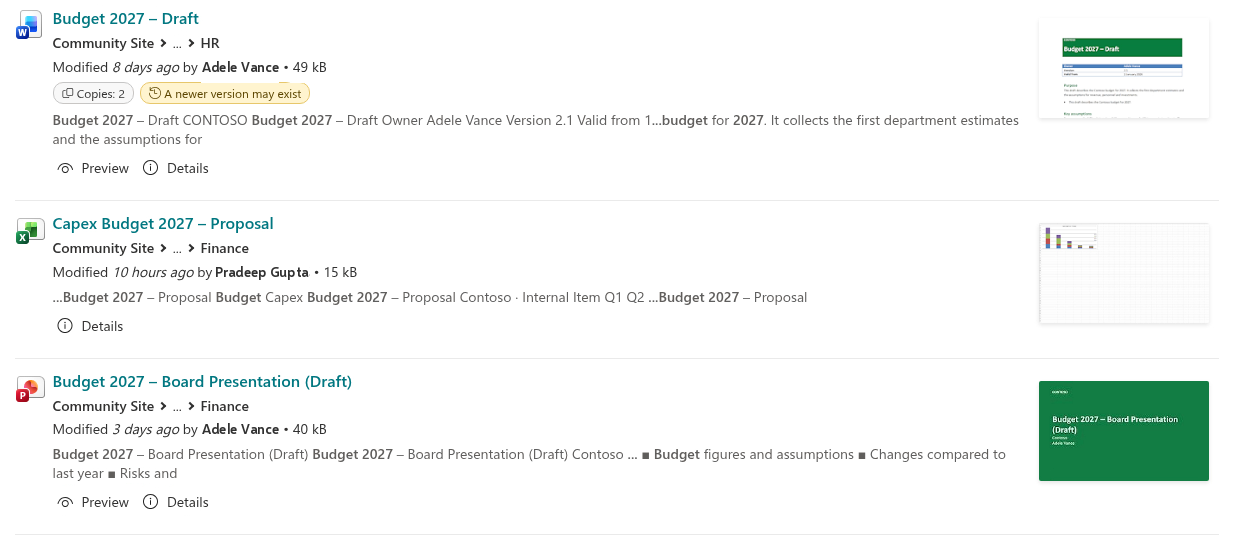
Each search result is shown as a card, and you decide what goes on it. The layout can be as simple as an icon and a title, or a rich card with:
- the file-type icon and the title, which opens the item in a new tab;
- the path to the item's location — site and library;
- the date of the last change and the editor, with a live Microsoft 365 profile card;
- the file size, views count and incoming links count;
- a summary with the search terms highlighted, from 100 to 300 characters long;
- tags from the managed metadata;
- a thumbnail of the document or picture.
With Show Analytics turned on, each card also gets a small chart of daily views and unique viewers over the last seven days. It shows at a glance which documents colleagues actually use.
People results are shown as profile cards with the photo, name, job title and office location. Use them together with the Department and Office Location refiners to turn the People tab into a simple employee search.
📝 Note
On narrow columns (less than 320 pixels wide), the thumbnail and the analytics chart are hidden automatically so that the text of the result stays readable.
Preview, play and download
Action buttons under a result let users work with it right on the search page:
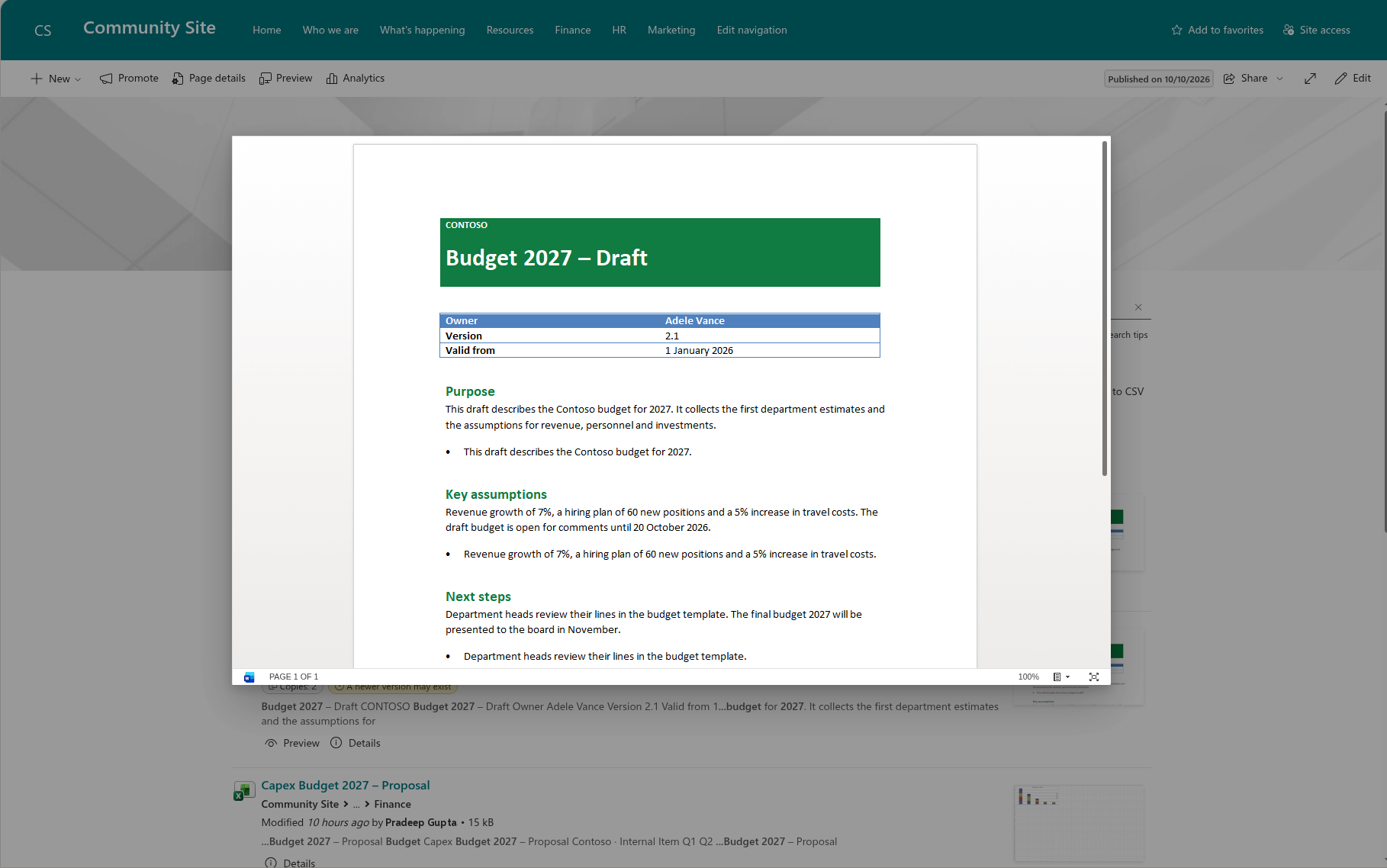
- Preview opens a document that SharePoint can preview, such as a Word, Excel or PowerPoint file, in a dialog for reading.
- Play plays a video file (MP4, AVI, MOV or WMV), including a meeting recording, in a dialog.
- Download downloads the document directly.
When the dialog is closed, the user returns to the same result list with the same query, tab and filters — there's no need to open new browser tabs and search again.
📝 Note
Administrators can enable or disable each action independently, so you may not see all of the buttons above.
Search that helps
Smart Search includes small features that save time every day:
- Did you mean — if a query contains a typo, the web part offers the corrected spelling, which can be applied with one click.
- Recent queries — the last five queries are shown under the search box and can be repeated with one click.
- The last query is remembered — when a user leaves the page and comes back in the same browser session, the last query is restored.
- Shareable links — the query, the selected tab and the page number are kept in the page address (
?q=…&source=…&p=…). Copy the link to send ready results to a colleague, or put a link to a ready-made query in a menu or a news post. - The
/key — press it anywhere on the page to jump straight to the search box.
For finer control over matching, the administrator can turn on stemming (finding other forms of a word), nicknames and phonetic matching for people names, and trim duplicates to hide identical documents stored in several places. A default query sets what users see before they type anything — for example, the most recent documents.
💡 Tip
To build a dedicated search results page step by step, see KB10058. Build a Custom Search Results Page with Smart Search. To set up a search for meeting recordings, see KB10059. Search Recorded Teams Meetings with Smart Search.
Localization and platform support
Smart Search ships with 51 interface locales, including English, German, French, Latvian, Russian, Arabic, Japanese and Chinese. The language is selected automatically from the SharePoint site or Teams client.
The web part runs on SharePoint Online modern pages, including full-width sections and as a full-page app. It supports site and section themes and fonts from the SharePoint Brand Center. In Microsoft Teams, it can be added as a channel tab or used as a personal app. The layout adapts to the column width and works on desktop, tablet and phone.
System requirements
| Platform | SharePoint Online (Microsoft 365) |
| Clients | SharePoint modern pages and full-page apps, Microsoft Teams (channel tab and personal app) |
| Data source | The standard SharePoint search index; nothing is copied or stored separately |
| Installation | SPFx package (.sppkg) via the tenant App Catalog |
| Permissions | No additional API permissions required |
💡 Tip
To deploy the web part in your environment, see the KB10035. Installing Cloud-based Product article.
Learn more about the product: https://vitextra.com/en/products/smart-search