Smart Search
 Overview
A single app page is a modern SharePoint page that hosts one web part across the full width of the page, with no sections and no other web parts. For search, it's the quickest way to get a clean, dedicated search page: the search box, the tabs, the filters and the results take up the whole page, and there is nothing to lay out.
This article explains how to create such a page with Vitextra Smart Search, how to make it the search results page of your site, and how to link to it so that a ready-made query opens in one click.
📝 Note
Single app pages are available only in the modern SharePoint experience. Classic pages don't support app pages. If you need a search page that also contains other web parts — for example, a banner or quick links next to the search — create a regular page instead, as described in KB10058. Build a Custom Search Results Page with Smart Search.
Before you start, make sure that:
- the Smart Search package is deployed to your tenant App Catalog and is available on the site;
- you have permission to create pages on the site (site members and owners usually do).
💡 Tip
If Smart Search isn't available on your site yet, deploy it first — see KB10035. Installing Cloud-based Product.
Creating the app page
- Open the SharePoint site where the search page should live.
- Select New → Page on the site's home page. You can also click the gear icon, open Site contents and select New → Page there.
- In the panel that opens, switch to the Apps tab and select Smart Search.
- Click Create page.
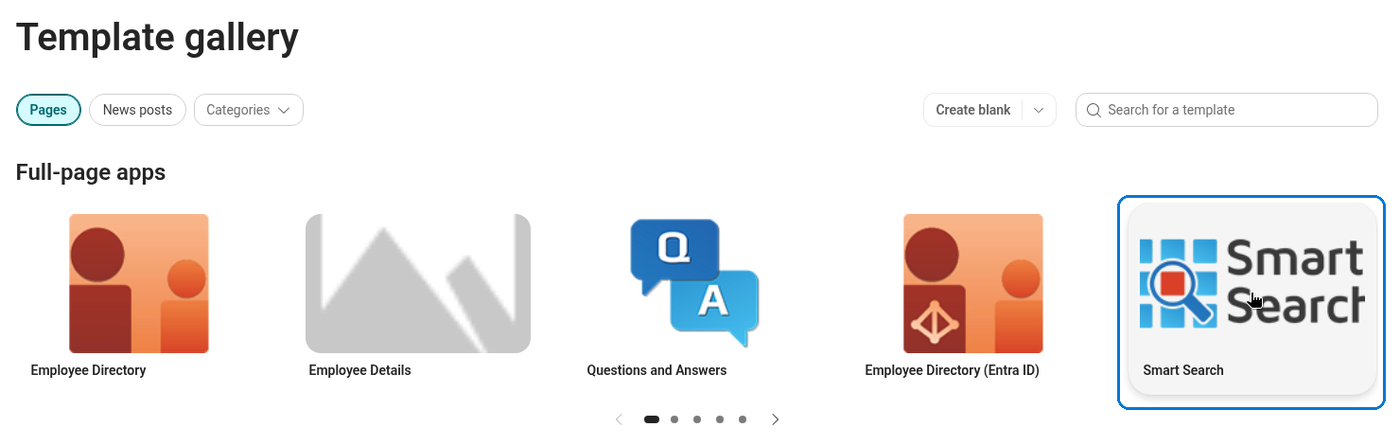
The new page is created and opens in edit mode with Smart Search already on it, configured with the default settings.
Naming and configuring the page
- Enter a title for the page, for example Search or Intranet Search. The title is required and is also used as the page's file name, so a short title gives a short address.
- Open the web part's property pane to adjust the settings. For a site-wide search page, a good starting point is:
- Search Scope — Tenant, to search everything the user has access to, or This site collection for a search limited to the current site collection;
- Mode — Multiple Sources (Tabs), so users can switch between documents, pages, news, people and other sources;
- Display Search Box — on;
- Show Filters — on;
- Enable Paging — on.
- Click Save (or Publish) to make the page available to users.
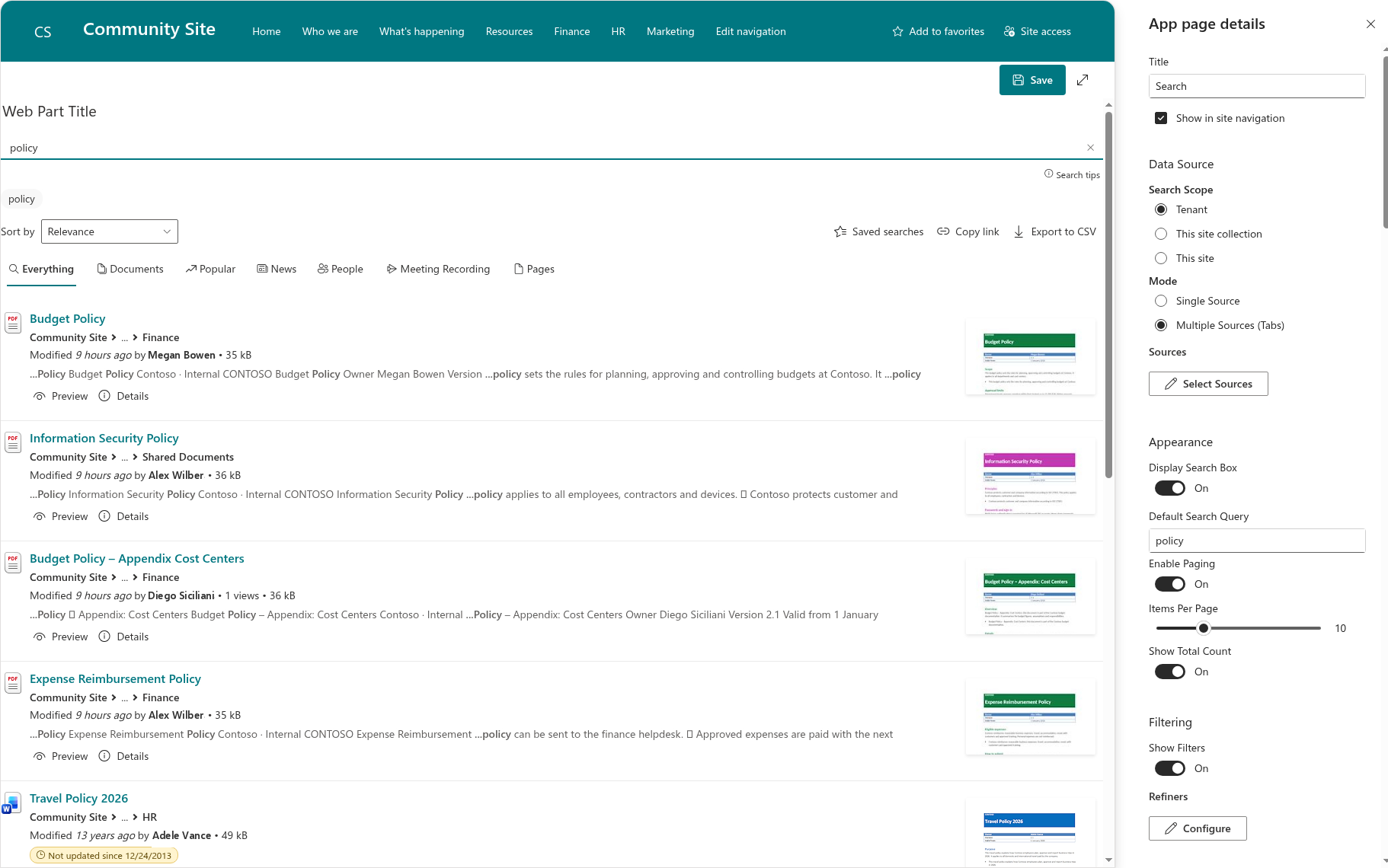
To change the settings later, open the page, click Edit and open the property pane again.
💡 Tip
To choose which tabs appear and in what order, see KB10224. Single Source vs. Multiple Sources (Tabs): Choosing the Search Mode in Smart Search. To decide what each search result shows, see KB10225. How to Customize the Look of Search Results in Smart Search.
Making it the site's search results page
By default, a query typed into the SharePoint search box at the top of the site opens the built-in Microsoft Search results. You can send these queries to your new page instead:
- Go to Site settings and select Search Settings under Site Collection Administration.
- In the Results page URL field, enter the server-relative address of the app page, for example
/sites/intranet/SitePages/Search.aspx. - Save the settings. The change can take up to 5 minutes to apply.
SharePoint passes the query to the results page in the q parameter of the address, and Smart Search picks it up automatically: the user types a query in the site header and lands on your page with the results already shown.
📝 Note
The Results page URL setting is configured per site collection and requires site collection administrator rights. For step-by-step screenshots of this setting, see KB10058. Build a Custom Search Results Page with Smart Search.
Linking to ready-made searches
Smart Search keeps its state in the page address, so any search can be turned into a link:
| Parameter | Meaning | Example |
|---|---|---|
q | The search query | q=travel%20policy |
source | The tab to open (in Multiple Sources mode) | source=documents |
p | The page of results | p=2 |
For example, this link opens the search page with the query travel policy on the Documents tab:
/sites/intranet/SitePages/Search.aspx?q=travel%20policy&source=documents
The source parameter accepts the following values:
| Value | Tab |
|---|---|
all | Everything |
documents | Documents |
popular | Popular |
news | News |
people | People |
video | Video |
meeting | Meeting Recording |
pages | Pages |
recently | Recently Changed Items |
pictures | Pictures |
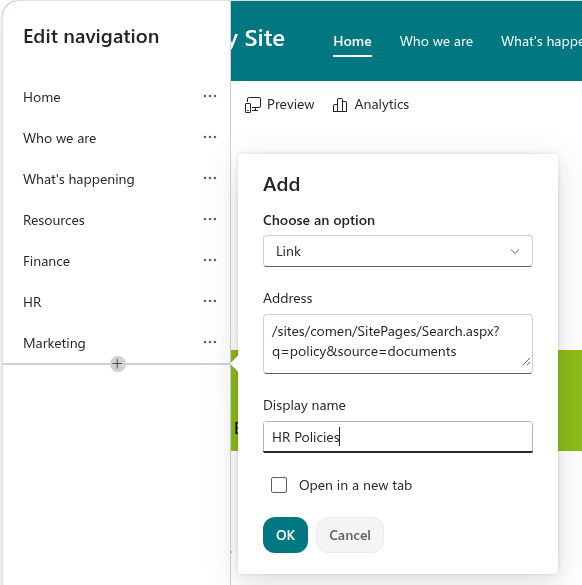
Use such links in the site navigation, in quick links, in news posts or in emails — for example, All HR policies or Our team's meeting recordings. Users can also simply copy the address from the browser to share their current results with a colleague.
❗ Important
The source parameter works only in Multiple Sources (Tabs) mode, and only for a tab that is visible on the page. Spaces and special characters in the query must be URL-encoded — for example, a space becomes %20.
Adding the page to the navigation
To make the search page easy to find, add it to the site navigation:
- On the site's home page, click Edit under the navigation menu.
- Click the + sign where the link should appear and select Link.
- Paste the address of the app page, enter a display name such as Search, and click OK.
- Click Save.
Learn more about the product: https://vitextra.com/en/products/smart-search