Smart Search
 Overview
Every Vitextra Smart Search web part works in one of two modes:
- Single Source — the web part searches one kind of content, and no tabs are shown.
- Multiple Sources (Tabs) — users switch between several kinds of content with tabs above the results.
The mode is set in the Data Source group of the web part property pane, next to the search scope. This article explains when to use each mode, what the built-in search sources find, and how to set up the tabs.
Which mode to choose
| Single Source | Multiple Sources (Tabs) | |
|---|---|---|
| What users see | One result list, no tabs | A row of tabs above the results |
| How it's configured | One source from the Source drop-down | The Select Sources panel: visibility, names and order of tabs |
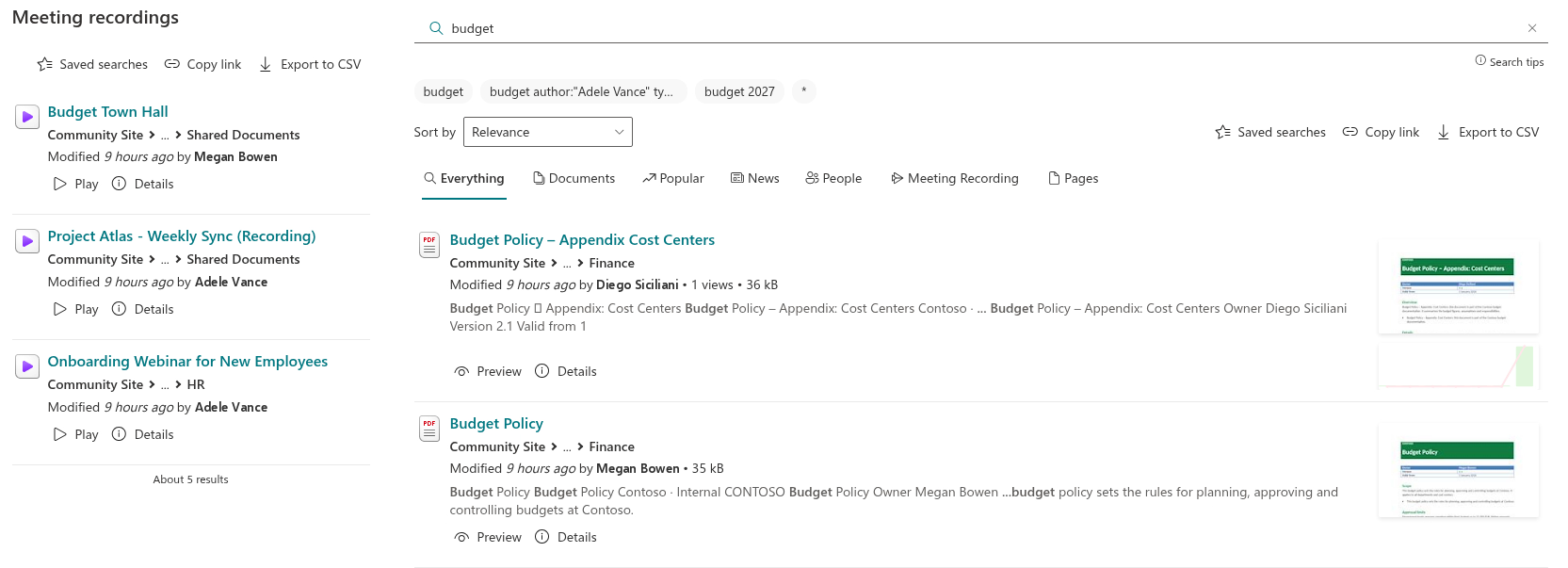
| Best for | Focused blocks: Latest documents on a department site, Meeting recordings on a project page, Company news on the home page | A search center or a dedicated search page where users look for any kind of content |
A good rule of thumb: if the page answers one question (where are our recordings?), use Single Source. If it's the place people go to find anything, use Multiple Sources (Tabs).
💡 Tip
Several Smart Search web parts can live on the same page, each in its own mode and with its own source. For example, a project home page can show Documents and Meeting recordings as two separate single-source blocks.
Built-in search sources
Smart Search offers ten built-in sources. They are based on the standard SharePoint search result sources, so they return the same content as SharePoint search and respect the same permissions.
| Source | What it finds | Shown as a tab by default |
|---|---|---|
| Everything | All content within the search scope | Yes |
| Documents | Documents in libraries | Yes |
| Popular | The most viewed items | Yes |
| News | News posts; with multilingual pages, in the user's language | Yes |
| People | Employee profiles | Yes |
| Video | Video files | No |
| Meeting Recording | Teams meeting recordings stored in OneDrive and SharePoint | Yes |
| Pages | Site pages | Yes |
| Recently Changed Items | Items that were changed recently | No |
| Pictures | Images | No |
The search scope — Tenant, This site collection or This site — applies to every source. For example, with the This site scope, the Documents tab shows documents from the current site only.
📝 Note
The refinement panel isn't shown for the Everything source, because it mixes very different kinds of content. Sorting doesn't apply to the Popular and Recently Changed Items sources, which have their own order.
Setting up Single Source mode
- Open the page in edit mode, select the Smart Search web part and click the pencil (Edit web part) icon.
- In the Data Source group, under Mode, select Single Source.
- In the Source drop-down, select the source to search.
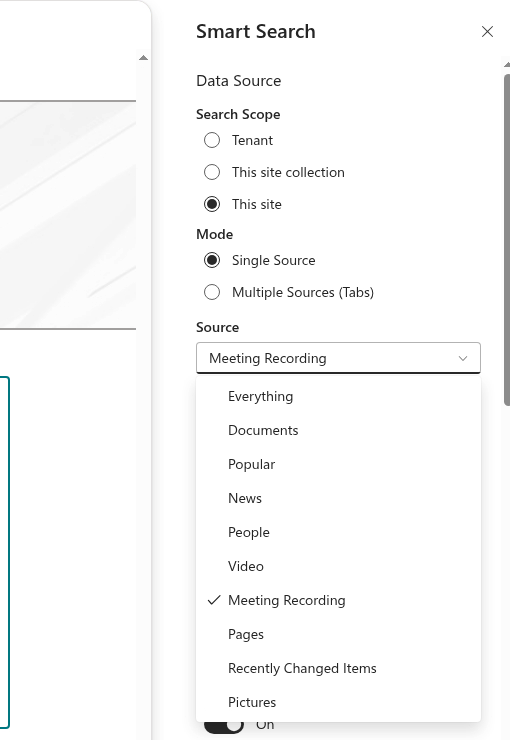
The web part reloads the results right away. All ten sources are available in the drop-down, including those hidden as tabs.
💡 Tip
Give a single-source web part a clear title — click the title area above the results in edit mode and type, for example, Meeting recordings. Without tabs, the title is what tells users what the block shows. For a ready-made recordings setup, see KB10059. Search Recorded Teams Meetings with Smart Search.
Setting up tabs in Multiple Sources mode
- In the Data Source group, under Mode, select Multiple Sources (Tabs).
- Click Select Sources. A panel opens with one row per source.
- For each source, set:
- Display Name — the tab caption users see. It's required; rename tabs to match your organization's vocabulary, for example Documents → Files or People → Colleagues;
- Visible — select the check box to show the tab, clear it to hide the tab;
- Order — the position of the tab in the row.
- Click Save to apply the changes, or Cancel to discard them.
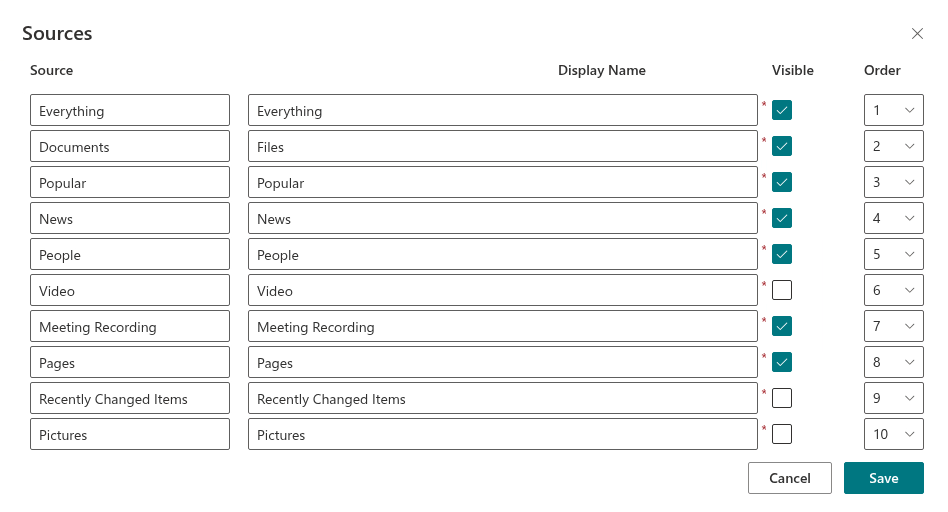
The Source column shows the built-in name of the source and can't be changed, so you always know which source a renamed tab is based on. Each tab keeps its own icon.
When the page opens, the first visible tab is selected. Put the tab your users need most often — usually Everything or Documents — in the first position.
How tabs behave for users
- Switching tabs keeps the query and runs it against the new source, starting from the first page of results.
- Filters selected on one tab are cleared when the user switches to another tab, because different sources have different refiners.
- The selected tab is saved in the page address in the
sourceparameter. A link copied from the browser opens the same tab, and you can build links that open a specific tab — see KB10223. How to Create a Search App Page with Smart Search.
❗ Important
Hide tabs that your users don't need. Every visible tab is one more choice for the user, and a short row of clearly named tabs works better than a full set of ten.
Learn more about the product: https://vitextra.com/en/products/smart-search