Overview
Each result in Vitextra Smart Search is shown as a card, and you decide what goes on it. The same web part can display a compact list of titles for a narrow side column or a rich card with a path, a summary, tags, a thumbnail and view analytics for a search center.
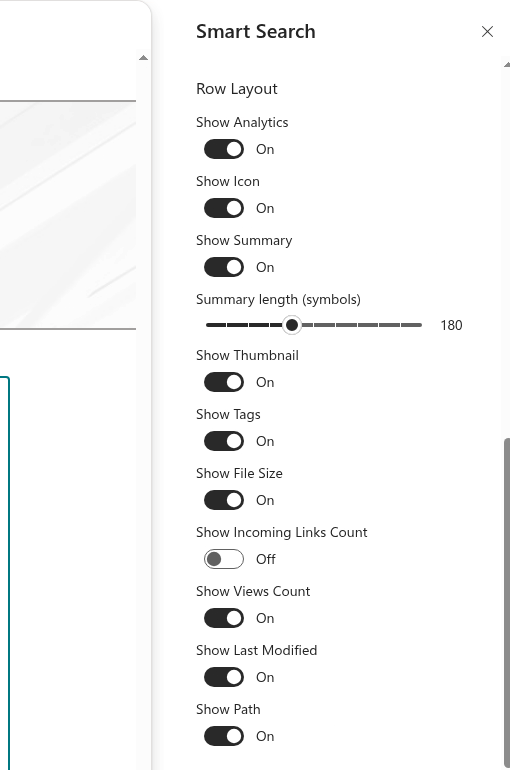
All of these elements are switched on and off in the Row Layout group of the web part property pane. Changes are applied to the results immediately, so you can see the effect while you edit.

Opening the layout settings
- Open the page in edit mode, select the Smart Search web part and click the pencil (Edit web part) icon.
- In the property pane, expand the Row Layout group.
- Turn the elements you need on or off. The results on the page update right away.
- Save or republish the page.
Result card elements
The title is always shown. It's a link that opens the item in a new browser tab. All other elements are optional:
| Setting | What it shows | Default |
|---|---|---|
| Show Icon | The file-type icon on the left of the card. Sites, libraries, folders, list items, news and meeting recordings get their own icons too | On |
| Show Path | Where the item lives: the site and the library or folder, as clickable links. Long paths are shortened with an ellipsis | On |
| Show Last Modified | When the item was last changed and by whom, for example Modified 3 days ago by Anna Smith | On |
| Show Views Count | The total number of views of the item | On |
| Show File Size | The size of the file in a readable form, for example 2 MB | On |
| Show Incoming Links Count | How many other pages and documents link to the item | Off |
| Show Summary | A short extract from the item's content with the search terms highlighted | On |
| Summary length (symbols) | The length of the summary, from 100 to 300 characters | 180 |
| Show Tags | Managed metadata tags of the item | On |
| Show Thumbnail | A preview image of the document, video or picture | On |
| Show Analytics | A small chart of daily views and unique viewers over the last seven days | Off |
Some elements offer more than meets the eye:
- Last modified — the date is shown in a relative form (3 days ago); hover over it to see the exact date and time. Hover over the editor's name to open their Microsoft 365 profile card.
- Views count — hover over it to see the lifetime views and the recent views of the item.
- Summary — when an item has no matching extract, its description is shown instead. For Teams meeting recordings, the summary lists the meeting attendees.
- Tags — when the refinement panel is on, a click on a tag filters the results by that tag.
- Thumbnail — a click on the thumbnail opens the item. When SharePoint has no preview for a file, a neutral placeholder is shown.

In the analytics chart, the bars show the number of views on each of the last seven days and the line shows the number of unique viewers. Hover over a bar to see the exact numbers for that day.
📝 Note
Views, viewers and incoming links come from SharePoint search and usage analytics. For new or rarely opened items, these numbers may be missing or appear with a delay. The analytics chart isn't shown for items with no views in the last seven days.
Ready-made layouts
You don't have to switch every element on. Here are three combinations that work well:
| Layout | Turn on | Where to use |
|---|---|---|
| Compact | Icon, Path | A narrow side column, a Related documents block |
| Standard | Icon, Path, Last Modified, Summary, Tags | Most pages; quick to scan |
| Rich | Everything, including Thumbnail and Analytics | A search center on a full-width page |
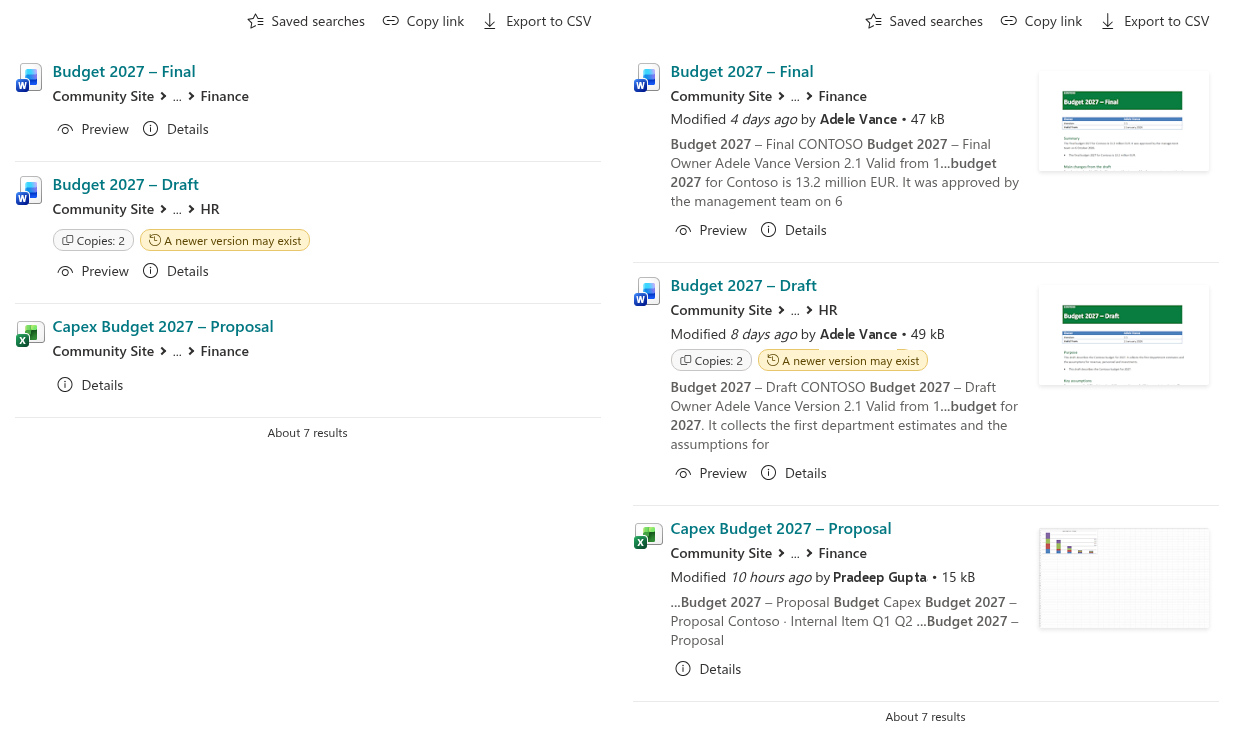
📝 Note
In columns narrower than 320 pixels, the thumbnail and the analytics chart are hidden automatically so that the text stays readable. Thumbnails and analytics are also not shown for sites and libraries in the results.
Results for people
Results on the People tab use their own card: a photo, the person's name, job title and office location. The Row Layout settings don't apply to these cards.
Related settings
A few other groups of the property pane also affect how results look:
- Appearance — Show Total Count shows the line About N results above the list; Enable Paging and Items Per Page (from 2 to 30) control how many results are shown at once.
- Actions — the Download, Preview and Play buttons under each result. Preview and Play are on by default, Download is off.
💡 Tip
For an overview of all Smart Search features, see KB10222. Smart Search. Solution Overview. To set up which tabs users see, see KB10224. Single Source vs. Multiple Sources (Tabs): Choosing the Search Mode in Smart Search.
Learn more about the product: https://vitextra.com/en/products/smart-search