Smart Search
 Overview
Every SharePoint Online site already has search: the search box at the top of the page sends users to the built-in Microsoft Search results page. So why add a search web part at all?
This article compares the built-in search with Vitextra Smart Search side by side. Both search the same Microsoft 365 content and respect the same permissions — the difference is in where the search appears, who can set it up and how much of the experience you can shape. The comparison helps you decide when the built-in search is enough, when Smart Search fits better, and how to use them together.
📝 Note
Microsoft regularly updates the built-in search experience. This comparison reflects the capabilities described in Microsoft documentation in 2026. Check the current Microsoft documentation for the latest details.
Built-in search in brief
The built-in search experience in SharePoint Online is part of Microsoft Search. Its main building blocks are:
- The search box in the header of SharePoint, OneDrive and other Microsoft 365 apps. Results open on a dedicated search results page.
- Verticals — tabs on the results page, such as All, Files and People. Administrators can rename and disable the default verticals and create custom verticals with a KQL query, at the organization level or for a specific site.
- Filters — the default filters plus custom filters on refinable managed properties (text and date properties), configured per vertical.
- Result layouts — custom verticals can have their own result layout, designed with the search layout designer based on Adaptive Cards.
- Answers — bookmarks, Q&A and acronyms that administrators publish to show authoritative answers at the top of the results.
These settings are managed by administrators in the Microsoft 365 admin center or by site owners in the site's Microsoft Search settings, and they apply to the whole organization or to the whole site.
Smart Search in brief
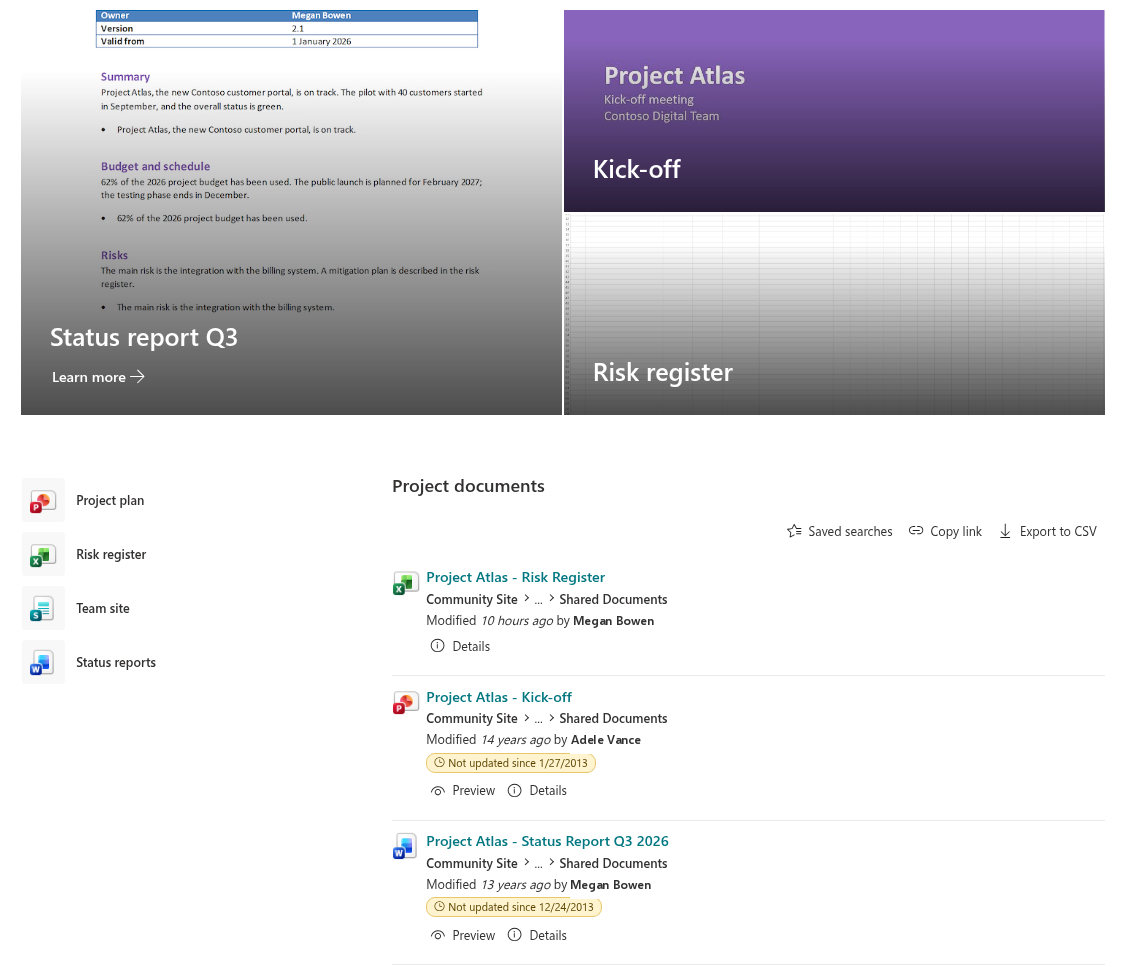
Smart Search is a web part. Instead of a single search results page for the whole site, it places a complete search experience — search box, tabs, filters and results — inside any modern page, in any section and column, and in Microsoft Teams. Each web part has its own settings, which page editors change in the web part property pane, without admin tools and without code.
Side-by-side comparison
| Built-in SharePoint search | Vitextra Smart Search | |
|---|---|---|
| Where search appears | The search box in the header and a dedicated results page | Any modern page, in any section; a full-page app; a Teams channel tab or personal app |
| Who configures it | Microsoft 365 or SharePoint administrators (organization level), site owners (site level) | Any page editor, in the web part property pane |
| Scope of a configuration | The whole organization or the whole site | One web part. Several web parts on one page can have different settings |
| Search scope | Set by the search context (organization or site) | Tenant, current site collection or current site — per web part |
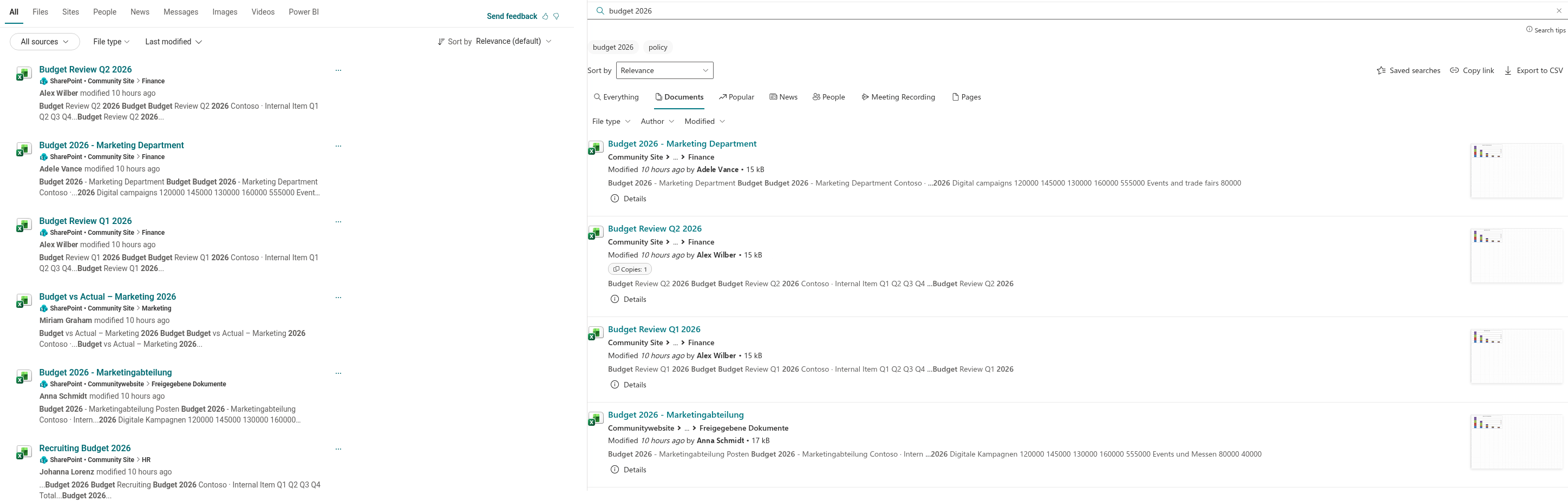
| Tabs | Verticals; custom verticals with KQL queries. Reordering verticals isn't supported | Ten ready-made sources, including Meeting Recording, Popular and News; rename, hide and reorder tabs |
| Filters | Default filters plus custom filters on refinable managed properties | Ready-made refiners (file type, author, modified date, tags and more) plus any refinable managed property; date refiners with quick periods and a custom range; order and display names configurable |
| Result layout | Fixed layout for default verticals; Adaptive Card layouts for custom verticals | Ten on/off elements (path, summary, tags, thumbnail, file size, views and more) and the summary length — no layout code |
| Actions on results | Open the item | Open, plus Preview, Play and Download in a dialog without leaving the page |
| Usage insight | — | Views count and a 7-day chart of daily views and unique viewers on each result |
| Shareable state | Query in the address | Query, tab and page number in the address (?q=…&source=…&p=…) |
| Branding | Microsoft 365 look | Follows the site and section theme and SharePoint Brand Center fonts |
| Answers (bookmarks, Q&A, acronyms) | Yes | No |
| External content (Copilot connectors) | Yes, through connectors and custom verticals | No — SharePoint and OneDrive content only |
| Cost | Included in Microsoft 365 | Separate product with a free trial |
When the built-in search is enough
The built-in search is the right choice when:
- users mostly search from the header box across the whole organization;
- the default verticals and filters cover what people look for;
- you need answers — bookmarks, Q&A or acronyms — or results from external systems through Copilot connectors;
- search is managed centrally by administrators, and per-page variations aren't needed.
When Smart Search fits better
Smart Search is the better fit when search needs to be part of the page itself, or when page owners need control without admin rights:
- Search blocks on regular pages — Project documents on a project site, Latest policies on an HR page, Meeting recordings on a team page — each with its own source, scope and layout, next to other web parts.
- A tailored search center — tabs named in your organization's terms, only the sources people need, date filters with quick periods and a result layout that matches the page.
- Working with results in place — previewing documents and playing videos and meeting recordings in a dialog, without new browser tabs.
- Seeing what people use — views counts and a 7-day view chart on each result.
- Search in Microsoft Teams — the same search as a channel tab or a personal app.
- Ready-made searches — links that open a specific query on a specific tab, for use in navigation, news or emails.
Using them together
The two don't exclude each other. Two common setups:
- Keep the built-in search in the header and add Smart Search blocks to pages. Users keep the familiar global search, and pages get focused, pre-configured search blocks.
- Send header searches to a Smart Search page. Set a Smart Search app page as the site's Results page URL. The query typed in the header is passed to the page in the
qparameter, and Smart Search shows the results with your tabs, filters and layout.
💡 Tip
To create a Smart Search page and make it the site's search results page, see KB10223. How to Create a Search App Page with Smart Search. For a regular page with other web parts, see KB10058. Build a Custom Search Results Page with Smart Search.
Good to know
❗ Important
Smart Search doesn't replace the search index or the ranking. It uses the standard SharePoint search index and the SharePoint search API, so it finds the same content that SharePoint search can find — no more and no less. The order of results may differ from the built-in Microsoft Search page, which uses its own personalization.
- Smart Search shows SharePoint and OneDrive content only. Answers and external content from Copilot connectors stay in the built-in search.
- Tabs are based on ten built-in sources; creating a new tab with your own KQL query isn't available in the web part settings.
- People results come from user profiles in the search index; for a full-featured employee directory, consider a dedicated directory web part.
💡 Tip
For an overview of all Smart Search features, see KB10222. Smart Search. Solution Overview. To deploy the web part, see KB10035. Installing Cloud-based Product.