Organizational Chart
 Introduction
The Vitextra Organizational Chart does not store any employee data of its own. Everything it shows — names, job titles, manager relationships, photos and presence — is read at run time from Microsoft Entra ID through the Microsoft Graph API. For that to work, the web part needs a small set of API permissions that a tenant administrator approves once.
This article lists those permissions, explains what each of them is used for, shows how to approve them, and describes what the chart looks like when a permission is missing. It is intended for SharePoint and Microsoft 365 administrators and for security reviewers who need to assess the product before deployment.
The permissions
Organizational Chart requests three delegated permissions for Microsoft Graph:
| Permission | Used for | Without it |
|---|---|---|
Directory.Read.All | Reading the list of users and the manager relationship of each account — the data the hierarchy is built from | The chart cannot load any employees and shows an error |
User.Read.All | Reading the profile attributes shown on cards (job title, department, office location, phone numbers, address and so on) and employee photos | The chart cannot load employee profiles and shows an error |
Presence.Read.All | Showing the live Microsoft Teams presence indicator (Available, Busy, Away, Do not disturb, Offline) on each card | The chart works, but no presence indicators are displayed |
All three are delegated permissions: the web part always calls Microsoft Graph on behalf of the signed-in user, never with an application identity of its own. The chart therefore never shows a visitor anything that the visitor could not see by browsing the directory in Microsoft 365 themselves — it only presents it in a more convenient form.
📝 Note
The permissions are requested at the level of the SharePoint Online Client Extensibility application principal, which all SPFx solutions in the tenant share. If another Vitextra product — for example Employee Directory — has already been approved for the same scope, the request for Organizational Chart is granted automatically and does not appear as pending.
Approving the permissions
The permission requests are registered automatically when the Organizational Chart package is deployed to the tenant App Catalog. To approve them:
- Sign in to the SharePoint admin center with an account that has the Global Administrator or SharePoint Administrator role.
- In the left navigation, expand Advanced and select API access.
- Under Pending requests, find the requests from the Organizational Chart package for the Microsoft Graph resource —
Directory.Read.All,User.Read.AllandPresence.Read.All. - Select each request and click Approve. Confirm the approval in the panel that opens.
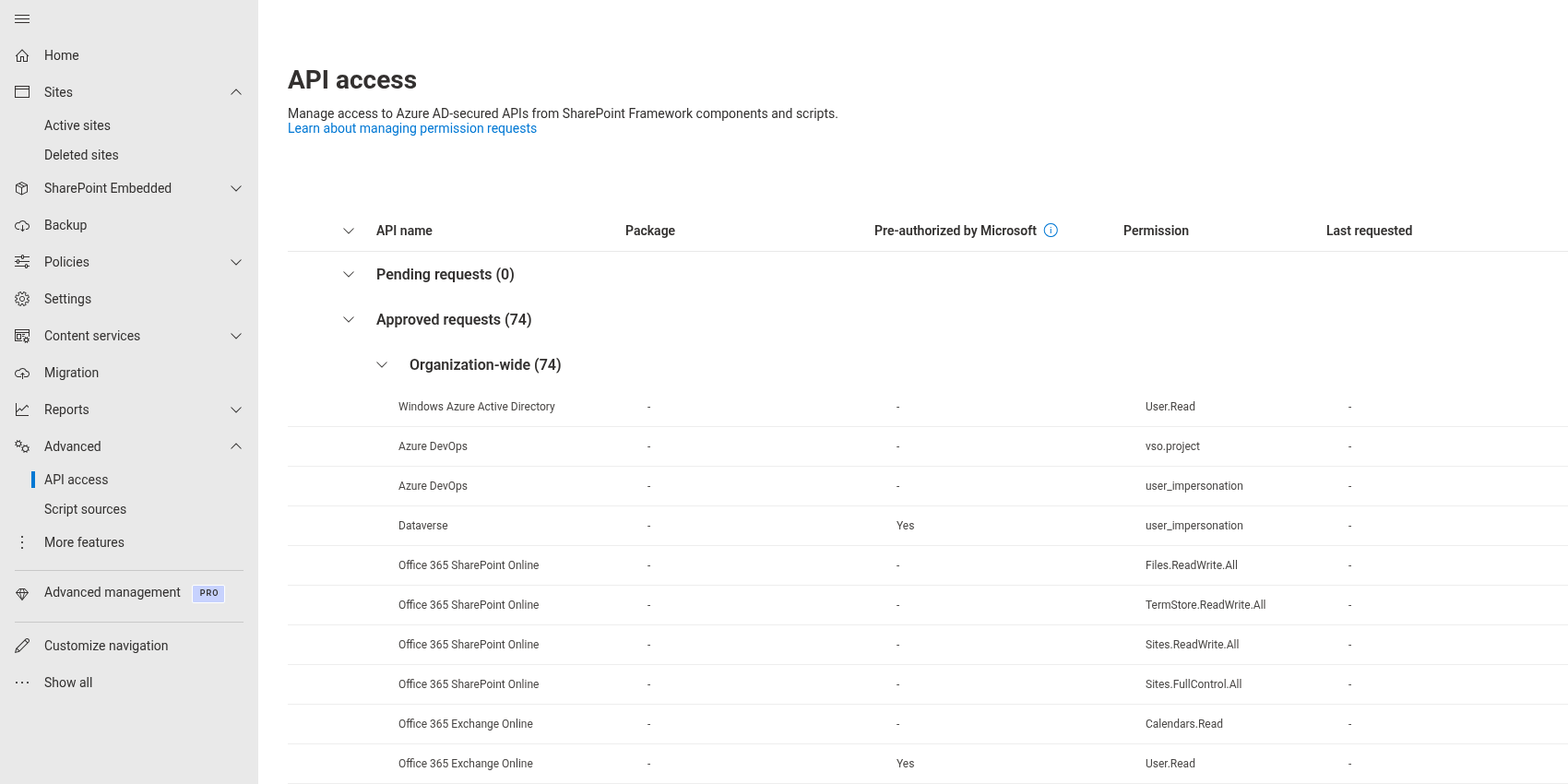
Approved permissions move to the Approved requests list, where they can be reviewed or revoked at any time.
❗ Important
Approval takes effect immediately, but users who already have the page open need to reload it. Browsers also cache the previous authorization result for a short time, so if the chart still shows an error a few minutes after approval, wait a little and refresh the page before investigating further.
💡 Tip
The complete deployment procedure — uploading the package to the App Catalog, enabling it for all sites and approving the permissions — is described in KB10035. Installing Cloud-based Product.
What happens when a permission is missing
The three permissions fail in different ways, which helps to diagnose the problem:
Directory.Read.AllorUser.Read.Allnot approved. The chart cannot load the directory at all. Instead of the tree, the web part shows the message Sorry, something went wrong. Please refresh the page and try again. with a Configure button for page editors. Approve the pending requests and reload the page.Presence.Read.Allnot approved. The chart loads and all cards are shown, but the presence dot on photos is missing for everyone. This is the most common partial state: the two directory permissions have been approved, while the presence request was overlooked.- A permission was revoked after deployment. The symptoms are the same as above. Revoked permissions reappear under Pending requests and can be approved again.
📝 Note
Presence requires more than the permission: the person must have a Microsoft Teams license and be signed in to Teams. A user without Teams always appears without a presence indicator, even when Presence.Read.All is approved.
Who can see the chart
Because the web part uses delegated permissions, access to the chart is governed by two things:
- Access to the page. A visitor must be able to open the SharePoint page or the Teams tab that hosts the web part — ordinary SharePoint and Teams permissions apply.
- Access to the directory. Every member of the organization can read basic directory information in Microsoft 365 by default, so every visitor with page access sees the same chart. Guest users, on the other hand, are not loaded into the chart and typically cannot read the full directory either.
Organizational Chart does not add any permission layer of its own: it does not hide individual employees from particular visitors, and it does not grant anyone access to data they could not read elsewhere in Microsoft 365. To keep certain accounts out of the chart entirely — service accounts, shared mailboxes, test users — use the filtering and exclusion options of the web part, described in KB10233. How to Add and Configure the Organizational Chart Web Part.
Data handling
For a security review, these points are usually relevant:
- Employee data is read from Microsoft Graph directly by the user's browser and is not sent to Vitextra or to any third-party service.
- A snapshot of the loaded directory is kept in the browser's local storage for up to 12 hours to speed up repeated visits; it is stored per user and per browser and never leaves the device.
- Photos and presence are requested only for the cards that are visible on screen and are not cached beyond the page session.
- The web part contacts Vitextra servers only to verify the license status of the tenant, to load static assets such as icons, and to collect anonymous telemetry about product usage. No directory data is included in these requests.
💡 Tip
For an overview of the product, see KB10232. Organizational Chart. Solution Overview. If employees are missing from the chart even though all permissions are approved, see KB10236. Why Is Someone Missing from the Organizational Chart?.