Organizational Chart
 Introduction
"The new colleague is not on the chart", "our department head shows up at the top level on his own", "half of the Sales team has disappeared" — questions like these are the most common reason to open a support ticket about the Vitextra Organizational Chart. In almost every case the chart is behaving exactly as configured: an account simply does not meet one of the conditions for being shown, or the directory does not contain the relationship the chart needs.
This article is a checklist, ordered from the most frequent cause to the rarest. Work through it from the top and you will usually find the answer within the first three steps. Each check tells you where to look and how to fix it.
📝 Note
Most of the checks below refer to settings in the web part property pane. If you are not an editor of the page, ask the page owner or your SharePoint administrator to verify them. The settings are described in KB10233. How to Add and Configure the Organizational Chart Web Part.
1. The account has no Microsoft 365 license
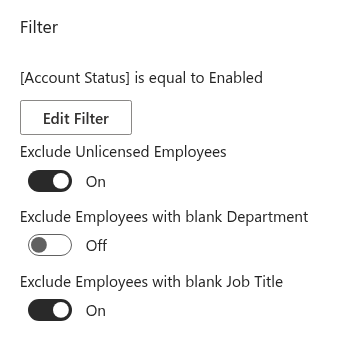
By default the web part excludes employees without a license — the Exclude Unlicensed Employees toggle in the Filter group of the property pane is on. The purpose is to keep shared mailboxes, service accounts and test users out of the chart, but the rule also catches real people whose license has not been assigned yet — a typical situation for a new hire on their first day, or for a contractor who uses an unlicensed account.
How to check. Open the user in the Microsoft Entra admin center or the Microsoft 365 admin center and look at the Licenses section.
How to fix. Assign a license to the user, or — if unlicensed accounts should be shown — turn off Exclude Unlicensed Employees in the property pane and republish the page.
2. The Job Title field is empty
The second default exclusion is Exclude Employees with blank Job Title, which is also on out of the box. An account without a job title is usually not a real employee, so hiding it keeps the chart clean — but an incomplete profile of a real person is hidden in the same way. A related toggle, Exclude Employees with blank Department, is off by default but may have been enabled on your page.
How to check. Open the user's profile in the Microsoft Entra admin center and look at Job title (and Department) under Job information.
How to fix. Fill in the missing field in the directory. Alternatively, turn the corresponding toggle off in the property pane.
3. The account is disabled
The default filter of the web part contains one condition: Account Status is equal to Enabled. A disabled (blocked) account is therefore hidden even if everything else about it is in order. This is normally the desired behavior — people who have left the company should not stay on the chart — but it also hides an account that was blocked temporarily, for example during an extended leave.
How to check. In the Microsoft Entra admin center, look at Account enabled on the user's overview page.
How to fix. Re-enable the account, or edit the filter in the property pane (Filter → Edit Filter) if disabled accounts should be visible on this page.
4. The person is a guest or an external user
The chart loads member accounts of your organization only. Guest users (#EXT# accounts invited from another tenant) and other external identities are never retrieved, regardless of the filter settings. If an external consultant should appear on the chart, they need a regular member account in your tenant.
5. The Manager field is not set — or points to the wrong person
The hierarchy is built entirely from the Manager attribute of each user in Microsoft Entra ID. Two situations follow from this:
- No manager. In the Entire Company mode, an employee with no manager assigned is treated as a top of the hierarchy and appears as a separate root next to the CEO. In the Employees reporting to specific user mode, such an employee is simply not part of any branch and does not appear at all — unless they are the selected root person themselves.
- Manager outside the chart. If an employee's manager is excluded by any of the rules above (unlicensed, blank job title, disabled, guest) or by a filter, the employee loses the connection to the rest of the hierarchy and disappears from the chart together with their whole branch. A classic example: the department head's account has no job title, so the entire department vanishes.
How to check. Open the user in the Microsoft Entra admin center and look at Manager under Job information. Then check the manager's own account against steps 1–4.
How to fix. Set the correct manager for the employee and complete the manager's profile. If your directory is synchronized from an on-premises Active Directory, make the change there and wait for the next synchronization cycle.
💡 Tip
Keeping the manager attribute complete is the single most effective way to get a clean chart. See KB10238. Preparing Microsoft Entra ID Data for an Accurate Organizational Chart for guidance on maintaining the directory.
6. A filter on the page excludes the person
A page may be configured to show a single department, a country or an office, using the query builder in the Filter group. An employee whose profile does not match the conditions — for example, whose Department reads Sales EMEA while the filter expects Sales — is not shown.
How to check. Open the property pane and look at the Filter group: if it shows conditions instead of No filter applied, compare them with the employee's profile attributes.
How to fix. Correct the employee's attribute in the directory to match your naming convention, or widen the filter — for instance, use contains instead of is equal to. Remember that the manager of the person must match the filter as well (see step 5).

7. The chart shows a different branch
In the Employees reporting to specific user mode, the chart contains only the selected person and the people who report to them at any level. Anyone outside that branch is not missing — they are simply not part of this page's scope. The same applies to a page that was filtered to one department.
How to check. Look at the Chart Mode and Person settings in the Behavior group.
How to fix. Use Find me or the search box on a page that shows the entire company, or ask the page owner whether the scope of the page is intended.
8. The branch is collapsed or beyond the displayed levels
The person may be on the chart but out of sight. The Levels to Display setting (3 by default) decides how many levels are expanded when the page opens; deeper levels are collapsed under their manager's card.
How to check. Type the person's name in the search box: matching cards are highlighted and their branches are expanded automatically. Or click Expand all on the toolbar.
How to fix. Nothing is wrong. If deeper levels should be open by default, increase Levels to Display in the property pane.
9. The data is cached
To keep the chart fast, the web part keeps a snapshot of the directory in the visitor's browser for up to 12 hours. A person added to the directory an hour ago is therefore not on the chart yet for a visitor who opened the page this morning.
How to check. Look at the Last updated time shown above the chart.
How to fix. Click Refresh next to the Last updated time. The snapshot is stored per user and per browser, so each visitor refreshes their own copy; after 12 hours it is reloaded automatically.

📝 Note
Changes made in an on-premises Active Directory reach Microsoft Entra ID only after the next synchronization cycle, and a newly uploaded photo can take a while to propagate within Microsoft 365. Allow for these delays before concluding that something is wrong with the chart.
10. Nobody is shown at all
If the chart is empty or shows an error instead of the tree, the cause is not an individual account but the connection to Microsoft Graph — most often the API permissions have not been approved yet. See KB10235. Microsoft Graph Permissions Required by Organizational Chart.
In the Employees reporting to specific user mode, an empty chart can also mean that the selected root person is themselves excluded by one of the rules in steps 1–4: the root must pass the same checks as everyone else.
Summary
| Symptom | Most likely cause | Where to look |
|---|---|---|
| A new employee is missing | No license yet, or blank job title | Steps 1, 2 |
| A person who left is still shown | Account not disabled, or cached data | Steps 3, 9 |
| An employee sits at the top level alone | No manager assigned | Step 5 |
| A whole team is missing | The manager is excluded or filtered out | Steps 5, 6 |
| An external consultant is missing | Guest account | Step 4 |
| People are missing on one page only | Chart mode or filter of that page | Steps 6, 7 |
| The person is there but hard to find | Collapsed levels | Step 8 |
| The chart is empty or shows an error | API permissions | Step 10 |
Learn more about the product: https://vitextra.com/en/products/org-chart