Smart Tiles
 Introduction
A tile carries two texts: a title, which names the destination, and an optional description, which says in a few words what the visitor will find there. Together with the title of the web part they are all the words on a panel of Smart Tiles, so it pays to know exactly how they are displayed. This article covers the two texts, the settings that show, hide and size them, and the tooltip.
Title and description
Both texts are entered in the Properties dialog of a tile: click the … button of the tile and choose Edit Properties.
- The Title is shown in the tile under the icon, in the Font Color of the tile and at the Font Size of the web part.
- The Description is shown under the title in smaller, slightly lighter text — three quarters of the title size, but never smaller than 12 pixels.
Each text occupies a single line. A text that is wider than the tile is cut off with an ellipsis (…); it is not wrapped. The full text is always available in the tooltip.

The tooltip
Resting the pointer on a tile shows a tooltip with the title and, on a second line, the description. The tooltip is shown even when the texts are hidden on the tile, so a panel of icon-only tiles still explains itself on hover. Screen readers announce the title of the tile as the name of the link.
Show Titles and Show Descriptions
Two toggles in the Appearance group of the property pane control the texts of all tiles at once:
| Setting | Effect |
|---|---|
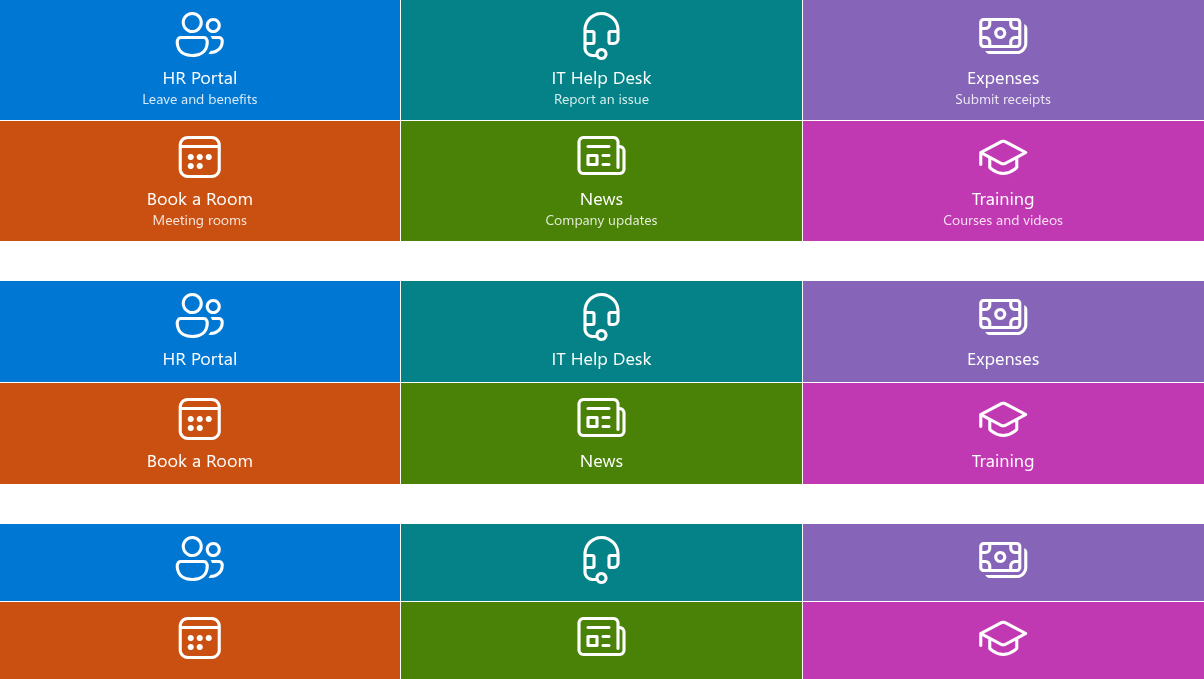
| Show Titles | On by default. Switched off, the titles disappear from all tiles and the icons are centered. Use it for a mosaic of well-known app logos or for image tiles that need no label. |
| Show Descriptions | On by default. Switched off, the descriptions disappear from all tiles but remain in the tooltips. Use it for a compact panel, or when only a few tiles have a description and the panel looks uneven. |
📝 Note
The texts are hidden, not removed. Switching a toggle back on restores every title and description exactly as it was entered.
Font Size
Font Size in the Appearance group sets the size of the titles in seven steps: 14, 16, 18, 20, 24, 28 and 32 pixels. The description follows at three quarters of the title size. The default is step 3 (18 px).
Larger text needs wider tiles: at 28 or 32 px a title of two or three words already fills a Small tile. Pair large font sizes with Medium and larger tiles, or with short titles.
Tiles without a title
A tile whose title is empty, or whose titles are hidden by the setting, shows the icon centered vertically. Give such a tile a description anyway — it appears in the tooltip — so that the destination has a name for visitors who are not sure what the icon means.
❗ Important
A tile that links to a YouTube video and uses the video Thumbnail as its background shows no texts on the published page, whatever the settings: the thumbnail is the content of the tile. The title and the description of such a tile are visible in edit mode and in the tooltip.
The web part title
Above the tiles there is a title for the whole panel. Click the placeholder Web Part Title in edit mode and type the heading — it is rendered in the style of the other web part titles on the page. Leave it empty if the panel needs no heading; nothing is shown in its place on the published page.
Writing texts that fit
- Titles of one to three words. Help Desk, Book a Room, Expense Reports. Verbs work well for actions, nouns for places.
- Descriptions that add something. Submit hours by Friday tells more than Time sheet system. Keep them under about 40 characters so that they fit a Small tile at the default font size.
- No repetition. The description should not restate the title; if there is nothing to add, leave it empty — the tile looks cleaner without an empty second line.
- Consistency. Either every tile in a panel has a description or none does. A few tiles with a second line make the rows look uneven.
💡 Tip
How tile width is set, and therefore how much text fits, is explained in KB10247. Tile Sizes and Layout in Smart Tiles. The Properties dialog is described in KB10242. How to Add and Edit a Tile in Smart Tiles.
Learn more about the product: https://vitextra.com/en/products/smart-tiles