List Filter Online
 Introduction
A SharePoint list grows until nobody can find anything in it. The built-in view offers a search box and a column header menu, but a user who needs "all contracts of this customer, signed last quarter, owned by my department" has to open several menus in a row, and the next user has to repeat the whole sequence. List Filter Online replaces that routine with a filter pane: an administrator picks the columns that matter and the control for each of them, and users filter the list with drop-downs, date ranges, people pickers and other familiar controls, save the result and share it as a link.
List Filter Online is a SharePoint Framework web part for modern SharePoint Online pages. It shows the items of a list or document library in a table with its own command toolbar, filter pane and item menus, and it can take the data from any site of the tenant. This article introduces the solution: where it works, what is in the package, what the user sees on the page and which capabilities the administrator can switch on.
Where List Filter Online works
List Filter Online is deployed to a Microsoft 365 tenant from the app catalog as a single package and becomes available on every site of the tenant without further activation. The web part can be placed:
- on any modern page — a site page, a news post or a home page, in a regular section or a section with columns;
- on a single-part app page, where the list view is the only content of the page;
- as a tab in a Microsoft Teams channel or as a personal app in Teams.
The web part follows the theme of the site, including dark themes and the color variants of a page section, and in Teams it follows the theme of the Teams client. Its interface is available in 44 languages, selected automatically from the language of the user.
📝 Note
List Filter Online supports modern pages only. It cannot be added to classic pages.
What is in the package
The solution package contains two components.
The List Filter web part. In the toolbox of the page editor it appears as List Filter in the Documents, lists, and libraries group. This is the component that shows the list and that this article is about.
The Open in List Filter list command. The same package adds the command Open in List Filter to the command bar of native lists and libraries. A user selects items in an ordinary list view and the command opens the page with the List Filter web part in a new tab, already filtered to the selected items. The command is hidden until a SharePoint administrator points it to the page that hosts the web part; the setup is described in KB10254. Opening Selected Items in List Filter Online from a Native SharePoint List.
Data from any site in the tenant
The web part is not tied to the site it is placed on. In the Data Source group of the property pane the administrator chooses the Scope — Current Site or Other Site — and, for another site, finds it by name or URL in the site picker. Then a list or library of that site is selected and the columns to display are chosen.
List Filter Online reads and writes data through the native SharePoint REST API on behalf of the current user. It needs no additional API permissions, nothing has to be approved by a Global Administrator, and users see exactly the items they are allowed to see in the list itself.
❗ Important
List Filter Online does not use the views of a list. Instead of selecting a view, you select the columns to display, and the sorting, grouping and filter are configured in the web part. The web part also cannot be connected to other web parts on the page; it works as a standalone tool.
What the user sees
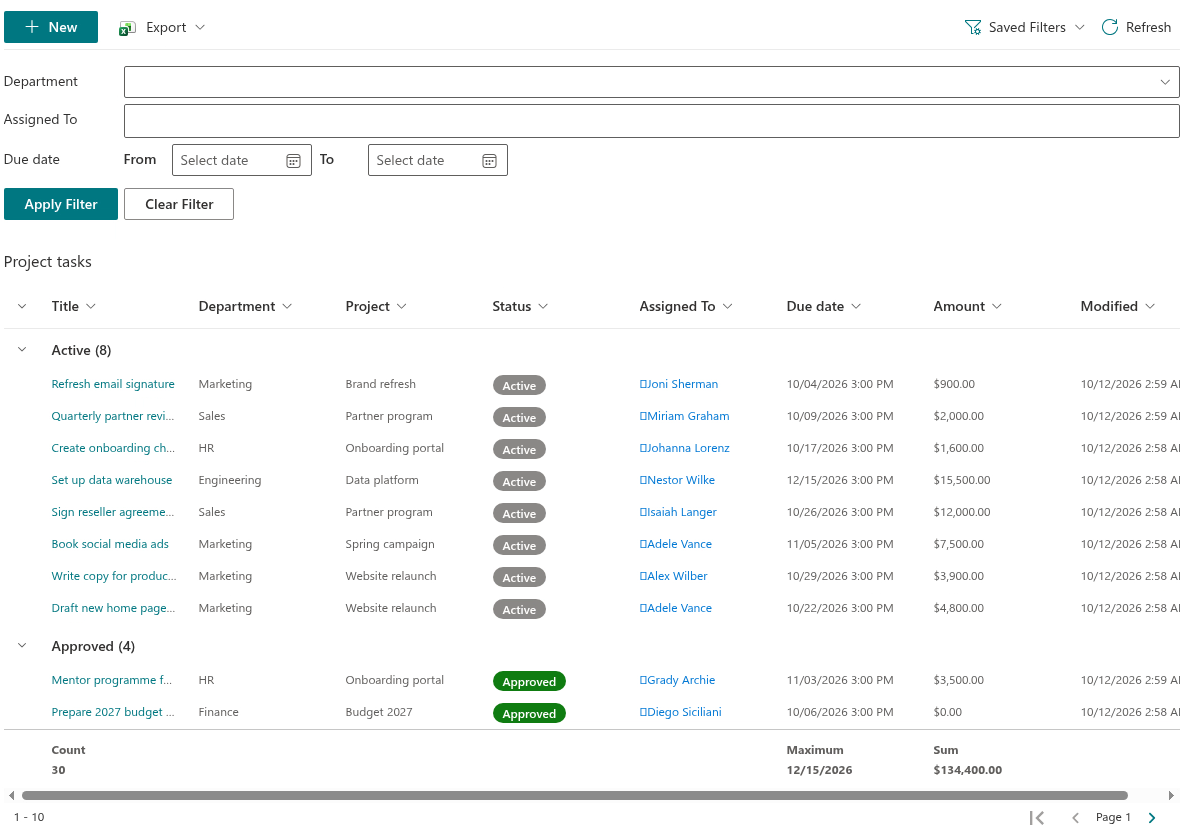
The web part combines three areas. The command toolbar at the top holds the commands New, Export, Saved Filters and Refresh; the administrator decides which of them are shown, and commands that the user has no permission for are hidden automatically. The filter pane holds the filter controls, the Apply button and the filter chips that show the active filters, each with its own clear button and a Clear all the filters link. The results table is always visible; it shows the selected columns, groups and totals, and a paging control at the top or bottom.
When the Navigation option is on, a breadcrumb trail above the table shows the path inside the library, and the user moves between folders by clicking the folder name or a breadcrumb.
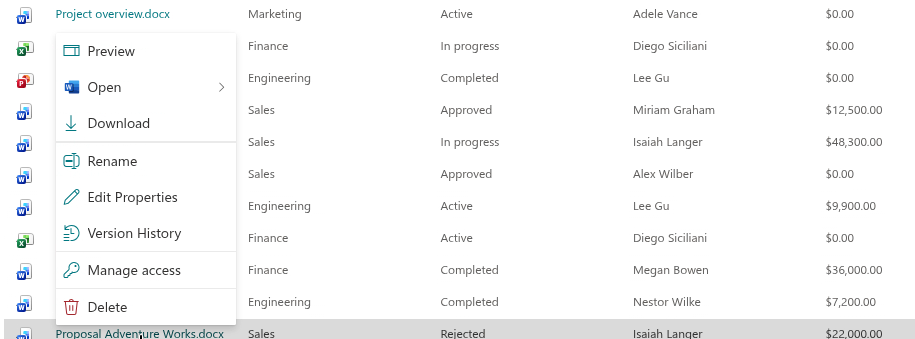
Two context menus complete the picture. The header of a column opens a menu with sorting, a list of values to filter by and Clear Filter. The menu of an item offers the actions that the user is used to from the native list: Open — in the browser or in the desktop app for Office files — Preview, Rename, Edit Properties, Download, Manage access, Version History, Folder color for folders and Delete. The actions that are offered depend on the permissions of the user.
Key capabilities
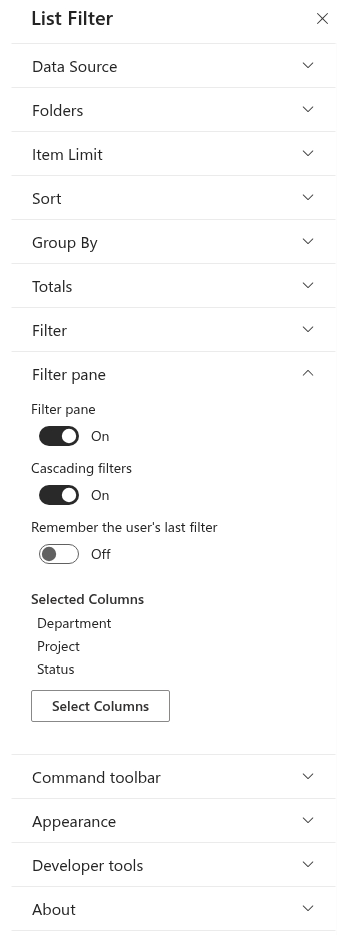
Filter pane. For each column the administrator chooses one of eleven filter controls that fit the column type: Text, Text (with options), Dropdown, Dropdown (Multiple Values), Date picker, Date Range, Relative Date, Person or Group with one or several people, Term with one or several terms, Numeric range and Yes/No. See KB10255. Filter Pane Controls and Supported Column Types in List Filter Online.
Query Builder. Independently of what the users can filter, the administrator can restrict the data with a predefined filter built in the Filter group: conditions are combined into AND/OR groups, groups can be nested up to ten levels, and the operands include static values and dynamic ones such as the current user or the last X months. The result is a CAML query. See KB50025. How to Build a Complex Query with the List Filter Online Query Builder.
Columns. Every column has its own caption, order and behavior — resizable, collapsible, filterable, sortable, linked to the item — and a display format: date only, date and time or relative date; lookup with or without a link; user name, with picture or with picture and details, where a click on the name opens the profile card; thumbnails and images in three sizes. See KB10258. Configuring Columns in List Filter Online: Captions, Formats and Display Options.
Column formatting from the list. With Use column formatting from the list switched on, the web part renders the column formatting JSON that was defined on the list itself, so colored status labels, bars and icons look the same as in the native view. See KB10259. Using SharePoint Column Formatting JSON in List Filter Online.
Grouping, sorting and totals. Items can be sorted by two columns and grouped by two columns, with groups expanded or collapsed by default; totals — count, sum, average, minimum, maximum, standard deviation and variance — are shown under the groups and the whole table. See KB10260. Grouping, Sorting and Totals in List Filter Online.
Folders. A library can be shown with its folder structure, as a flat list of all documents without folders, or with folders and documents of all levels together. See KB10261. Working with Folders in List Filter Online: Folder Navigation, Flat View and Breadcrumbs.
Saved filters and filter links. A user saves a combination of filters under a name and returns to it from the Saved Filters menu; Copy Link to Filter produces a link that opens the page with the same filter applied, and the web part can remember the last filter of the user. See KB10253. Saving Filters and Sharing a Link to a Filtered View in List Filter Online.
Cascading filters. With Cascading filters on, the values offered in a drop-down are narrowed by the filters already selected in the other controls, so a user never picks a value that leads to an empty result. See KB10256. Cascading Filters: Narrowing Drop-Down Options by Other Selected Filters.
Export to Excel. The Export command saves the current page, all items or the selected items to an Excel workbook, including the groups and totals of the view. See KB50022. How To Export a SharePoint List to Excel.
Item actions. From the context menu of an item a user opens the version history and restores a previous version, downloads or renames the document, manages access to it and colors a folder in one of sixteen colors — see KB50010. How To Color Folders in SharePoint Online.
Licensing
List Filter Online is installed with a trial period. The About group of the property pane shows the Status of the license, the Version of the web part, the Start Date of the subscription and the Tenant it is assigned to. When the trial ends, the web part shows a notice in place of the list until a subscription is activated.
Next steps
💡 Tip
To deploy the package and place the web part on a page, see KB10251. How to Install List Filter Online and Add It to a Page. All settings of the property pane are described in KB10201. Configuring the List Filter Online Web Part, and the day-to-day work with filters, in KB10252. List Filter Online: A Quick Guide for End Users.