List Filter Online
 Introduction
List Filter Online is a web part that shows the items of a SharePoint list or document library on a page and lets you narrow them down with a few clicks. This guide is written for a person who uses such a page: you need no administrator rights and no knowledge of how the web part was set up.
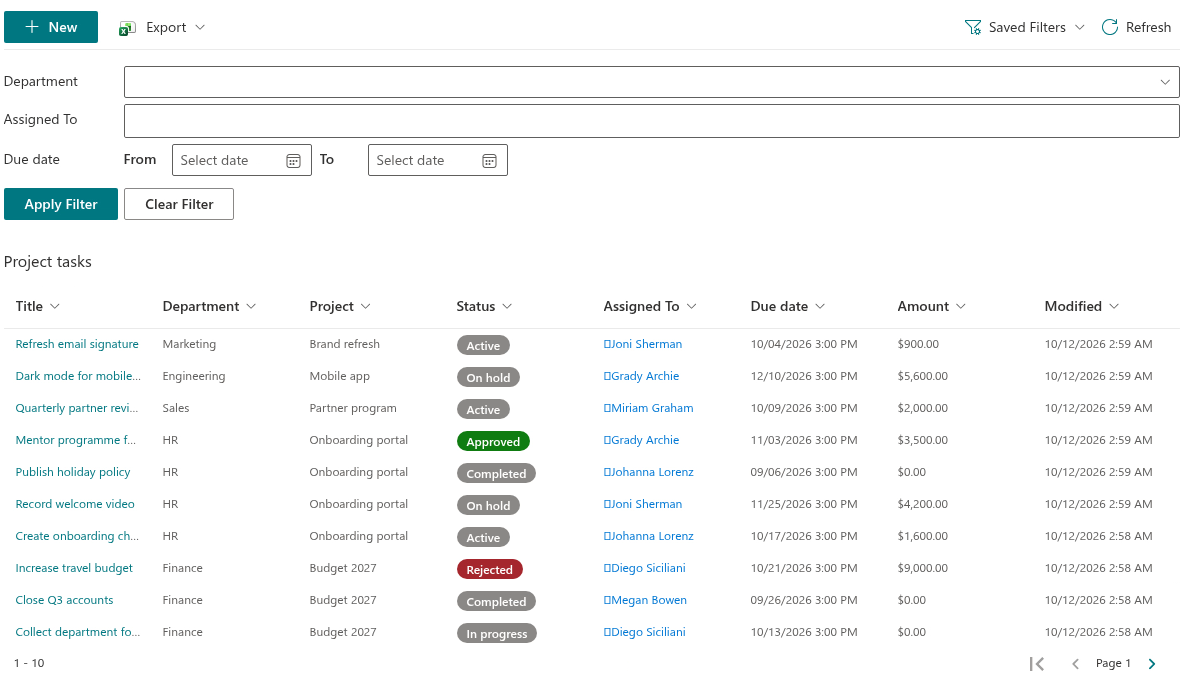
A typical page with the web part has four areas, from top to bottom:
- the command toolbar with buttons such as New, Export, Saved Filters and Refresh;
- the filter pane with one control per filterable column and the Apply Filter and Clear Filter buttons;
- the breadcrumbs that show the folder you are in;
- the results table with the items, optionally with paging controls above or below it.
📝 Note
The administrator of the page decides which of these areas you see. The command toolbar, the filter pane, the breadcrumbs and the paging controls can each be switched off, so your page may look simpler than the screenshots in this article. The results table is always shown.
Filtering with the filter pane
The filter pane holds one control for every column the administrator made available for filtering. The type of control depends on the column: a text box for text columns, a drop-down list with one or several values for choice and lookup columns, a date picker or a date range for date columns, a people picker for person columns, a slider or two number boxes for numbers, a toggle for Yes/No columns.
To filter:
- Set the values you want in one or more controls.
- Click Apply Filter. The results table reloads from the first page.
Clear Filter resets every control in the pane and shows the unfiltered items again.
As soon as a filter is active, a row of filter chips appears under the pane. Each chip reads Column: value and has a small close button that removes that single condition. The Clear all the filters link at the end of the row removes everything at once — the filters from the pane and the filters set from column headers alike.

❗ Important
The chips are the authoritative view of what is filtered. A filter that was restored from a link or from a saved preset is shown as chips, while the controls in the pane may still be empty. If you then click Apply Filter with empty controls, the restored filter is replaced by the values from the pane.
Sorting and filtering from a column header
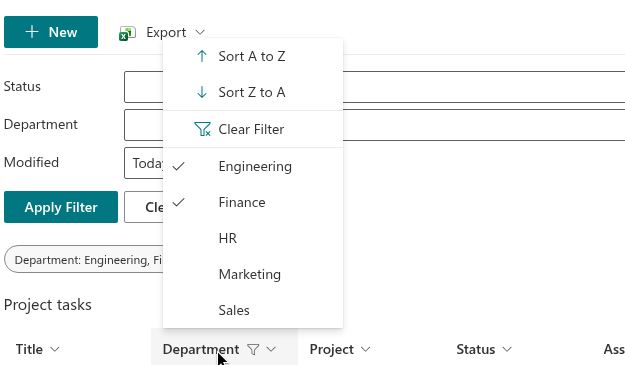
Click the header of a column to open its menu. Depending on how the column was configured, the menu offers:
- Sort A to Z and Sort Z to A — the table is re-sorted by this column; the sort replaces the default order of the web part until the page is reloaded;
- the list of distinct values of the column, loaded on the fly (Loading... is shown while they arrive). Each value may be followed by the number of items in parentheses. Click a value to show only items with that value; click several values to show items with any of them. An (Empty) entry selects items that have no value in the column;
- Clear Filter at the top of the menu, shown once a filter on this column is active.
Filters set from a column header appear as chips like any other filter, and the header of a filtered column is marked with a filter icon. The value list of a column is narrowed by the other active filters, so you see only values that still return items.
Navigating folders
When the library or list contains folders and the administrator left folder navigation on, folders appear as rows in the table. Click the name of a folder to open it. The breadcrumbs above the table show your position: the name of the list first, then every folder on the way. Click the list name to return to the top level, or click any folder in the path to go back to it.
📝 Note
Opening a folder does not change the address of the page, so the Back button of the browser leaves the page instead of returning to the previous folder. Use the breadcrumbs to go back. If the breadcrumbs are hidden on your page, reloading the page returns you to the top level.
The filters you set stay active while you move between folders.
Working with items
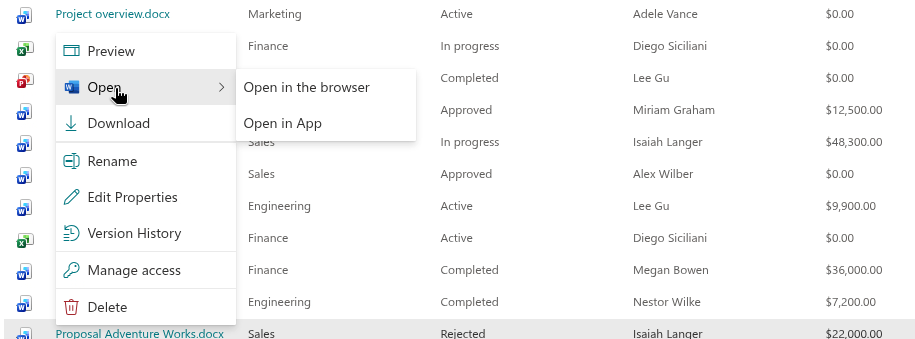
Right-click an item to open its context menu. The commands depend on the kind of item and on your permissions:
| Command | Available for | What it does |
|---|---|---|
| Open | list items, documents | Opens the item form or the document in a new tab. For Office files the command has a submenu: Open in the browser or Open in App. |
| Preview | list items, documents | Opens a side panel with the properties of the item and, for documents, a preview of the file. For list items the panel also lists the attachments. |
| Download | documents | Saves a copy of the file to your computer. |
| Rename | documents, folders | Opens the Rename File or Rename folder dialog. Requires edit permission. |
| Edit Properties | list items, documents | Opens the edit form in a new tab. Requires edit permission. |
| Version History | list items, documents | Opens a panel with the versions of the item (No., Modified, Modified By). Shown when versioning is enabled for the list. If you have edit permission, a Restore button next to an older version replaces the current version with it, after a confirmation. |
| Folder color | folders | Picks one of sixteen colors for the folder icon. Requires edit permission. |
| Manage access | all | Opens the SharePoint permissions page of the item in a new tab. Requires permission to manage permissions. |
| Delete | all | Deletes the item after the question Are you sure you want to delete this item? Requires delete permission. |
Two more details help you while reading the table:
- In a list with attachments, items that have files attached show a paper-clip icon in the Attachments column. Click it to see the list of attached files and open any of them.
- In a person column, click the name of a person to open a card with their photo, job title, department and work phone.
📝 Note
If right-clicking an item shows no menu, the context menu has been disabled in the configuration of the web part. The web part never shows a command that your SharePoint permissions do not allow, so a shorter menu than the one in the table above is normal.
Selecting items and pages
Depending on the Selection Mode chosen by the administrator, the table has no selection, lets you select one row, or lets you select several rows with check boxes (the check box in the header selects all rows of the page). When exactly one item is selected, the command toolbar shows commands for it: Open and Download for a document, Edit for a list item, and Delete if you may delete it. A selection also enables Export › Selected items.
When the web part shows items in pages, the paging controls display the range of rows on the page (for example 1 - 30), the page number (Page 2) and the arrows First Page, Previous Page and Next Page. The administrator chooses whether the controls appear above the table, below it or in both places.
Refresh in the command toolbar reloads the current page of items with the current filters.
Saving your filters and sharing a link
The Saved Filters menu in the command toolbar lets you keep a combination of filters you use often. Save Current Filter stores the active filters under a name of your choice; the saved presets appear in the same menu and are applied with one click. Copy Link to Filter copies a link to the page that applies your current filters when it is opened, so a colleague sees the same filtered view.
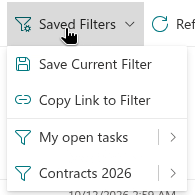
Both commands, the storage of presets and the option that restores your last filter on your next visit are described in KB10253. Saving Filters and Sharing a Link to a Filtered View in List Filter Online.
Exporting to Excel
The Export button in the command toolbar creates an Excel workbook from the table:
- Current Page — the rows you see now;
- All Items — every item that matches the current filters, across all pages, including groups and totals when the web part is grouped;
- Selected items — only the rows you selected.
The file is named after the list and downloads to your computer. A progress bar Exporting to Excel is shown while a large export runs.
💡 Tip
A step-by-step walkthrough of filtering and exporting is given in KB50022. How To Export a SharePoint List to Excel.
Summary
Filter with the pane or from a column header, watch the chips to see what is active, browse folders with the breadcrumbs, and use the right-click menu for everything you may do with an item. What you can see and do is always bounded by two things: your SharePoint permissions and the configuration of the web part made by the administrator — see KB10201. Configuring the List Filter Online Web Part for the administrator's side of the story.