List Filter Online
 Introduction
Filtering a large list down to the few items you need is quick in List Filter Online, but a filter made of four or five conditions is tedious to rebuild every morning — and hard to describe to a colleague over the phone. The web part solves both problems from one place, the Saved Filters menu in the command toolbar:
- you can save the current combination of filters as a named preset and apply it again with one click;
- you can copy a link to the page that applies the current filters when it is opened;
- the administrator can additionally let the web part remember your last filter and restore it on your next visit.
This article explains each of these features, where the saved data lives and what that means in practice. It is written for a person using the page; the only administrator setting involved is mentioned in its own section.
The Saved Filters menu
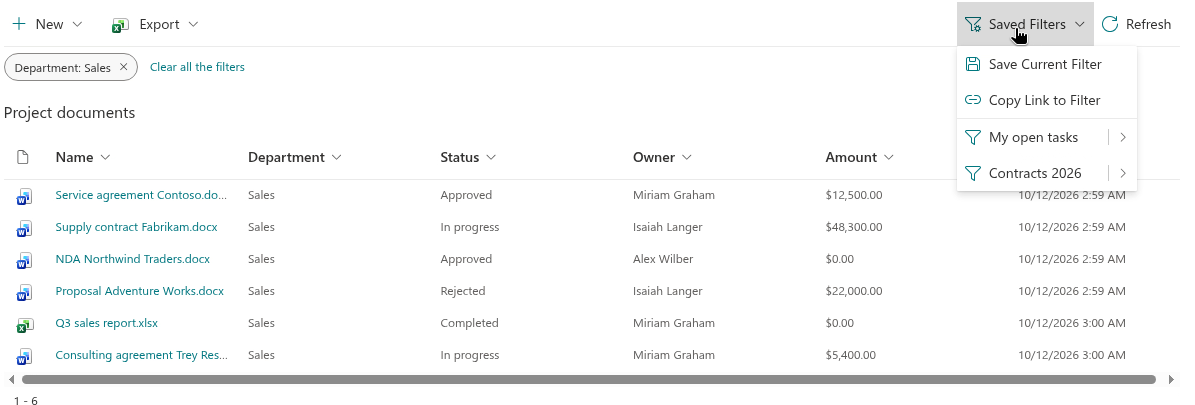
Saved Filters sits on the right side of the command toolbar, next to Refresh. It opens a drop-down menu with:
- Save Current Filter — stores the active filters as a preset;
- Copy Link to Filter — puts a link to the filtered view on the clipboard;
- a divider, followed by your saved presets, one entry per preset, or the text No saved filters yet when you have none.
Save Current Filter and Copy Link to Filter are available only while at least one filter is active — a filter from the filter pane or from a column header. Without an active filter, both entries are disabled.
📝 Note
The Saved Filters menu is part of the command toolbar. If the administrator has hidden the toolbar on your page, the menu is not available, and neither are presets or filter links.
Saving the current filter
- Set the filters you want — in the filter pane, from column headers or both — and make sure they are applied (the filter chips above the table show them).
- Open Saved Filters and click Save Current Filter.
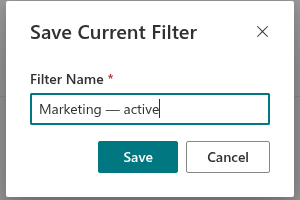
- In the dialog, type a name into the Filter Name box (up to 80 characters) and click Save. The Save button stays disabled until the name contains at least one character other than spaces. Cancel closes the dialog without saving.
The new preset appears in the Saved Filters menu immediately. Saving another filter under the same name replaces the earlier preset.
Applying a preset. Click the name of a preset in the Saved Filters menu. The filters of the preset replace everything that is active at the moment — the filters from the pane and from column headers — and the table reloads from the first page. The applied filters are shown as chips.
Deleting a preset. Every preset entry is a split button: the name applies the preset, the arrow on its right opens a submenu with Delete. Deleting removes the preset at once, without a confirmation, and does not change the filters currently applied.
📝 Note
A preset stores the conditions, not the way they were entered. When you apply a preset, the chips show the conditions, but the controls in the filter pane do not change. Clicking Apply Filter in the pane afterwards replaces the preset with whatever the pane controls contain.
Where presets are stored
Presets are stored in the local storage of your browser, together with the web part instance and the list they were created for. Nothing is written to the SharePoint list or to your user profile. This keeps saving instant and private, but it has consequences you should know:
❗ Important
Saved presets live in one browser on one device. They are not synchronized between browsers or devices, they are not visible to other users, and they disappear when the site data of the browser is cleared. A private or incognito window usually starts without your presets. Presets are also bound to the particular web part on the particular page: the same list shown by another web part, or on another page, has its own set of presets.
If a preset refers to a column that no longer exists in the list, that condition is skipped when the preset is applied; the remaining conditions are applied normally.
To share a filter with colleagues or to keep it independent of the browser, use a filter link instead.
Copying a link to the filter
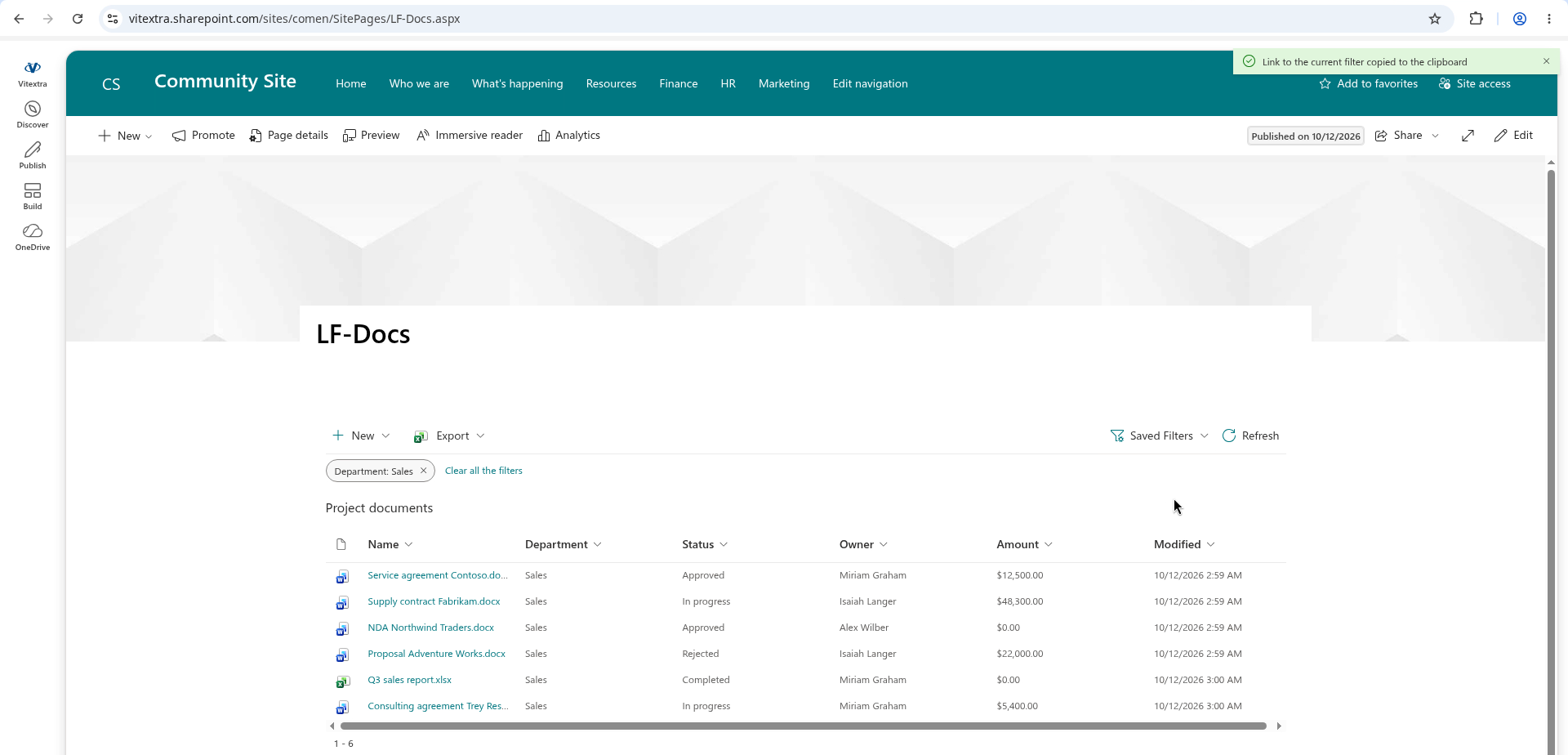
Copy Link to Filter builds the address of the current page with one extra query-string parameter, lff, and copies it to the clipboard. A green message Link to the current filter copied to the clipboard confirms the action. The parameter contains the filter conditions in a compressed form, so the link stays reasonably short even for several conditions.
A link is addressed to the web part it was created from. When someone opens the link, that web part reads the parameter, applies the conditions and removes the parameter from the address bar, so that reloading the page or using the Back button later does not re-apply the filter over the changes the user made since.
Things to keep in mind:
- The link applies conditions; it does not grant access. A colleague who opens it sees only items they have permission to see, and the page itself must be accessible to them.
- The link is applied once when the page is opened. From then on the user can change or clear the filter as usual.
- If the page contains several List Filter Online web parts, only the web part the link was created from applies the filter; the others keep their own state. Links created outside the page — see the last section — are addressed to any web part on the page and are applied by each of them.
- A condition on a column that is no longer in the list is skipped.
💡 Tip
Filter links are a convenient way to publish "views" without touching the list: put links such as Open contracts, Expiring this month or Assigned to Legal into a news post, a Smart Tiles panel or a Teams message, and every link opens the same page with a different filter applied.
Remembering the last filter
In the Filter pane group of the web part settings, the administrator can switch on Remember the user's last filter. With this option on, the web part stores the filters you apply — from the pane, from column headers, from a preset or from a link — and restores them the next time you open the page, so you continue where you left off.
Some details of this behavior:
- The remembered filter is stored in the same place as presets: in your browser, for this web part and this list. It is personal and does not follow you to another browser or device.
- A filter link takes priority. When you open the page through a link with the
lffparameter, the conditions from the link are applied instead of the remembered filter, and they become the new remembered filter. - To stop a filter from coming back, clear it before you leave the page — with Clear Filter in the pane or with Clear all the filters under the chips. An empty filter is remembered as "no filter".
- When the administrator switches the option off, the stored filter is forgotten.
📝 Note
If the page always opens with filters you did not expect, look at the filter chips above the table: they show exactly what was restored. One click on Clear all the filters returns the unfiltered view.
Links created by the Open in List Filter command
The product package also contains a command for native SharePoint lists and libraries, Open in List Filter, which the administrator can enable in the tenant. It opens a page with the List Filter Online web part in a new tab and passes the items selected in the native list as a filter (ID is one of ...) through the same lff parameter. Such links are addressed to any List Filter Online web part on the target page. The command and its setup are described in KB10254. Opening Selected Items in List Filter Online from a Native SharePoint List.
Related articles
💡 Tip
Presets and filter links hold the filters a user sets on the page. The conditions the administrator defines in the Query Builder of the web part are a separate, permanent layer that every user's filter is added to — see KB50025. How to Build a Complex Query with the List Filter Online Query Builder. To hand a filtered result over as a spreadsheet instead of a link, use Export › All Items as described in KB50022. How To Export a SharePoint List to Excel.
The everyday use of the web part — filter pane, column menus, folders and the item context menu — is covered in KB10252. List Filter Online: A Quick Guide for End Users.