List Filter Online
 Introduction
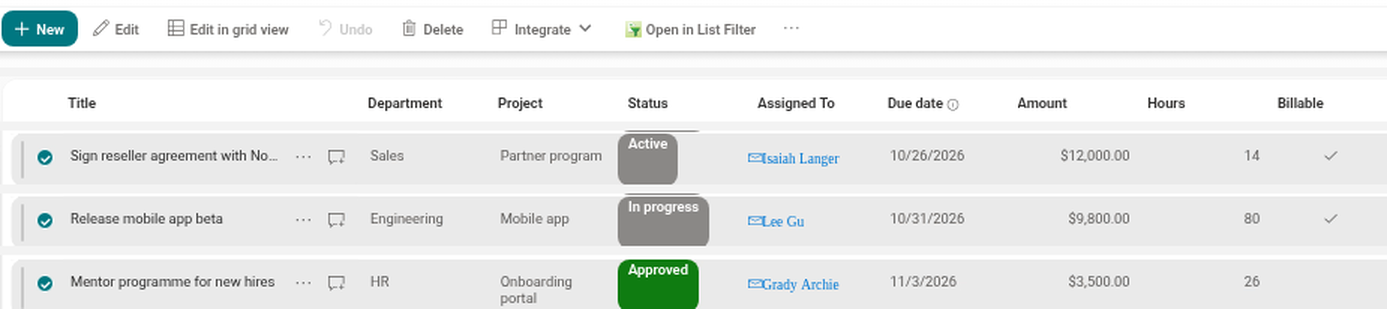
People usually find the items they need in the native view of a SharePoint list or document library — and then want to continue working with exactly those items in a richer view: grouped, with totals, with a custom set of columns, exported to Excel. The Open in List Filter command bridges the two. It is a command in the command bar of a native list or library that opens a page with the List Filter Online web part and shows only the items that were selected in the native view.
The command ships in the same package as the web part. It is a SharePoint Framework list command set, so it works in any modern list or library of your SharePoint Online tenant once it is enabled. This article explains how the command works, how to enable it for the tenant, how to limit it to specific lists or sites, and what to check when it does not behave as expected.
How it works
When you click Open in List Filter, the command reads the IDs of the selected items and opens the configured page in a new browser tab. The IDs travel in the lff query-string parameter of the page address — the same parameter that Copy Link to Filter uses in the web part — as a single condition: ID In (the selected IDs). The condition is addressed to any List Filter Online web part on the page (the instance identifier *), so you do not need to know which web part instance sits on the target page.
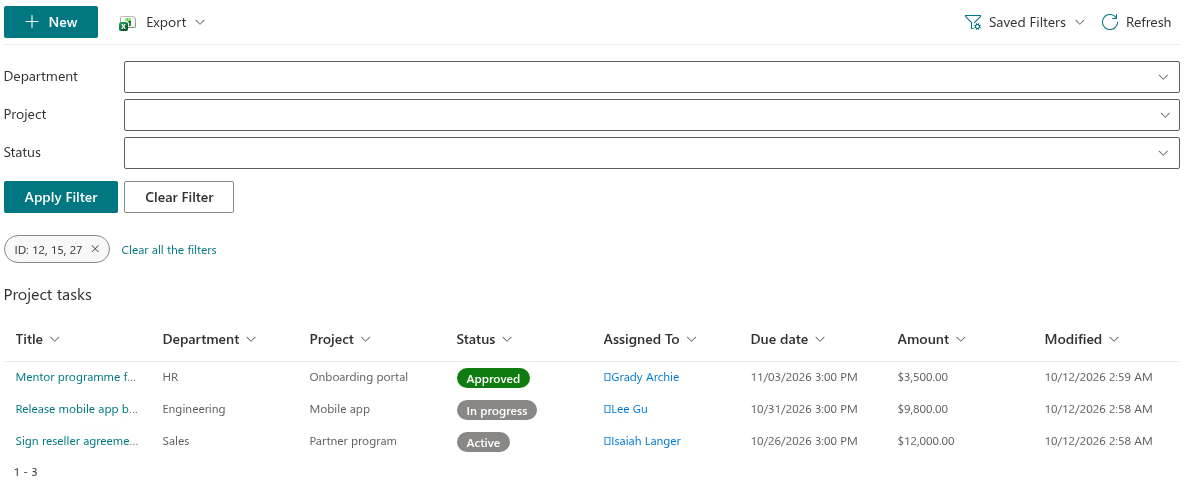
On the target page, the web part reads the parameter, applies the condition as a user filter and loads the matching items. The condition appears as a filter chip above the results, exactly like a filter chosen in the filter pane, and can be removed with the chip or with Clear all the filters. After the filter is applied, the parameter is removed from the address bar, so a later refresh of that tab does not re-apply the selection.
If nothing is selected, the command is still visible and still opens the page — without a filter. The web part then shows the items it would show anyway.
📝 Note
The command passes item IDs, not the items themselves. The target page must therefore show the same list as the one the command was clicked in; see Important below.
Prerequisites
Before enabling the command, make sure that:
- the List Filter Online package is deployed to the app catalog of the tenant — see KB10251. How to Install List Filter Online and Add It to a Page;
- a page exists with a configured List Filter Online web part whose data source points at the list or library in which the command will be used;
- you have administrator access to the app catalog site, because the command is switched on in the Tenant Wide Extensions list of that site.
The package is deployed with Make this solution available to all sites in the organization enabled, so no activation on individual sites is needed. The command itself, however, is hidden until it is configured as described next.
Enabling the command tenant-wide
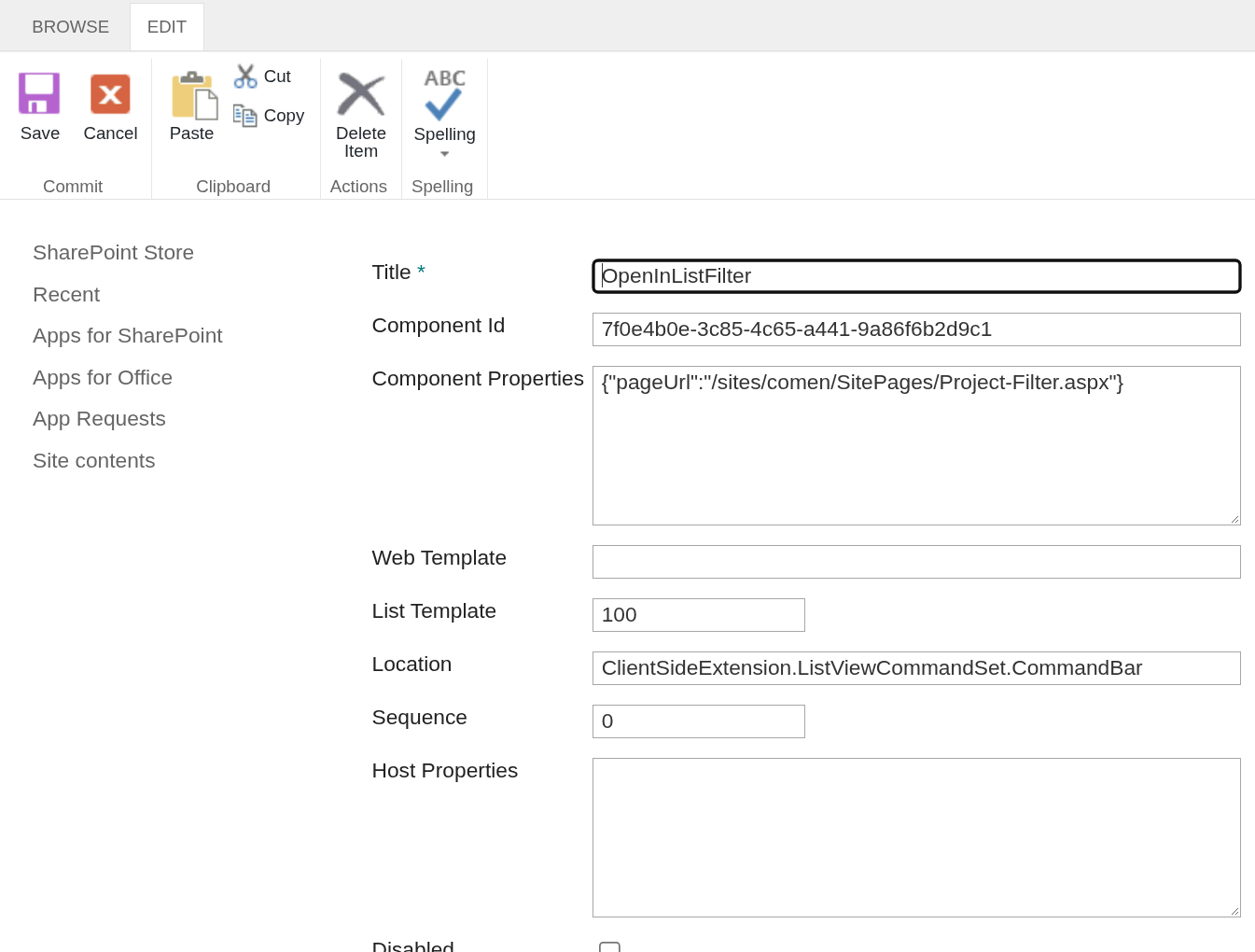
Open the app catalog site and go to its Tenant Wide Extensions list (Site contents → Tenant Wide Extensions). Uploading the package adds an entry for the command set to this list; it belongs to the Vitextra List Filter solution and carries the component identifier 7f0e4b0e-3c85-4c65-a441-9a86f6b2d9c1, which you can use to find it if several Vitextra extensions are listed.
Edit the entry and set two fields:
Component Properties — a JSON object with the
pageUrlproperty pointing to the page that hosts the List Filter Online web part. Both an absolute and a server-relative URL are accepted:{"pageUrl": "/sites/Projects/SitePages/Project-Filter.aspx"}A server-relative URL is resolved against the tenant host the list is opened from.
Disabled — make sure the entry is not disabled, otherwise SharePoint does not load the command set at all.
Save the entry. The command reads its pageUrl property when a list view loads and shows itself only when the property has a value; an entry without pageUrl keeps the command hidden even if the extension is enabled.
📝 Note
Changes in the Tenant Wide Extensions list are picked up by SharePoint with a delay, which can be up to several minutes or more. Reload the list page after saving the entry.
Scoping to specific lists or sites
By default a tenant-wide extension applies to every list and library of every site. The Tenant Wide Extensions list offers standard SharePoint columns to narrow that down; the command set itself adds no scoping of its own.
| Column | What it does |
|---|---|
| List Template | Limits the command to lists of one template, for example 101 for document libraries or 100 for generic lists. |
| Web Template | Limits the command to sites created from one template, for example GROUP#0 for team sites or SITEPAGEPUBLISHING#0 for communication sites. |
| Location | Where the command is rendered; keep the value SharePoint set when the entry was created. |
| Sequence | Order among several extensions registered for the same location. |
To make the command available in several lists that need different target pages, create several entries in the list — one per target page — each with its own pageUrl and scope. Because a single entry opens the same page for every list it applies to, this is the only way to send the selection of list A to page A and the selection of list B to page B.
❗ Important
The columns of the Tenant Wide Extensions list are provided and interpreted by SharePoint, not by List Filter Online. Refer to the Microsoft documentation of tenant-wide deployment of SharePoint Framework extensions for the exact values they accept.
Using the command
Once the command is enabled, using it takes three steps:
- Open the list or library in its native view and select one or more items — with the row check boxes or by clicking the rows.
- Click Open in List Filter in the command bar.
- A new tab opens with the configured page. The List Filter Online web part shows only the selected items and displays a filter chip with the ID condition above the results.
From there you work as on any other List Filter Online page: sort, group, export the items to Excel, open the version history of an item, or narrow the selection further with the filter pane.
Important
❗ Important
The web part on the target page must be configured for the same list or library in which the command is used. The command passes only item IDs, and IDs are unique per list, not per tenant. If the web part points at another list, the IDs match unrelated items of that list, and the page shows the wrong records without any error.
Two further points follow from the design of the command:
- One entry in Tenant Wide Extensions opens the same page for every list it applies to. If the command is left unscoped, a user of any list in the tenant can click it and land on your page; scope the entry or create one entry per list as described above.
- If the target page contains more than one List Filter Online web part, every one of them receives the condition, because the link is addressed to any instance. Each web part applies it to its own list.
Troubleshooting
The command is not visible in the command bar.
- The
pageUrlproperty is empty or missing in Component Properties. The command hides itself whenever the property has no value. - The entry is disabled, or it is scoped to a list template or web template that does not match the current list or site.
- The list page has not been refreshed since the entry was changed. Reload the page; allow some time for the tenant-wide configuration to propagate.
- The package is not deployed, or was deployed without making it available to all sites.
The page opens, but the items are not filtered or the wrong items are shown.
- The web part on the target page shows a different list than the one the command was clicked in. Compare the data source of the web part with the source list.
- No items were selected: the command then opens the page without a filter.
- The
pageUrlpoints to a page without a List Filter Online web part; the parameter is then ignored by the page.
The filter disappears after a refresh.
- This is expected. The
lffparameter is consumed once and removed from the address bar. To keep a link to this selection, use Copy Link to Filter in the Saved Filters menu of the web part.
Related articles
💡 Tip
Filter links and saved presets — the mechanism the command builds on — are described in KB10253. Saving Filters and Sharing a Link to a Filtered View in List Filter Online. Configuring the web part on the target page, including the data source and the filter pane, is covered in KB10201. Configuring the List Filter Online Web Part.