List Filter Online
 Introduction
A drop-down filter is only as helpful as the list of values it offers. In a list with hundreds of projects spread across a dozen departments, the Project drop-down of the filter pane shows every project of the list — even after the user has already chosen a department. Most of those entries lead to an empty results table, and the user has to scroll through them to find the handful that matter.
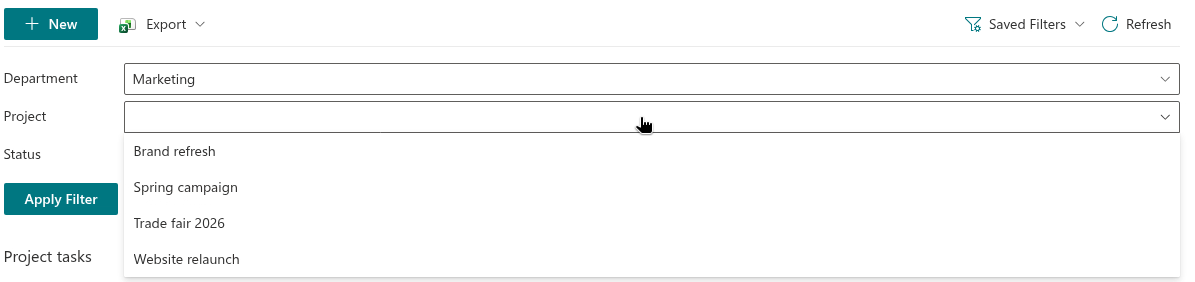
The Cascading filters option of the List Filter Online web part solves this. When it is on, each drop-down control offers only the values that occur in the items matching the other filters currently selected in the pane. Choose Marketing in Department, and Project shrinks to the projects of the marketing department. This article describes what the option does, how to enable it, how it behaves in daily use and where its limits are.
What cascading filters do
The option affects the two filter controls that load their options from the list — Dropdown and Dropdown (Multiple Values). With cascading filters off, each of these controls loads the distinct values of its column once, when the filter pane opens, and the list stays the same until the page is reloaded or the user navigates to another folder.
With cascading filters on, the web part passes the selections made in the other controls of the pane to the request that loads the distinct values. SharePoint then returns only the values that exist in items satisfying those selections. The control's own selection is never part of the request, so a drop-down does not narrow itself: you can always switch from one project to another within the department you chose.
Controls that do not load a list of values — text boxes, date and date-range controls, number ranges and sliders, people pickers, term pickers, the Yes/No toggle and the attachments filter — are not changed by the option. They still take part in the narrowing, however: a Yes/No value or a text entered in the pane is passed along with the drop-down selections when the options of a drop-down are reloaded.
📝 Note
The values offered in the context menu of a column header are always narrowed by the other active filters, whether cascading filters are on or off. The option controls the behaviour of the filter pane only.
Enabling the option
- Edit the page and open the property pane of the List Filter Online web part.
- Expand the Filter pane group.
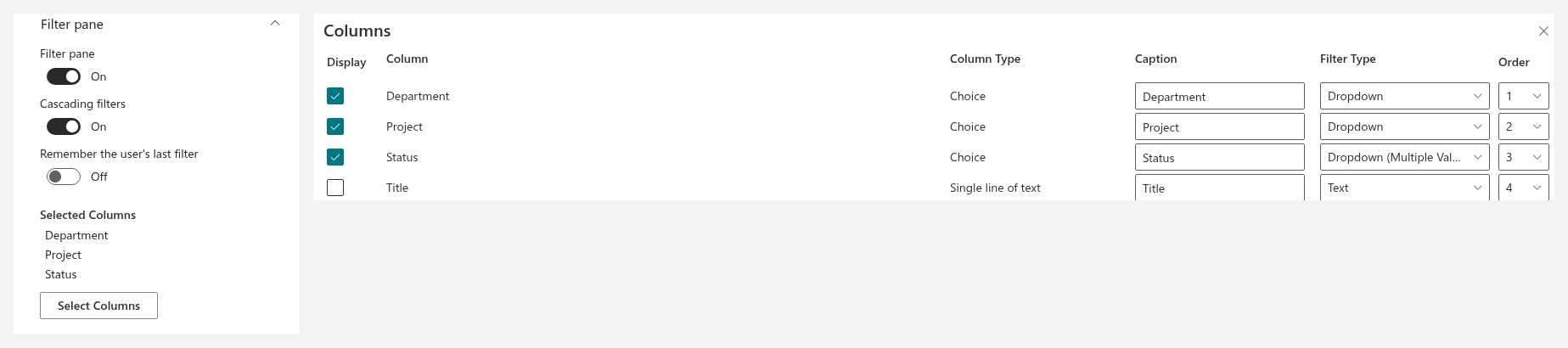
- Make sure the Filter pane toggle is on — the Cascading filters toggle is disabled while the pane itself is off.
- Turn on Cascading filters.
- In the column configurator below the toggles, assign the Dropdown or Dropdown (Multiple Values) control to the columns that should depend on each other.
- Republish the page.
The option is off by default and is stored in the properties of the web part, so it applies to every visitor of the page.
Example scenario
A project register has three choice columns: Department, Project and Status. All three are placed in the filter pane — the first two as Dropdown, the third as Dropdown (Multiple Values) — and cascading filters are on.
- The user opens the page. Every drop-down lists all the values of its column, because nothing is selected yet.
- The user picks Marketing in Department. The Project and Status controls reload their options: Project now lists only marketing projects, and Status lists only the statuses that occur in marketing projects.
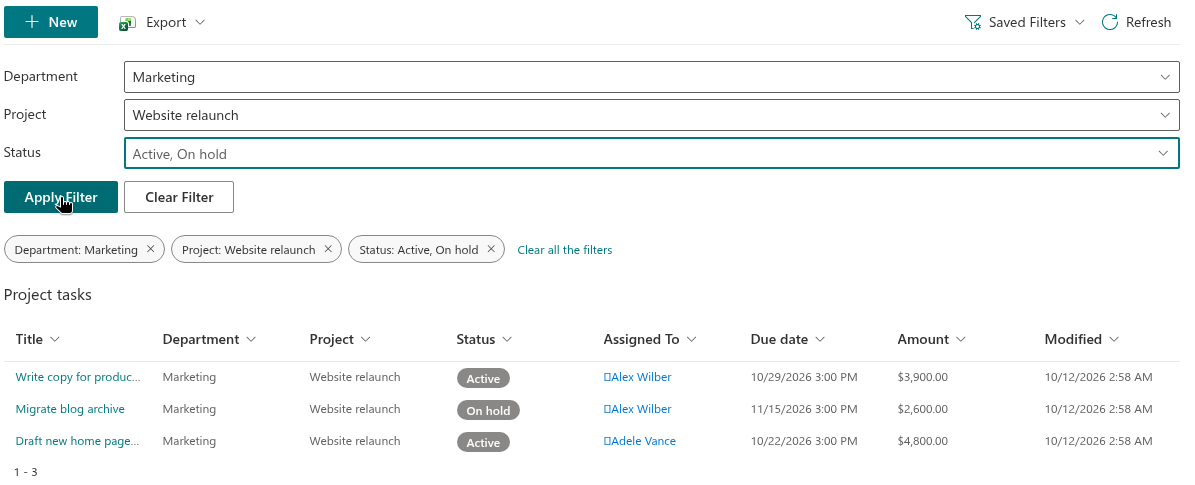
- The user picks Website relaunch in Project. Status reloads again and shows the statuses of that single project. Department is reloaded too, but it still lists only Marketing, because that is the only department the project belongs to.
- The user selects Active and On hold in Status and clicks Apply Filter. The results table shows the matching items, and three filter chips appear above it.
The user could equally start from Status and then narrow the department: the order in which the selections are made does not matter.
Behaviour details
Narrowing starts before Apply. The options are reloaded as soon as a selection is made in another control, not when Apply Filter is clicked. This lets the user build the whole combination first and apply it once.
Order independence. Every drop-down is narrowed by all the other selections in the pane, regardless of which control was touched first.
Clear. Clear Filter resets all the controls and removes the filter from the results; because no selections remain, every drop-down reloads its complete list of values.
Filter chips. Removing a single chip above the results removes that condition from the results table. The filter pane is not notified of this change: the control keeps its selection, and the other drop-downs remain narrowed by it until the user picks another value in the control or clicks Clear Filter.
Other sources of filters. Only the selections made in the pane take part in the narrowing. A filter restored from a filter link, from a saved preset or from the user's last visit, and a filter applied through a column header, limit the results but do not narrow the drop-down options.
Folders. When the web part shows the contents of a folder, the distinct values are loaded from that folder and its subfolders, and the options are reloaded whenever the user navigates to another folder.
The predefined filter. The filter that the page author defines in the Filter group with the Query Builder limits the results table, but it is not applied when the drop-down options are loaded. A drop-down can therefore offer a value that the predefined filter excludes; choosing it simply yields no results.
Kinds of conditions. The narrowing is passed to SharePoint as exact values. Selections of drop-downs, multi-value drop-downs and Yes/No toggles are matched exactly. Conditions of other kinds — a date or number range, a partial text — are passed as the values entered, so they may narrow the options more strictly than they narrow the results table. Conditions without a value, such as Contains data or Does not contain data, are ignored when options are loaded.
Performance considerations
Each drop-down in the pane sends one request to SharePoint when its options are loaded. Without cascading filters that happens once per page view. With cascading filters, every change in any control of the pane reloads the options of every other drop-down, so a pane with four drop-downs sends three requests per selection. Responses are matched to the latest request, so a slow response to an earlier selection never overwrites the current options.
For lists of a few thousand items this is unnoticeable. For large lists, two things help:
- Keep the number of drop-down controls in the pane small; place the columns that really depend on each other there and use other controls for the rest.
- Index the columns used in the pane. For a list with more than 5,000 items, the column configurator marks every selected column that has no index with the warning The column is not indexed. Filtering a large list by this column may not work. and offers a Create Index button next to it. The request that loads the narrowed options is subject to the same list view threshold as the results query.
💡 Tip
How List Filter Online works with lists above the list view threshold, and which columns to index, is described in KB10257. Filtering Large Lists: Indexed Columns and the 5,000-Item Threshold.
Limitations
❗ Important
Cascading filters narrow the options of Dropdown and Dropdown (Multiple Values) controls only. The options of a term picker or a people picker are not narrowed, and the ranges of a slider or a number-range control are not recalculated when other filters change.
❗ Important
A value selected in a drop-down stays selected even if it disappears from the narrowed options after a change in another control. The condition remains part of the filter that Apply Filter sends, and the results table may then be empty. Reselect the value or click Clear Filter to resolve such a combination.
Related articles
💡 Tip
All the filter-pane controls, the field types each of them supports and the sizes they can take are listed in KB10255. Filter Pane Controls and Supported Column Types in List Filter Online. The general configuration of the web part, including the data source and the filter pane, is covered in KB10201. Configuring the List Filter Online Web Part.