List Filter Online
 Introduction
SharePoint Online limits the number of items a single query may touch to 5,000 — the list view threshold. The limit is not about how many items a list holds or how many rows a page shows: a list with 50,000 items works fine as long as every query can use an index to pick its rows. A filter by a column without an index, however, forces SharePoint to scan the whole list, and once the list has more than 5,000 items SharePoint refuses the query instead of running it. For users of List Filter Online this appears as an error or an empty result the moment a particular filter is applied.
This article explains how the threshold affects the filter pane, the column header filters and the predefined filter of the web part, how the web part points out filter columns that need an index and creates it for you, how to add an index in the list settings instead, and which rules keep filters, sorting and grouping within the limit. The filter pane itself is described in KB10255. Filter Pane Controls and Supported Column Types in List Filter Online.
How the threshold affects filtering
List Filter Online reads items through the native SharePoint REST API with a CAML query that combines the predefined filter of the administrator, the conditions of the filter pane and the column header filters, plus the sorting and grouping configured in the property pane. SharePoint checks every such query against the threshold:
- a condition on an indexed column lets SharePoint select the matching rows directly, and the query succeeds whatever the size of the list;
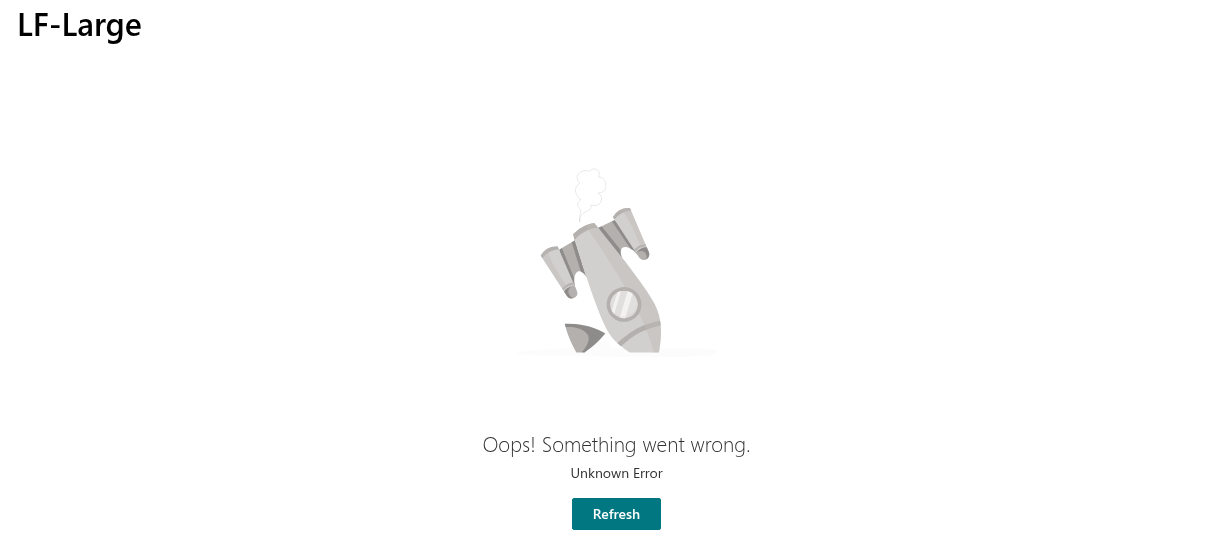
- a condition on a non-indexed column requires a scan of all items; on a list over 5,000 items SharePoint returns an error, and the web part shows Oops! Something went wrong. with the message that SharePoint returned;
- sorting or grouping by a non-indexed column has the same effect, because the rows must be ordered before the first page can be returned;
- the value lists of the Dropdown controls and of the column header filter are also queries; when SharePoint refuses them, the control simply shows no values.
The Row Limit of the web part (1 to 1,000 rows per page) does not help here. It limits the rows that are returned, not the rows that SharePoint has to examine to find them.
📝 Note
SharePoint applies the threshold to every query, including the ones that a native list view runs. A column that cannot be used in the filter pane of List Filter Online cannot be filtered in the list itself either; adding an index fixes both.
How List Filter Online helps
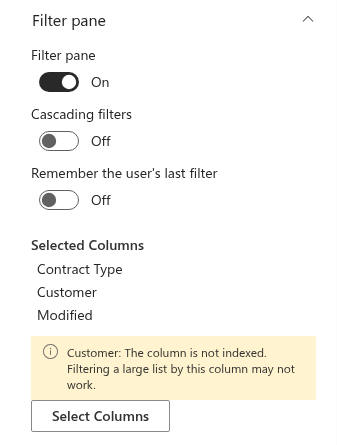
When the list selected in the Data Source group has more than 5,000 items, the filter pane configurator checks every column you select for the pane. A column that is not indexed, and whose type can be indexed, is flagged in two places:
- in the Filter pane group of the property pane, under Selected Columns, a warning bar lists the affected columns: "Contract Type, Customer: The column is not indexed. Filtering a large list by this column may not work.";
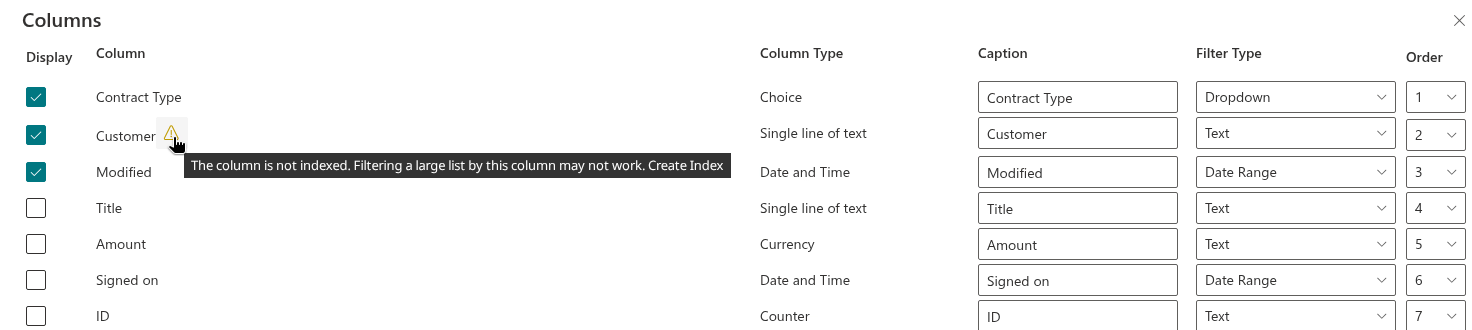
- in the Columns panel opened with Select Columns, a yellow warning icon appears next to the name of each affected column. Its tooltip repeats the warning and ends with Create Index.
Clicking the warning icon creates the index: the web part sets the Indexed property of the column through the REST API, the icon disappears once SharePoint confirms, and the column leaves the warning bar. If SharePoint rejects the change, the property pane shows An unexpected error occurred.; the usual reasons are listed in the table at the end of this article.
The check follows these rules:
- the warning appears only for lists whose item count, as reported by SharePoint when the property pane loads, exceeds 5,000; on smaller lists nothing is shown, even for non-indexed columns;
- only columns checked in the Display column of the configurator are examined;
- columns whose type SharePoint cannot index — multiple lines of text, calculated, choice with multiple selection and the Attachments column — are never flagged;
- the index is created in the list on the other site when the web part shows data from another site.
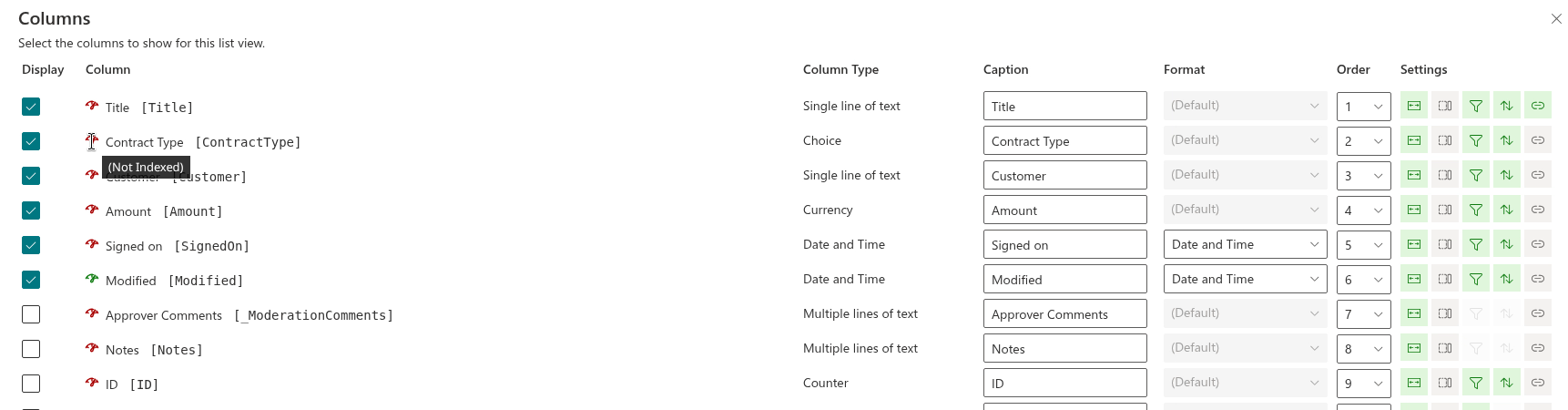
Besides the filter pane, the column configurator of the Data Source group (Select Columns) shows the index state of every column when Enable developer mode is switched on in the Developer tools group: a speedometer icon in front of the column name is green with the tooltip (Indexed) or red with the tooltip (Not Indexed). Use it to review the columns you plan to sort or group by, which the filter pane check does not cover.
❗ Important
Creating an index changes the list, not the web part. The user who clicks Create Index needs permission to manage the list — the Edit, Design or Full Control permission level on the list — otherwise SharePoint rejects the request. A list can hold at most 20 indexed columns. The web part does not check these conditions in advance; it reports the result SharePoint returns.
Creating the indexes from the configurator
- Open the page in edit mode and open the property pane of the List Filter web part.
- Expand the Filter pane group. If the list is over 5,000 items and some of the selected columns are not indexed, the warning bar under Selected Columns names them.
- Click Select Columns. In the Columns panel, find the columns with the yellow warning icon.
- Click the icon of the first column. The icon is disabled while the request runs and disappears when the index has been created.
- Repeat for the other flagged columns, then click Save (or Cancel if you changed nothing else — the indexes are already created).
- Check that the warning bar under Selected Columns is gone, republish the page and apply the filters that failed before.
Alternative: creating the index in list settings
The same index can be created in SharePoint itself, which is the only way for columns used in sorting, grouping or the predefined filter, since the configurator checks the filter pane columns only.
- Open the list or library and choose Settings → List settings (or Library settings) from the gear menu.
- In the Columns section, click Indexed columns.
- Click Create a new index.
- Select the column as the Primary column for this index and click Create.
- Repeat for every column that is used in filters, sorting or grouping, up to the limit of 20 indexes per list.
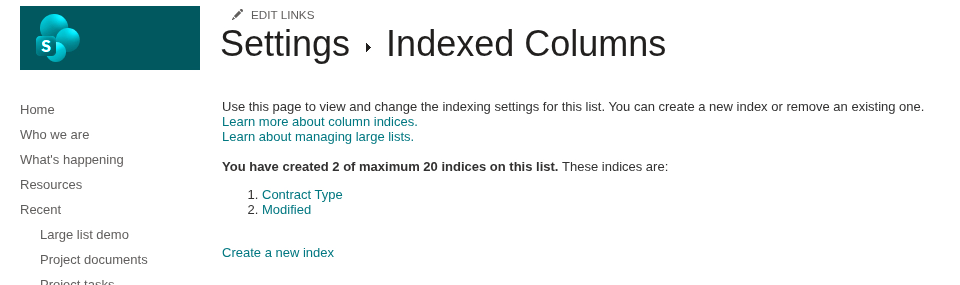
SharePoint Online can index these column types: single line of text, choice (single selection), number, currency, date and time, yes/no, lookup (single value), person or group (single value) and managed metadata (single value). It cannot index multiple lines of text, choice with multiple selection, multi-value lookup, person or group with multiple selection, multi-value managed metadata, calculated and hyperlink or picture columns. For a list that already has 5,000 items, SharePoint creates the index in the background and may take a while before the filter starts working.
Designing filters for large lists
An index makes a single condition fast; the design of the whole query decides whether the list stays usable as it grows.
Start the predefined filter with an indexed column. In the Query Builder of the Filter group, make the first condition of the top-level group a comparison on an indexed column that alone leaves fewer than 5,000 items — a status, a year, a department. SharePoint uses the first indexed condition to narrow the set before evaluating the rest; conditions on non-indexed columns are acceptable after it. Inside an OR group every column must be indexed.
Choose controls that produce index-friendly comparisons. Eq, Neq, In, Geq, Leq, Gt, Lt and BeginsWith can use an index; Contains cannot. In the filter pane this means Dropdown, Dropdown (Multiple Values), Person or Group, Date picker, Date Range, Relative Date, Numeric range and Yes/No instead of Text, and Equals or Begins with instead of Contains in Text (with options). The Term control also uses Contains and should be replaced by Dropdown on large lists.
Mind the automatic defaults. The Date picker applies Contains data and the Relative Date applies Today as soon as the page opens, so these controls run a query against the column before the user touches anything. Put them only on indexed columns.
Sort and group by indexed columns. The Sort and Group By groups accept any column; on a large list choose indexed ones, and prefer a single grouping level. Remember that the user can also sort from the column header menu of every column marked Can be sorted — clear the option for non-indexed columns of a large list.
Keep the column header filters on indexed columns. The Filterable option of a column loads the distinct values of the column for its header menu; on a large list leave it on only for indexed columns.
Use folders and the row limit for what they are. Showing items inside folders (the default in the Folders group) queries one folder at a time, which often keeps each query under the limit even without indexes. A small Row Limit with pagination keeps the page light but does not replace an index.
💡 Tip
Switch on Enable developer mode while you design the filters: the CAML Query command in the toolbar shows the exact query the web part sends, so you can see which comparisons and columns are involved and compare them with the indexed columns of the list.
Symptoms and fixes
| Symptom | Cause | Fix |
|---|---|---|
| Oops! Something went wrong. with a SharePoint message about the list view threshold as soon as a filter is applied | The filter condition uses a non-indexed column, or the first condition does not narrow the list below 5,000 items | Create an index on the column; move an indexed condition to the beginning of the predefined filter |
| The same error appears without any user filter, right after the page opens | The predefined filter, the sorting or the grouping uses a non-indexed column, or a Date picker / Relative Date control runs its default condition | Index the columns used in Filter, Sort and Group By; replace the control or index its column |
| A Dropdown or a column header filter shows no values, only (All), Contains data and Does not contain data | SharePoint refused the query that loads the distinct values of the column | Create an index on the column |
| The filter works for some values and fails for others | A value that matches more than 5,000 items leaves the rest of the query without an index | Add an indexed condition to the predefined filter or to the pane that narrows the result further |
| Clicking the warning icon ends with An unexpected error occurred. | The user cannot manage the list, the list already has 20 indexes, or the column type cannot be indexed | Ask an owner of the list to create the index; remove unused indexes in Indexed columns; choose another column or control |
| A column that is not indexed shows no warning | The list has 5,000 items or fewer, or the column type cannot be indexed | No action is required until the list grows; for non-indexable types, choose an indexable column for the filter |
| The index has been created, but the filter still fails | SharePoint is still building the index on a large list | Wait and try again later |
Related articles
The threshold is a property of SharePoint Online, and the rules above apply to any view of a large list. List Filter Online adds the early warning and the one-click index so that the problem is solved while the page is configured rather than discovered by the users.
💡 Tip
The controls of the filter pane and the comparisons they produce are listed in KB10255. Filter Pane Controls and Supported Column Types in List Filter Online. Building the predefined filter is described in KB50025. How to Build a Complex Query with the List Filter Online Query Builder, and the remaining settings of the property pane in KB10201. Configuring the List Filter Online Web Part.