List Filter Online
 Introduction
Column formatting is a feature of SharePoint Online that changes how a column is displayed with a JSON description: a status shown as a colored pill, a number colored by its value, a person rendered as a link that starts an e-mail. The description is stored on the column itself, and SharePoint applies it in every view of the list.
List Filter Online can honor these descriptions. When the option is enabled, the web part reads the column formatting JSON of each column that has one and renders the cells of the table from it, so the table on your page looks like the list it comes from. The web part implements the commonly used subset of the column formatting language; this article lists exactly what is supported, what is not, and what happens when a format goes beyond the subset.
📝 Note
The web part applies column formatting only. View formatting — the JSON that formats rows or the whole view — is not read, because the web part does not use list views.
Enabling column formatting
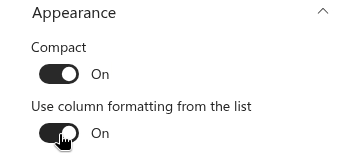
Edit the page, open the property pane of the web part and expand the Appearance group. Switch on Use column formatting from the list. The option is off by default.
The JSON itself is not entered in the web part. It comes from the definition of the column in the source list — the same definition that SharePoint edits when you open Column settings → Format this column in the list and save a format. The web part loads it together with the other properties of the columns, so a format set on a column of a list on another site is applied as well. Formats are per column: every column that carries a format is rendered from it, and the columns without a format keep the display formats chosen in the column configurator (see KB10258. Configuring Columns in List Filter Online: Captions, Formats and Display Options).
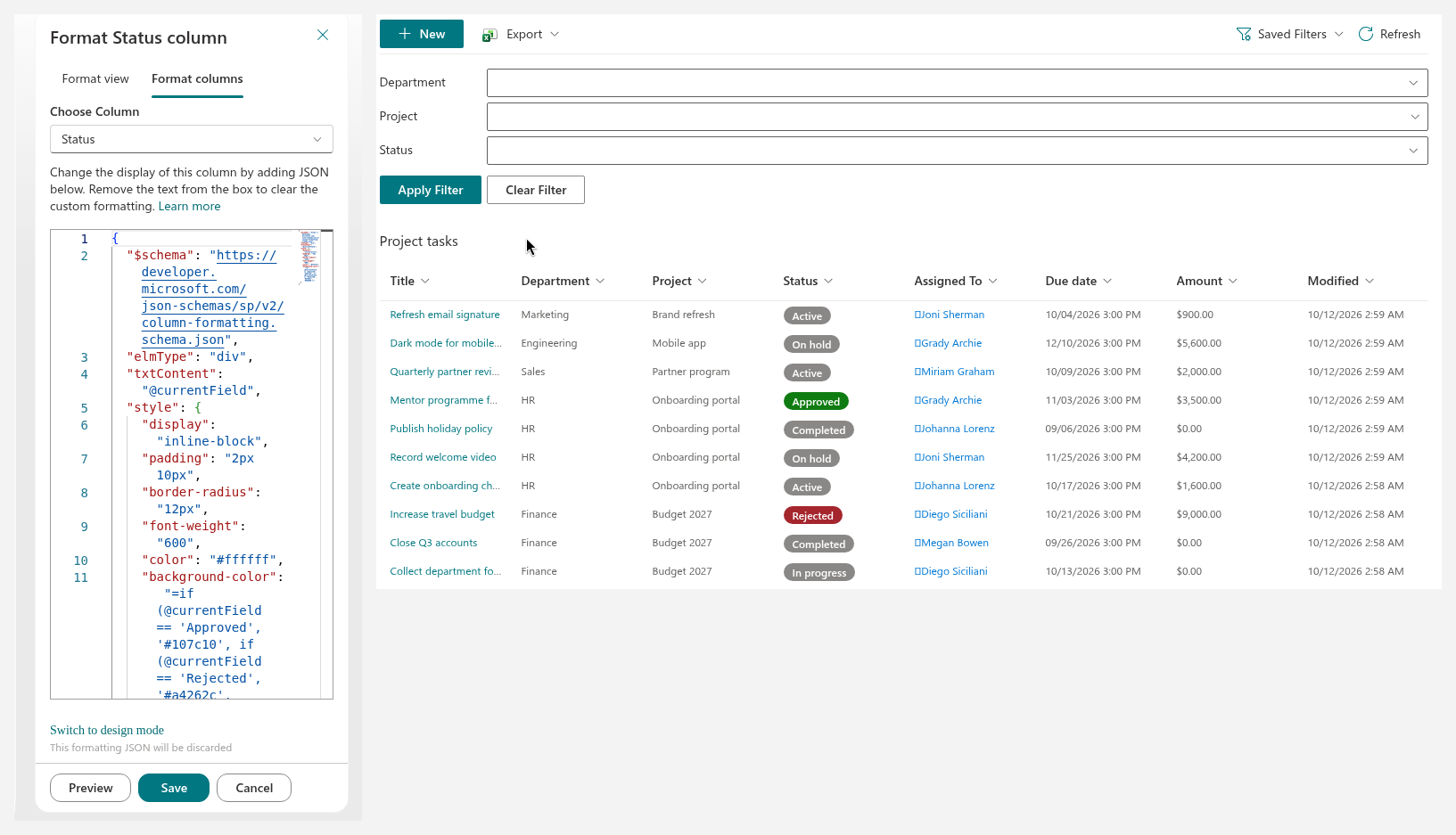
When a format is applied to a column, it replaces the cell entirely, including the Linked to item option of that column. Put a link into the format itself if the value should stay clickable.
What is supported
Elements
A format is a tree of elements. Each element is an object with the following keys:
elmType— one ofdiv,span,a,img,buttonorp. Any other value, except the unsupported ones listed below, is rendered as adiv.txtContent— the text of the element: a literal string, a field token or an expression.style— CSS properties of the element (see below).attributes— HTML attributes of the element (see below).children— an array of child elements, rendered in order.
Keys the web part does not know, such as $schema or debugMode, are ignored.
Styles
The style object may set the following CSS properties; every value can be a literal or an expression:
background, background-color, border, border-top, border-right, border-bottom, border-left, border-color, border-style, border-width, border-radius, box-shadow, color, cursor, direction, display, fill, flex-direction, flex-wrap, align-items, justify-content, font-family, font-size, font-style, font-weight, letter-spacing, line-height, text-align, text-decoration, text-overflow, text-transform, white-space, word-break, overflow, opacity, visibility, padding, padding-top, padding-right, padding-bottom, padding-left, margin, margin-top, margin-right, margin-bottom, margin-left, width, min-width, max-width, height, min-height, max-height.
Properties outside this list — for example position or z-index, which could break the layout of the table — are skipped silently. A value that contains url( is skipped as well, so background images cannot be loaded through styles.
Attributes
| Attribute | Elements | Behaviour |
|---|---|---|
class | all | Sets the CSS class of the element. Class names of SharePoint, such as sp-field-severity--good, are accepted but have no styling on the page; use style for colors. |
title | all | Sets the tooltip of the element. |
href | a | The address of the link. Allowed are http:, https:, mailto:, tel: and relative addresses; any other scheme is dropped and the element is rendered without a link. Links get rel="noreferrer". |
target | a | The target window of the link; _blank (a new tab) when not specified. |
src, alt | img | The address and the alternative text of the image. The same address rules as for href apply; an image without a valid src is not rendered. |
iconName | all | The name of a Fluent UI icon, such as Mail or CheckMark, inserted in front of the text of the element. |
Other attributes, including role, aria-*, d and data-interception, are ignored.
Field tokens
| Token | Value |
|---|---|
@currentField | The value of the formatted column. |
@currentField.prop | A property of the value: for a person title, email, id, jobTitle, department or picture; for a lookup lookupValue or lookupId; for a hyperlink Url or Description. |
[$Field] | The value of another column of the same item, by its internal name. |
[$Field.prop] | A property of that value, with the same property names. |
@me | The e-mail address of the current user. |
@now | The current date and time. |
Tokens may stand alone ("txtContent": "@currentField") or inside a longer string ("txtContent": "Owner: [$Owner.title]"). A multi-value column (several people, lookups or terms) is displayed as a comma-separated list; property access such as [$Owner.email] on a multi-value column returns the property of the first value. Person and lookup values display their name; dates display as a localized date.
Expressions
Expressions can be written as operator trees — objects with operator and operands — or as strings that start with =, using the Excel-like syntax of SharePoint. Both forms support the same set of operations:
- arithmetic:
+(also string concatenation),-,*,/,%; - comparison:
==,!=,>,<,>=,<=— dates are compared by their time stamp; - logic:
&&,||,!, the conditional? :(in a tree, operator?or:with three operands) and the functionif(condition, whenTrue, whenFalse); - conversion:
toString(),Number(),Date(); - numbers:
abs(),floor(),ceiling(); - strings:
toLowerCase(),toUpperCase(),indexOf(),substring(),length().
In = strings, string literals are written in single or double quotes, numbers as digits, booleans as true and false; parentheses group sub-expressions, and field tokens are used directly: =if([$Priority] == 'High', '#a4262c', '#323130').
What is not supported
The web part does not implement the following parts of the column formatting language:
forEach— repeating an element for each value of a multi-value column;customRowAction— buttons that start a flow, open a panel or set a field value;elmType: "filepreview"— document previews;elmType: "svg"andpath— inline vector graphics;- the tokens
@rowIndex,@window,@thumbnail,@currentWeband other tokens not listed above; - the operators and functions not listed above, such as
toLocaleString(),toLocaleDateString(),startsWith(),padStart(),replace(),split(),join(),getDate(),addDays(),getUserImage(),cos()andsin().
A format that uses forEach, customRowAction, filepreview, svg, an unknown operator or function, an unknown @ token or a syntax error in an = expression cannot be rendered. In that case the web part gives up on the format and renders the column with its default display — the format chosen in the column configurator — exactly as if the option were off for that column. The other columns are not affected. Unknown attributes and style properties, on the other hand, are simply skipped and the rest of the format is applied.
❗ Important
The formats produced by the column formatting designer in SharePoint and the samples published by Microsoft often use constructs outside the supported subset, such as forEach, customRowAction, getUserImage() or toLocaleDateString(). A format that works in the list may therefore fall back to the default display in the web part. Always check the result on the page after enabling the option, and simplify the format if a column is not rendered as expected.
📝 Note
Values reach the format as the list displays them. A number or a date is therefore text, formatted with the regional settings of the list; convert it with Number() or Date() before comparing it with a number or another date. A number with a thousands separator may not convert — compare the raw value of another column instead, or keep the formatted column simple.
Examples
The following formats stay within the supported subset.
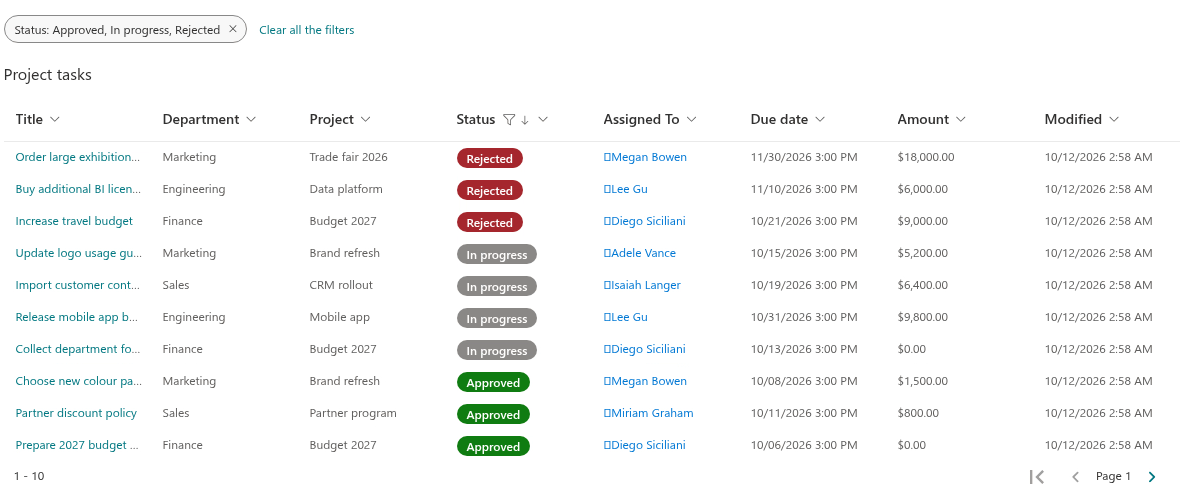
A status pill. The choice value is shown on a rounded background whose color depends on the value:
{
  "$schema": "https://developer.microsoft.com/json-schemas/sp/v2/column-formatting.schema.json",
  "elmType": "div",
  "txtContent": "@currentField",
  "style": {
    "display": "inline-block",
    "padding": "2px 10px",
    "border-radius": "12px",
    "font-weight": "600",
    "color": "#ffffff",
    "background-color": "=if(@currentField == 'Approved', '#107c10', if(@currentField == 'Rejected', '#a4262c', '#8a8886'))"
  }
}
A number colored by its value, written as an operator tree. Amounts above 1000 are shown in red and bold:
{
  "elmType": "span",
  "txtContent": "@currentField",
  "style": {
    "color": {
      "operator": "?",
      "operands": [
        { "operator": ">", "operands": [ { "operator": "Number()", "operands": [ "@currentField" ] }, 1000 ] },
        "#a4262c",
        "#107c10"
      ]
    },
    "font-weight": "=if(Number(@currentField) > 1000, '700', '400')"
  }
}
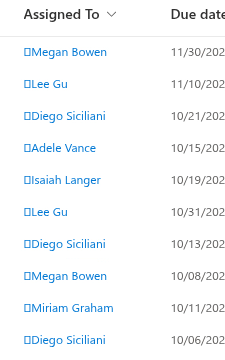
A link with an icon. The person in the Assigned To column is rendered as a mail link with an envelope icon; the format is set on the Assigned To column itself and uses the properties of the person value:
{
  "elmType": "a",
  "attributes": {
    "href": "='mailto:' + @currentField.email",
    "title": "=@currentField.title",
    "iconName": "Mail",
    "target": "_blank"
  },
  "txtContent": "@currentField.title",
  "style": {
    "color": "#0078d4",
    "text-decoration": "none"
  }
}
Performance
The JSON of a column is parsed once, the first time a cell of that column is rendered, and the parsed tree is reused for every other cell of the column and for every later page of items. Only the tokens and expressions are evaluated per cell. Enabling the option therefore adds very little to the time the table needs to appear, even on long pages.
Related articles
💡 Tip
The display formats that the web part applies when a column has no column formatting, or when a format falls back, are described in KB10258. Configuring Columns in List Filter Online: Captions, Formats and Display Options. The complete column formatting language, including the parts outside the subset, is documented by Microsoft at Use column formatting to customize SharePoint. The remaining settings of the web part are described in KB10201. Configuring the List Filter Online Web Part.