List Filter Online
 Introduction
A list view is only as useful as the order it puts things in. List Filter Online lets a page author decide how the items of a SharePoint list or document library are sorted, whether they are gathered into groups, and which summary values — a count, a sum, an average — are shown under the table. Users, in turn, can re-sort the view themselves from the column header.
This article is a reference for the three property-pane groups that control this behaviour — Sort, Group By and Totals — and for the way sorting, grouping and totals interact with paging, filtering and the export to Excel. Everything described here applies to the web part, which appears in the toolbox as "List Filter".
📝 Note
The web part does not use the views of the list. Sorting, grouping and totals are configured in the web part itself and are independent of any view defined in SharePoint.
Sorting
Sort settings in the property pane
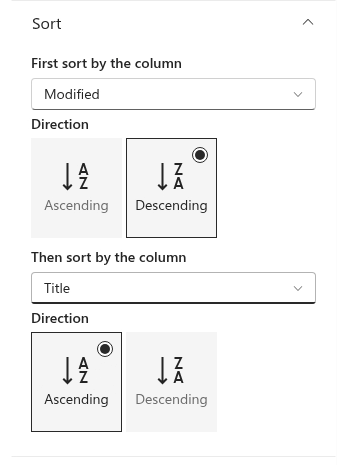
The Sort group of the property pane defines the default order of the items. It holds two pairs of settings:
- First sort by the column — the primary sort column, with its Direction: Ascending or Descending;
- Then sort by the column — the secondary sort column, applied to items that have the same value in the first column, again with its own Direction.
Both drop-downs start with the entry (None). Leave the second drop-down at (None) to sort by a single column, or both to let SharePoint return items in its default order. The configured sort is sent to SharePoint as part of the query, so it applies to every page of the results, not only to the rows on the screen.
Which columns can be sorted
The drop-downs list only the columns that SharePoint itself marks as sortable, and the web part additionally hides a few internal columns (the link variants of the Title column, the compliance and retention columns, and the "App created by" / "App modified by" columns). Columns that SharePoint does not sort — such as multiple lines of text, multi-choice columns, and multi-value lookup or person columns — do not appear.
Sorting by the user
Users can change the order from the table itself. For every column whose Can be sorted option is switched on in the column configurator (see KB10258. Configuring Columns in List Filter Online: Captions, Formats and Display Options), a click on the column header opens a menu with Sort A to Z and Sort Z to A. The current sort is marked in the menu and by an arrow in the header.
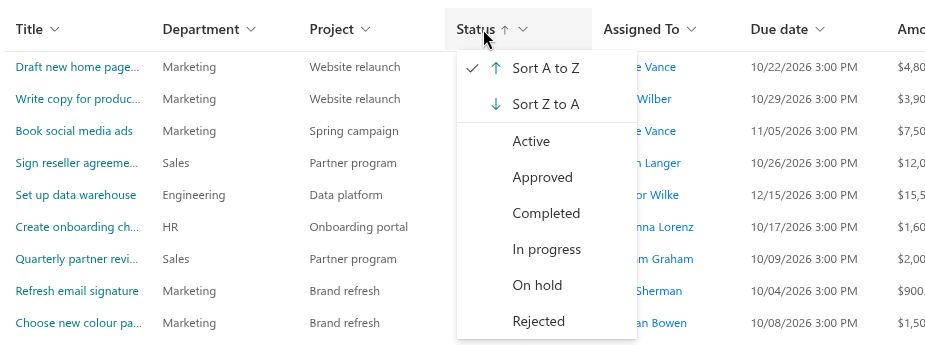
A sort chosen by the user replaces the sort configured in the property pane — both the first and the second column — for as long as the page stays open. It is applied on the server, so it also covers items on the other pages, and it is reset when the page is reloaded.
📝 Note
If the Can be sorted option is off for a column that is nevertheless Filterable, the header menu still opens, but it only offers the filter values. A column with neither option has no header menu.
Grouping
Group By settings
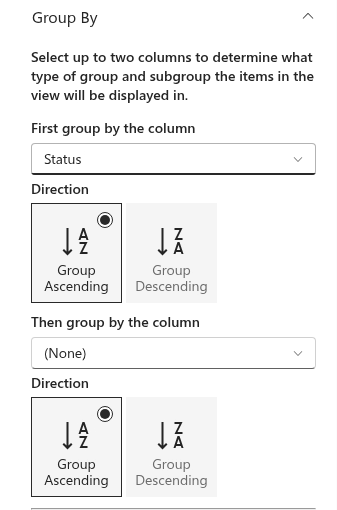
The Group By group of the property pane gathers items with the same value of a column under a common header. The pane shows the hint "Select up to two columns to determine what type of group and subgroup the items in the view will be displayed in." followed by:
- First group by the column with its Direction: Group Ascending or Group Descending;
- Then group by the column with its own Direction; this drop-down is disabled until a first column is selected.
The columns offered for grouping are the same as those offered for sorting.
How groups are displayed
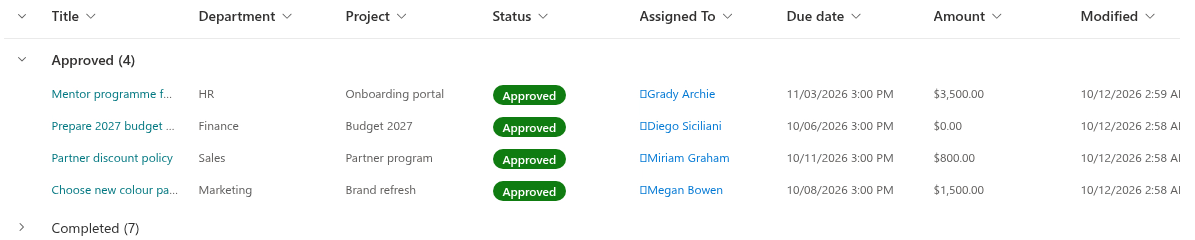
Each group is rendered as a header row with the value of the grouping column and, in parentheses, the number of items in the group as reported by SharePoint. Items with an empty value are gathered under the header (No Title). Groups are expanded when the view loads; a click on the chevron of a header collapses or expands that group.
❗ Important
In the current version the web part renders headers for the first grouping column only. The column selected in Then group by the column is sent to SharePoint and orders the items inside each group, but no nested sub-group headers are displayed. The web part also has no setting to open groups collapsed: groups are always expanded on load, and the user collapses them manually.
Groups and paging
Grouping is applied to the items that SharePoint returns for the current page. With Display items in batches of the specified size selected in the Item Limit group, each page is grouped on its own: a group whose items continue on the next page appears again on that page. To see every group in full on a single screen, select Limit the total number of items returned to the specified amount and set a Row Limit large enough for the list, or narrow the result with a filter.
Totals
Totals settings
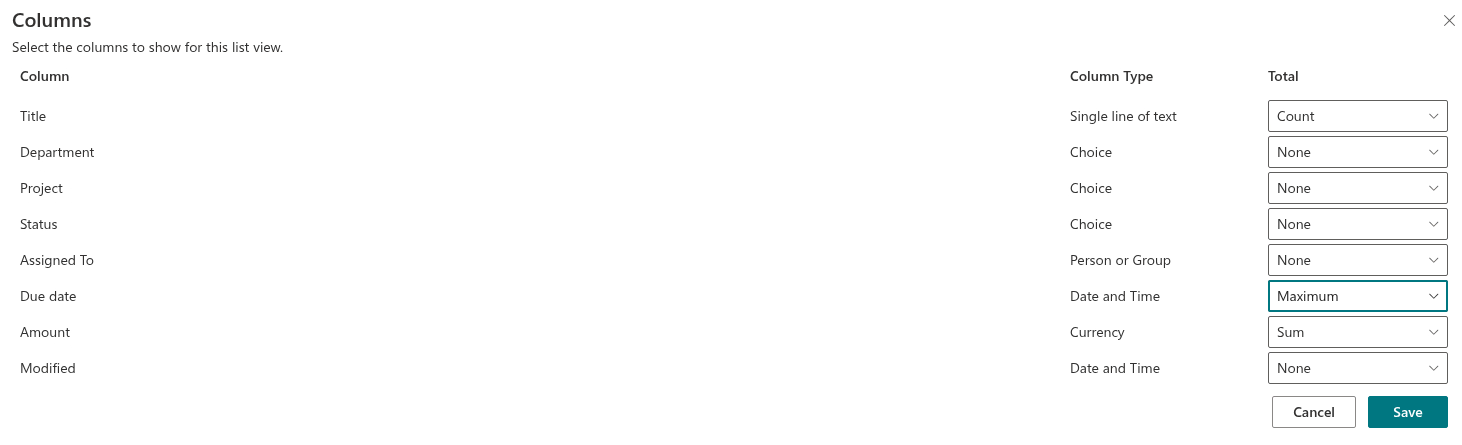
The Totals group of the property pane carries the hint "Select one or more totals to display." and the Select Columns button. The button opens the Columns panel with one row per eligible column, showing the Column, its Column Type and a Total drop-down with the function to apply. Select None to remove a total, then click Save. The selected totals are listed under the button as "Column (FUNCTION)".
Only columns that are included in the view and that SharePoint can aggregate are listed. Multiple lines of text, multi-choice, calculated and multi-value lookup columns, as well as the file name, attachments and child-count columns, are not offered.
Functions by column type
| Function | Shown in the footer as | Column types |
|---|---|---|
| Count | Count | All aggregatable column types |
| Average | Average | Date and Time, Number, Integer, Currency |
| Maximum | Maximum | Date and Time, Number, Integer, Currency |
| Minimum | Minimum | Date and Time, Number, Integer, Currency |
| Sum | Sum | Number, Integer, Currency |
| Standard Deviation | Std Deviation | Number, Integer, Currency |
| Variance | Variance | Number, Integer, Currency |
For a text, choice, lookup, person or yes/no column the Total drop-down offers Count only. For a date or numeric column it lists all seven functions.
📝 Note
The drop-down for a Date and Time column also lists Sum, Std Deviation and Variance. These functions are meant for numeric columns; for dates choose Count, Average, Minimum or Maximum.
Where totals appear
Totals are displayed in a single footer row under the table. In the cell of each totalled column the row shows the name of the function and, in bold, its value; the cells of other columns stay empty. The footer is shown only when the current page contains at least one item, and it is hidden while the items are loading. The web part does not display totals per group.

The values are calculated by SharePoint, not by the web part: the web part adds the selected functions to the query and displays the value SharePoint returns together with the items. The totals therefore reflect the items that match the current query — the predefined filter of the Query Builder, the filters applied by the user in the filter pane or from the column headers and, when items are shown inside folders, the current folder. Number, currency and date values in the footer are shown exactly as SharePoint returns them; the web part applies no formatting of its own to the totals, and the display format selected for the column in the column configurator does not affect them.
Export to Excel
The Export menu of the command toolbar writes the items to a static Excel workbook. With grouping switched on, the items are exported in the grouped order, that is, group by group; the group headers themselves are not written as separate rows. The totals row is appended at the bottom of the table, in bold and separated by a border, when All Items is exported. Current Page and Selected items export the rows without a totals row. See KB50022. How To Export a SharePoint List to Excel for the export options.
Limitations
❗ Important
Keep the following in mind when planning a grouped or totalled view:
- Only two sort columns and two grouping columns are available, and only sub-headers for the first grouping column are rendered.
- Groups are formed per page when paging is enabled.
- Totals are shown in one footer row for the view, never per group, and only on pages that contain items.
- A sort chosen by the user from the column header replaces the configured sort until the page is reloaded.
Related articles
💡 Tip
The Can be sorted, Filterable and caption options of each column are described in KB10258. Configuring Columns in List Filter Online: Captions, Formats and Display Options. For an overview of all property-pane groups of the web part, see KB10201. Configuring the List Filter Online Web Part.