List Filter Online
 Introduction
Folders are the most common way to structure a SharePoint document library, and they are also the most common obstacle to finding something in it. List Filter Online gives the page author a choice: show the library the way SharePoint shows it, folder by folder; flatten it into one list of documents that can be filtered and sorted as a whole; or show both the folders and all the documents at once.
This article explains the three folder modes of the web part, how users move between folders with breadcrumbs, how folders are created and colored from the web part, and what happens to filters, sorting, grouping and the Excel export in each mode. The web part appears in the toolbox as "List Filter"; the settings described here are in its property pane.
📝 Note
Folder settings apply to lists as well as to document libraries. A list shows folder commands only when folders are allowed in its advanced settings.
The three folder modes
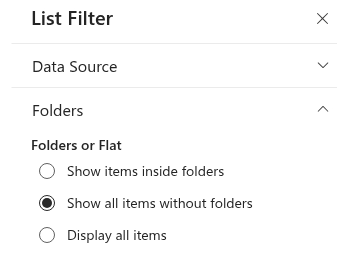
Open the Folders group of the property pane. The choice Folders or Flat offers three options:
| Option | What is shown | When to use it |
|---|---|---|
| Show items inside folders | The folders and items of the current folder only; the user opens a folder to see its content. | When the folder structure carries meaning and users are used to browsing it. |
| Show all items without folders | All items of the list or library from every folder, as one flat list; no folder rows. | When users search by properties and the folder is irrelevant — the typical setup for the filter pane. This is the default. |
| Display all items | All items and all folders from every level, together in one flat list. | When the folders themselves are needed as entries — for example to color or rename them — while all documents stay visible. |
Internally the options map to the SharePoint view scopes: Show items inside folders uses the default scope, Show all items without folders the Recursive scope and Display all items the RecursiveAll scope. The scope is written into the CAML query that the web part sends to SharePoint, so it applies to every request — items, filter values and the export alike.
Navigating folders as a user
Opening a folder
In Show items inside folders mode, folders appear as rows with a folder icon in the Type column — a filled icon when the folder contains items and an empty one when it does not. A folder is opened through a column whose Linked to item option is switched on in the column configurator (usually the Name column): the folder name becomes a link, and a click on it loads the content of the folder. Paging restarts from the first page in the new folder.
❗ Important
If no column of the view has Linked to item switched on, folders are listed but cannot be opened. Include the Name (or Title) column and enable Linked to item for it.
Breadcrumbs
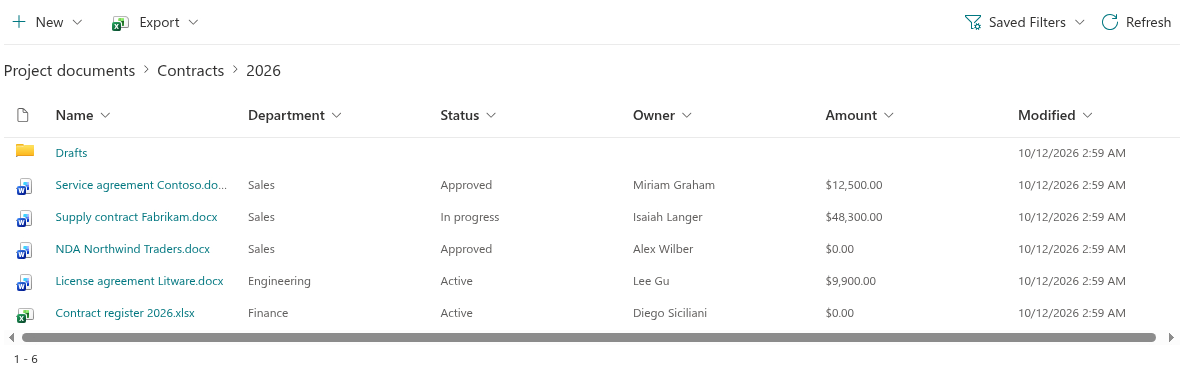
To let users return to a parent folder, switch on Navigation in the Appearance group of the property pane. A breadcrumb bar then appears above the table. Its first entry is the name of the list or library and stands for the root folder; each folder the user has opened is added after a chevron. A click on the list name returns to the root, a click on an intermediate folder returns to that folder; the current folder is shown as plain text.
❗ Important
Without Navigation the web part offers no way back to the parent folder: once the user opens a folder, only reloading the page returns to the root. Always enable Navigation together with Show items inside folders.
In the two flat modes the breadcrumb bar shows only the list name. In Display all items mode a folder row can still be opened; the view then shows all items and folders below that folder, and the breadcrumb bar leads back.
Creating folders and uploading documents
The New command of the command toolbar is shown to users who have permission to add items to the list or library. Its content depends on the type of the list:
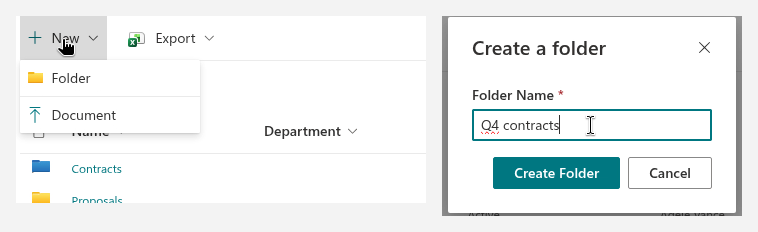
- in a document library, New opens a menu with Folder and Document; Document opens the SharePoint form for adding a document to the library in a new tab, Folder opens the folder dialog;
- in a list that allows folders, New opens a menu with New folder and New, the latter opening the new-item form of the list;
- in a list without folders, New opens the new-item form directly.
The Create a folder dialog asks for the Folder Name and creates the folder with the Create Folder button inside the folder currently shown — the current breadcrumb in folder mode, the root of the list in the flat modes. The view is refreshed after the folder is created. If a folder with the same name already exists, SharePoint rejects the request and the dialog shows its message.
📝 Note
The Folder entry is disabled when the list or library does not allow folders. The New command is hidden from users without the "Add items" permission, and the whole toolbar is hidden when Commands is switched off in the Command toolbar group.
Folder colors
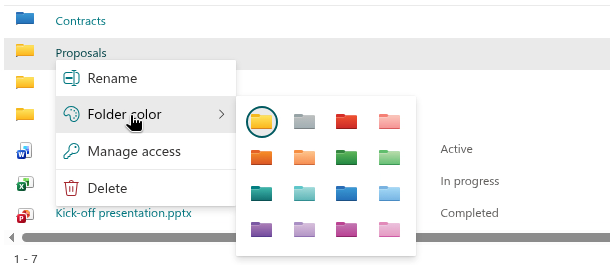
Users with edit permission on a folder can change its color from the web part. Right-click the folder row and choose Folder color; a palette of 16 swatches opens — the same 16 colors that SharePoint Online and OneDrive offer: Yellow (the default), Grey, and dark and light shades of red, orange, green, teal, blue, purple and pink. The color is saved to SharePoint through the folder coloring API, so it is the same color that users see in the native library view, and a color assigned in SharePoint is shown in the web part.
The same context menu also offers Rename for the folder and, for users who can manage permissions, Manage access.
💡 Tip
A step-by-step guide to coloring folders, including the required permissions and the role of the Type column, is in KB50010. How To Color Folders in SharePoint Online.
Filtering and folders
Every filter — the predefined filter of the Query Builder, the filter pane and the filter values in the column header menu — is combined with the folder scope in a single query:
- in Show items inside folders mode the filters are applied to the content of the current folder only; the result does not include matching items from subfolders;
- in the two flat modes the filters are applied to all items of the list or library, regardless of their folder.
The lists of values in the drop-down controls of the filter pane and in the column header menu are collected for the current folder — including the values found in its subfolders — and are reloaded every time the user opens another folder. Filters applied by the user stay active while the user moves between folders; opening a folder resets the paging but not the filters.
💡 Tip
When the goal is to find a document by its properties, use Show all items without folders: the filter pane then searches the whole library in one step and the user never has to guess the folder. The folder of each result can be shown by adding the Path column to the view.
Sorting and grouping with folders
Sorting and grouping are part of the same query and are applied in every mode. Folder rows are treated like any other row: the web part does not pin them to the top of the list, so their position follows the order that SharePoint returns for the configured sort columns. With Display all items, grouping by a column gathers folders and documents under the same group headers; folders usually fall into the (No Title) group of a column they have no value for. The settings themselves are described in KB10260. Grouping, Sorting and Totals in List Filter Online.
Export and folders
The Export menu of the command toolbar exports what the current query returns:
- Current Page writes the rows of the page on the screen — in folder mode, the rows of the current folder;
- All Items reads all pages of the current query and writes them to one workbook: in folder mode all items of the current folder, in the flat modes all items of the list or library, always within the active filters;
- Selected items writes the rows the user has selected.
Folder rows are exported like other rows, with the word Folder in the Type column. The folder path of a document is exported when the Path column is part of the view. See KB50022. How To Export a SharePoint List to Excel for details on the export.
Limitations
❗ Important
- Folder navigation is not reflected in the page address: a link to the page always opens the root folder, and the browser's Back button does not step back through folders. Use the breadcrumbs instead.
- Folders cannot be opened by double-clicking a row; the link in a column with Linked to item is the only way into a folder.
- In Show items inside folders mode, filters find items in the current folder only. Switch to a flat mode to search across folders.
- The web part does not move documents between folders; use the native library view for that.
Related articles
💡 Tip
The first steps with the web part as a user — filter pane, chips, column menus and the command toolbar — are described in KB10252. List Filter Online: A Quick Guide for End Users. All property-pane groups are summarised in KB10201. Configuring the List Filter Online Web Part, and sorting, grouping and totals in KB10260. Grouping, Sorting and Totals in List Filter Online.