QR Code Generator
Introduction
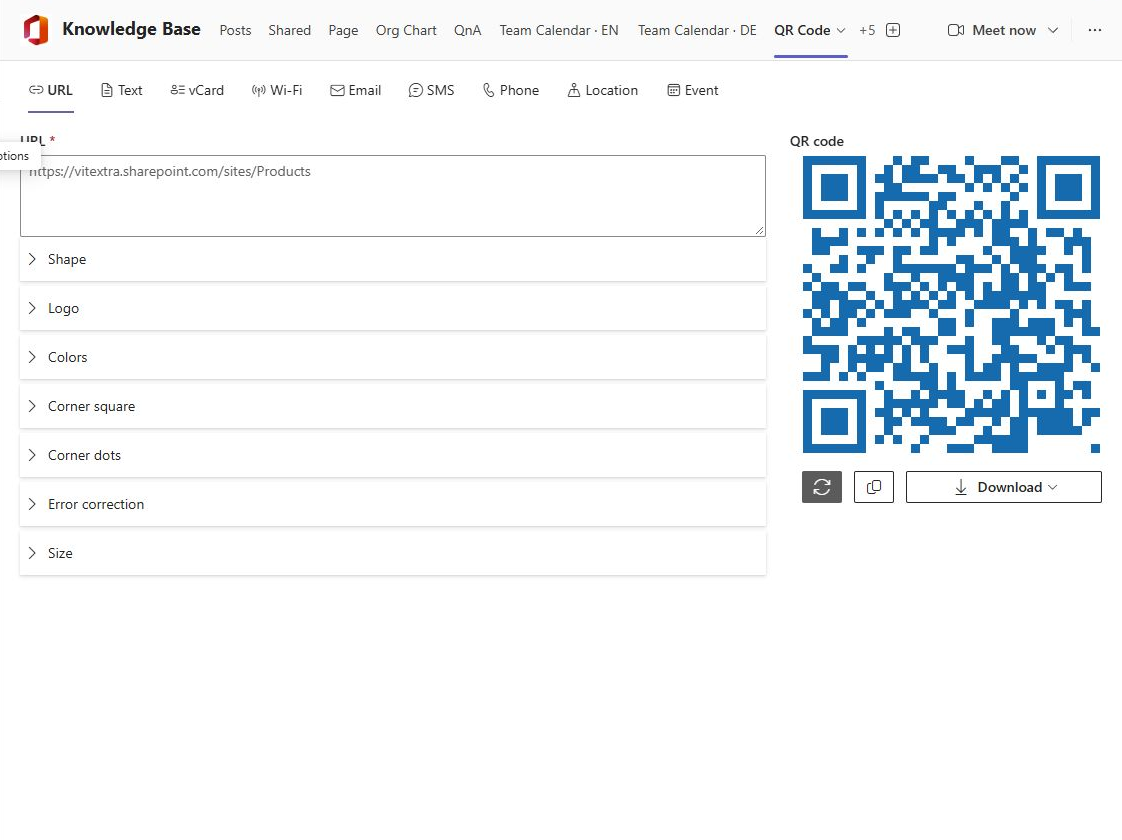
Many employees spend most of the day in Microsoft Teams and not on the intranet. QR Code Generator ships as a Teams application, so a QR code can be made where the work happens: in a personal app in the Teams sidebar, or in a tab of a channel that shows a code prepared for the whole team. The tabs, the design sections and the buttons are the same as on a SharePoint page.
This article covers two steps: making the app available in Teams, and adding it as a personal app or a channel tab. It assumes that the QR Code Generator package is already deployed to the app catalog of your tenant.
💡 Tip
If the product is not installed yet, start with KB10263. How to Add QR Code Generator to a Page and Create Your First QR Code, then come back here.
Prerequisites
- To sync the app to Teams you need to manage the SharePoint app catalog - typically the SharePoint Administrator role.
- To add an already synced app as a personal app, no special permissions are needed: any user can do it from the Teams app store, as long as your Teams administrator allows custom apps built for your organization.
- To add the app as a channel tab you need to be a member of the team; team owners may restrict who can add tabs.
Making the app available in Teams
- Open the Microsoft 365 admin center and go to SharePoint under Admin centers.
- In the SharePoint admin center, select More features, then click Open under Apps and go to the App Catalog → Apps for SharePoint.
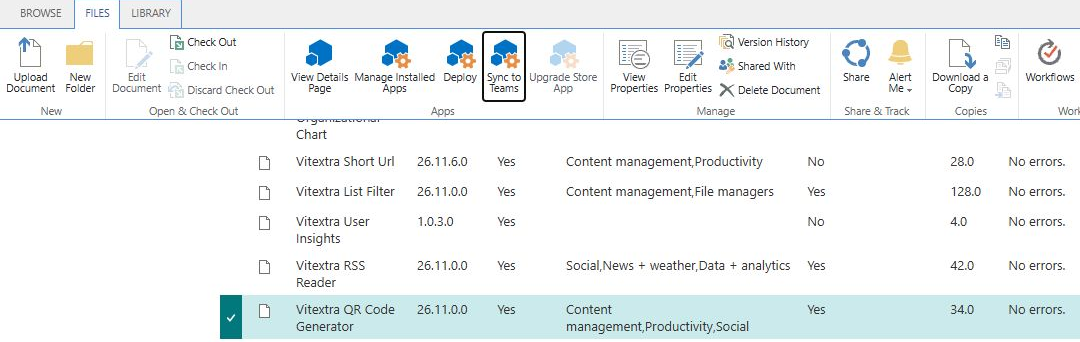
- Select the Vitextra QR Code Generator package in the list, open the FILES tab of the ribbon and click Sync to Teams.
A notification Successfully synced teams solution confirms that the Teams app package has been published to the app store of your organization. The Teams app is linked to the SharePoint package, so updates installed in the app catalog apply to Teams as well.
Adding the generator as a personal app
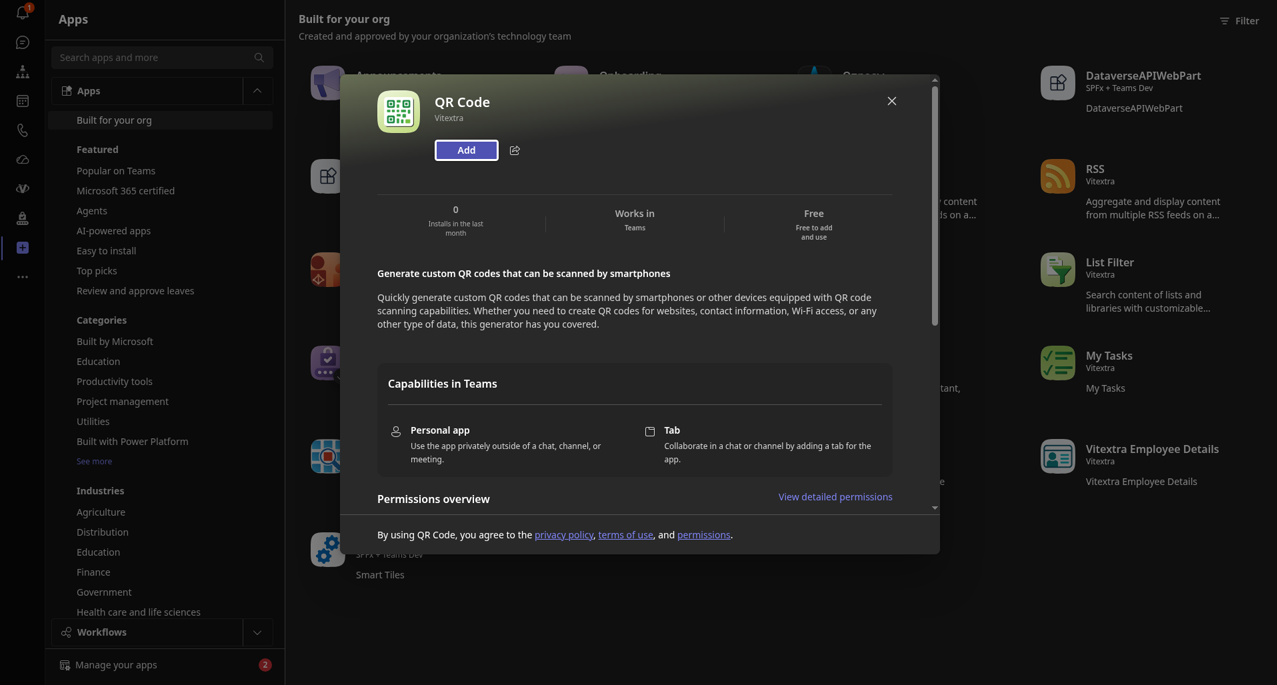
- In Microsoft Teams, click Apps in the left sidebar.
- Select Built for your org in the category list - this is where the apps synced from your own app catalog appear.
- Find the QR Code tile published by Vitextra and click it.
- On the details page, click Add (not Add to a team).
The app appears in the left sidebar. Open it, and the generator is ready to work: select a tab, enter the data and take the code with Copy or Download.
📝 Note
A personal app has no page to store settings on. Every time it is opened, the generator starts with the default design and the URL tab; the data entered earlier is not kept. To keep a prepared code, use a channel tab or a SharePoint page.
💡 Tip
Adding the app this way pins it only for the person who clicked Add. To make the generator appear in the sidebar for everyone, a Teams administrator can pin it tenant-wide with an app setup policy in the Teams admin center.
Adding the generator as a channel tab
- Open the team and the channel where the code should live and click + in the tab bar at the top.
- Find QR Code in the list of apps (use the search box if needed) and select it.
- The configuration dialog opens the generator together with the property pane of the web part. Select the data tab, enter the data - for example the guest Wi-Fi of the office of the team or a link to the team's request form - and set up the design.
- Click Save in the dialog.
The tab is added to the channel and shows the prepared code to every member of the team. As on a SharePoint page, members can enter their own data and download their own codes; such changes are not saved. To change the prepared code later, open the menu of the tab and select Settings.
❗ Important
Everything that is saved in the tab is readable by every member of the team, and in a shared channel by its external members too. Do not save passwords in a tab of a team with a wide audience.
Copying and downloading in Teams
Download saves the file through the Teams client in the same way as other downloaded files. Copy needs access to the clipboard; if the message Copied to clipboard does not appear after the click, copying may have failed, for example because clipboard access is blocked - use Download instead, or open Teams in a browser. Both functions are described in KB10268. Downloading and Copying a QR Code: PNG, JPEG, SVG and WebP.
Themes
The generator follows the theme of Teams, including the dark theme. The design of the QR code itself does not change with the theme, and by default the code has a transparent background. If the members of the team scan the code from the Teams window in the dark theme, set an opaque light Background Color in the Colors section, otherwise a dark code on a dark background cannot be read.
Summary
Sync the package to Teams from the app catalog, then add QR Code as a personal app for making codes on the spot, or as a channel tab that keeps a prepared code for the team.
💡 Tip
What is saved together with a prepared code and what the visitors can do with it is explained in KB10269. Publishing a Preconfigured QR Code on a SharePoint Page; the same rules apply to a channel tab.