My Tasks
 Overview
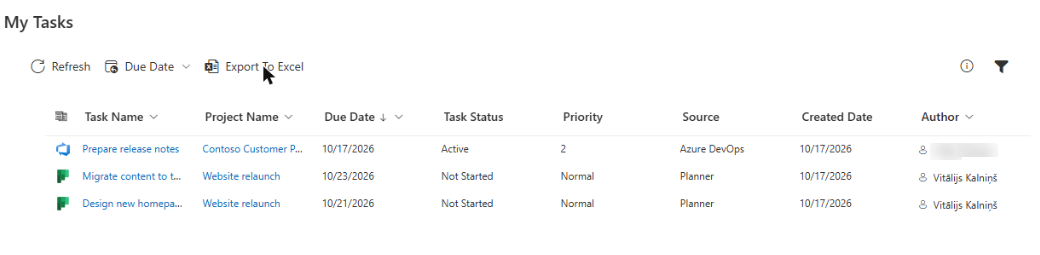
The Export To Excel button in the My Tasks command bar saves your current task list as a file that Excel opens directly. This is convenient when you need to prepare a status report, sort tasks in a way that the web part does not offer, count tasks per project, or simply keep a snapshot of your workload.
The export contains the tasks that you see in the list at this moment. It takes into account your filters and sorting, and it includes all pages of the list, not only the page that is currently displayed.
How to export
- Wait until the list has finished loading. While the tasks are loading, or when there are no tasks at all, the button is unavailable.
- If you want only some of the tasks, apply the filters first: the Due Date menu (All dates, Overdue, Today, This week) and the Filter panel. Also set the sort order you need. See KB10293. My Tasks: Filtering, Sorting and Personal View Settings.
- In the command bar, click Export To Excel.
- The browser downloads the file. Depending on your browser settings, it is saved to the Downloads folder or the browser asks where to save it.
- Open the file in Excel.
What is exported
- All pages. If the list has 120 tasks and the page size is 20, the file contains all 120 tasks, not the 20 on the screen.
- Filtered and sorted. The file contains the tasks that remain after the Due Date quick filter and the Filter panel are applied, in the sort order that is currently set.
- Not affected by the column settings. The set of columns in the file is fixed and does not depend on which columns are visible on the page.
- Excluded statuses are not included. Tasks hidden by the Excluded Statuses (comma separated) setting are not loaded and therefore are not exported; see KB10298. My Tasks: Excluding Statuses and Limiting the Task List.
Columns in the file
| Column | Content |
|---|---|
| Source | Planner, To Do, Outlook, SharePoint, Project or Azure DevOps |
| Task Name | The title of the task |
| Project Name | The project, plan, list or site |
| Task Status | The status |
| Priority | The priority |
| Created Date | The date of creation, in the date format of your browser |
| Due Date | The due date, in the date format of your browser; empty if there is none |
| Author | The name of the author; empty for To Do and Outlook tasks |
| Tags | All tags of the task in one cell, separated by a semicolon and a space |
| URL | The address of the original task |
The column headings are written in the interface language of the web part. Dates contain no time and follow the regional format of your browser, so the same task can appear as 10/16/2026 on one computer and as 16.10.2026 on another.
The file
The file name contains the date of the export: my-tasks-2026-10-16.csv for an export made on 16 October 2026.
The file is a CSV (comma separated values) in the UTF-8 encoding with a byte order mark (BOM). The BOM tells Excel to read the file as UTF-8, so Cyrillic, Chinese, Japanese and other non-Latin characters in task titles are displayed correctly. Values are separated by commas, rows by line breaks, and values that contain commas, quotation marks or line breaks are enclosed in quotation marks.
📝 Note
Although the button is called Export To Excel, the file is not an .xlsx workbook. It is a CSV file that Excel opens as a table. You can save it as an Excel workbook from Excel with File > Save As.
Opening the file in Excel
Double-click the downloaded file. In most installations Excel shows the columns correctly.
If all the data appears in one column, your Windows regional settings use a semicolon as the list separator, and Excel expects semicolons. In this case import the file instead of opening it:
- In Excel, open a blank workbook and choose Data > From Text/CSV.
- Select the downloaded file.
- In the preview, set Delimiter to Comma and make sure that File Origin is 65001: Unicode (UTF-8).
- Click Load.
❗ Important
The file contains the names, links and other data of your tasks. Store and share it according to the rules of your organization. The export is made by your browser on your computer; the web part does not send the file anywhere.
💡 Tip
In Excel, select the data and choose Insert > Table to get filters and sorting in the headings, or build a PivotTable to count tasks by Project Name or Task Status. To check which tasks appear before exporting, use the Overdue quick filter, described in KB10292. My Tasks: Due Date Column, Overdue Highlighting and Quick Filters.
If the file is incomplete
If the file has fewer tasks than expected, check the filters (a filled Filter icon or a Due Date value other than All dates means that a filter is active), the excluded statuses, and whether all sources have loaded. Sources that fail to load are skipped. See KB10307. Why Are My Tasks Missing or Not Loading?. The list on the screen shows paging settings that are described in KB10297. My Tasks: Paging, Row Limit, Auto Refresh and Instant Loading.