My Tasks
 Introduction
This article collects short answers to the questions that are asked most often about My Tasks. Each answer points to the article where the topic is covered in full.
About the product
What is My Tasks?
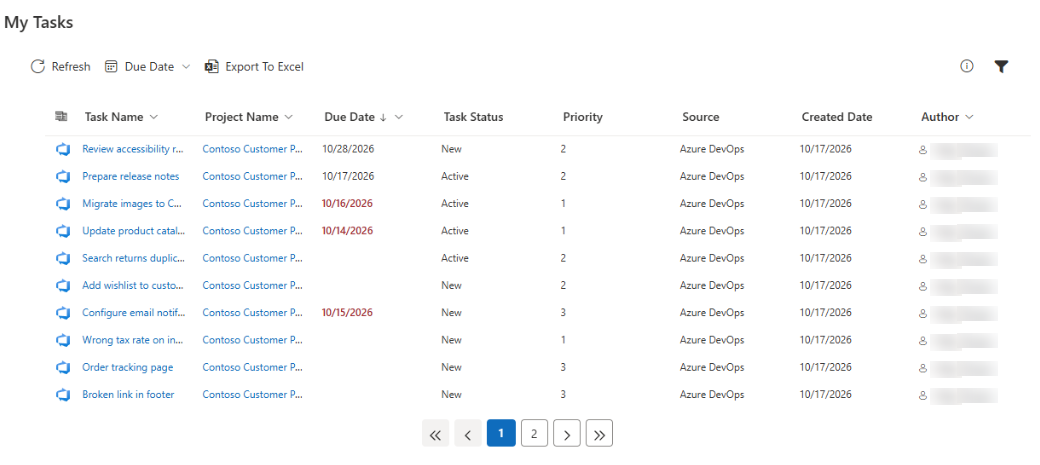
A solution for SharePoint Online and Microsoft Teams that collects the tasks assigned to you from several places into one list. The package contains two web parts: My Tasks, which shows your tasks from all sources, and Azure DevOps Query, which shows the results of a saved Azure DevOps query. See KB10288. My Tasks. Solution Overview.
Which sources can it read?
Planner, Microsoft To Do, flagged e-mails from Outlook, task lists of SharePoint, Project Online and Project Server, and Azure DevOps work items. Each source is turned on or off separately. See KB10290. My Tasks Data Sources: Planner, To Do, Outlook, SharePoint, Project Online and Azure DevOps.
Does My Tasks create or change tasks?
No. The My Tasks web part only reads. The only exception is the Azure DevOps Query web part: if the administrator turns on Quick actions, users can change the state, the assignee and the due date of work items and add comments. See KB10306. Azure DevOps Query Viewer: Quick Actions (Change State, Assign, Set Due Date, Add Comment).
Can I see the tasks of other people?
No. Each user sees only the tasks assigned to that user, with that user's own permissions. A manager cannot see the tasks of a team through this web part.
Why does my task not appear?
Usually the source is switched off, the task is not assigned to you or is completed, or a filter hides it. See KB10307. Why Are My Tasks Missing or Not Loading?.
Using the list
Can I filter and sort the list?
Yes. You can filter by project, source, status, priority and author, use the quick filter on the Due Date column (overdue, today, this week) and sort by a column. Your choices are remembered in your browser. See KB10293. My Tasks: Filtering, Sorting and Personal View Settings and KB10292. My Tasks: Due Date Column, Overdue Highlighting and Quick Filters.
Can I see the description of a task without opening it?
Yes. Select a task and click Details: a panel shows the description, the dates, the author and other data. See KB10295. My Tasks: Viewing Task Details Without Leaving the Page.
Can I export the tasks to Excel?
Yes. Export To Excel saves the tasks that are visible with your filters and sorting, on all pages, as a CSV file that opens in Excel. See KB10296. How to Export My Tasks to Excel.
How many tasks are shown?
The page size is set by the administrator from 5 to 50 rows (a newly added web part starts with 10), and the pager moves between pages. From SharePoint and from Project up to 100 tasks each are loaded. The Azure DevOps Query Viewer loads up to 1000 work items per query. See KB10297. My Tasks: Paging, Row Limit, Auto Refresh and Instant Loading.
How fresh is the data?
The list opens instantly from the data of the last visit (kept for up to 15 minutes in the browser tab) and is refreshed in the background. Refresh reloads it at once, and the administrator can turn on Auto refresh (every 60 seconds).
Can I hide completed tasks?
Planner and To Do show only unfinished tasks. For all sources, the administrator can enter the statuses to hide, for example Completed, Deferred, in Excluded Statuses (comma separated). See KB10298. My Tasks: Excluding Statuses and Limiting the Task List.
Data, privacy and permissions
Where are my tasks stored?
Not on Vitextra servers. The web part loads the tasks in your browser, with your permissions, directly from Microsoft 365 or Azure DevOps. Your personal view settings and a temporary task cache are stored in the browser. See KB10303. My Tasks: Required Permissions, Privacy and Security.
Which permissions must be approved?
A Global Administrator of the tenant approves Microsoft Graph (User.Read, User.ReadBasic.All, Tasks.ReadWrite) and, for Azure DevOps, user_impersonation in the SharePoint admin center. The web part uses them only to read your tasks.
Do I need an Azure DevOps account?
Only for Azure DevOps tasks. You must be a member of the organization and the project, and the organization must be connected to the same Microsoft Entra ID tenant. You see only what you can already see in Azure DevOps. See KB10304. Azure DevOps Query Viewer: Setup and Connecting a Query.
Where My Tasks works
Does it work in Microsoft Teams and on a phone?
Yes. It works as a personal app and as a channel tab, and the layout adapts to narrow columns and to the mobile apps. See KB10301. How to Add My Tasks to Microsoft Teams.
Does it work with SharePoint Server (on-premises)?
No. The web part runs only in SharePoint Online. For the list of supported sources, see KB10290. My Tasks Data Sources: Planner, To Do, Outlook, SharePoint, Project Online and Azure DevOps.
Can I place several instances on different pages?
Yes. Each instance has its own sources, columns and settings, and remembers the personal view of each user separately. See KB10289. How to Add and Configure the My Tasks Web Part.
Which languages and themes are supported?
The interface is available in 50 languages and follows the language of the user. The colors follow the theme of the site, and the font follows the font of the site. Task titles and statuses are shown as they are stored in the sources. See KB10302. My Tasks: Themes, Fonts and Language Support.
Which browsers are supported?
Current versions of Microsoft Edge, Google Chrome, Mozilla Firefox and Safari.
About installation and licensing
Is My Tasks free?
The product starts with a free trial. The status is shown in the About group of the property pane. After the trial a subscription is needed; see KB10206. Vitextra Licensing and Account: How to Buy and Activate a License.
What happens when the trial ends?
The web part shows a panel with the invitation to buy it, and no tasks, until a license is activated.
How is it installed and updated?
A SharePoint administrator uploads the package to the app catalog; a Global Administrator approves the API permissions. See KB10035. How to Install a Vitextra Product in SharePoint Online and KB10050. How to Update a Vitextra SPFx Solution in SharePoint Online.
📝 Note
The language of the interface follows the language of the user, but the names of tasks, projects and statuses are shown as they are stored in the source and are not translated.
❗ Important
With Quick actions turned on, the Azure DevOps Query Viewer changes real work items in Azure DevOps under the name of the signed-in user. The My Tasks web part never changes tasks.
💡 Tip
To get started quickly, read KB10291. My Tasks: A Quick Guide for End Users. Administrators will find the details of the Azure DevOps web part in KB10209. How to Install and Configure the Azure DevOps Query Viewer Web Part.