Employee Directory
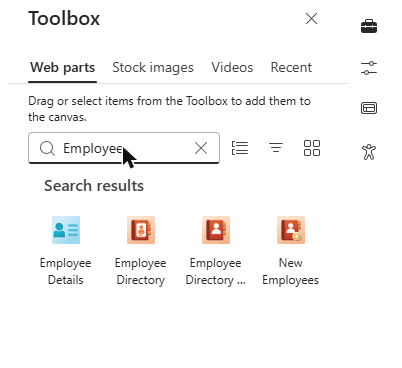
 The Vitextra Employee Directory solution ships with two directory web parts: Employee Directory and Employee Directory (Entra ID). Both show a searchable list of colleagues with the same cards, details pane, actions and quick filters, but they retrieve and filter people in very different ways. This article compares the two and helps you pick the right one for your page.
The two web parts at a glance
- Employee Directory — a search-driven directory. In Data Source you choose where people come from: User profiles (SharePoint search over the SharePoint user profiles) or Entra ID (Azure AD) (Microsoft Graph). Every search is sent to the server, and results are loaded page by page.
- Employee Directory (Entra ID) — a directory built on the complete list of users from Microsoft Entra ID. The web part loads all users once through Microsoft Graph, keeps them in the browser and filters them locally. This approach makes the filter editor, the exclusion options and the alphabetical navigation possible.
📝 Note
Both web parts are part of the same solution and the same license. You can use either one, or both on different pages — for example, a full directory page and a filtered department page.
Data source and loading
Employee Directory queries the data source every time the user searches:
- With User profiles, the web part uses SharePoint people search. Only the people indexed by SharePoint search are returned; accounts hidden from address lists are skipped unless Show hidden users is turned on, and system and service accounts are always filtered out.
- With Entra ID (Azure AD), the web part sends a Microsoft Graph query for each search. Disabled accounts and guest users are always excluded.
In both cases, results arrive in pages of the size set in Display items in pages of: (1–50), and Show More Results... loads the next page.
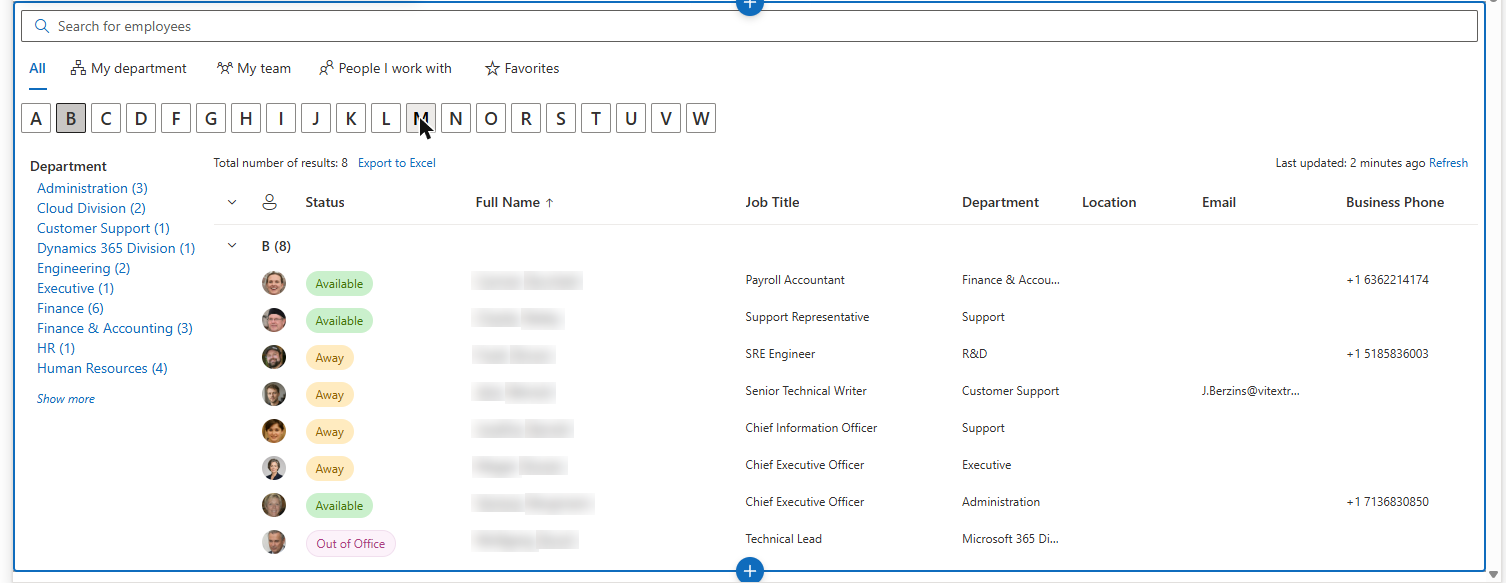
Employee Directory (Entra ID) loads every user from Microsoft Entra ID when the page first opens (in batches of 900 through Microsoft Graph) and caches the list in the browser's local storage. On later visits the directory opens instantly from the cache; when the cached copy is older than 24 hours, it is refreshed in the background. The toolbar shows Last updated: with a Refresh link that reloads the data on demand. Setting Display items in pages of: to 0 shows all results without paging.
❗ Important
Because Employee Directory (Entra ID) downloads the complete user list, the first load takes longer in very large tenants (tens of thousands of accounts). Changes made in Microsoft Entra ID appear after the next refresh — within 24 hours, or immediately after a user selects Refresh.
Search behavior
The search box looks the same in both web parts, but matching works differently:
- Employee Directory, User profiles — full SharePoint people search: free text across the indexed profile properties, nicknames and phonetic matching, a trailing wildcard (
Ann*) and KQL property restrictions such asDepartment:"Sales". - Employee Directory, Entra ID (Azure AD) — a Microsoft Graph "starts with" match on employee ID, department, job title, first name, last name, email, state, city and country.
- Employee Directory (Entra ID) — an instant, local "contains" match across the columns marked as searchable in the column configuration, including custom attributes. If no column is marked, Full Name, Job Title, Department, Business Phone and Cell phone are searched.
Predefined query vs. filter editor
Both web parts let an administrator limit the directory to a subset of people, but with different tools:
- Employee Directory with User profiles offers Predefined Query — a KQL expression added to every search, for example
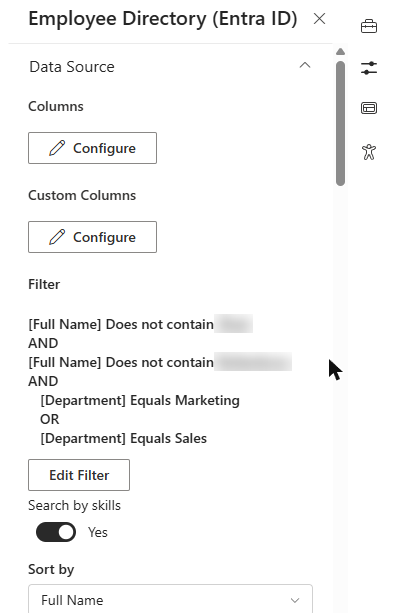
Department:"Sales"orJobTitle:"Engineer". With the Entra ID (Azure AD) source there is no predefined query; the only restriction is Show only users with non-empty department. - Employee Directory (Entra ID) has a visual filter editor in the Data Source group. You build conditions on any built-in or custom attribute, combine them in groups, and use directory role templates — no query language required.
💡 Tip
For all fields, operators and examples of the filter editor, see KB10312. Employee Directory (Entra ID): Filter Editor Reference.
Excluding employees
Employee Directory (Entra ID) has a dedicated Exclude Employees group with four toggles:
- Exclude Unlicensed Employees — hides accounts without an assigned license (shared mailboxes, rooms, service accounts and similar).
- Exclude Employees with blank Department.
- Exclude Employees with blank Job Title.
- Exclude blocked users — hides disabled accounts; turned on by default.
Employee Directory has no such group. With the Entra ID (Azure AD) source, disabled and guest accounts are always excluded and Show only users with non-empty department is available (on by default). With User profiles, what appears is controlled by the SharePoint search index, Show hidden users and the Predefined Query.
📝 Note
Employee Directory (Entra ID) does not filter out guest accounts on its own. Guests usually have no license, so Exclude Unlicensed Employees or a filter condition removes them from the list.
Refinement panel
Both web parts support a Refinement Panel (on the left, at the top or on the right), but it is built differently:
- Employee Directory shows the refinement panel only with the User profiles source. Refiners are SharePoint search managed properties (for example,
DepartmentorOffice) that you type in by name, and their values and counts come from SharePoint search. - Employee Directory (Entra ID) builds refiners from the columns you configured, including custom attributes, and calculates values and counts from the loaded data.
With the Entra ID (Azure AD) source of Employee Directory, the refinement panel group is not available.
A–Z navigation, Group by and sorting
- Show alphabetical navigation (in Appearance) is available only in Employee Directory (Entra ID). It shows a row of letters built from the first letters of last names; users can select one or several letters to narrow the list.
- Group by is available in both web parts and offers Last name (first letter) plus the configured columns and custom attributes — a good alternative to A–Z navigation in Employee Directory.
- Sort by in Employee Directory offers (Default), First Name or Last Name with User profiles, and (Default) or Full Name with the Entra ID source. Employee Directory (Entra ID) can sort by any configured column.
Features available in both web parts
Many features work the same way in both web parts, so the choice does not limit the user experience:
- Quick filters — My department, My team, People I work with and Favorites (KB10214).
- Layouts — the Details (table) and Contact (cards) views, card size and card fields, Group by.
- Details pane — manager, direct reports, availability, local time, documents, About me, interests and skills (KB10199).
- Actions — chat, call, email, copy email, schedule a meeting and vCard, in the context menu and as quick actions on cards.
- Search by skills — with the toggle on, people whose profile skills match the search text are added to the results, with the matched skills shown first. In Employee Directory the toggle applies to the Entra ID (Azure AD) source; with User profiles, SharePoint people search already covers profile properties. Selecting a skill in the details pane searches for everyone with that skill in both web parts.
- Export to Excel — when enabled in the Export group. Employee Directory exports all results of the current search; Employee Directory (Entra ID) exports the current filtered list (KB10062).
- Custom attributes — Employee Directory works with custom User Profile properties (KB10049); Employee Directory (Entra ID) works with custom Microsoft Entra ID attributes (KB10060), which can also be used in the filter editor, refiners and search.
- Microsoft Teams — both web parts can publish their configuration to the personal Teams app.
Comparison table
| Capability | Employee Directory | Employee Directory (Entra ID) |
|---|---|---|
| Data source | User profiles (SharePoint search) or Entra ID (Microsoft Graph), selectable | Microsoft Entra ID (Microsoft Graph) |
| Loading | Server-side query for every search, page by page | All users loaded once, cached in the browser for 24 hours, Refresh on demand |
| Search | User profiles: SharePoint people search with KQL, wildcards, nicknames, phonetic matching; Entra ID: "starts with" on standard fields | Instant "contains" match on the columns marked searchable, including custom attributes |
| Predefined restriction | Predefined Query (KQL, User profiles only) | Visual filter editor with condition groups and role templates |
| Exclusions | Entra ID source: disabled and guest accounts always excluded, Show only users with non-empty department; User profiles: Show hidden users | Exclude Unlicensed Employees, blank Department, blank Job Title, Exclude blocked users |
| Refinement panel | User profiles source only; SharePoint managed properties | Yes; any configured column or custom attribute |
| A–Z navigation | No (use Group by › Last name (first letter)) | Yes, Show alphabetical navigation |
| Sort by | (Default), First Name, Last Name (User profiles); (Default), Full Name (Entra ID) | Any configured column |
| Search by skills | Yes (Entra ID source) | Yes |
| Quick filters, Group by, layouts, actions, details pane | Yes | Yes |
| Custom attributes | User Profile properties | Microsoft Entra ID attributes |
| Export to Excel | Yes, all results of the search | Yes, the current filtered list |
| Microsoft Teams personal app | Yes | Yes |
Which one to choose
Choose Employee Directory when:
- People data is maintained in the SharePoint user profiles — for example, you sync extra properties or users fill in About me, skills and interests in their profiles.
- Users expect search-engine behavior: KQL, nicknames, phonetic matching, refiners based on SharePoint managed properties.
- The tenant is very large and you prefer server-side paging over loading the whole directory into the browser.
- You only need a simple directory restricted by a KQL Predefined Query (for example, one country or one department).
Choose Employee Directory (Entra ID) when:
- Microsoft Entra ID is the master source of people data, and changes must not wait for the SharePoint search crawl.
- You need to hide unlicensed, blocked, or incomplete accounts (blank department or job title) from the directory.
- You want a precise, visual filter — by office, country, department, a custom attribute or a directory role — without writing queries.
- You need A–Z navigation, sorting by any column, refiners on any attribute, or instant filtering as users type.
Typical scenarios:
| Scenario | Recommended web part |
|---|---|
| Company-wide directory for an intranet home page, profiles enriched in SharePoint | Employee Directory (User profiles) |
| Directory that must hide shared mailboxes, rooms and service accounts | Employee Directory (Entra ID) |
| Department or office page that shows only its own people | Employee Directory (Entra ID) with a filter |
| Very large tenant, search across many profile properties | Employee Directory (User profiles) |
| Directory with alphabetical browsing and refiners on custom Entra ID attributes | Employee Directory (Entra ID) |
| Quick setup with live Microsoft Graph data and no extra configuration | Employee Directory (Entra ID (Azure AD) source) |
💡 Tip
If you are unsure, start with Employee Directory (Entra ID): it works with Microsoft Graph data only, needs no search configuration, and its exclusion options produce a clean list of real employees. Switch to Employee Directory with User profiles when you need SharePoint search features.
What about New Employees?
The third web part in the solution, New Employees, is not a directory. It spotlights people who joined the organization recently (accounts created in Microsoft Entra ID within the selected period) and is typically placed on a home or onboarding page next to one of the directory web parts. See KB10207. How to Showcase New Hires with the New Employees Web Part.
Related articles
- KB10309. How to Add and Configure the Employee Directory Web Part
- KB10311. How to Configure the Employee Directory (Entra ID) Web Part: Filters, Exclusions and A–Z Navigation
- KB10312. Employee Directory (Entra ID): Filter Editor Reference
- KB10313. How to Set Up the Refinement Panel in Employee Directory