Employee Directory
 The Employee Directory (Entra ID) web part of Vitextra Employee Directory reads people directly from Microsoft Entra ID through Microsoft Graph. Compared to the standard Employee Directory web part, it adds a predefined filter built in a visual filter editor, a set of exclusions that hide service and incomplete accounts, and alphabetical (A–Z) navigation by last name. This article walks you through adding the web part to a page and configuring the data source, the exclusions and the A–Z navigation, and points you to the articles that cover the remaining settings.
💡 Tip
Not sure which of the two directory web parts you need? See KB10310. Employee Directory vs. Employee Directory (Entra ID): Which Web Part to Choose.
Before you begin
- The Employee Directory solution is installed in your tenant — see KB10035. How to Install a Vitextra Product in SharePoint Online.
- The Microsoft Graph permissions requested by the solution (including User.Read.All and Directory.Read.All) are approved on the API access page of the SharePoint admin center. Without them the web part cannot read users from Entra ID.
- You can edit the SharePoint page where you want to place the directory.
Add the web part to a page
- Open the SharePoint page and select Edit.
- Hover over the place where you want the directory, select the + sign, and search for Employee Directory (Entra ID). The web part title in the toolbox follows the SharePoint language, for example Справочник Сотрудников (Entra ID) in Russian.
- Select the web part to add it. It immediately starts loading people from Entra ID.
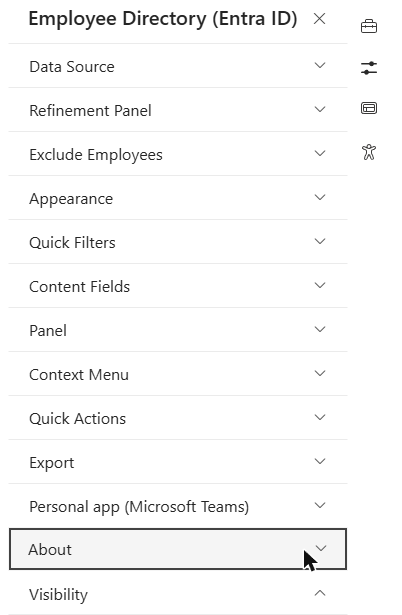
- Select the Edit web part (pencil) icon to open the property pane. The settings are arranged in collapsible groups: Data Source, Refinement Panel, Exclude Employees, Appearance, Quick Filters, Content Fields, Panel, Context Menu, Quick Actions, Export, Personal app (Microsoft Teams) and About.
- Configure the web part as described below, then Republish the page.
📝 Note
The web part downloads the whole user list from Microsoft Graph in pages of up to 900 users and keeps a compressed copy in the browser's local storage. On later visits the directory opens from this copy instantly and refreshes it in the background once it is older than 24 hours. The Last updated line above the results shows the age of the data, and its Refresh link reloads it from Entra ID on demand.
Configure the data source
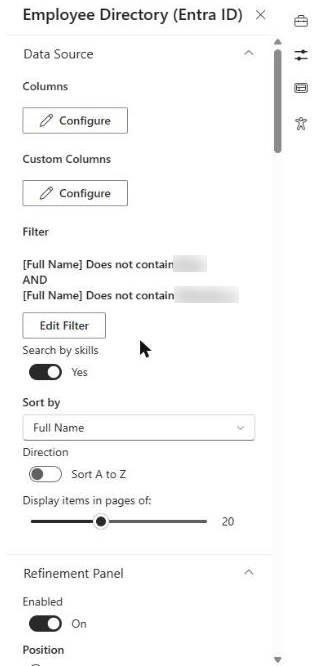
The Data Source group defines which attributes are shown, which people are included and in what order they appear.
Columns and custom columns
Select Configure under Columns to choose the built-in Entra ID attributes the directory works with — name, job title, department, office, phones, email, manager and others. For each column you can set:
- Show in list — show the column in the results list (Details view);
- Show on card — show the attribute in the person's card;
- Searchable — include the column in the search box;
- Caption — the column header users see;
- Order — the position of the column.
If no column is marked Searchable, the web part searches by name, job title, department, work phone and mobile phone. The search matches any part of the value, regardless of case.
Custom Columns add Entra ID extension attributes, for example attributes synchronized from on-premises Active Directory. Custom columns have the same options and can also be used in the filter, sorting, grouping and refiners. For details, see KB10060. How to Display Custom Entra ID Attributes in the Employee Directory Web Part.
📝 Note
When the Manager column is shown in the list or on the card, the web part requests each user's manager together with the user list. This makes the initial load a little longer in large tenants, so hide the column if you don't need it.
Predefined filter
Under Filter, the filter editor lets you limit the directory to a specific part of the organization — for example, only one country, one office or one company. A filter consists of conditions (an attribute, an operator and a value) that can be combined into groups with AND or OR logic. Conditions can use any of the configured columns and custom columns.
The predefined filter is applied to every view of the directory: the results list, the totals, the refinement panel values, the A–Z letters and the Excel export. Users can't remove it — it defines who is in the directory on this page.
💡 Tip
For the full list of fields and operators, condition groups, role templates and ready-made examples, see KB10312. Employee Directory (Entra ID): Filter Editor Reference.
Search by skills
The Search by skills toggle (on by default) extends the search box: in addition to the searchable columns, the web part finds people whose profile lists a matching skill. The skill lookup starts when at least two characters are typed, and the matching skills are shown first in the person's Skills. With the toggle off, the search box looks only at the searchable columns.
💡 Tip
To learn where skills come from and how the matching works, see KB10316. How to Search Employees by Skills in Employee Directory.
Sorting
Sort by sets the default order of the results. The dropdown lists the configured columns and custom columns; (Empty) keeps the order in which Entra ID returns users. The Direction toggle switches between Sort A to Z and Sort Z to A. In the Details view, users can still re-sort the list by selecting a column header.
Paging
Display items in pages of: sets how many people are shown at once (0–50, 40 by default). When there are more results, a Show More Results... button appears below the list and loads the next page. Set the slider to 0 to show all results without paging.
Exclude employees
An Entra ID tenant usually contains more than real employees: shared mailboxes, meeting rooms, service accounts, test users and blocked accounts of former employees. The Exclude Employees group hides them without building a filter. Each toggle works independently, and the conditions add up: a person is shown only when they pass every toggle that is turned on.
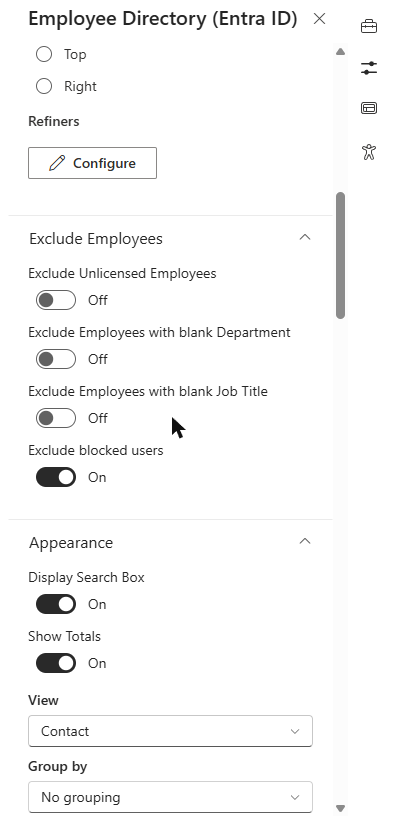
| Setting | Default | Who is hidden | How it is checked |
|---|---|---|---|
| Exclude Unlicensed Employees | Off | Users without any license | The user's assignedLicenses list in Entra ID is empty |
| Exclude Employees with blank Department | Off | Users with no department | The department attribute has no value |
| Exclude Employees with blank Job Title | Off | Users with no job title | The jobTitle attribute has no value |
| Exclude blocked users | On | Disabled (blocked) accounts | The accountEnabled attribute is not true |
Exclude Unlicensed Employees
A user counts as licensed when at least one license is assigned to them in Microsoft Entra ID — the assignedLicenses property returned by Microsoft Graph is not empty. Any product counts (Microsoft 365, Office 365, Exchange Online, a trial and so on), and it doesn't matter whether the license was assigned directly or through group-based licensing. The web part doesn't check which product or which service plans are enabled.
This toggle is the quickest way to remove shared mailboxes, room and equipment mailboxes, and most service accounts, because they normally have no license. Guest users usually have no license in your tenant either, so they are hidden as well.
❗ Important
Employees who genuinely work without a license — for example, frontline workers whose license hasn't been assigned yet — also disappear when this toggle is on. If that's a problem, leave the toggle off and exclude the unwanted accounts with the predefined filter instead.
Exclude Employees with blank Department / Job Title
These two toggles hide users whose Department or Job Title attribute in Entra ID is empty. They are useful when your HR process fills these attributes for every employee: accounts without them are almost always technical, test or not yet onboarded.
Turn both on to show only people with a complete profile — but check the data first: anyone whose department or job title is missing in Entra ID won't appear in the directory until the attribute is filled in.
Exclude blocked users
Exclude blocked users hides accounts for which sign-in is blocked (the accountEnabled attribute is false), typically former employees. This toggle is on by default. Unlike the other exclusions, it also works on the Microsoft Graph side: blocked accounts are not even downloaded, which makes the directory load faster.
❗ Important
Changing Exclude Unlicensed Employees, Exclude Employees with blank Department or Exclude Employees with blank Job Title reloads the data from Entra ID immediately. Turning Exclude blocked users off does not: the data saved in the browser was loaded without blocked accounts. Select Refresh next to Last updated above the results to reload the list, after which blocked accounts appear.
Where the exclusions apply
Exclusions, together with the predefined filter, define the audience of the directory. They apply to the full list, search results, the My department quick filter, the refinement panel values, the A–Z letters, the total number of results and the Excel export.
📝 Note
The My team, People I work with and Favorites quick filters show their own lists of people — your manager and colleagues, your frequent contacts, your starred people — and are not narrowed by the exclusions or the predefined filter. See KB10214. Employee Directory Quick Filters: My Department, My Team, People I Work With, Favorites.
Alphabetical (A–Z) navigation
Alphabetical navigation adds a row of letters above the results so users can jump to people by the first letter of their last name. To turn it on, expand the Appearance group and turn on Show alphabetical navigation (off by default).
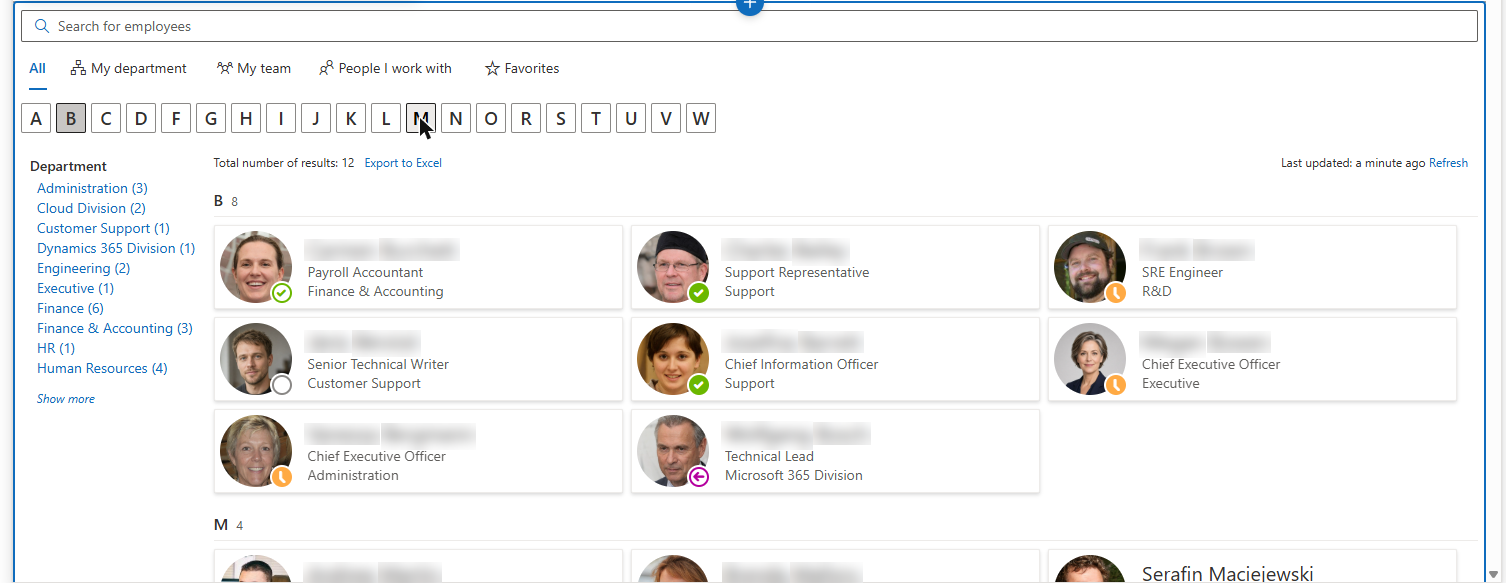
How the navigation works:
- Letters come from the data. The row shows only the letters that actually occur as the first letter of a last name (the Entra ID
surnameattribute) among the people in the directory — after the exclusions and the predefined filter are applied. There are no empty letters, and non-Latin alphabets work too. - Filtering is by last name. Selecting a letter shows only people whose last name starts with it. People with an empty last name are hidden while a letter is selected, even if their display name starts with that letter.
- Several letters at once. Select more letters to add them to the selection (for example, B and M); select a selected letter again to clear it. When no letter is selected, the full list is shown.
- Combines with other filters. The letter selection works together with refiners and a search query entered before selecting a letter. Typing in the search box or switching to another quick filter clears the selected letters.
- Hidden for personal lists. The letter row is not shown while the My team, People I work with or Favorites quick filter is selected.
💡 Tip
To show the whole directory divided into sections by the first letter of the last name, use Group by → Last name (first letter) in the Appearance group. See KB10314. Employee Directory Layouts: Details and Cards, Card Size, Card Fields and Group By.
Other settings
The remaining groups of the property pane are the same as in the other Employee Directory web parts and are covered in separate articles:
| Group | What it controls | Article |
|---|---|---|
| Refinement Panel | Refiners, their position (left, top, right) | KB10313. How to Set Up the Refinement Panel in Employee Directory |
| Appearance | Search box, totals, Details or Contact (cards) view, Group by, card size, compact list | KB10314. Employee Directory Layouts: Details and Cards, Card Size, Card Fields and Group By |
| Quick Filters | My department, My team, People I work with, Favorites | KB10214. Employee Directory Quick Filters: My Department, My Team, People I Work With, Favorites |
| Content Fields | The fields shown on cards in the Contact view | KB10314. Employee Directory Layouts: Details and Cards, Card Size, Card Fields and Group By |
| Panel | Sections of the details pane: manager, direct reports, availability, local time, documents, about me, interests, skills | KB10199. Employee Directory: Customizing the Details Pane, KB10317. Employee Directory: Local Time, Working Hours and Availability |
| Context Menu, Quick Actions | Chat, Call, Email, Copy email, Schedule a meeting and vCard actions | KB10315. Employee Actions in Employee Directory: Chat, Call, Email, Copy Email, Schedule a Meeting and vCard |
| Export | The Export to Excel link above the results | KB10062. How to Export Employee Directory Results to Microsoft Excel |
| Personal app (Microsoft Teams) | Saves this configuration for the Employee Directory personal app in Microsoft Teams | — |
| About | Product version and license information | — |
💡 Tip
A good starting configuration for most organizations: keep Exclude blocked users on, turn on Exclude Unlicensed Employees, add a predefined filter only if the page is meant for part of the company, and turn on Show alphabetical navigation for directories with several hundred people or more.