Employee Directory
 The filter editor of the Vitextra Employee Directory (Entra ID) web part defines which people the web part shows. With it you can build a fixed scope for a page — for example, only one department, only one country, or everyone except service accounts — out of conditions and groups of conditions combined with AND and OR. The same editor is used by the New Employees web part. This article is a reference for everything the editor offers: fields, operators, value types, groups, user roles, how the filter is applied, its limitations, and typical examples.
Where to find the filter editor
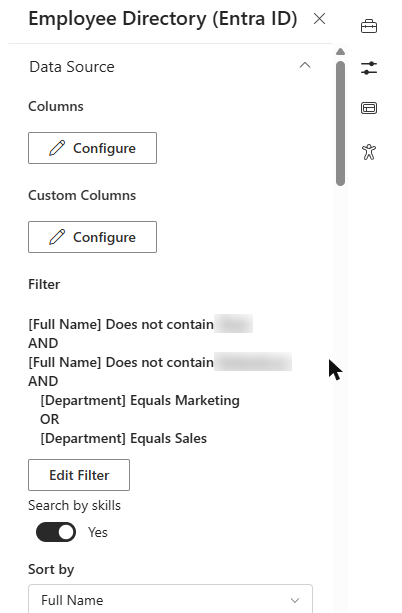
Edit the page, open the web part's property pane and expand the Data Source group. Under Filter you'll see a preview of the current filter — or No filter applied when there isn't one — and the Edit Filter button.
Select Edit Filter to open the Advanced filtering panel. Build the filter there, then select Save to apply it or Cancel to discard your changes. The page updates as soon as you save; republish the page to make the change visible to everyone.
📝 Note
This is not the legacy Query Builder that was removed in version 26.9. Version 26.9 removed the old, product-specific implementation of the editor from the Employee Directory code; the filter editor described here is its replacement, a shared Vitextra component, and it is fully supported in the current version. The filter editor is available in the Employee Directory (Entra ID) and New Employees web parts. The Employee Directory web part (with the User Profiles / Entra ID source selector) doesn't have it.
How a filter is structured
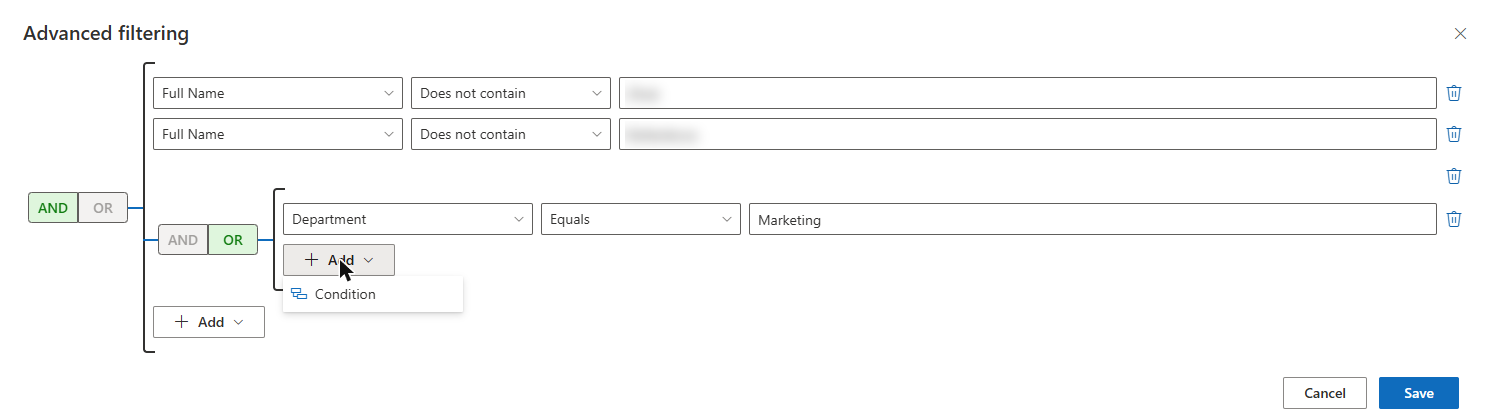
A filter consists of a top level that can contain two kinds of items, both added with the Add button:
- Condition — a single rule: a field, an operator and (for most operators) a value. For example, Department Equals Sales.
- Group — a container for several conditions with its own AND/OR setting. Groups can be added only at the top level; inside a group you can add conditions, but not further groups.
Each level — the top level and every group — has an AND / OR toggle:
- AND — a person must match every condition at that level.
- OR — a person must match at least one condition at that level.
When the filter is evaluated, the top-level conditions are combined using the top-level toggle, the conditions inside each group are combined using that group's toggle, and then every group is combined with the rest of the filter using AND. In practice this gives you one simple pattern: put the criteria that must all hold at the top level with AND, and put each set of alternatives ("Sales or Marketing", "Germany or Austria") into its own group with OR.
❗ Important
Switching the top level to OR affects only the conditions placed directly at the top level — groups are still combined with them using AND. If you need alternatives across different fields (for example, Department Equals Sales or Job Title Contains Sales), put those conditions together in one group set to OR.
To delete a condition or a group, select the delete (trash can) icon next to it. A condition without a selected field is ignored.
Available fields
The field list of a condition is divided into sections:
| Section | Field | What it checks |
|---|---|---|
| — | Account Status | Whether the user's Microsoft Entra ID account is enabled or disabled (sign-in allowed or blocked). |
| Memberships | User Roles | Whether the user holds one of the selected Microsoft Entra directory roles. See User roles and role templates. |
| Properties | Built-in columns | User attributes from Microsoft Entra ID, listed by their column titles. |
| Properties | Custom columns | The custom attributes you've added under Custom Columns (Employee Directory (Entra ID) only). |
In the Employee Directory (Entra ID) web part, the Properties section lists every column from the Columns configuration — whether or not the column is shown in the list — plus every column from Custom Columns. The Image and Status (presence) columns are excluded because they don't hold filterable text. In the New Employees web part the list is fixed: it contains the standard columns, and custom attributes aren't available.
The built-in columns most useful for filtering, and the Microsoft Entra ID user attributes behind them:
| Column (as shown in the editor) | Microsoft Entra ID attribute |
|---|---|
| Full Name | displayName |
| First Name / Last Name | givenName / surname |
| Job Title | jobTitle |
| Department | department |
| Company name | companyName |
| Office Location | officeLocation |
| Country/Region | country |
| City | city |
| State/Province | state |
| Address | streetAddress |
| ZIP/Postal Code | postalCode |
mail | |
| User Name | userPrincipalName |
| Employee ID | employeeId |
| Employee Type | employeeType |
| Cell phone | mobilePhone |
📝 Note
Filter on single-value text attributes like the ones in the table. Columns that hold a person, a list of values or nothing from Microsoft Entra ID — for example Manager, Business Phone, Skills, Location or Home Phone — aren't suitable for filtering: their conditions don't match as you might expect.
💡 Tip
To filter on an attribute that isn't in the built-in list — for example, an on-premises extension attribute such as a cost center — add it under Custom Columns first. See KB10060. How to Display Custom Entra ID Attributes in the Employee Directory Web Part.
Operators
Which operators you can choose depends on the field:
| Operator | Available for | A person matches when… |
|---|---|---|
| Equals | Properties, Account Status | the value is exactly the text you entered. If you leave the value empty, it matches people whose field is empty. |
| Does not equal | Properties, Account Status | the value is different from the text you entered, including when the field is empty. |
| Contains data | Properties | the field has any value. |
| Does not contain data | Properties | the field is empty. |
| Begins with | Properties | the value starts with the text you entered. |
| Does not begin with | Properties | the field has a value and it doesn't start with the text you entered. Empty fields don't match. |
| Contains | Properties, User Roles | the value includes the text you entered anywhere. For User Roles: the person holds at least one of the selected roles. |
| Does not contain | Properties, User Roles | the value doesn't include the text, including when the field is empty. For User Roles: the person holds none of the selected roles. |
All text comparisons are case-insensitive: sales, Sales and SALES are treated the same. The text is compared literally — wildcards such as * or % have no special meaning, and spaces are significant, so don't add leading or trailing spaces to a value.
❗ Important
Note the different handling of empty fields: Does not equal and Does not contain include people whose field is empty, while Does not begin with excludes them. For example, Department Does not equal Sales also shows everyone without a department. To leave those people out, add Department Contains data with AND, or turn on Exclude Employees with blank Department in the web part settings.
Value types
The value control changes with the selected field:
- Text box — for all Properties fields. Enter the text to compare with. For Contains data and Does not contain data no value is needed, so the text box is hidden.
- Drop-down list — for Account Status: Enabled or Disabled.
- Multi-select list — for User Roles: select one or more directory roles.
Values are compared as text. Numbers and dates are not compared as numbers or dates — Employee ID Begins with 10 matches 10, 105 and 10-A, for example — so there are no "greater than" or "less than" operators.
User roles and role templates
The User Roles condition lists the built-in Microsoft Entra directory roles — Global Administrator, User Administrator, Exchange Administrator, SharePoint Administrator, Teams Administrator, Helpdesk Administrator, Directory Synchronization Accounts and around a hundred more. The web part ships with this list of role templates: each built-in role has a fixed role template ID that is the same in every Microsoft 365 tenant, so the list doesn't have to be loaded from your tenant and a saved filter keeps working if it's copied to another tenant.
A condition on User Roles compares the selected roles with the directory roles assigned to each person:
- Contains — the person holds at least one of the selected roles.
- Does not contain — the person holds none of the selected roles.
Only the built-in directory roles are listed; custom roles, application roles and group memberships aren't part of this condition.
❗ Important
In the current version, the web part doesn't load the directory role assignments of users from Microsoft Graph, so a User Roles condition doesn't match anyone. In an AND group it hides everyone; in an OR group it simply never applies. Don't use this condition for now. To hide administrative or technical accounts, use conditions on User Name, Full Name, Department or Account Status instead — see Example 5.
How the filter relates to Microsoft Graph
The filter isn't translated into a Microsoft Graph $filter query. The web part reads users from Microsoft Graph and then applies the filter in the browser to the loaded data:
- Employee Directory (Entra ID) loads all users of the directory page by page (900 users per request). The only condition sent to Microsoft Graph is
accountEnabled eq true, and only when Exclude blocked users is turned on. - New Employees asks Microsoft Graph for member users (
userType eq 'Member') created within the configured number of months (Show users created for last months) and then applies the filter to that result.
Because the filter runs in the browser, the restrictions of Microsoft Graph advanced queries don't apply to it: you can use Contains, Begins with or Does not contain on any listed field, including custom attributes, and you don't need any additional Microsoft Graph permissions. On the other hand, the filter doesn't reduce the amount of data the web part loads — in a large directory, the first load takes the same time with or without a filter.
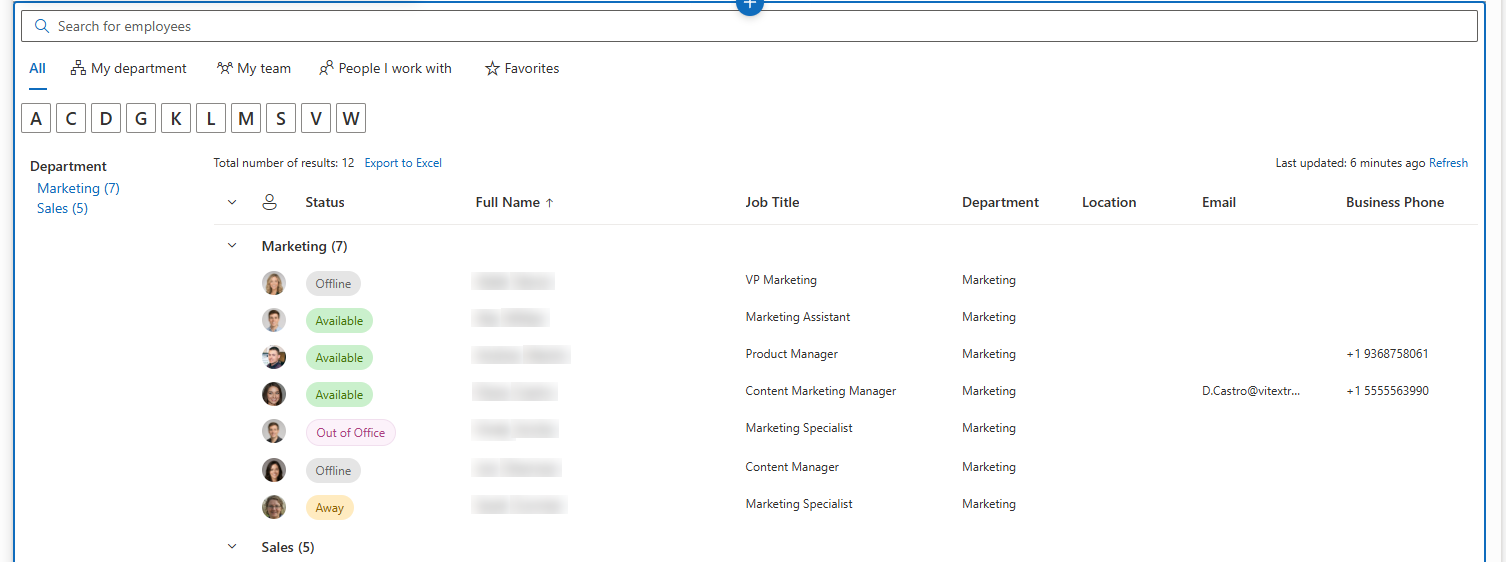
The filter works together with the other web part settings. A person is shown only if they pass the Exclude Employees options, the filter and, when used, the refinement panel, the A–Z navigation and the search box. The refinement panel values and the A–Z letters are calculated from the people who pass the filter.
📝 Note
The My department quick filter narrows the filtered directory further. The My team, People I work with and Favorites quick filters show their own lists of people, so the web part filter doesn't restrict them.
Limitations
- One level of groups. Groups can be added only at the top level, and groups are always combined with the rest of the filter using AND.
- Text comparison only. No numeric or date comparisons, no wildcards or regular expressions; matching is case-insensitive.
- No "ends with" operator in the editor.
- Values must match the directory. The filter compares the values stored in Microsoft Entra ID. If the Country/Region attribute contains
DEfor some users andGermanyfor others, add both values in an OR group. - Single-value text attributes only. Person, multi-value and unpopulated columns aren't suitable for filtering (see Available fields).
- Not a security boundary. The filter defines what the web part shows on the page; it doesn't restrict anyone's access to directory data in Microsoft 365.
Examples
The examples below use the English UI labels. Replace the sample values with the values used in your directory.
Example 1. One department
Show only the Sales department.
- Top level (AND): Department Equals
Sales
Example 2. Several countries or offices
Show the people working in the DACH region.
- Group (OR):
- Country/Region Equals
Germany - Country/Region Equals
Austria - Country/Region Equals
Switzerland
- Country/Region Equals
To show one office building instead, use a single condition such as Office Location Begins with Berlin, which matches Berlin HQ, Berlin, Floor 3 and so on.
Example 3. Job title contains or starts with
Show managers and senior specialists.
- Group (OR):
- Job Title Contains
manager - Job Title Begins with
Senior
- Job Title Contains
Because matching is case-insensitive, manager also matches Project Manager and Managing Director.
Example 4. Custom attribute
Show one cost center stored in an on-premises extension attribute that you've added under Custom Columns with the caption Cost Center (for example extensionAttribute1).
- Top level (AND): Cost Center Equals
4100
Example 5. Exclude service accounts and guests
Hide technical accounts, shared mailboxes and external guests from a company-wide directory. All conditions at the top level must hold:
- Top level (AND):
- Account Status Equals Enabled
- User Name Does not begin with
svc - Full Name Does not contain
service - User Name Does not contain
#EXT# - Department Contains data
The #EXT# condition removes guest users, whose user principal name contains that marker. Requiring a department is a simple way to drop most accounts that don't belong to a real employee — adjust the conditions to the naming conventions of your organization.
Example 6. Combining a top-level condition with an OR group
Show the Sales and Marketing departments in Germany.
- Top level (AND): Country/Region Equals
Germany - Group (OR):
- Department Equals
Sales - Department Equals
Marketing
- Department Equals
The group is combined with the top-level condition using AND, so the result is: Germany and (Sales or Marketing).
Using the filter editor in New Employees
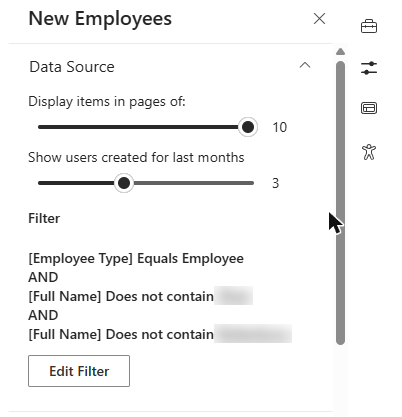
The New Employees web part has the same filter editor under Filter in its property pane. It works the same way, with these differences:
- The filter applies to the users that New Employees has already selected — member users created within Show users created for last months.
- The field list contains the standard columns; custom attributes aren't available.
- Account Status is available as in Employee Directory (Entra ID). User Roles is listed too, but has the same limitation (see User roles and role templates).
A typical use is to welcome only regular employees — for example, Employee Type Equals Employee — or only the newcomers of one location, such as Office Location Begins with London.
💡 Tip
For the full New Employees setup, see KB10207. How to Showcase New Hires with the New Employees Web Part. For the exclusion options and A–Z navigation of the directory, see KB10311. How to Configure the Employee Directory (Entra ID) Web Part: Filters, Exclusions and A–Z Navigation.