Employee Directory
 The refinement panel in the Vitextra Employee Directory web part lets employees narrow the directory by the attributes that matter to your organization — department, job title, office location or any other profile property — in a couple of clicks. This article explains which web parts support the panel, how an administrator enables and configures it, and how end users work with it.
Which web parts support the refinement panel
The refinement panel is available in both directory web parts, but it gets its values from different places:
| Web part and data source | Refinement panel | Where the values come from |
|---|---|---|
| Employee Directory with the User profiles data source | Yes | SharePoint search refiners, calculated by the search service for the current query |
| Employee Directory with the Entra ID (Azure AD) data source | No — the Refinement Panel settings group is hidden | — |
| Employee Directory (Entra ID) | Yes | Calculated in the browser from the employees loaded from Microsoft Graph |
| New Employees | No | — |
📝 Note
In the Employee Directory web part, the Refinement Panel group appears in the web part settings only when Data Source is set to User profiles. If you switch the source to Entra ID (Azure AD), the panel is not shown, even if it was enabled before.
💡 Tip
If you are still deciding which web part to use, see KB10310. Employee Directory vs. Employee Directory (Entra ID): Which Web Part to Choose. To add the web part to a page, see KB10309. How to Add and Configure the Employee Directory Web Part.
Enable the refinement panel
- Open the SharePoint page that contains the web part and select Edit.
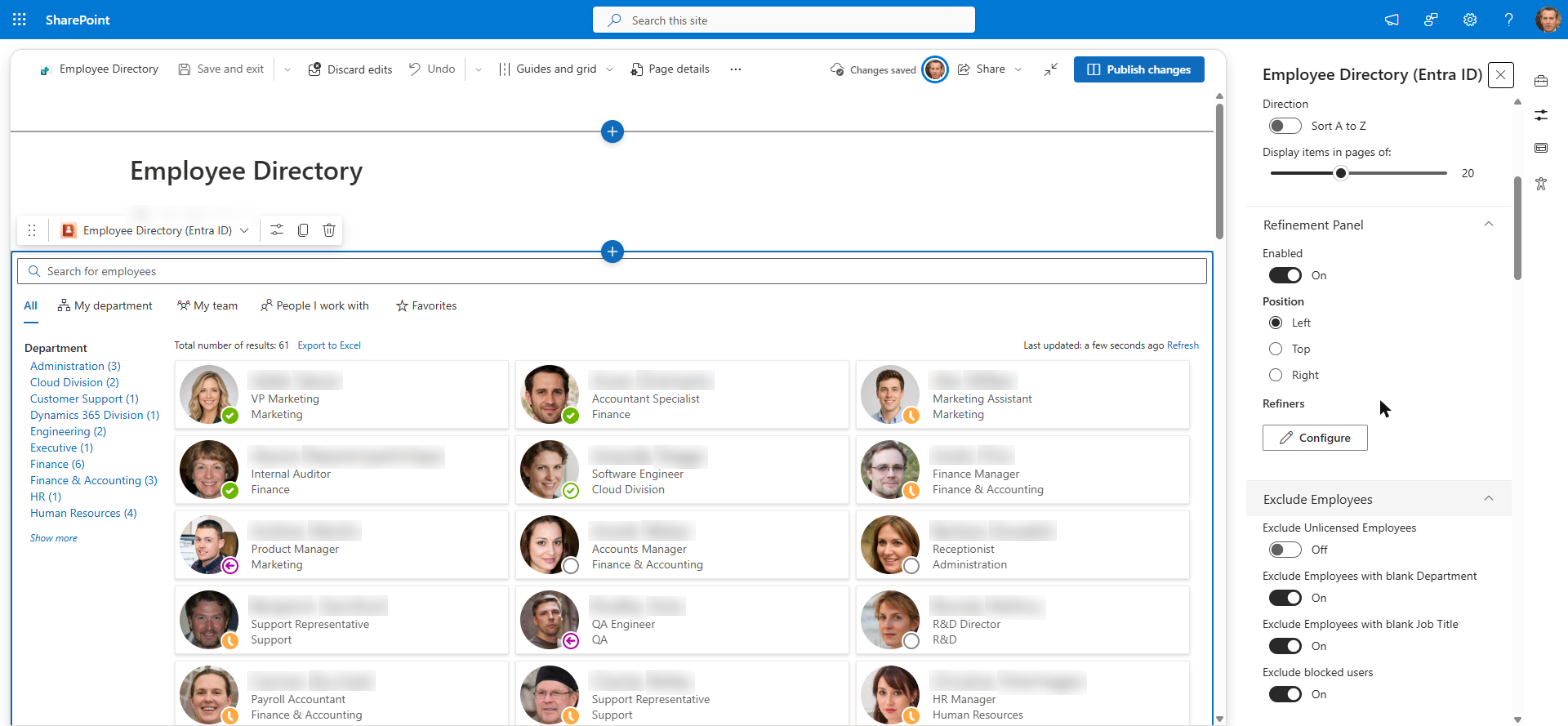
- Select the web part and then select Edit web part (the pencil icon) to open the property pane.
- Expand the Refinement Panel group.
- Turn on the Enabled toggle.
- Under Position, choose where the panel is displayed:
- Left (default) — a vertical panel to the left of the results.
- Top — a horizontal panel above the results; the values of each refiner are laid out in a row.
- Right — a vertical panel to the right of the results.
- Configure at least one refiner (see the next section). The panel is not displayed until it has refiners.
- Republish the page.
The Position options are unavailable while the Enabled toggle is off.
Add and configure refiners
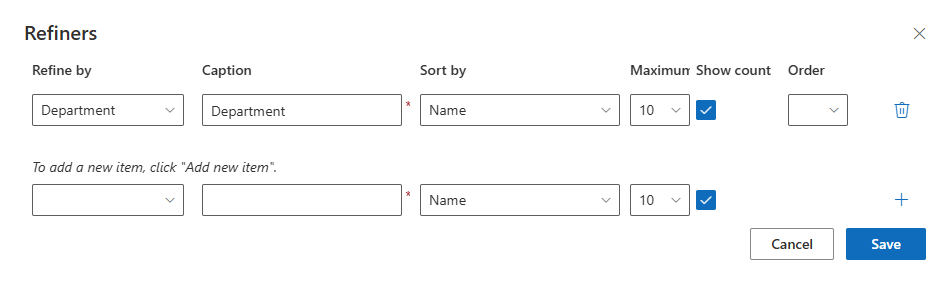
Refiners are managed in a separate editor. In the Refinement Panel group, under Refiners, select Configure. The Refiners panel opens with a table of the configured refiners and an empty row at the bottom for adding a new one.
To add a refiner:
- In the empty row at the bottom of the table, fill in Refine by and Caption, and adjust the other settings if needed.
- Select Add new item (the plus icon at the end of the row). The refiner is added to the table.
- Repeat for each refiner you need.
- Select Save to apply the changes, or Cancel to discard them.
Each refiner has the following settings:
| Setting | Description |
|---|---|
| Refine by | The property whose values are offered as refinement options. In Employee Directory (User profiles), type the name of a SharePoint search managed property, for example Department or RefinableString00. In Employee Directory (Entra ID), select one of the columns configured for the web part (built-in columns and custom attributes). Required. |
| Caption | The heading displayed above the refiner's values, for example Department. Required. |
| Sort by | Name — values in alphabetical order; Count — values with the most employees first. Default: Name. |
| Maximum number of items | How many values are shown before the Show more link, from 1 to 30. Default: 10. |
| Show count | Displays the number of matching employees next to each value, for example Sales (12). On by default. |
| Order | The position of the refiner in the panel. Selecting a different number moves the refiner up or down. |
To remove a refiner, select Delete Row (the trash can icon) at the end of its row, then select Save.
❗ Important
Refine by and Caption are required for every refiner. If either is empty, the editor shows "This field is required" and the changes are not saved. Changes made in the editor are applied only after you select Save; Cancel restores the previous configuration.
Use custom profile properties as refiners
This section applies to the Employee Directory web part with the User profiles data source.
With the User profiles source, the refinement values are calculated by SharePoint search, so Refine by must be the name of a managed property that is marked as Refinable in the search schema. A user profile property that is not mapped to a refinable managed property cannot be used as a refiner: SharePoint search does not return refinement values for it, and the refiner does not appear (or the search query is rejected).
To make a custom user profile property available as a refiner:
- Make sure the property exists in the user profile service and has values for your employees. Each user profile property is crawled as a crawled property named
People:<PropertyName>. - Open the SharePoint admin center and go to More features > Search > Open > Manage Search Schema.
- On the Managed Properties tab, find an unused refinable property, for example
RefinableString00, and open it for editing. - Under Mappings to crawled properties, add a mapping to the crawled property
People:<PropertyName>. - Optionally, enter an alias (for example
OfficeRegion) so the property is easier to recognize. - Save the managed property and wait until user profiles are crawled again. New mappings do not take effect immediately; it can take from several hours to a few days before the values appear in search.
- In the Refiners editor, enter the managed property name (for example
RefinableString00) in Refine by.
📝 Note
Built-in managed properties are not all refinable. Before you use a built-in property such as Department or JobTitle, check in the search schema that its Refinable setting is enabled; if it isn't, map the corresponding People: crawled property to a RefinableString property as described above.
💡 Tip
To also show a custom property in the results and on the details pane, see KB10049. How to Add Custom Attributes to the Employee Directory Web Part.
In Employee Directory (Entra ID) no search schema changes are needed: the refiner values are calculated from the data already loaded from Microsoft Graph. To refine by a custom Entra ID attribute, first add it as a custom attribute of the web part — see KB10060. How to Display Custom Entra ID Attributes in the Employee Directory Web Part — and then select it in Refine by.
Using the refinement panel
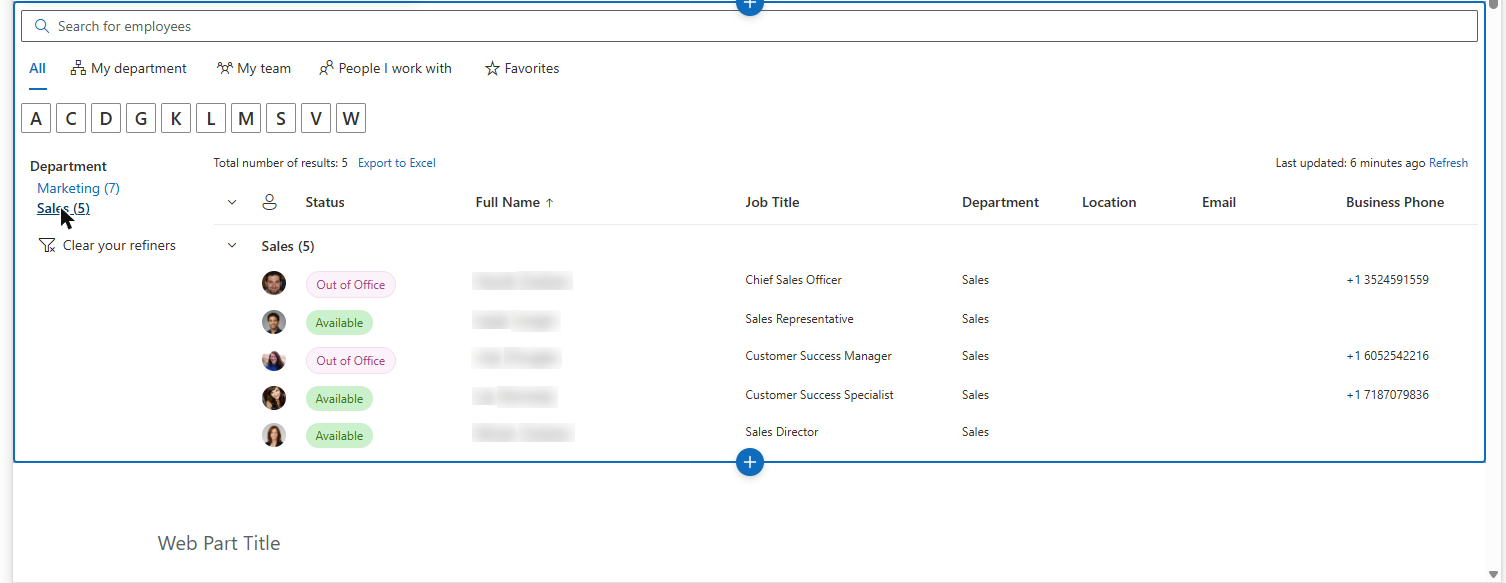
For employees, the refinement panel is a list of headings (the refiner captions) with the available values under each heading.
- Select a value to show only the employees who have that value. The selected value is highlighted, and the results update immediately.
- Combine refiners to narrow the results further. Values selected in different refiners are combined: for example, Department: Sales and Office: Riga show only the Sales employees in the Riga office.
- One value per refiner. Selecting another value in the same refiner replaces the previous selection; you cannot select two departments at once.
- Show more / Show fewer. When a refiner has more values than its configured maximum, select Show more to see all of them and Show fewer to collapse the list again.
- Counts. If the administrator turned on Show count, the number in parentheses next to each value is the number of matching employees.
- Clear your refiners. As soon as at least one value is selected, a Clear your refiners button appears at the bottom of the panel. Select it to remove all refinements and return to the unrefined results.
The two web parts differ slightly in how values behave:
| Employee Directory (User profiles) | Employee Directory (Entra ID) | |
|---|---|---|
| Deselecting a value | Select Clear your refiners | Select the highlighted value again, or select Clear your refiners |
| Counts and values | Recalculated by SharePoint search for the current search text, quick filter and selected refiners | Calculated once from all employees shown by the web part (after the exclusions and the filter configured by the administrator); they don't change when you search or select other refiners |
| Employees with no value | Not listed as a value | Listed as (Empty); select it to find employees whose property is blank |
How refiners work with search and quick filters
The refinement panel works together with the search box and the quick-filter bar:
- Search box. In Employee Directory (User profiles), refinements stay applied when you run a new search, so you can, for example, select Department: Sales and then search for a name within that department. In Employee Directory (Entra ID), typing in the search box resets the selected refiners and filters the full list again.
- My department. The refiners remain available and can be combined with the quick filter. Switching to another quick filter resets the selected refiners.
- My team, People I work with and Favorites. These quick filters work with their own short lists of people, so the refinement panel is hidden while one of them is active. It reappears when you return to the full directory or to My department.
- Reset. In Employee Directory, the Reset link clears the search text, the quick filter and the selected refiners at once.
💡 Tip
For details on each quick filter, see KB10214. Employee Directory Quick Filters: My Department, My Team, People I Work With, Favorites. For the A–Z navigation, exclusions and the filter editor of the Entra ID web part, see KB10311. How to Configure the Employee Directory (Entra ID) Web Part: Filters, Exclusions and A–Z Navigation.
Display notes and limitations
- Narrow layouts. The refinement panel is hidden when the web part is narrower than 641 pixels — for example, on phones or in a narrow page column. In a left or right position, the panel is 200 pixels wide (150–160 pixels on medium widths).
- Cards view. In Employee Directory (User profiles) with the cards layout, the panel is shown only while the search returns at least one employee.
- Empty refiners. A refiner with no values for the current results is not displayed.
- Duplicate refiners. In Employee Directory (User profiles), if the same managed property is added twice, only the first refiner is shown.
📝 Note
The refinement panel filters only what the web part already shows. People hidden by the web part's own settings — for example, accounts hidden from address lists, excluded unlicensed or disabled accounts, or employees filtered out by the administrator's filter — never appear in the refiner values.