Employee Directory
 Every person in the Vitextra Employee Directory web part comes with a set of actions that let you get in touch right away: start a Teams chat or call, write an email, copy the email address, schedule a meeting, or save the person's contact details as a vCard. This article explains what each action does, where you find it, when it is not offered, and how administrators choose which actions are available.
Where actions appear
The same actions are offered in three places. Which actions you see in each place is configured separately by the page author.
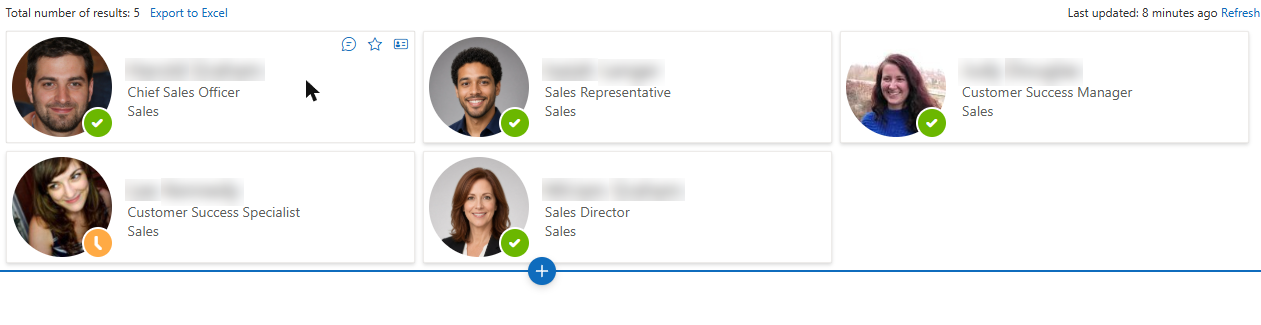
- Quick actions on a card. In the cards view (View set to Contact), hover over a card to reveal a row of small action icons in its top-right corner. Select an icon to run the action without opening the person's details.
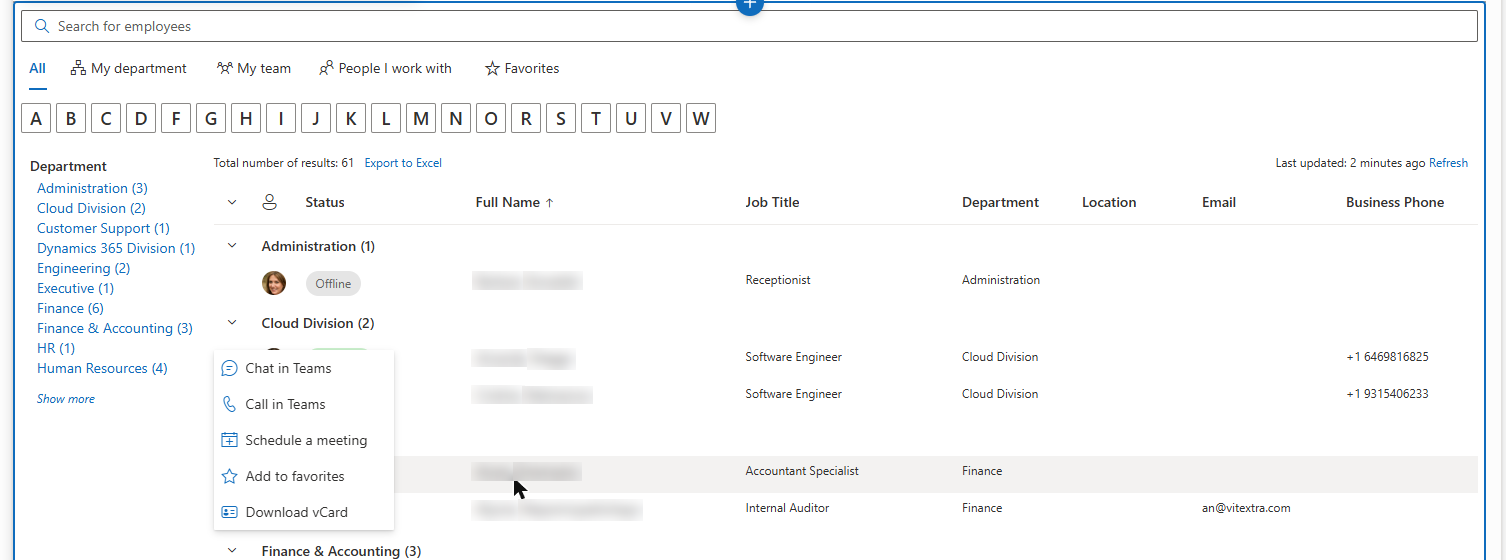
- Context menu. Right-click a row in the details view, or right-click a card in the cards view, to open a menu with the actions as named commands.
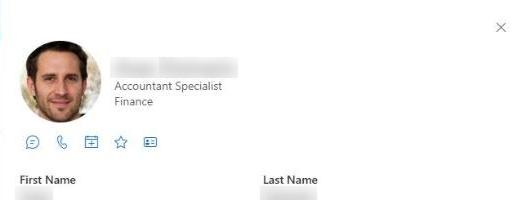
- Details pane. When you open a person's details, an action bar with icon buttons appears under the photo, name and job title. It offers every action that is enabled either as a quick action or in the context menu.
The actions are available in the Employee Directory and Employee Directory (Entra ID) web parts, and also in the New Employees web part (quick actions and the context menu on its cards; it has no details pane and no favorites).
📝 Note
If no action applies to a person, right-clicking shows your browser's standard menu instead of the Employee Directory context menu.
Available actions
Actions always appear in the same order: Chat, Call, Email, Copy email, Meeting, Favorites, vCard.
| Action | What it does | Requires |
|---|---|---|
| Chat in Teams | Opens a new Microsoft Teams chat with the person. | A Teams address; not shown for yourself |
| Call in Teams | Starts a Microsoft Teams call with the person. | A Teams address; not shown for yourself |
| Send E-mail | Opens a new message to the person in your default email app (mailto: link). | Work email |
| Copy e-mail address | Copies the person's work email address to the clipboard. | Work email |
| Schedule a meeting | Opens the Teams new-meeting form with the person already added as an attendee. | A Teams address; not shown for yourself |
| Add to favorites / Remove from favorites | Adds the person to, or removes them from, your Favorites. | The Favorites quick filter enabled |
| Download vCard | Downloads the person's contact card as a .vcf file. | Always available |
Chat in Teams and Call in Teams
Chat in Teams and Call in Teams use Microsoft Teams deep links (https://teams.microsoft.com/l/chat/0/0?users=… and https://teams.microsoft.com/l/call/0/0?users=…). The chat opens with an empty message box, ready for you to type.
To address the person in Teams, the web part uses the first value available from the person's profile: the SIP address, then the user principal name (if it has the form of an email address), then the work email.
Send E-mail and Copy e-mail address
Send E-mail opens a mailto: link to the person's work email address, so a new message opens in whatever email app is set as the default on your device — for example, Outlook.
Copy e-mail address puts the work email address on the clipboard so you can paste it anywhere — into a form, a document or another app. In the quick actions and in the details pane, the icon briefly turns into a check mark with the tooltip Copied to confirm the copy.
Schedule a meeting
Schedule a meeting opens the Microsoft Teams new-meeting form (https://teams.microsoft.com/l/meeting/new?attendees=…) with the person already listed as a required attendee. The subject is left empty, and you pick the time and add other attendees in Teams as usual. The attendee is the person's work email address, or their Teams address if no email is available.
💡 Tip
Before scheduling, check when the person is free in the Availability section of the details pane. See the KB10199. Employee Directory: Customizing the Details Pane article.
Download vCard
Download vCard saves the person's contact details as a vCard file (.vcf) named after the person, which you can import into Outlook, your phone's contacts or any other address book. The file contains the information available in the directory:
- first and last name;
- work email;
- job title and company;
- work address (street, city, state, postal code, country);
- mobile phone and work phones;
- the About Me text as a note;
- the profile photo, when one is available.
The action is offered for everyone in the directory. Fields that are empty in the person's profile are simply left out of the file.
The favorites star
When the Favorites quick filter is enabled in the web part, a star is added to the actions: Add to favorites for people you haven't starred yet and Remove from favorites for those you have. On cards, the star of a favorite person stays visible and highlighted even when you are not hovering over the card.
❗ Important
Favorites are stored in your browser's local storage, not in your Microsoft 365 profile. They are kept per browser and device: they don't follow you to another browser, computer or phone, and they are lost if you clear the browser's site data.
For more on the Favorites filter, see the KB10214. Employee Directory Quick Filters: My Department, My Team, People I Work With, Favorites article.
When an action is not shown
An action enabled by the administrator is still hidden for a particular person when it cannot work for that person:
- No Teams address. If the profile has no SIP address, no email-like user principal name and no work email, Chat in Teams, Call in Teams and Schedule a meeting are not shown.
- No work email. Send E-mail and Copy e-mail address are not shown.
- Your own entry. Chat in Teams, Call in Teams and Schedule a meeting are not offered for yourself. Email, copy and vCard actions remain available.
- Favorites quick filter off. The favorites star is not shown. The New Employees web part never shows it.
Actions in Microsoft Teams and in the browser
The web part detects whether it runs inside Microsoft Teams (as a Teams tab or personal app) or on a SharePoint page in the browser, and opens the actions accordingly:
| Action | On a SharePoint page in the browser | Inside Microsoft Teams |
|---|---|---|
| Chat in Teams, Call in Teams, Schedule a meeting | Opens the Teams link in a new browser tab; from there Teams opens in the desktop app or on the web. | Opens the chat, call or meeting form directly in Teams, without leaving the app. |
| Send E-mail | Opens the mailto: link, which starts your default email app. | Passes the mailto: link to Teams, which opens your default email app. |
| Copy e-mail address | Copies to the clipboard. | Copies to the clipboard. |
| Download vCard | Downloads the .vcf file. | Downloads the .vcf file. |
Configuring actions (for administrators)
Page authors decide which actions are available, separately for the quick actions on cards and for the context menu. Edit the page, open the web part's property pane, and use the toggles in two groups:
- Quick Actions — the icons that appear when you hover over a card.
- Context Menu — the commands in the right-click menu of rows and cards.
Each group contains the same six toggles: Chat in Teams, Call in Teams, Send E-mail, Copy e-mail address, Schedule a meeting and Download vCard. Both groups are available in the Employee Directory, Employee Directory (Entra ID) and New Employees web parts.
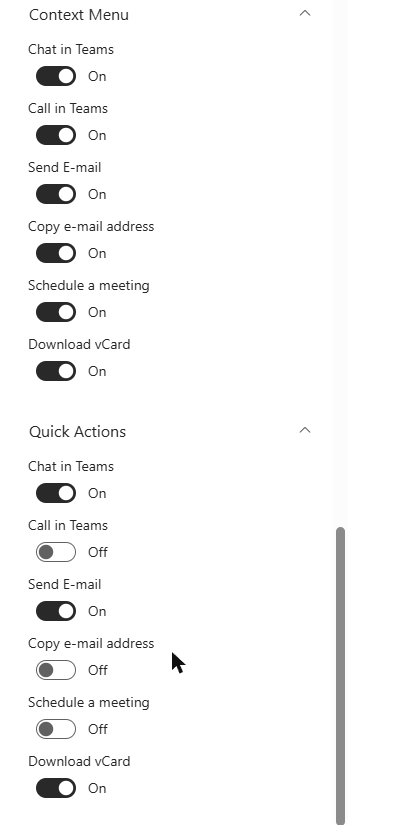
When a web part is added to a page, the actions are set as follows:
| Action | Quick Actions | Context Menu |
|---|---|---|
| Chat in Teams | On | On |
| Call in Teams | Off | On |
| Send E-mail | On | On |
| Copy e-mail address | Off | On |
| Schedule a meeting | Off | On |
| Download vCard | Off | On |
A few rules worth knowing:
- The details pane shows the union of both groups. An action appears in the details pane action bar if it is enabled in Quick Actions, in Context Menu, or in both. To remove an action everywhere, turn it off in both groups.
- The favorites star has no toggle of its own. It follows the Favorites toggle in the Quick Filters group: when the Favorites quick filter is on, the star is offered in the quick actions, the context menu and the details pane.
- Quick actions appear only in the cards view. The details view has no per-row icons, so there the actions are available through the context menu and the details pane.
📝 Note
Keep the quick actions short. Each enabled quick action adds an icon to the corner of every card, so two or three of the most used actions — for example, chat and email — work best, while the full set stays available in the context menu and the details pane.
💡 Tip
To set up the cards view, card size and card fields, see the KB10314. Employee Directory Layouts: Details and Cards, Card Size, Card Fields and Group By article. For the New Employees web part, see KB10207. How to Showcase New Hires with the New Employees Web Part.