---
title: "List Filter Online Query Builder: Conditions, Groups and the CAML Query Behind Them"
description: "Reference for the Query Builder of the Vitextra List Filter Online web part: where to find it, how conditions and AND/OR groups work, which operators are available for each column type, how dynamic conditions such as Current User and Last X Years are resolved, how the predefined filter combines with user filters, and how to view the generated CAML query."
url: https://vitextra.com/en/support/kb/10320
language: en
published: 2026-10-21
modified: 2026-10-21
products:
- "List Filter Online"
author: "Lidija Reising"
tags: ["List Filter Online Query Builder", "SharePoint CAML query builder", "predefined filter SharePoint list web part", "AND OR filter groups SharePoint", "dynamic filter current user", "Last X Months filter", "nested filter conditions SharePoint Online", "view CAML query", "Vitextra List Filter Online"]
---
# List Filter Online Query Builder: Conditions, Groups and the CAML Query Behind Them
Reference for the Query Builder of the Vitextra List Filter Online web part: where to find it, how conditions and AND/OR groups work, which operators are available for each column type, how dynamic conditions such as Current User and Last X Years are resolved, how the predefined filter combines with user filters, and how to view the generated CAML query.
## Overview
The **Query Builder** is the part of the Vitextra List Filter Online web part where a page editor defines the **predefined filter** — the set of conditions that every item must satisfy before it appears in the web part. Users cannot see or remove this filter; they only narrow the result further with the filter pane and the column header filters.
The predefined filter is stored as a tree of conditions and groups and is translated into a **CAML query** that SharePoint executes on the server. Nothing is loaded into the browser and filtered afterwards: the list returns only the items that match, page by page, which is what keeps the web part fast on large lists.
Typical uses of the predefined filter:
- Show only the documents **created or modified by the current user**.
- Show only the records of the **last 12 months** on a dashboard page.
- Show only **approved** items, items **with attachments**, or items whose **Status** is not *Closed*.
- Build a page per department from one list without creating a view per department.
📝 **Note**
The Query Builder defines the filter that is always applied. The controls that users see in the filter pane are configured separately — see [KB10255. Filter Pane Controls and Supported Column Types in List Filter Online](https://vitextra.com/en/support/kb/10255).
---
## Where to find the Query Builder
1. Open the page in edit mode and select **Edit web part** on the List Filter Online web part.
2. In the property pane, scroll to the **Filter** group. The label **Filter view by:** is followed by a preview of the current filter — **No filter applied** when nothing is defined yet.
3. Select **Edit Filter**. The Query Builder opens in a large side panel.
4. Build the query, then select **Save** to apply it or **Cancel** to discard the changes. The web part re-renders immediately with the new filter.
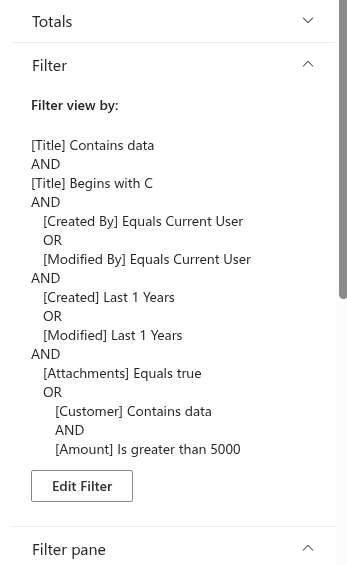
*The Filter group of the property pane with the filter preview and the Edit Filter button*
The Query Builder is available only after the **site** and the **list or library** are selected in the **Data source** group, because the list of fields and their types comes from the selected list.
---
## Conditions and groups
A query consists of two kinds of building blocks.
- A **condition** is one comparison: *field* — *operator* — *value*, for example `Amount` — *Is greater than* — `5000`. Some operators need no value (*Contains data*, *Is Current User*, *Today*).
- A **group** holds conditions and other groups and joins them with one logical operator — **AND** (every member must be true) or **OR** (at least one member must be true). The toggle on the left edge of the group switches between the two.
The panel always has one **root group**; it cannot be deleted. Inside any group, the **Add** button offers two commands:
- **Condition** — adds an empty row to the current group;
- **Group** — adds a nested group (AND by default) that you fill in the same way.
Groups can be nested up to **ten levels** deep. Every row and every nested group has a delete icon on the right; deleting a group deletes everything inside it.
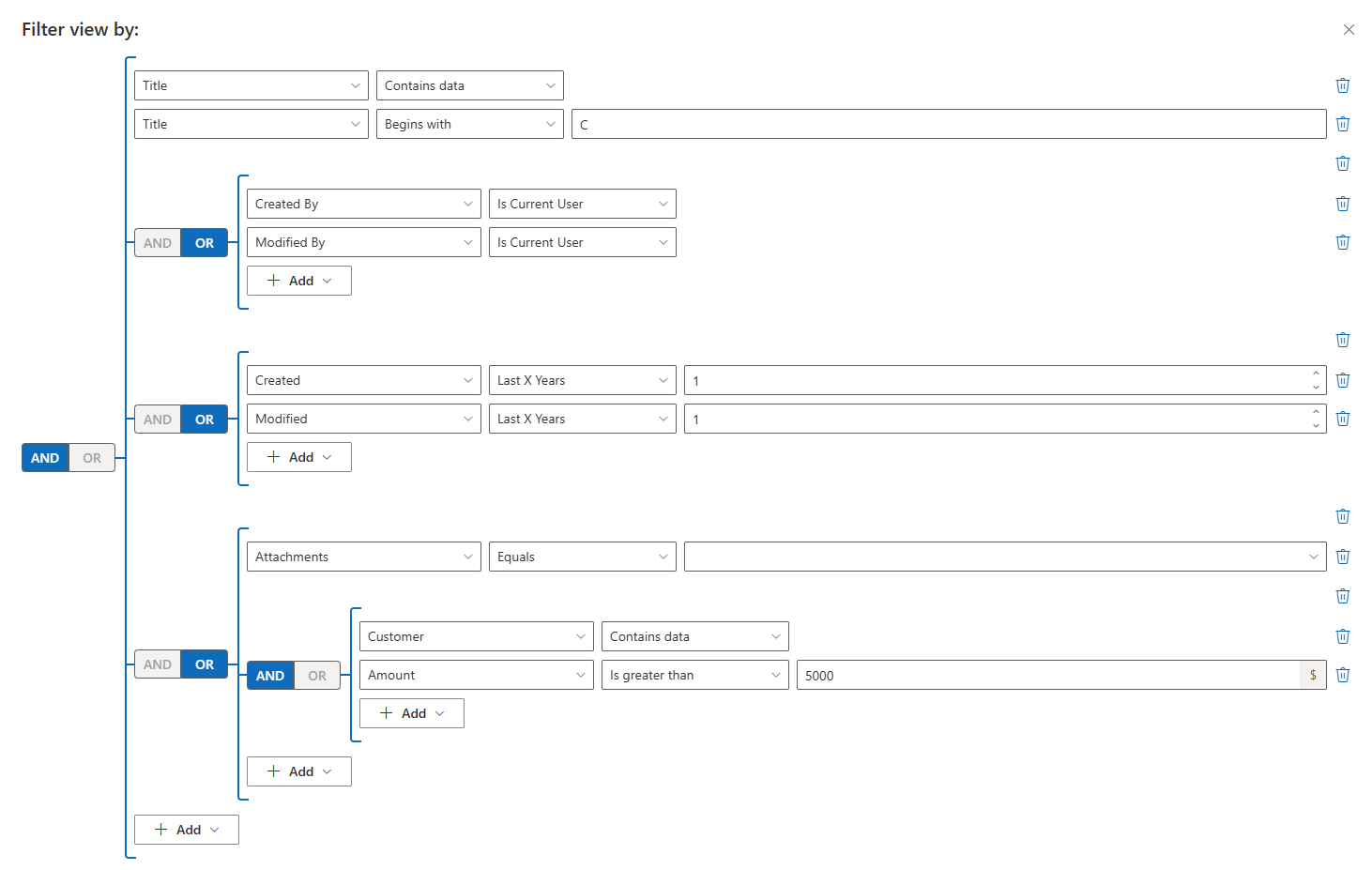
*A query with nested AND/OR groups in the Query Builder*
The query in the figure reads: *Title is not empty and begins with "C"* **and** *(created by me or modified by me)* **and** *(created in the last year or modified in the last year)* **and** *(has attachments, or the Customer is filled in and the Amount is greater than 5,000)*.
💡 **Tip**
Keep the root group **AND** and put each alternative set of conditions into its own **OR** group. A query shaped this way is easy to read in the preview and easy to extend later.
---
## Operators by column type
The **operator** list of a row depends on the type of the selected field. The table lists the operators the Query Builder offers for each supported column type.
| Column type | Operators |
|:---|:---|
| **Single line of text**, **Multiple lines of text**, **Hyperlink or Picture** | Equals, Does not equal, Begins with, Contains, Contains data, Does not contain data |
| **Choice** | Equals, Does not equal, Begins with, Contains, Contains data, Does not contain data |
| **Choice (multiple values)**, **Lookup**, **Calculated** (text result) | Equals, Does not equal, Contains data, Does not contain data (Calculated also offers Begins with and Contains) |
| **Number**, **Currency**, **ID** | Equals, Does not equal, Is greater than, Is greater than or equal to, Is less than, Is less than or equal to (Number also offers Contains data, Does not contain data) |
| **Date and Time** | On, Not on, On or after, After, On or before, Before, Between, Today, Last X Days, Last X Weeks, Last X Months, Last X Years, Next X Days, Next X Weeks, Next X Months, Next X Years, Contains data, Does not contain data |
| **Yes/No** | Equals, Does not equal, Contains data, Does not contain data |
| **Attachments** | Equals, Does not equal (value: Yes / No) |
| **Person or Group** | Equals, Does not equal, Is Current User, Is not Current User, Contains data, Does not contain data |
| **Managed Metadata** (single and multiple values) | Equals, Does not equal, Contains, Does not contain, Contains data, Does not contain data |
| **Approval Status** | Equals, Does not equal (value: a list of statuses) |
| **Rating**, **Likes** | Equals, Does not equal, Contains data, Does not contain data (Likes: Contains data, Does not contain data only) |
*Contains data* and *Does not contain data* test whether the column has any value, the same way **IsNotNull** and **IsNull** do in CAML.
The **value** editor also follows the column type: a date picker for dates (two date pickers for *Between*), a numeric field for numbers and currency, a people picker for **Person or Group**, a term picker for **Managed Metadata**, a *Yes / No* list for Yes/No and Attachments, a list of statuses for **Approval Status**, and a text box for text, choice and lookup columns.
❗ **Important**
System and read-only columns (for example *Content Type ID*, *Unique ID*, *Version* or *Checked Out To*) are not offered in the field list. Columns of types that cannot be compared in CAML — such as *Image*, *Location* or *Recurrence* — are not offered either.
---
## Static and dynamic conditions
A **static** condition compares the column with a fixed value you enter: a date, a number, a text, a person. The value is written into the query as is. *Between* covers both dates inclusively, by calendar day; if only one of the two dates is set, the condition becomes an open-ended *On or after* or *On or before*.
A **dynamic** condition is resolved by SharePoint **at the moment the query runs**, so the same page shows different items to different users and on different days:
| Operator | How it is resolved |
|:---|:---|
| **Is Current User** / **Is not Current User** | Compares the person column with the ID of the signed-in user (`` in CAML). |
| **Today** | Compares the date column with the current date (``). |
| **Last X Days / Weeks / Months / Years** | A range from *today minus X* (days, weeks, months or years) to *today*. |
| **Next X Days / Weeks / Months / Years** | A range from *today* to *today plus X*. |
The number for *Last X* and *Next X* is entered in the value field of the row. **Last X Months** and **Last X Years** are converted to a start date when the query is generated, so a page that says *Modified — Last X Years — 1* always covers the last twelve months without anyone editing the filter.
📝 **Note**
Dynamic conditions are evaluated on the server, in the time zone of the site. A document modified late in the evening may therefore fall into a different day than your local clock suggests.
---
## How the predefined filter combines with user filters
When a user applies a filter in the filter pane or in a column header, the web part does not replace the predefined filter. It builds a new query in which the **predefined filter and the user filters are joined with AND**:
```
```
Consequences worth knowing:
- Users can narrow the result but never widen it beyond the predefined filter. A page filtered to *Created By — Is Current User* never shows another person's items, whatever the user selects in the pane.
- Sorting, grouping, totals and the Excel export all work on the combined result.
- Saved filters and filter links (see [KB10253. Saving Filters and Sharing a Link to a Filtered View in List Filter Online](https://vitextra.com/en/support/kb/10253)) store only the user part of the query. The predefined filter is part of the page configuration and travels with the page.
---
## From the tree to CAML
CAML, the query language of SharePoint lists, allows **exactly two operands** inside `` and ``. A group with three or more members therefore cannot be written as one element; it has to be folded into a chain of nested pairs. The Query Builder does this folding for you, together with the type-specific details: the `Type` attribute of every value, `LookupId` for lookup columns and `IncludeTimeValue` for date comparisons.
The query from the figure above produces a `` clause of about 70 lines. Its skeleton — with the comparisons shortened — looks like this:
```
/>
/>
```
Each *Last X Years* row became an `` of two date comparisons, each OR group became an `` element, and the four members of the root AND group became three nested `` elements.
### Viewing the generated query
To see the exact CAML that the web part sends — including the predefined filter, the current user filters, the view fields, the row limit and the grouping:
1. In the property pane, expand **Developer tools** and switch on **Enable developer mode**.
2. Save the page. A developer tools menu appears at the right end of the command bar of the web part.
3. Select **CAML Query**. The query opens in a dialog and can be copied.
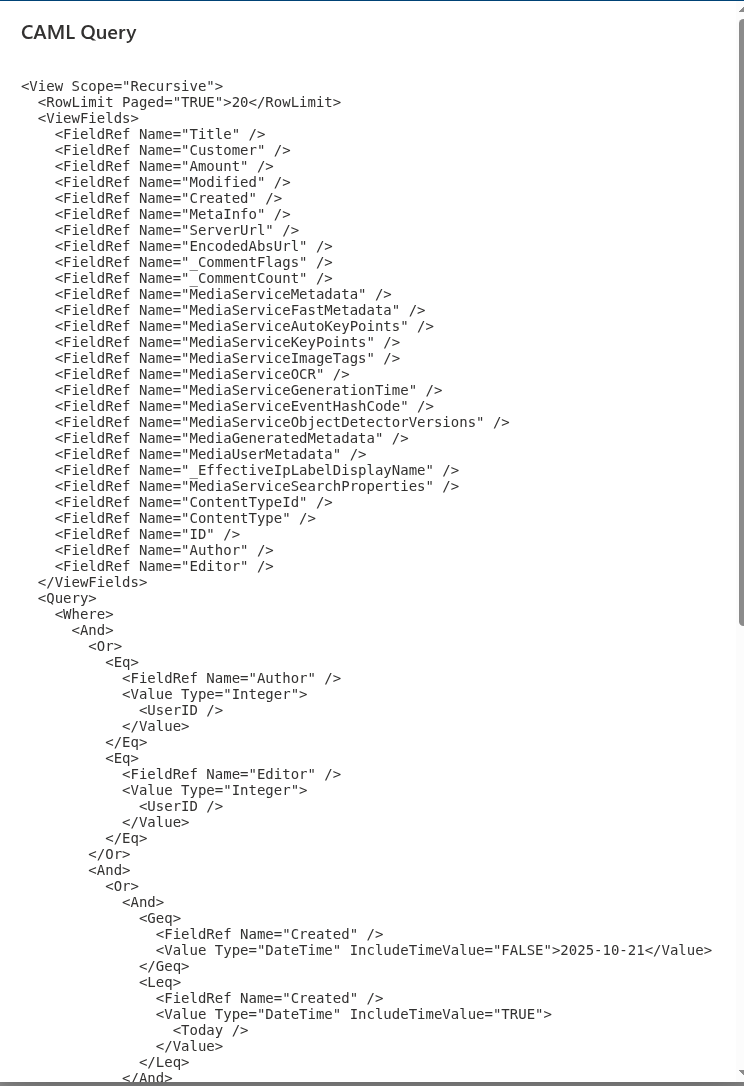
*The CAML Query dialog shows the exact query sent to SharePoint*
💡 **Tip**
Switch developer mode off again when the filter is ready. The menu is visible to everyone who can see the web part.
---
## Predefined filters on large lists
On lists with more than 5,000 items SharePoint executes a query only if the **first** condition that narrows the result uses an **indexed** column. The predefined filter is the first thing that runs, so it decides whether the page opens at all.
- Start the root group with a condition on an indexed column (*Created*, *Modified*, *Author*, *Editor* and *ID* are indexed by default; others can be indexed in the list settings).
- Prefer AND at the root: an OR between two non-indexed columns cannot use any index.
- Dynamic date conditions (*Last X Months*, *Today*) are good first conditions when the date column is indexed.
The details, the index warning in the filter configurator and the one-click index creation are described in [KB10257. Filtering Large Lists: Indexed Columns and the 5,000-Item Threshold](https://vitextra.com/en/support/kb/10257).
---
## Limitations
- The Query Builder works with the columns of **one list or library** — the one selected in the data source. Conditions on columns of other lists are not possible.
- Lookup and choice values are matched by the **text you type**; there is no picker for them in the Query Builder.
- A nested group that contains no conditions is ignored when the query is generated.
- The maximum nesting depth is ten levels. In practice two or three levels cover almost every scenario; a deeper tree is hard to read in the preview.
- The predefined filter is not shown to users. If users need to know why some items are missing, say so in the web part title or on the page.
---
## Related articles
💡 **Tip**
The remaining settings of the property pane are described in [KB10201. Configuring the List Filter Online Web Part](https://vitextra.com/en/support/kb/10201); the filter pane controls in [KB10255. Filter Pane Controls and Supported Column Types in List Filter Online](https://vitextra.com/en/support/kb/10255); cascading drop-down options in [KB10256. Cascading Filters: Narrowing Drop-Down Options by Other Selected Filters](https://vitextra.com/en/support/kb/10256). For a comparison with the built-in List web part, see [KB10321. List Filter Online vs. the Built-in List Web Part: What's the Difference?](https://vitextra.com/en/support/kb/10321).