List Filter Online
 Overview
Every modern SharePoint page can show a list or a library with the built-in List and Document library web parts. They are free, need no setup beyond choosing a list and a view, and for many pages they are exactly right. So when is a separate web part worth it?
This article compares the built-in web parts with Vitextra List Filter Online side by side. Both read the same lists and libraries through the SharePoint REST API and respect the same item permissions — the difference is in how users find data (filter pane, predefined queries, paging), how much of the view is configured on the page rather than in list settings, and what happens on large lists. The comparison helps you decide when the built-in web part is enough, when List Filter Online fits better, and how the two can live on the same page.
📝 Note
Microsoft regularly updates the modern list experience. The statements about the built-in web parts reflect the behaviour documented by Microsoft and reported in the Microsoft Tech Community in 2026. Check the current Microsoft documentation for the latest details.
The built-in List web part in brief
The List web part (and its twin, the Document library web part) embeds an existing view of a list from the current site into a page. The page editor picks the list and the view, decides whether the command bar and the See all link are shown, and chooses the size of the web part. Everything else — which columns appear, how items are sorted and grouped, the item limit and the view filter — is defined in the view settings of the list, not on the page.
Users work with the embedded view the same way as with the list itself: the column header menus sort and filter, the Filters pane narrows the result by the values present in the view, and column formatting JSON is rendered. The web part can be connected to another List web part on the page for dynamic filtering (select an item in one list, filter the other), and to the List properties web part.
What the built-in web part does not offer is a filter that lives on the page: there are no page-level predefined conditions, no filter controls other than the pane, and no way to open the page already filtered through its address.
List Filter Online in brief
List Filter Online is a web part that shows a list or library with its own filter pane, a Query Builder for a predefined filter, a column configurator, server-side paging, grouping with totals and an Excel export — all configured in the web part property pane by a page editor, without touching the list settings.
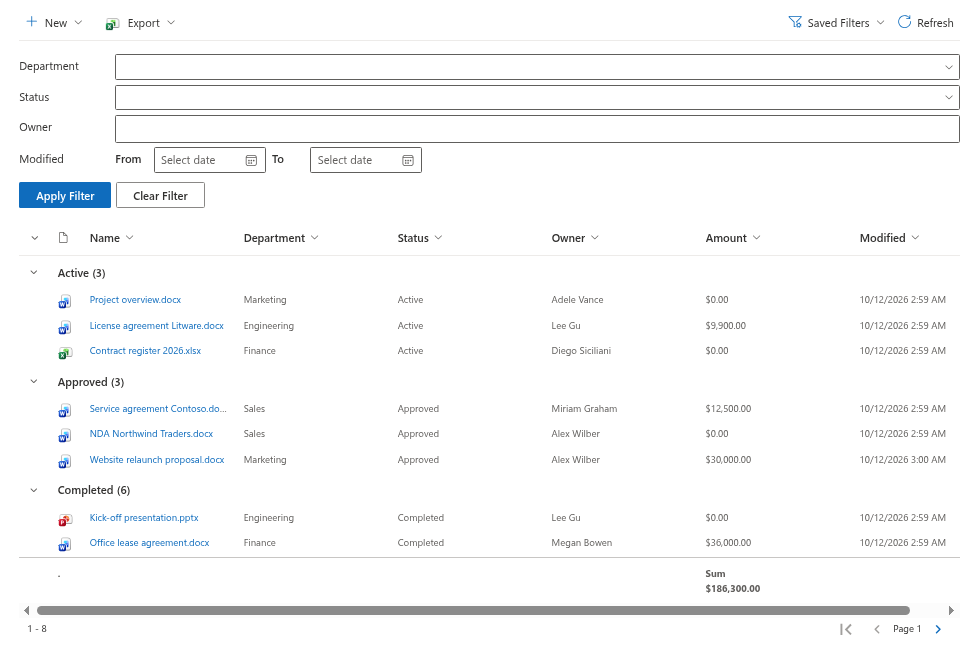
Instead of reusing a list view, the web part builds its own CAML query from three sources: the predefined filter from the Query Builder, the filters the user selects, and the sorting, grouping and paging settings. The query runs on the server and returns one page of items at a time.
Side-by-side comparison
| Built-in List / Document library web part | Vitextra List Filter Online | |
|---|---|---|
| What is shown | An existing list view; columns, sorting, grouping and filter come from the view settings | Columns, captions, formats, sorting, grouping and filter are configured in the web part; existing views are not used |
| Source lists | Lists and libraries of the current site only | Any site collection or site in the tenant the user has access to; one list or library per web part |
| Predefined filter | The view filter: up to 10 conditions with AND/OR, no nested groups; [Me] and [Today] ± days as dynamic values | Query Builder: conditions in AND/OR groups nested up to 10 levels; dynamic conditions Is Current User, Today, Last / Next X Days, Weeks, Months, Years; users cannot remove it (KB10320) |
| User filters | Column header menus and the Filters pane, which lists values present in the view | A configurable filter pane with more than ten control types — Text, Drop-down, Combobox, People picker, Term picker, Date, Date range, Number, Yes/No and more; each column gets the control that fits it; optional cascading between controls (KB10255, KB10256) |
| Filter from the page address | Not supported for the web part on a page | Copy Link to Filter produces an address that opens the page with the filter applied; the last filter can be remembered per user (KB10253) |
| Opening from a native list | — | The Open in List Filter command in the native list command bar passes the selected items to a page with the web part (KB10254) |
| Paging | Continuous scrolling in batches; the item limit of the view is not honoured as pages | Server-side paging with a configurable page size, the current page number and First / Previous / Next navigation |
| Columns | As in the view | Chosen and ordered in the web part; captions, formats, resizable / sortable / filterable / link-to-item per column (KB10258) |
| Column formatting JSON | Yes | Yes — the list's formatting is applied; unsupported constructs fall back to the default rendering (KB10259) |
| Grouping and totals | As in the view (up to two levels, totals per view) | Up to two levels with Count, Sum, Average, Min, Max and other functions, configured on the page (KB10260) |
| Folders | Folder navigation of the view | Folder navigation with breadcrumbs, flat view without folders, or files and folders at one level; folder colours (KB10261) |
| Excel export | The list's Export command exports the view | Selected items, the current page or all filtered items — with the applied filters and the configured columns |
| Large lists (over 5,000 items) | The view threshold applies; a non-indexed filter fails at run time | The same threshold applies; the configurator warns about non-indexed filter columns and creates the index in place (KB10257) |
| Connections to other web parts | Dynamic filtering between List web parts and the List properties web part | Not supported |
| Collapsed groups | Yes | Not yet |
| Permissions | Item permissions of the list | Item permissions of the list; SharePoint REST API only, no Microsoft Graph consent |
| Branding | Microsoft 365 look | Follows the site and section theme |
| Cost | Included in Microsoft 365 | Separate product with a free trial |
When the built-in web part is enough
Stay with the built-in web part when:
- the list is small or medium-sized and a ready-made view already shows what the page needs;
- the audience knows the list and is comfortable with the column header menus and the Filters pane;
- you need dynamic filtering between two web parts on the page — this is a feature the built-in web parts have and List Filter Online does not;
- the page must stay strictly within what Microsoft 365 provides, without additional apps in the tenant.
In these cases creating one more view in the list settings is the cheapest solution, and the built-in web part renders it faithfully.
When List Filter Online fits better
Choose List Filter Online when the page, not the list, should define the experience:
- The filter is part of the page. A "my contracts", "this quarter" or "pending approval" page needs a predefined query that users cannot switch off, built from dynamic conditions rather than hard-coded dates.
- Users need real filter controls. A people picker for the owner, a date range for the signing date and a term picker for the category are faster and less error-prone than a header menu with hundreds of values.
- The list lives on another site. A hub or a department page shows data from a library in a different site collection.
- The list is large. Server-side paging and the index warning keep a 50,000-item library usable on a page.
- Filters must be shareable. A link that opens the page with the filter applied can be sent in a chat or placed in a Quick links web part.
- The page needs its own columns and totals without creating and maintaining a view per page.
❗ Important
List Filter Online does not use existing list views and cannot be connected to other web parts. If either is essential for the page, keep the built-in web part for that part of the page.
Using them together
The two web parts are not exclusive. A common pattern:
- the built-in Document library web part at the top of a team page for quick uploads and day-to-day work with the default view;
- a List Filter Online web part below it — or on a separate "Find a document" page — with the filter pane, the predefined filter and the export, for anyone who needs to find a specific item among thousands.
The Open in List Filter command bridges the two: a user who starts in the native list can select items and continue in the page with the richer filtering.

Good to know
- Both web parts read data as the current user; neither one shows items the user cannot open in the list.
- List Filter Online needs three settings before it shows data: the site, the list or library and the columns. Everything else is optional.
- The view threshold of 5,000 items is a property of SharePoint Online and applies to both web parts. The difference is when you learn about it: in the built-in web part at run time, in List Filter Online while configuring the filters.
- To see the exact query that List Filter Online sends, switch on developer mode in the property pane and use the CAML Query command — useful when a filter does not return what you expect.
💡 Tip
To try List Filter Online, install it from AppSource as described in KB10251. How to Install List Filter Online and Add It to a Page, then follow KB10201. Configuring the List Filter Online Web Part. The solution overview is in KB10250. List Filter Online: Solution Overview.