Absence & Coverage
 Overview
Every absence — a vacation, a personal day, a business trip, remote work — starts as a request in the My Absences web part. You choose the type and the dates, the web part counts the working days, checks your balance and your other requests, and sends the request to your approver. Types that do not need approval are approved at once.
This article describes the New absence request panel field by field, the checks the web part makes before it sends the request, and what you see afterwards.
Before you start
- Open the page with the My Absences web part. If the web part is not configured yet, ask your administrator to select the site — see KB10324. How to Add the Absence & Coverage Web Parts to a Page and Select the Site.
- Look at the Balances section to see how many days of each type you have left. How the numbers are calculated is explained in KB10328. How to Read Your Absence Balances.
- If the New request button is disabled and the message No absence types are configured. Add them to the AbsenceTypes list of the site. appears, there are no active absence types. Ask the administrator to add one — see KB10352. How to Add and Configure Absence Types.
Submit a request
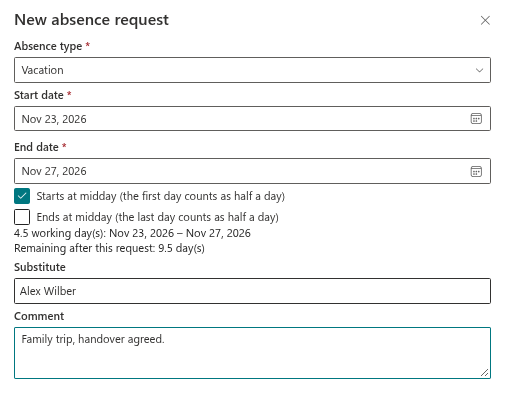
- Click New request in the toolbar. The panel New absence request opens.
- Select the Absence type. Only active types are listed, in the order set by the administrator, and the first one is preselected. If the type does not need approval, an information bar tells you: "This absence type does not need approval: the request is approved immediately."
- Pick the Start date and the End date. When you choose a start date and the end date is empty or earlier, the end date is set to the same day. The end date cannot be earlier than the start date.
- If the type allows half days, select Starts at midday (the first day counts as half a day) and, for a period of more than one day, Ends at midday (the last day counts as half a day). See KB10327. How to Request Half a Day Off.
- Check the summary below the dates. It shows the number of working days and the period, for example "5 working day(s): …", and — for types that have a balance — "Remaining after this request: 15 day(s)". The working days are calculated as described in KB10326. How Working Days Are Calculated in Absence Requests.
- Optionally select a Substitute (one person) who covers your duties — see KB10332. How to Name a Substitute When You Request Time Off — and write a Comment for the approver.
- Click Submit request. Use Cancel to close the panel without sending anything.
| Field | Required | Notes |
|---|---|---|
| Absence type | Yes | Active types only; the first type is preselected |
| Start date | Yes | Choosing it fills the end date when that is empty or earlier |
| End date | Yes | Cannot be earlier than the start date |
| Starts at midday (the first day counts as half a day) | No | Shown only for types that allow half days |
| Ends at midday (the last day counts as half a day) | No | Shown only for types that allow half days and for periods of more than one day |
| Substitute | No | One person; cannot be yourself |
| Comment | No | Visible to the approver in the Approvals tab |
Checks before the request is sent
The web part checks the request while you fill it in and again when you click Submit request. A problem appears as a message bar in the panel and nothing is sent until you fix it.
| Check | What you see |
|---|---|
| No working days in the period | The selected period contains no working days. |
| Overlap with another own request that is pending or approved | The period overlaps with another request of yours. and the list of colliding requests (Overlaps with: …) |
| Not enough days left | The request exceeds your remaining balance for this absence type. |
| You chose yourself as the substitute | You cannot be your own substitute. |
| No approver can be found | No approver was found: you have no manager in the directory and no fallback approver is configured. Please contact HR. |
If the administrator allows negative balances, the balance message turns into a warning and does not block the request — see KB10357. How to Allow Negative Balances. All messages and their solutions are collected in KB10331. Why You Cannot Submit an Absence Request: Messages and Solutions.
What happens after you submit
What you see depends on whether the absence type needs approval.
| Situation | Message | Status of the request |
|---|---|---|
| The type needs approval and an approver is found | The request was sent for approval. | Pending approval |
| The type does not need approval, or you are your own approver | The request was approved automatically. | Approved |
The approver is your manager from Microsoft Entra ID; if you have none, the fallback approver set by the administrator is used. The approver is stored on the request when you submit it. Details: KB10336. Who Approves Absence Requests: Manager, Fallback Approver and Self-Approval.
If you named a substitute, the substitution is created automatically — right away for an approved request, and after the approver's decision for a pending one. The substitute still has to confirm it. If the request is rejected or cancelled, the substitution is cancelled with it.
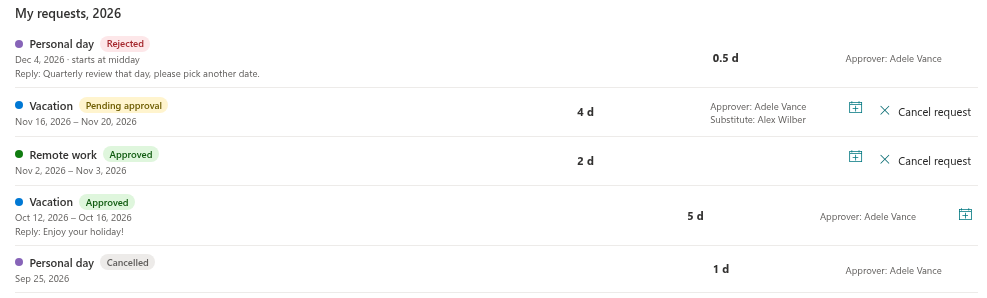
The new request appears at the top of My requests, 2026 with the type colour, the status, the period, the number of days, the approver and the substitute. Use the year arrows in the toolbar to look at other years; a request is listed under every year it touches.
📝 Note
The web part does not send e-mail or Microsoft Teams messages. Your approver sees the request in the Approvals tab of My Absences, with a counter on the tab, the next time they open the page — so tell them that a request is waiting. You see the decision, and the approver's reply as "Reply: …", in the request row.
💡 Tip
You can still change your mind: while a request is pending or approved and has not ended, Cancel request releases the days again — see KB10330. How to Cancel an Absence Request. To put an absence into your own calendar, use Add to my calendar — see KB10333. How to Add an Absence to Your Outlook or Google Calendar (.ics File).