Absence & Coverage
 Overview
Not every absence takes whole days. A doctor's appointment, a school event or a long journey home may need only the afternoon of one day, or the morning of the last day of a longer holiday. In the My Absences web part of Vitextra Absence & Coverage you record this directly in the request: instead of a separate "half-day" absence type, you tick a checkbox and the request counts 0.5 for that day.
This article explains which absence types allow half days, how to request one, how the number of days is calculated, and where half days are visible afterwards.
📝 Note
This article describes the request itself. How the number of working days is derived in general (working week, public holidays) is described in KB10326. How Working Days Are Calculated in Absence Requests.
Which absence types allow half days
Half days are a property of the absence type, not of the employee. Every absence type has an AllowHalfDay setting that is switched on by default. In the seven default absence types, half days are allowed for all types except two:
| Absence type | Half days |
|---|---|
| Vacation | Allowed |
| Sick leave | Allowed |
| Personal day | Allowed |
| Remote work | Allowed |
| Business trip | Not allowed |
| Unpaid leave | Allowed |
| Parental leave | Not allowed |
When you select a type that does not allow half days, the two checkboxes described below are not shown at all, and any half-day setting is ignored. Your administrator can change this for each type, as described in KB10352. How to Add and Configure Absence Types.
How to request half a day
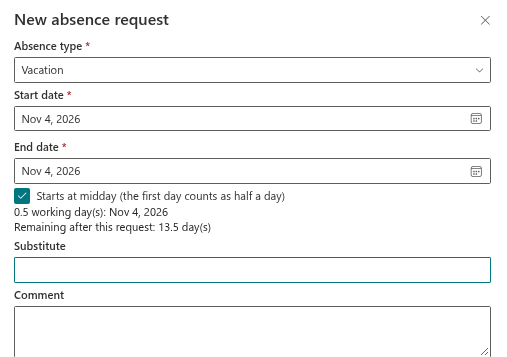
- Open the page with the My Absences web part and select New request. The New absence request panel opens.
- In Absence type, select a type that allows half days, for example Vacation.
- Select the Start date and the End date. When you pick a start date, the end date is filled with the same day automatically.
- Tick the half-day checkbox that fits your case (see the table below).
- Check the summary line under the checkboxes. It shows the number of working days, for example 0.5 working day(s), and, for types with a balance, Remaining after this request.
- Optionally name a Substitute and add a Comment, then select Submit request.
The two checkboxes
| Checkbox | When it is shown | Effect |
|---|---|---|
| Starts at midday (the first day counts as half a day) | Always, for types that allow half days | The first day of the period counts as 0.5 |
| Ends at midday (the last day counts as half a day) | Only when the start and end dates are different days | The last day of the period counts as 0.5 |
For a single day there is only one checkbox. If you tick Starts at midday, that day counts as 0.5. There is no separate end checkbox for a one-day request.
❗ Important
If the first or the last day of your period is not a working day (for example a Saturday, or a public holiday), it is not counted at all, so a half-day checkbox on that day has no effect on the number of days.
How half days are counted
The working-day count is calculated from the dates and the checkboxes. The examples assume the default working week, Monday to Friday, and no public holidays in the period.
| Request | Checkboxes | Working days |
|---|---|---|
| Wed 4 Nov 2026 – Wed 4 Nov 2026 | Starts at midday | 0.5 |
| Mon 2 Nov – Wed 4 Nov 2026 | none | 3 |
| Mon 2 Nov – Wed 4 Nov 2026 | Starts at midday | 2.5 |
| Mon 2 Nov – Wed 4 Nov 2026 | Ends at midday | 2.5 |
| Mon 2 Nov – Wed 4 Nov 2026 | Starts and ends at midday | 2 |
| Mon 2 Nov – Mon 9 Nov 2026 | Ends at midday | 5.5 |
The result is stored with the request. For types with a yearly allowance, half days reduce your remaining balance by 0.5 per half day; balances are shown with one decimal, for example 7.5. See KB10328. How to Read Your Absence Balances.
Where half days are shown
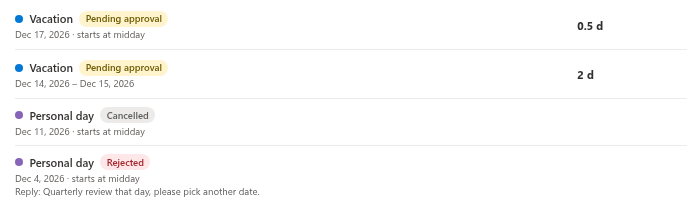
- My requests. In the row of the request, the period is followed by starts at midday and/or ends at midday, and the number of days is shown as, for example, 0.5 d.
- Team Absence Calendar, timeline. The label of the absence bar is followed by ½ when the first or the last day is a half day.
- Balance cards. Used and pending days include the half days.
Back-to-back half days
A new request may not overlap another request of yours that is Pending or Approved. There is one exception: two multi-day requests may share a day if the first one ends at midday on that day and the second one starts at midday on the same day. This lets you split a day between two absence types, for example Vacation in the morning and Remote work in the afternoon.
Example: Request A is Vacation from Monday 2 November to Wednesday 4 November 2026 with Ends at midday. Request B is Remote work from Wednesday 4 November to Friday 6 November 2026 with Starts at midday. Both requests can be submitted.
If either of the two requests is a single day, the exception does not apply and the overlap message is shown.
Good to know
- The Add to my calendar file (.ics) contains a normal all-day event. It carries no half-day information, so the event covers the whole day in Outlook or Google Calendar.
- Half days are also valid for types that do not need approval. In that case the request is approved immediately.
💡 Tip
To learn what happens after you submit a request, see KB10325. How to Request Time Off in My Absences. To add the absence to your own calendar, see KB10333. How to Add an Absence to Your Outlook or Google Calendar (.ics File).