Absence & Coverage
 Overview
Employees can name a substitute in their own time-off request. Sometimes this is not enough: the employee forgets, the absence is unplanned, or you simply want to arrange cover yourself. In that case you create a substitution directly in the Substitutions web part with the Assign a substitute button.
This article shows how to assign a substitute to a direct report, what the fields mean, and what happens after you save.
❗ Important
The product must already be installed and the Substitutions web part added to a page of your site. If it is not, start with KB10035. How to Install a Vitextra Product in SharePoint Online and KB10324. How to Add the Absence & Coverage Web Parts to a Page and Select the Site.
Assign a substitute step by step
- Open the page with the Substitutions web part and click Assign a substitute in the toolbar. The Assign a substitute panel opens on the right.
- In Absent person, replace your own name with the employee who is away. Start typing a name and select the person from the suggestions.
- In Substitute, select the colleague who will cover.
- In Kind of substitution, keep Temporary for cover during an absence. Choose Handover of duties only when duties pass on permanently (see KB10349. How to Hand Over Duties When an Employee Leaves (No End Date)).
- Select the Start date and the End date. For a temporary substitution both dates are required.
- In Responsibilities, describe what the substitute takes over: tasks, approvals, customers, shared mailboxes. The text is shown to everybody who sees the substitution.
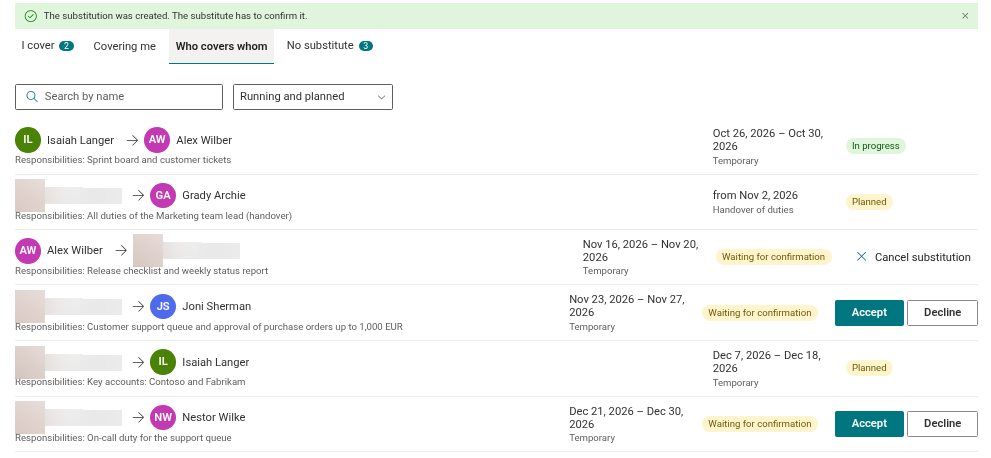
- Click Save. The panel closes and the message The substitution was created. The substitute has to confirm it. appears above the list.
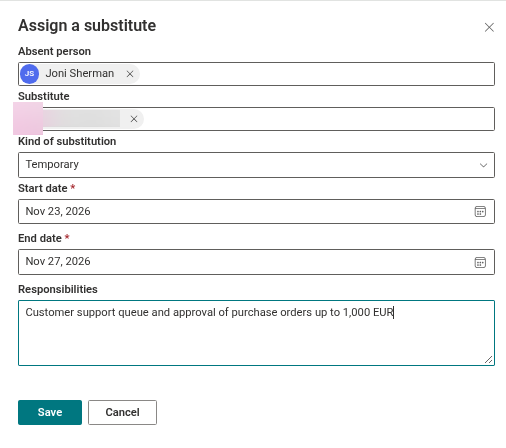
The fields of the panel
| Field | Required | Notes |
|---|---|---|
| Absent person | Yes | One person. Prefilled with your own name; change it to your direct report. The product does not restrict the choice to your direct reports. |
| Substitute | Yes | One person. It cannot be the absent person. |
| Kind of substitution | Yes | Temporary (default) or Handover of duties. For a handover the panel shows the hint A handover of duties has no end date unless you set one. |
| Start date | Yes | First day of the cover. |
| End date | Yes for Temporary | Cannot be earlier than the start date. Optional for a handover; the label then reads End date (optional). |
| Responsibilities | No | Free multi-line text. |
If something is missing, the panel shows an error above the fields instead of saving: Select the person who is absent., Select the substitute., The substitute cannot be the absent person., Select the start and end dates. or The end date cannot be earlier than the start date.
What happens after you save
The new substitution always starts with the status Waiting for confirmation: it does not take effect until the substitute confirms it. Everyone involved finds it in a different place:
| Who | Where | What they see |
|---|---|---|
| The substitute | I cover tab, with a number badge | The Accept and Decline buttons (KB10347. How to Accept or Decline a Substitution) |
| The absent employee | Covering me tab | The substitute and the status pill; the Cancel substitution action |
| You and everyone else | Who covers whom tab (filter Running and planned) | The pair Substitute → Absent person, the period, the kind and the status (KB10348. How to Find Out Who Covers Whom) |
📝 Note
The product sends no e-mail or Teams message. Tell the substitute that a substitution is waiting: the person sees it with a number badge on the I cover tab the next time they open the page.
Assign from the list of absences without a substitute
If the employee already has an approved absence, there is a quicker way. Open the No substitute tab and click Assign in the row of that absence. The same panel opens with the person and the dates already filled in, and the new substitution is tied to that absence (KB10338. How to Find Absences Without a Substitute). A substitution created with the toolbar button is not tied to any request and is not recognised as cover for a specific absence there.
❗ Important
Only the absent person can cancel a substitution in the web part, using Cancel substitution. As the manager, you cannot cancel a substitution you created for your direct report. If you assigned the wrong substitute, ask the employee to cancel it and create a new one.