Absence & Coverage
 Overview
An approved absence without a substitute is a risk that is easy to overlook: the leave was granted weeks ago, nobody was named, and on the first day of the absence a customer or an approval request waits for a person who is not there. The No substitute tab of the Substitutions web part collects these cases for you, so that you can close them before the absence starts.
Who sees the tab
The No substitute tab appears next to I cover, Covering me and Who covers whom only when both conditions are met:
- The page editor left the property pane option Show absences without a substitute (for managers) switched on. It is on by default.
- You have direct reports in Microsoft Entra ID. If you have none, the tab is simply not shown.
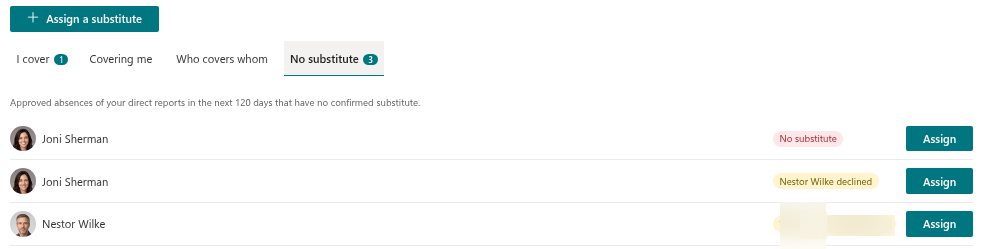
A number badge on the tab shows how many absences currently have no confirmed substitute. Under the tab strip, the web part shows a hint: Approved absences of your direct reports in the next 120 days that have no confirmed substitute.
What the tab lists
An absence appears on the tab only if all of the following are true:
| Condition | Details |
|---|---|
| Whose absence | The employee is one of your direct reports in Microsoft Entra ID. Absences of other team members are not listed. |
| Status | The absence is Approved. A request that is still Pending approval joins the list as soon as it is approved. |
| Time | The absence has not ended and overlaps the window from today to 120 days ahead. Absences that are already in progress are included. |
| Absence type | The category of the type is not Remote. Remote work leaves nothing to cover, so it never creates a gap. |
| Cover | No substitution tied to this absence has the status Accepted. |
The list is sorted by start date, so the earliest absence is at the top.
❗ Important
The tab only recognises a substitution that is tied to the absence itself, that is, one named in the request or created with Assign from this tab. A substitution created with the Assign a substitute toolbar button for the same dates is independent of the request, so the absence stays on the list. To close a gap, always use Assign in the row.
How to read a row
Each row shows the employee with a photo, the absence type and the period, a status pill and the Assign button. The pill tells you what has happened so far:
| Pill | Meaning | What to do |
|---|---|---|
| No substitute | Nobody has been named, or the earlier substitution was cancelled. | Click Assign and choose a substitute. |
| Waiting for Peter Hansen | A substitution exists and the person has not answered yet. | Wait, or ask the person to accept it (KB10347. How to Accept or Decline a Substitution). |
| Peter Hansen declined | The named person declined the substitution. | Click Assign and choose another substitute. |
How to close a gap
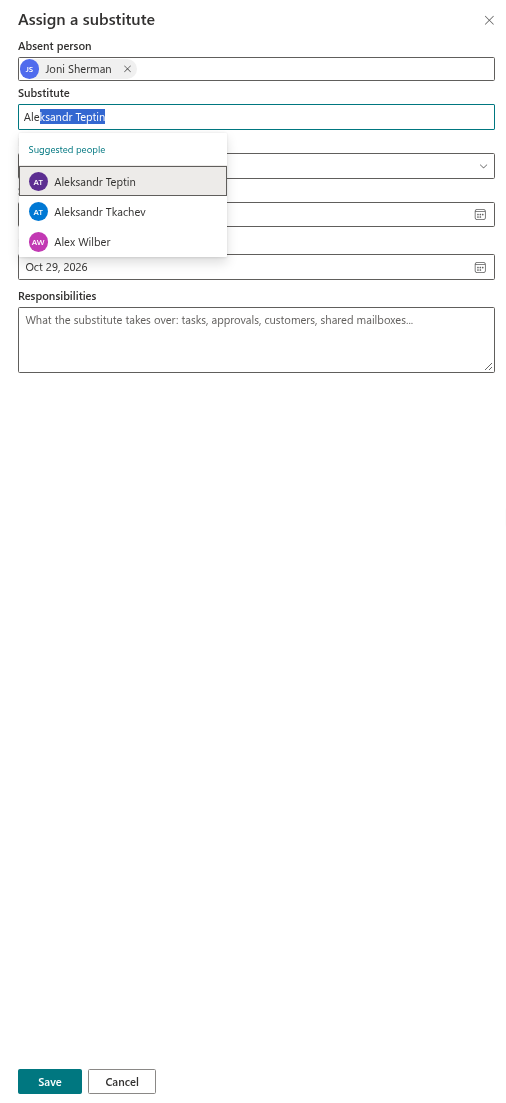
- Click Assign in the row of the absence. The Assign a substitute panel opens with Absent person, Start date and End date already filled in from the absence.
- Select the Substitute and, if needed, describe the Responsibilities. You can change the dates, for example when one person covers only the first week.
- Click Save. The substitution is created with the status Waiting for confirmation.
The row does not disappear yet: its pill changes to Waiting for Peter Hansen until the substitute accepts. The details of the panel are described in KB10337. How to Assign a Substitute to Your Direct Report.
When a row disappears
- The substitute clicks Accept (KB10347. How to Accept or Decline a Substitution). The absence now has an accepted substitution and leaves the list; the badge count decreases.
- The absence ends or the request is cancelled. A cancelled absence is no longer approved, so it drops out of the list.
If a substitution that was waiting is declined or cancelled, the row comes back with the pill Peter Hansen declined or No substitute. When every absence is covered, the tab shows the message Every approved absence of your team is covered.
💡 Tip
Open the tab regularly, for example at the start of each week. Absences are listed up to 120 days ahead, so you can arrange cover long before the leave begins. To see all substitutions in the organisation, use KB10348. How to Find Out Who Covers Whom.
📝 Note
A gap list is about cover, not about approval: it contains only absences that are already approved. Pending requests appear once they are approved. The web part does not send reminders, so the tab is the place to check.