Absence & Coverage
 Overview
The Team Absence Calendar does not show the same people to everyone. Each visitor sees the calendar from their own point of view: with the default setting, My team means your manager, your colleagues and you, so two employees from different teams see different rows on the same page. The page editor decides how this view is built with the Whose absences to show setting.
This article explains the four scope options, shows which data in Microsoft Entra ID each one uses, and helps you pick the right one. It also covers the Maximum people shown limit and the other display defaults in the property pane.
Where to find the settings
- Open the page in edit mode and select the Team Absence Calendar web part.
- Choose the Edit web part (pencil) icon to open the property pane.
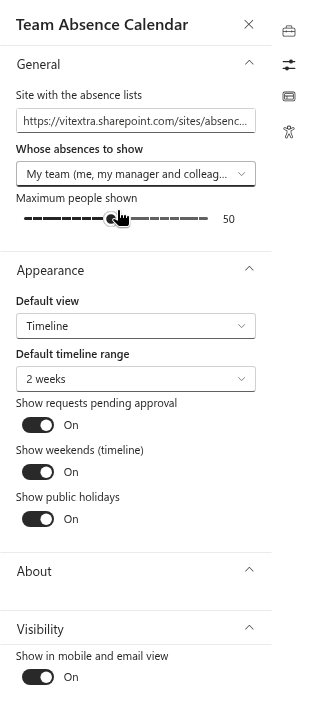
- Open the General group for the site, the scope and the maximum number of people, or the Appearance group for the view, the range and the toggles.
The four scope options
The signed-in user is always included first in the list, except in Everyone with absences.
| Option | Who gets a row | How it is resolved |
|---|---|---|
| My team (me, my manager and colleagues) | You, your manager and all direct reports of your manager | Your manager and the manager's direct reports are read from Microsoft Entra ID. If you have no manager, the row set is you and your own direct reports. |
| My direct reports | You and your direct reports | Your direct reports are read from Microsoft Entra ID. |
| My department | You and the enabled users whose department is the same as yours | The Department value of your Microsoft Entra ID profile is compared with the other users. The list is limited by Maximum people shown. If your own department is empty, only you are listed. |
| Everyone with absences | Nobody is listed in advance; the rows are the people who have visible absences in the shown period | No Microsoft Entra ID relationship is used. |
For the first three options, every listed person has a row even if nobody is absent; the rows are ordered with you first and the others alphabetically. Absences of people outside the list are not shown. With Everyone with absences the rows are sorted by name and the list is cut at the maximum.
The scope also decides who appears in the Away today block (KB10342. How to See Who Is Away Today and Who Covers Them).
❗ Important
The scopes My team, My direct reports and My department depend on the manager and Department fields of the people in Microsoft Entra ID. If these fields are empty, the calendar shows fewer people than expected, or only you. The product reads them with the Microsoft Graph permission User.Read.All, which a tenant administrator must approve in the SharePoint admin center.
Maximum people shown
The Maximum people shown slider limits the number of rows. It moves from 5 to 100 in steps of 5; the default is 50. People beyond the limit are not shown, in the Timeline, in the Month view, in Away today and in the CSV export. If a department or a team is bigger than the limit, raise the slider or narrow the scope.
Display defaults
The Appearance group sets what visitors see when they open the page. Visitors can change the view, the range and the pending-requests toggle in the toolbar at any time.
| Setting | Options | Default |
|---|---|---|
| Default view | Timeline, Month | Timeline |
| Default timeline range | Week, 2 weeks, Month | 2 weeks |
| Show requests pending approval | On or off | On |
| Show weekends (timeline) | On or off. When off, the days that are not working days are hidden from the Timeline. | On |
| Show public holidays | On or off. Shades the holidays and shows their names. | On |
The working days come from the product settings (KB10355. How to Set the Working Week), so with a Sunday to Thursday week the Timeline hides Friday and Saturday, not only the weekend of the Monday to Friday week.
Which scope to choose
| Situation | Recommended scope |
|---|---|
| A page for a team in Microsoft Teams or on a team site | My team (me, my manager and colleagues) |
| A manager who wants to see only the direct reports | My direct reports |
| A department page where everyone sees the same colleagues | My department |
| An HR or company-wide page | Everyone with absences |
📝 Note
With Everyone with absences the calendar shows only the people who are away, so the Timeline stays compact on large tenants. Private absence types are still masked as Away for everybody except the absent person and the approver (KB10345. Private Absence Types: What Colleagues See in the Calendar).