Absence & Coverage
 Overview
On a busy team the Team Absence Calendar can show a lot at once: vacations, sick leave, remote work days, business trips and requests that nobody has approved yet. When you only want to answer one question — "Who is on vacation in November?" or "Which dates are already confirmed?" — you can narrow the picture directly in the web part, without changing any settings.
This article describes the three view controls of the calendar:
- the legend, whose buttons hide and show absence types;
- the Show requests pending approval toggle in the toolbar;
- the Show weekends (timeline) option in the property pane.
It also explains what these controls do not change, so that a filtered view is never mistaken for the full picture.
📝 Note
The legend and the toolbar toggle are personal view settings. They affect only your own screen and are not saved: when you reload the page, the calendar returns to the defaults that the page editor configured.
The legend
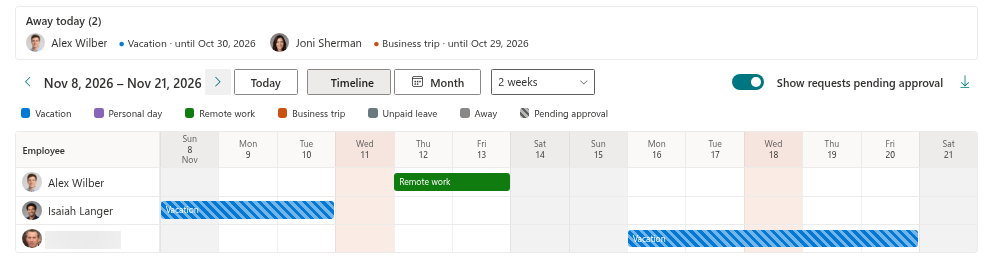
Under the toolbar the calendar shows a row of legend entries. It contains:
| Legend entry | What it is | Clickable |
|---|---|---|
| One button per absence type | A colour swatch and the name of an active absence type that is not private (for example Vacation, Remote work, Business trip) | Yes |
| Away | A grey entry, shown when at least one absence type is private | No |
| Pending approval | A hatched entry, shown while pending requests are visible | No |
The colours are the ones defined for each type in the AbsenceTypes list, so the legend doubles as the key to the bars on the timeline and the chips in the month view.

Hide and show absence types
To concentrate on one kind of absence, switch the others off:
- Open the page with the Team Absence Calendar.
- In the legend, click the button of the type you want to hide, for example Remote work. The button becomes dimmed and the absences of that type disappear from the timeline or the month grid.
- Hide further types in the same way. To keep only one type, hide all the others.
- Click a dimmed button again to bring that type back.
The filter works in both views, Timeline and Month, and it stays in place while you move between periods or switch the view.
❗ Important
Private absence types and inactive absence types have no button in the legend, so they cannot be hidden. The grey Away entry is only an explanation and is not clickable. Absences of private types therefore always remain visible — see KB10345. Private Absence Types: What Colleagues See in the Calendar.
Show or hide pending requests
A request that has been submitted but not yet decided has the status Pending approval. In the calendar such absences are drawn hatched, so they are easy to tell from approved ones. Rejected and cancelled requests are never loaded into the calendar at all.
Use the Show requests pending approval toggle on the right of the toolbar to include or exclude the hatched absences:
- On — approved and pending absences are shown, and the legend adds the hatched Pending approval entry. This is the best choice when you plan your own time off and want to see everything that might be taken.
- Off — only approved absences are shown. Choose this to see the confirmed picture, for example when you prepare a schedule or a handover.
The initial position of the toggle is set by the page editor in the property pane (group Appearance, option Show requests pending approval). Every viewer can then change it for their own session using the toolbar.
Hide weekends on the timeline
The timeline can drop non-working days to leave more room for the days that matter. This is a setting of the page, not of the viewer, so it is made by a page editor:
- Open the page in edit mode and select Edit web part on the Team Absence Calendar.
- In the Appearance group, switch Show weekends (timeline) off.
- Republish the page.
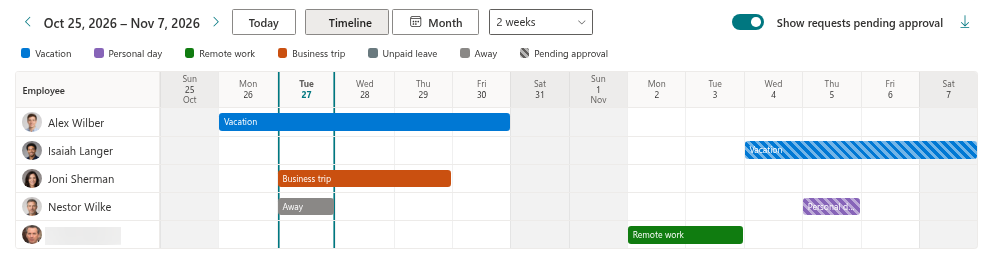
With the option off, the non-working days are removed from the timeline columns, and an absence bar covers only the visible columns. Which days count as non-working is defined by the working week of the site, not simply by Saturday and Sunday: with a Sunday–Thursday week, for example, Friday and Saturday are the days that disappear. The option is by default on, and it has no effect in the Month view.
What the filters do not affect
The view controls change what is drawn in the timeline and in the month grid. Several things stay as they are:
- The Away today block at the top of the calendar always lists everyone who is away today with an approved absence in the selected scope. It ignores the legend and the pending toggle.
- Who is shown. The people in the calendar are defined by the scope in the property pane, not by the legend.
- The CSV export follows the filters. The file contains exactly the absences that are visible after the scope, the pending toggle and the legend filter are applied. If you hide a type and then export, that type is not in the file. See KB10344. How to Export the Team Absence Calendar to CSV.
- Hidden weekends only change the display. An absence that falls on hidden days is not drawn, but it is still exported.
💡 Tip
Before you conclude that nobody is away, check the legend: a dimmed button means that a type is hidden. To restore the full picture, click each dimmed button once, or reload the page.