Absence & Coverage
 Overview
The Team Absence Calendar is meant for looking at who is away and when. Sometimes, though, you need the same information in a table: to count the days of a project team in November, to hand a list to a colleague who has no access to the page, or to build a report in Excel. For that, the calendar can export the absences that are currently on screen to a CSV file with one click.
This article explains how to run the export, exactly which absences end up in the file, what the columns contain and how to open the file in Excel without a broken layout.
Export the calendar
- Open the page with the Team Absence Calendar.
- Set up the view that you want to export:
- choose the Timeline or Month view and move to the period you need with the arrows or the Today button;
- in the timeline, select the range (Week, 2 weeks or Month);
- if necessary, switch the Show requests pending approval toggle and hide absence types in the legend (see KB10343. How to Filter the Calendar by Absence Type and Show or Hide Pending Requests).
- Click the download icon Export to CSV on the right of the toolbar.
- The browser saves the file
absences-<from>_<to>.csvto its usual downloads folder.
What is exported
The file contains what you see, not everything the calendar knows. The rule is: all absences of the people in the chosen scope that overlap the shown period, after the pending toggle and the legend filter have been applied.
| Setting in the calendar | Effect on the file |
|---|---|
| Timeline | The period shown on the screen: the week, the two weeks or the month, as selected in the range list |
| Month | The whole grid of six weeks, including the days of the neighbouring months that are dimmed on the screen |
| Whose absences to show | Only the people of the chosen scope (KB10340. How to Choose Whose Absences the Team Absence Calendar Shows) |
| Show requests pending approval | When off, pending requests are not in the file |
| Legend buttons | Types that you have hidden are not in the file |
| Show weekends (timeline) | No effect: an absence that falls on hidden days is still exported |
Only approved and pending absences are ever loaded into the calendar, so rejected and cancelled requests never appear in the file. An absence that starts before the period or ends after it is exported with its full dates, not trimmed to the period. The rows are ordered by start date.
📝 Note
The export is available to every viewer of the page and contains only what that viewer can see in the calendar. A file exported from the Everyone with absences scope can contain more people than the timeline shows if their number exceeds the Maximum people shown limit, because the limit applies to the rows of the timeline, not to the file.
The file
| Property | Value |
|---|---|
| File name | absences-<from>_<to>.csv, where the dates are the first and the last day of the exported period in the form 2026-11-02, for example absences-2026-11-02_2026-11-15.csv |
| Encoding | UTF-8 with a byte order mark (BOM), so that Excel reads names with accents, Cyrillic or Japanese characters correctly |
| Separator | Semicolon (;) |
| Line ending | Carriage return and line feed |
| Quoting | Values that contain a semicolon, a quotation mark or a line break are enclosed in double quotation marks |
| Language | The column headers use the language of the page |
The columns
| Column | Content |
|---|---|
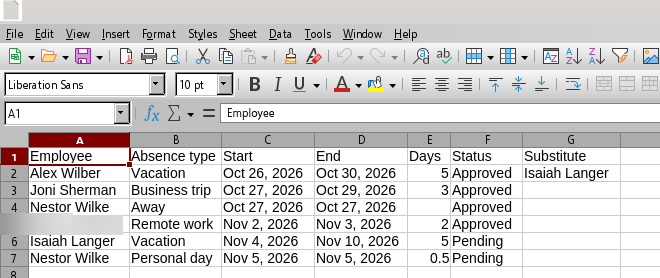
| Employee | Display name of the person |
| Absence type | Name of the absence type, or Away for a private type (see below) |
| Start | First day of the absence, as a short date in the language of the page, for example 2 Nov 2026 |
| End | Last day of the absence, in the same form |
| Days | Number of working days of the request, with a decimal part for half days (for example 7.5); empty for a private type |
| Status | Pending or Approved. These two values are always written in English, whatever the page language |
| Substitute | Display name of the substitute named in the request; empty when none was named |
Open the file in Excel
Double-clicking the file normally opens it in Excel with the columns already split. The semicolon separator is the one that most regional settings of Windows expect.
If all the data lands in column A, your regional settings use another list separator. Import the file instead:
- In Excel, open the Data tab and select From Text/CSV.
- Choose the downloaded file.
- Check that the file origin is UTF-8 and set the delimiter to Semicolon.
- Select Load.
The Days column always uses a decimal point (7.5). If your Excel is set to a decimal comma, half-day values may not be recognised as numbers; in that case replace the point with a comma in the column, or choose a file locale that uses the decimal point in the import dialog.
💡 Tip
To total the working days of a team for a month, switch the calendar to the month range, hide the types that you do not need in the legend, export, and sum the Days column per employee in a pivot table.
Private absence types in the file
The export follows the same privacy rule as the calendar. For an absence of a private type (by default Sick leave and Parental leave) that belongs to another person:
- the Absence type column contains Away instead of the type name;
- the Days column is empty;
- the Start, End, Status and Substitute columns are written as they are.
The absent person and the approver of that request see the real type and the number of days in their own export. The comment of a request is never exported. Details of the rule are in KB10345. Private Absence Types: What Colleagues See in the Calendar.
❗ Important
A CSV file leaves SharePoint and is no longer protected by the permissions of the site. It contains names and absence dates of employees, so store and share it in line with your company's rules for personal data.