Absence & Coverage
 Overview
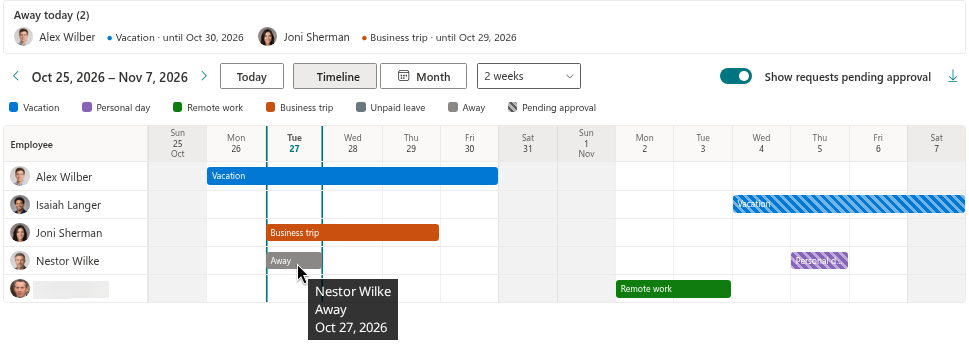
A team calendar is useful because everyone can see who is away. But not every reason for an absence is meant for everybody: a colleague does not need to know that someone is on sick leave or on parental leave. For this reason every absence type has a private setting. For an absence of a private type, the Team Absence Calendar shows other people only that the person is Away — without the type, its colour and the number of days.
This article explains who sees what, in which places the rule is applied, which types are private out of the box, how to change this and — just as important — what the rule does not protect.
What "private" means
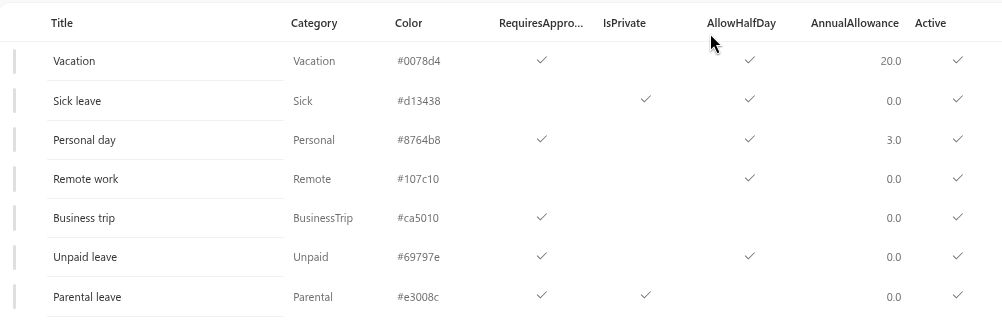
Private is a flag of the absence type, stored in the IsPrivate column of the AbsenceTypes list. The flag is read each time the calendar is drawn, so it applies to all absences of the type, including those entered before you changed it.
The rule is simple. For an absence of a private type, the calendar replaces
- the name of the type with the grey label Away,
- the colour of the type with grey,
- and hides the number of days in tooltips and in the CSV file.
Everything else stays visible: whose absence it is, the dates, whether the request is still pending (hatched) and the substitute.
Who sees what
| Viewer | Type name and colour | Number of days |
|---|---|---|
| The absent person | Real type, own colour | Shown |
| The approver of that request | Real type, own colour | Shown |
| Anyone else | Away, grey | Hidden |
Two details are worth knowing:
- The approver is the person stored on the request when it was submitted — normally the manager. If a type needs no approval, or if the requester is their own approver, nobody is stored as approver. By default Sick leave does not need approval, so only the employee sees the real type; the manager sees Away too.
- The rule is evaluated for the signed-in user at the moment the calendar is drawn. A person who looks at their own private absence therefore sees it in full colour, while a colleague looking at the same bar sees it grey.
Where the rule is applied
| Place | What a colleague sees |
|---|---|
| Timeline | A grey bar labelled Away. A half-day mark ("½") is still shown on the bar |
| Month view | A grey chip "Name · Away" |
| Away today block | The person with Away and the end date; "Covered by" is shown as usual |
| Tooltip | The person, Away, the period; no number of days. A pending request and the substitute are still mentioned |
| Legend | Private types have no buttons of their own; one grey Away entry represents all of them, and it cannot be switched off |
| CSV export | Away in the type column and an empty Days cell (KB10344. How to Export the Team Absence Calendar to CSV) |
| Request comment | Never shown in the calendar, whatever the type |
The rule belongs to the Team Absence Calendar. In My Absences every employee sees their own requests with their real types, and an approver sees the type of the requests in the Approvals tab. In Substitutions, a manager sees the type of the approved absences of direct reports in the No substitute tab.
Private types by default
The seven types that are created together with the site have these settings:
| Absence type | Private | Requires approval |
|---|---|---|
| Vacation | No | Yes |
| Sick leave | Yes | No |
| Personal day | No | Yes |
| Remote work | No | No |
| Business trip | No | Yes |
| Unpaid leave | No | Yes |
| Parental leave | Yes | Yes |
A type you add yourself is not private unless you set it so.
Change the setting
- On the site that holds the absence lists, open the AbsenceTypes list.
- Open the item of the type and change the IsPrivate value (Yes makes the type private, No makes it visible).
- Save the item. The next time the calendar loads, the change applies to all absences of that type.
Details on the other columns of the list are in KB10352. How to Add and Configure Absence Types.
What the rule does not protect
❗ Important
The privacy rule is applied when the web part displays data. It is not access control. Anyone who can open the Absences list itself on the site can read the real type, dates and comments of every request there. Item-level security for the lists is not part of this version.
Keep this in mind when you decide how to use it:
- Treat private types as a way to keep the calendar discreet, not as a guarantee of confidentiality.
- If strict confidentiality is required, limit the number of people who have access to the site and its lists to those who really need it.
- Do not write sensitive details, such as a diagnosis, in the request comment. The comment is not shown in the calendar, but it is stored with the request in the list.
- A deactivated type is not a private type: absences of an inactive type remain in the calendar under their own name unless the type is also marked private.
📝 Note
The request keeps a copy of the type name made at the time of the request. If you rename a type later, old requests continue to show the old name; the private flag, however, is always read from the type, so it applies to old requests at once.