Absence & Coverage
 Overview
When someone is away, their work does not stop. A substitution is the agreement that somebody else takes it over: it records who is absent, who covers, for which period and — if you wish — which responsibilities pass on. The Substitutions web part manages these agreements, and the other web parts of the product build on them: the Team Absence Calendar shows who covers whom today, and managers see which absences still have nobody to cover them.
This article is the reference for the concept. It describes the two kinds of substitution, the statuses a substitution goes through, who is allowed to do what, and where you meet substitutions in the product. The step-by-step articles are linked at the end.
What a substitution contains
Every substitution has the same fields:
| Field | Meaning |
|---|---|
| Absent person | The person who is covered |
| Substitute | The person who takes over |
| Kind of substitution | Temporary or Handover of duties |
| Start date | The first day of the cover (required) |
| End date | The last day of the cover. Required for a temporary substitution, optional for a handover |
| Responsibilities | Free text describing what the substitute takes over: tasks, approvals, customers, shared mailboxes… (optional) |
| Status | Waiting for confirmation, Accepted, Declined or Cancelled (see below) |
The absent person and the substitute must be two different people; the product refuses a substitution in which they are the same person.
The two kinds
| Temporary | Handover of duties | |
|---|---|---|
| Typical situation | Vacation, sick leave, a business trip | An employee changes position or leaves the company |
| Period | Start and end date | Start date; the end date is optional |
| Without an end date | Not possible | The substitution stays active until it is cancelled |
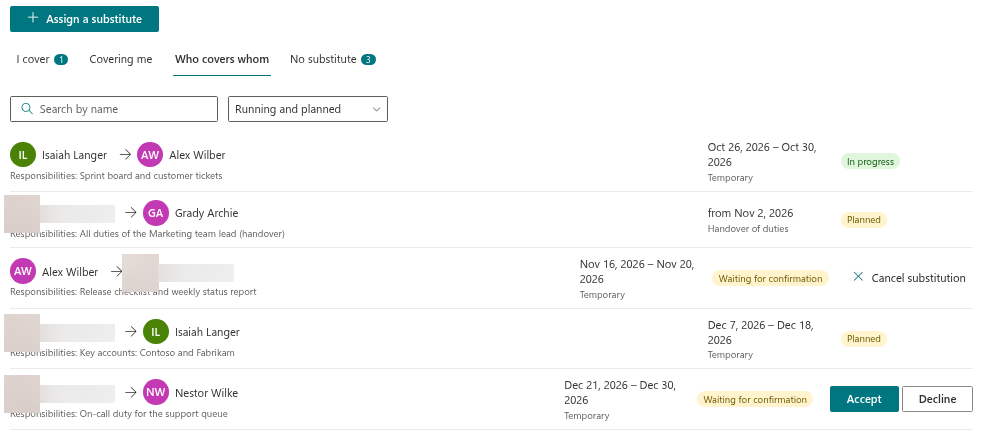
| Shown as | The period, for example "2 Nov 2026 – 13 Nov 2026" | "from 2 Nov 2026" when there is no end date |
When you choose Handover of duties in the panel, the product reminds you: "A handover of duties has no end date unless you set one." Set an end date only if the handover is itself limited in time.
Statuses and phases
A new substitution always starts as Waiting for confirmation: nothing is arranged until the substitute agrees. After that it goes one of three ways.
| Status | What it means | Who sets it |
|---|---|---|
| Waiting for confirmation | Created, the substitute has not answered yet | Set automatically when the substitution is created |
| Accepted | The substitute confirmed the cover | The substitute |
| Declined | The substitute refused | The substitute |
| Cancelled | The arrangement was withdrawn | The absent person, or the product when the request it belongs to is rejected or cancelled |
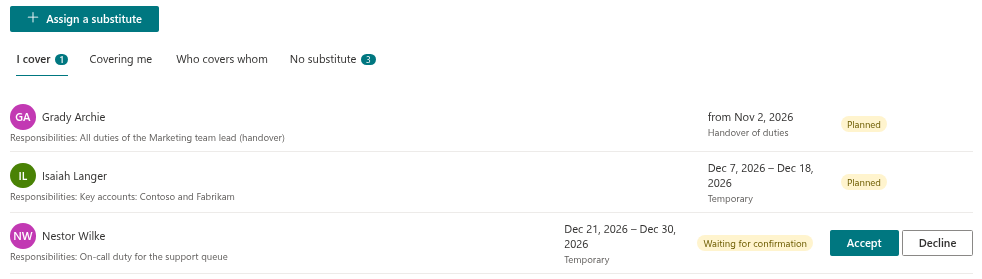
For an Accepted substitution the status pill shows the phase that depends on today's date:
| Phase | When |
|---|---|
| Planned | The start date is still ahead |
| In progress | The start date has come and the end date has not passed (or there is no end date) |
| Ended | The end date has passed |
The other statuses are shown by their own text. Cancelled substitutions are not shown anywhere in the web part. A declined substitution stays visible on the I cover and Covering me tabs, with the Declined pill, until its period is over. Ended substitutions leave those two tabs and can be found for another 30 days on the Who covers whom tab with the Ended filter.
Who does what
| Action | Who | Where |
|---|---|---|
| Create a substitution | Any employee, for any absent person. The default absent person is the signed-in user | Assign a substitute button; Assign button on a row of the No substitute tab |
| Name a substitute in a leave request | The requester | The new request panel of My Absences |
| Accept or decline | Only the substitute, and only while the substitution is Waiting for confirmation | Accept and Decline buttons on the I cover tab |
| Cancel | Only the absent person, while the substitution is Waiting for confirmation or Accepted and has not ended | Cancel substitution button |
Two consequences follow from this. A manager who is not the absent person cannot cancel somebody else's substitution in the web part. And once the substitute has accepted or declined, the answer cannot be changed with a button: if the plans change, the absent person cancels the substitution and a new one is created.
❗ Important
The product does not send e-mails or Teams messages. A substitute learns about a new substitution only when they open the Substitutions web part, where the number of substitutions waiting for their answer is shown in the badge on the I cover tab. Tell the person yourself that you have named them.
Substitutions and absence requests
A substitution can be tied to an absence request, or it can stand alone.
- Tied. If an employee names a substitute in a leave request, a Temporary substitution for the same dates is created — at once for a request that needs no approval, otherwise when the approver approves. The same happens when a manager assigns a substitute from a row of the No substitute tab. If the request is rejected or cancelled, the substitutions tied to it are cancelled automatically.
- Standalone. A substitution created with the Assign a substitute button without a gap row has no request behind it. It lives on its own and is not touched when a request changes.
A substitution created together with a request has no text in Responsibilities; the absent person can describe the duties by creating the substitution separately. How both objects interact is shown step by step in KB10350. How Absence Requests and Substitutions Work Together.
Where substitutions show up
| Place | What it shows |
|---|---|
| Substitutions web part, I cover | Substitutions in which you are the substitute |
| Substitutions web part, Covering me | Substitutions in which you are the absent person |
| Substitutions web part, Who covers whom | Everyone's substitutions, searchable, with the filter Running and planned, In progress, Planned or Ended |
| Substitutions web part, No substitute | For managers: approved absences of direct reports that have no accepted substitute |
| Team Absence Calendar, Away today | "Covered by" next to each person who is away — including substitutes who have not confirmed yet |
Note the difference in the last two rows: the No substitute tab counts only Accepted substitutions as cover, while Away today also names a substitute who is still Waiting for confirmation.
📝 Note
The Substitutions list is also the source for "who covers X" in the People Connector and for the handover of duties when an employee leaves. A handover without an end date stays active.