Absence & Coverage
 Overview
When a colleague is away, the question is always the same: who do I turn to? The Substitutions web part answers it in two places. The Covering me tab shows who covers you, and the Who covers whom tab shows the substitutions of the whole organization, with a search box and a status filter.
This article explains both tabs, how to search and filter, which substitutions are shown and which are hidden, and how to read a row.
Three views of the same data
The Substitutions web part has up to four tabs. Three of them answer the question "who covers whom?" from different points of view.
| Tab | Whose substitutions it shows | Which rows | Typical question |
|---|---|---|---|
| I cover | Yours, as the substitute | Substitutions where you are the substitute and that have not ended | "Whom do I cover and what must I do?" |
| Covering me | Yours, as the absent person | Substitutions where you are the absent person and that have not ended | "Who covers me while I am away?" |
| Who covers whom | Everyone's | All substitutions that are not cancelled or declined, filtered by the status filter | "Who covers Anna this week?" |
The fourth tab, No substitute, is for managers and is described in KB10338. How to Find Absences Without a Substitute. Accepting and declining on the I cover tab is covered in KB10347. How to Accept or Decline a Substitution.
See who covers you
- Open the page with the Substitutions web part.
- Select the Covering me tab.
Each row shows your substitute with a photo and the caption "Covers you", the Responsibilities you have handed over, the period, the kind (Temporary or Handover of duties) and the status. If nobody covers you, the tab shows "Nobody covers you at the moment."
If the status is Waiting for confirmation, the substitute has not answered yet. A declined substitution stays in the list with the status Declined until its period ends, so that you can see that you need a new substitute. To assign one, see KB10337. How to Assign a Substitute to Your Direct Report.
Look up any substitution in the organization
- Select the Who covers whom tab.
- Type a name in the box Search by name. The search matches part of the name of the absent person or of the substitute, and it does not distinguish upper and lower case.
- Open the drop-down list next to the search box and choose the status you need.
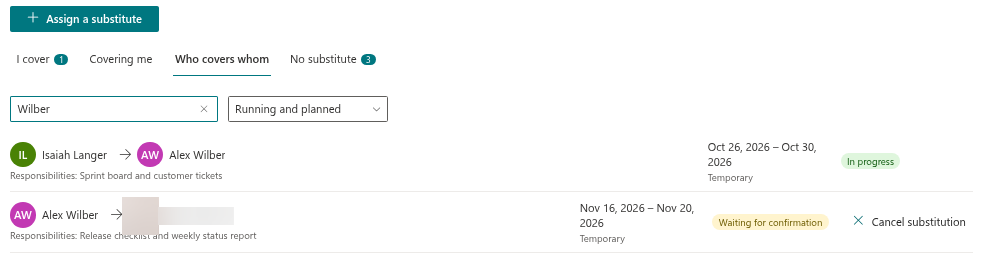
The status filter has four values:
| Filter | What it shows |
|---|---|
| Running and planned (default) | Everything that has not ended: substitutions that are in progress now and those that start later |
| In progress | Substitutions whose period includes today, or that started and have no end date |
| Planned | Substitutions that start in the future |
| Ended | Substitutions that ended during the last 30 days |
The filter works by dates, not by confirmation. A substitution that is still Waiting for confirmation is listed under the phase its dates put it in. Use the pill to see whether the substitute has answered.
When nothing matches, the list shows "No substitutions found." Change the filter or clear the search box.
📝 Note
The Who covers whom tab shows the substitutions of everyone who works with the site, not only those of your team. It is a good place to find the right person when a colleague from another department is away.
How to read a row
Rows on the Who covers whom tab follow the same pattern:
- Left: the substitute (photo and name), an arrow, and the absent person. The arrow reads "covers": Peter Hansen → Anna Berzina means that Peter covers Anna. Below the names you see Responsibilities, when the absent person described what the substitute takes over.
- Middle: the period and the kind. A substitution without an end date shows "from" and the start date.
- Right: the status pill and, when you are the substitute or the absent person, the action buttons.
The pill means the following.
| Pill | Meaning |
|---|---|
| Waiting for confirmation | The substitute has not answered yet |
| Planned | The substitute accepted; the period has not started |
| In progress | The substitute accepted; the period is running now |
| Ended | The substitute accepted; the period is over |
Rows are sorted by start date, the earliest first.

What the lists do not show
- Cancelled and declined substitutions. They never appear on the Who covers whom tab. A cancelled substitution is shown nowhere. A declined one remains visible only to the substitute on the I cover tab and to the absent person on the Covering me tab, until the period ends.
- Substitutions that ended more than 30 days ago. The web part loads the last 30 days only; older records are not shown even with the filter Ended. The product keeps no further history in the web part.
- Substitutions beyond the first 2,000 records. The web part reads at most 2,000 substitutions, ordered by start date; on a very large site the substitutions with the latest start dates may be missing.
Open-ended handovers
A Handover of duties may have no end date, for example when an employee leaves the company. Such a substitution is treated as running from its start date and stays in the Running and planned and In progress lists as long as it is not cancelled. It is never moved to Ended by itself. See KB10349. How to Hand Over Duties When an Employee Leaves (No End Date).
Choose the tab that opens first
A page editor can open the property pane of the web part and set Default tab to I cover, Covering me or Who covers whom. A directory page for the whole company is a good place for Who covers whom as the default tab; a personal page works better with I cover.
💡 Tip
You can also see who covers a colleague who is away today directly in the Team Absence Calendar: the Away today block shows "Covered by" next to each absent person. See KB10342. How to See Who Is Away Today and Who Covers Them.